How To Install Google Chrome on Fedora 43

Google Chrome stands as one of the most widely used web browsers globally, offering speed, security, and seamless integration with Google services. While Fedora 43 ships with Firefox as its default browser, many users prefer Chrome for its extensive extension ecosystem, cross-platform synchronization, and familiar interface. Installing Chrome on Fedora 43 is straightforward, though it requires enabling third-party repositories since Google Chrome isn’t included in Fedora’s official repositories due to its proprietary nature. This comprehensive guide covers three proven installation methods—using the graphical Software Center, the DNF package manager via terminal, and direct RPM package installation—along with troubleshooting tips and post-installation configuration to ensure a smooth experience on your Fedora system.
Prerequisites and System Requirements
Before beginning the Chrome installation process on Fedora 43, ensure your system meets the necessary requirements. Your Fedora 43 workstation should be fully installed and operational with the latest system updates applied. Administrative privileges are essential, meaning you’ll need sudo access or root user capabilities to install software packages. An active internet connection is required for downloading Chrome packages and dependencies, though the direct RPM method offers some offline flexibility. Google Chrome requires approximately 300MB of free disk space for installation, plus additional space for caching and user data. The browser supports only 64-bit (x86_64) architecture, which is standard for modern Fedora installations. Basic familiarity with the terminal application proves helpful for command-line methods, though the graphical approach requires no technical expertise.
Understanding Chrome Versions Available
Google distributes Chrome in three distinct release channels, each serving different user needs. Chrome Stable represents the most tested and reliable version, receiving updates every few weeks after thorough testing. This channel suits everyday users who prioritize stability over cutting-edge features. Chrome Beta provides a preview of upcoming features scheduled for the next stable release, typically 4-6 weeks ahead of stable updates. Beta versions undergo substantial testing but may occasionally exhibit minor bugs or compatibility issues. Chrome Unstable, also called Chrome Dev, contains the latest experimental features and changes, updated almost daily for developers and early adopters willing to accept potential instability. For most Fedora 43 users, Chrome Stable offers the optimal balance between new features and reliability. Power users interested in testing upcoming functionality might consider Beta, while developers working on web applications may benefit from the Unstable channel’s bleeding-edge capabilities.
Method 1: Installing Google Chrome Using GUI (Software Center)
Fedora’s graphical Software application provides the most user-friendly approach to installing Google Chrome, requiring no terminal commands or technical knowledge.
Step 1: Enabling Third-Party Repositories
Launch the Software application from your activities overview by pressing the Super key and typing “Software.” Once opened, click the hamburger menu icon (three horizontal lines) in the top-right corner and select “Software Repositories” from the dropdown menu. Scroll through the repository list until you locate the “Third Party Repositories” section near the bottom. Here you’ll find the “google-chrome” repository listed among other proprietary software sources. Toggle the switch next to google-chrome to the enabled position, which allows Fedora’s package manager to access Google’s official Chrome repository. Third-party repositories are necessary because Fedora’s commitment to free and open-source software means proprietary applications like Chrome aren’t included in default repositories. The system may prompt for your administrator password to authorize this repository change.
Step 2: Installing Chrome Through Software Center
Return to the Software application’s main screen by clicking the back arrow or selecting “Explore” from the navigation. Click the search icon or use the search bar at the top to enter “Google Chrome.” The search results will display Google Chrome Stable as an available application, complete with Google’s logo and a brief description. Click on the Chrome entry to view its detailed information page, which includes the version number, download size, and user reviews if available. Press the blue “Install” button to begin the installation process. The Software Center will automatically handle downloading Chrome from Google’s repository, verifying the package signature, and installing all required dependencies. A progress indicator shows the download and installation status, typically completing within a few minutes depending on your internet connection speed.
Step 3: Verifying the Installation
Once installation completes, the Install button transforms into a “Remove” button, confirming successful installation. Click “Launch” to open Google Chrome immediately, or close the Software application and access Chrome later from your application menu. Press the Super key and type “Chrome” to locate the newly installed browser in your application launcher. The distinctive Chrome icon should appear among your installed applications, ready for first-time configuration.
Method 2: Installing Google Chrome Using Terminal (DNF Method)
The DNF package manager method offers more control and visibility into the installation process, making it ideal for users comfortable with command-line operations.
Step 1: Installing Third-Party Repositories
Open your terminal application by pressing Ctrl+Alt+T or searching for “Terminal” in the activities overview. The fedora-workstation-repositories package contains configuration files for various third-party software sources approved for Fedora Workstation, including Google Chrome. Execute the following command to install this essential package:
sudo dnf install fedora-workstation-repositoriesEnter your user password when prompted to authorize the installation with sudo privileges. DNF will resolve dependencies, download the package, and install repository configuration files into the /etc/yum.repos.d/ directory. This package streamlines access to popular proprietary applications while maintaining Fedora’s security standards through verified repository sources.
Step 2: Enabling Google Chrome Repository
After installing the repository package, the Google Chrome repository exists but remains disabled by default. Fedora 41 and newer versions, including Fedora 43, use an updated syntax for the DNF configuration manager. Enable the Chrome repository with this command:
sudo dnf config-manager setopt google-chrome.enabled=1This command modifies the repository configuration file, changing the enabled parameter from 0 (disabled) to 1 (enabled). For users running Fedora 40 or older versions, the legacy command syntax applies:
sudo dnf config-manager --set-enabled google-chromeBoth commands accomplish the same goal—activating Google’s official Chrome repository so DNF can access and install Chrome packages. The repository configuration includes Google’s GPG signing key URL for package verification, ensuring downloaded packages haven’t been tampered with.
Step 3: Installing Google Chrome Stable
With the repository enabled, install Chrome Stable using DNF’s install command:
sudo dnf install google-chrome-stableDNF contacts the Google Chrome repository, retrieves package metadata, and displays information about Chrome and its dependencies. The system lists all packages that will be installed and the total download size, typically around 90-100MB for the Chrome package itself. Type ‘y’ and press Enter to confirm the installation. During the process, DNF may prompt you to accept Google’s GPG signing key for package verification. Review the key fingerprint displayed and type ‘y’ to import the key, which enables automatic signature verification for future Chrome updates. Common dependencies installed alongside Chrome include various font libraries, audio codecs, and system libraries required for optimal browser functionality. The installation process typically completes within 2-5 minutes, depending on download speeds and system performance.
Step 4: Alternative Chrome Versions Installation
For users interested in Beta or Unstable Chrome releases, substitute the package name in the installation command. Install Chrome Beta with:
sudo dnf install google-chrome-betaOr install Chrome Unstable (Dev) with:
sudo dnf install google-chrome-unstableThese versions install alongside Chrome Stable without conflicts, allowing multiple Chrome channels on the same system. Each version maintains separate user profiles and configurations, enabling testing of new features without affecting your stable browsing experience.
Method 3: Installing Google Chrome Using RPM Package
Direct RPM package installation provides maximum flexibility, working even without repository configuration and enabling offline installation after initial download.
Step 1: Downloading the Chrome RPM Package
Ensure wget is installed on your Fedora 43 system for command-line downloads. Install wget if necessary:
sudo dnf install wget -yThe -y flag automatically confirms the installation without prompting. Navigate to your preferred download directory, typically Downloads or a temporary location:
cd ~/DownloadsDownload the latest Chrome Stable RPM package directly from Google’s official server:
wget https://dl.google.com/linux/direct/google-chrome-stable_current_x86_64.rpmThis URL always points to the current stable version for 64-bit Linux systems. Wget displays download progress, including transfer speed and estimated completion time. Alternatively, open Firefox and navigate to the Google Chrome download page, which automatically detects your Fedora system and offers the appropriate RPM package. Click the download button and save the file to your Downloads folder. The RPM (Red Hat Package Manager) format is the standard package format for Red Hat-based distributions like Fedora, containing the application files, metadata, and installation scripts.
Step 2: Installing the Downloaded RPM
Navigate to the directory containing your downloaded RPM file if not already there. Install the package using DNF’s localinstall functionality:
sudo dnf localinstall google-chrome-stable_current_x86_64.rpm -yThe localinstall option instructs DNF to install a package from a local file rather than a repository while still resolving dependencies from configured repositories. DNF automatically downloads and installs any missing dependencies required for Chrome to function properly. The -y flag bypasses confirmation prompts, streamlining the installation. For systems using older package managers, the equivalent yum command works identically:
sudo yum localinstall google-chrome-stable_current_x86_64.rpm -yThis installation method automatically configures the Google Chrome repository, enabling future updates through the standard system update process. The primary advantage of RPM installation is the ability to transfer the downloaded file to offline systems or install across multiple machines without repeated downloads.
Step 3: Handling Dependencies
DNF’s automatic dependency resolution typically handles all required libraries seamlessly. Common dependencies include liberation fonts for proper text rendering, various NSS and NSPR libraries for network security, and GConf packages for configuration management. Should dependency conflicts arise—though rare on properly updated Fedora systems—DNF displays detailed error messages indicating which packages conflict or are missing. Resolve conflicts by updating your system first:
sudo dnf upgradeThen retry the Chrome installation. For persistent dependency issues, consult the error messages for specific package names and install them individually before attempting Chrome installation again.
Launching Google Chrome for the First Time
After successful installation, access Chrome through multiple methods. Press the Super key to open the activities overview, type “Chrome” in the search field, and click the Google Chrome icon when it appears. Alternatively, navigate through the application menu by selecting Activities > Show Applications > Google Chrome. Power users preferring terminal launching can execute:
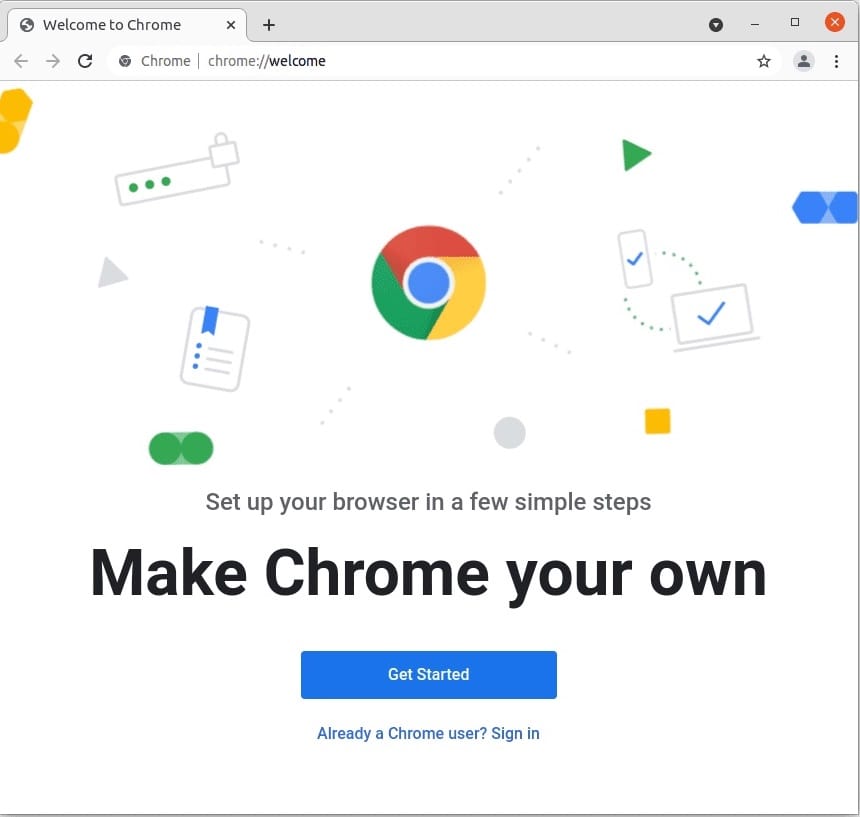
google-chrome &The ampersand (&) symbol launches Chrome in the background, returning terminal control immediately. Chrome’s first-run wizard appears upon initial launch, presenting several configuration options. The wizard asks whether to set Chrome as your default web browser—selecting yes makes Chrome handle all web links and HTML files automatically. Privacy settings allow opting in or out of usage statistics and crash report submissions to Google, helping improve the browser but sharing anonymous usage data. Sign in with your Google account to enable cross-device synchronization of bookmarks, passwords, browsing history, and extensions. This step is entirely optional; Chrome functions fully without Google account integration. The import wizard detects other browsers installed on your system, particularly Firefox, offering to transfer bookmarks, saved passwords, browsing history, and preferences. This feature simplifies transitioning from Firefox to Chrome without losing personalized browsing data.
Verifying Successful Installation
Confirm proper Chrome installation through several verification methods. Check the installed version by opening a terminal and executing:
google-chrome --versionThe output displays the exact Chrome version number, confirming the executable exists in your system path and functions correctly. Verify Chrome appears in your application launcher by searching for “Chrome” in the activities overview—the icon should be immediately visible. Test basic browser functionality by visiting several websites, checking that pages load correctly, JavaScript functions properly, and multimedia content plays without issues. Examine the repository configuration file to ensure automatic updates will function:
cat /etc/yum.repos.d/google-chrome.repoThis command displays the repository configuration, showing the repository URL, GPG key location, and enabled status. Proper configuration ensures Chrome receives security updates and feature improvements automatically through Fedora’s system update mechanism.
Understanding the Chrome Repository Configuration
The Google Chrome repository configuration file resides at /etc/yum.repos.d/google-chrome.repo after installation. This file contains critical parameters governing how DNF interacts with Google’s Chrome repository. View the configuration contents:
cat /etc/yum.repos.d/google-chrome.repoThe file typically includes three repository entries—one each for Stable, Beta, and Unstable channels. Key parameters include the baseurl pointing to Google’s server infrastructure, gpgcheck set to 1 for mandatory signature verification, and the gpgkey URL for downloading Google’s public signing key. The enabled parameter (0 or 1) determines which channels DNF checks during update operations. Automatic updates function through this repository integration—when running system updates via Software Center or sudo dnf update, DNF queries the Chrome repository alongside Fedora’s official repositories, detecting and installing Chrome updates seamlessly. GPG key verification is crucial for security, ensuring downloaded packages genuinely originate from Google and haven’t been modified by third parties during transmission. The signature verification process runs automatically, with DNF rejecting packages that fail signature checks.
Updating Google Chrome
Chrome updates arrive through Fedora’s standard system update mechanism, requiring no special intervention. The Software application displays available updates in its Updates tab, including Chrome updates when available. Click “Update All” to install all pending updates, or select Chrome individually for targeted updating. Terminal users can update Chrome specifically:
sudo dnf update google-chrome-stableOr update all packages system-wide:
sudo dnf upgradeChrome also includes a built-in update checker accessible through the browser menu. Click the three-dot menu icon in the top-right corner, select Help > About Google Chrome. The About page automatically checks for updates, downloads them if available, and prompts for a browser restart to apply the update. Google releases Chrome updates approximately every 2-3 weeks for the Stable channel, addressing security vulnerabilities, bug fixes, and new features. Keeping Chrome current is essential for security, as outdated browsers expose systems to known vulnerabilities that attackers actively exploit.
Troubleshooting Common Installation Issues
Despite straightforward installation procedures, occasional issues may arise requiring troubleshooting intervention.
Repository Not Found Error
If DNF reports that the google-chrome repository doesn’t exist, verify third-party repository installation. Reinstall the repository package:
sudo dnf install fedora-workstation-repositoriesThen re-enable the Chrome repository using the appropriate command for your Fedora version. Check that repository files exist in /etc/yum.repos.d/ by listing directory contents:
ls /etc/yum.repos.d/ | grep chromeThe output should show google-chrome.repo if properly configured.
GPG Key Import Issues
Should GPG key import fail during installation, manually download and import Google’s signing key. Download the key:
wget https://dl.google.com/linux/linux_signing_key.pubImport it manually using rpm:
sudo rpm --import linux_signing_key.pubRetry the Chrome installation after importing the key. This issue typically occurs on systems with restrictive firewall rules or limited internet connectivity during initial installation.
Dependency Conflicts
Dependency conflicts occasionally arise on systems with unusual package combinations or long-deferred updates. Refresh DNF’s package cache to ensure current metadata:
sudo dnf clean all
sudo dnf makecache
Update your entire system to resolve outdated packages causing conflicts:
sudo dnf upgradeReview error messages carefully, as they specify which packages conflict and why. Install conflicting packages individually or remove problematic packages preventing Chrome installation.
Download Failures
Intermittent internet connectivity causes download failures during installation. Verify network connectivity by pinging a reliable server:
ping -c 4 google.comTry alternative installation methods—if DNF installation fails, download the RPM directly through Firefox and use local installation. Some networks block certain protocols; switching from WiFi to wired connection or vice versa sometimes resolves connectivity issues.
Chrome Won’t Launch
If Chrome installs successfully but fails to launch, run it from terminal to view error messages:
google-chromeCommon issues include missing dependencies (though rare with DNF installation), corrupted user profiles, or conflicting applications. Check system logs for detailed error information:
journalctl -xe | grep chromeReinstalling Chrome often resolves launch failures caused by incomplete installations. Completely remove Chrome and reinstall using your preferred method.
Permission Denied Errors
Permission errors indicate insufficient privileges for package installation operations. Ensure your user account has sudo privileges by checking sudo group membership:
groupsThe output should include “wheel” (Fedora’s default sudo group). If absent, log in as root or contact your system administrator to grant sudo access. Always prefix installation commands with sudo to execute with administrative privileges.
Comparing Installation Methods: Which to Choose
Each installation method offers distinct advantages suited to different user preferences and scenarios. The GUI Software Center method excels for Linux beginners or users preferring graphical interfaces, requiring no terminal commands and providing intuitive visual feedback. It integrates seamlessly with Fedora’s software management ecosystem and automatically handles repository configuration. The DNF terminal method appeals to experienced users valuing control and transparency, displaying detailed package information and installation progress. This approach proves fastest for users already working in terminal environments and enables easy scripting for automated deployments. The direct RPM installation method shines when installing on systems without internet access (after initial download), deploying Chrome across multiple machines, or troubleshooting repository configuration issues. Performance-wise, all three methods produce identical results—a fully functional Google Chrome installation receiving automatic updates. Method selection depends primarily on user comfort level and specific situational requirements rather than technical superiority.
Uninstalling Google Chrome (If Needed)
Should you decide to remove Chrome from your Fedora 43 system, several options exist. Through the GUI, open the Software application, search for “Google Chrome,” click the installed application, and press the “Remove” button. Confirm removal when prompted, and Software Center handles complete uninstallation. Terminal users can remove Chrome with DNF:
sudo dnf remove google-chrome-stableThis command removes Chrome while preserving repository configuration for potential future reinstallation. Disable the Chrome repository to prevent DNF from checking it during updates:
sudo dnf config-manager setopt google-chrome.enabled=0Or completely remove the repository configuration file:
sudo rm /etc/yum.repos.d/google-chrome.repoChrome uninstallation doesn’t delete user profile data, which resides in ~/.config/google-chrome/. Manually remove this directory to delete browsing history, bookmarks, passwords, and extensions:
rm -rf ~/.config/google-chrome/Exercise caution with this command, as it permanently deletes all Chrome user data without recovery options.
Congratulations! You have successfully installed Google Chrome. Thanks for using this tutorial for installing Google Chrome browser on your Fedora 43 Linux system. For additional or useful information, we recommend you check the official Chrome website.
