How To Install Gopeed on Debian 13

If you’ve been managing downloads on Linux with wget or a browser’s built-in downloader, you already know how limiting that experience gets — no multi-threading, no BitTorrent support, no GUI task management. Gopeed is a modern, open-source download manager built with Golang and Flutter that changes all of that, supporting HTTP, BitTorrent, and Magnet protocols in a single clean interface. In this guide, you’ll learn exactly how to install Gopeed on Debian 13 (codenamed Trixie) using four proven methods — .deb package, Flatpak, Snap, and AppImage — so you can pick the one that fits your workflow. By the end of this Linux server tutorial, Gopeed will be fully installed, configured, and ready to accelerate your downloads.
What Is Gopeed and Why Should Debian 13 Users Care?
Gopeed (short for “Go Speed”) is a free, open-source, cross-platform download manager that runs on Linux, Windows, macOS, Android, iOS, and even Docker. It’s built with Golang on the backend for raw performance and Flutter on the frontend for a polished, modern UI.
Unlike legacy tools, Gopeed supports multiple download protocols simultaneously — HTTP/HTTPS, BitTorrent, and Magnet links — without needing separate applications. Its plugin/extension system (powered by JavaScript) lets you extend functionality for things like YouTube downloads or site-specific scrapers.
Key features at a glance:
- Multi-threaded downloads with configurable concurrent connections (default: 16)
- HTTP, BitTorrent, and Magnet protocol support in one app
- Lightweight footprint — under 100 MB installed
- Plugin/extension support via JavaScript
- Optional headless/web mode for server deployments and Docker
- Active open-source development on GitHub with frequent releases
- REST API for automation and remote control
For Debian 13 users specifically, Gopeed’s slim resource footprint pairs perfectly with Debian’s philosophy of stability and minimalism. Whether you’re running it on a desktop workstation or a headless server, Gopeed has an installation path that fits.
Prerequisites Before You Begin
Before diving into the Gopeed on Debian 13 setup, make sure your environment is ready. Skipping this step is the number one reason installations fail.
System requirements checklist:
- ✅ Debian 13 (Trixie) installed — desktop or server edition
- ✅ A user account with
sudoprivileges (runsudo -vto verify) - ✅ Active internet connection — required for downloading packages
- ✅ At least 100 MB of free disk space (more for downloads)
- ✅ Basic comfort with the terminal/command line
- ✅ System updated to latest packages before starting
- ✅ Architecture: amd64 (x86_64) recommended; ARM64 packages also available on GitHub releases
Don’t have sudo configured? Run su - to switch to root, then add your user: usermod -aG sudo yourusername, and log out and back in.
Step 1: Update Your Debian 13 System
Always update your system before installing new software. Stale package lists cause dependency conflicts that are frustrating to debug — especially when mixing .deb, Flatpak, and Snap package sources.
Run the following command to refresh your package index and upgrade existing packages:
sudo apt update && sudo apt upgrade -yWhat this does:
apt update— fetches the latest package lists from your configured repositoriesapt upgrade -y— upgrades all installed packages to their current versions; the-yflag auto-confirms prompts
Expected output:
Reading package lists... Done
Building dependency tree... Done
Reading state information... Done
X packages can be upgraded. Run 'apt list --upgradable' to see them.
If you see “0 upgraded, 0 newly installed,” your system is already current — you’re good to proceed. Reboot if kernel updates were applied:
sudo reboot
Step 2: Choose Your Installation Method
Gopeed offers four installation methods on Debian 13. Each has real trade-offs — here’s the breakdown to help you choose the right one before running a single command.
| Method | Ease of Use | Auto-Updates | System Integration | Best For |
|---|---|---|---|---|
| .deb Package | ⭐⭐⭐⭐ | Manual | Full native | Most desktop/server users |
| Flatpak | ⭐⭐⭐⭐⭐ | Yes | Good (sandboxed) | Desktop users wanting simplicity |
| Snap | ⭐⭐⭐⭐⭐ | Yes | Good (sandboxed) | Users already on Snap ecosystem |
| AppImage | ⭐⭐⭐ | Manual | None (portable) | Quick testing, no system changes |
The .deb method gives the most native experience. Flatpak is the easiest to maintain long-term. AppImage is ideal if you want zero system changes.
Step 3: Install Gopeed via .deb Package (Recommended)
The .deb package is the recommended installation method for most Debian 13 users. It integrates natively with apt, appears in your application menu, and produces the most system-native experience.
Download the .deb Package
Head to the official Gopeed GitHub releases page to get the latest .deb file. Download it directly in the terminal with wget:
wget https://github.com/GopeedLab/gopeed/releases/latest/download/Gopeed-v1.6.6-linux-amd64.debNote: The version number (v1.6.6) changes with each release. Visit github.com/GopeedLab/gopeed/releases to confirm the latest version and copy the exact filename for your architecture (amd64 for most systems, arm64 for ARM boards).
What this does: wget fetches the file from GitHub’s release server and saves it to your current working directory.
Install the .deb Package
Once the file downloads, install it using dpkg:
sudo dpkg -i Gopeed-v1.6.6-linux-amd64.debIf dpkg reports missing dependencies (common on minimal Debian installs), fix them immediately with:
sudo apt install -fWhat -f does: The --fix-broken flag tells apt to locate and install any missing dependency packages, then complete the Gopeed installation automatically.
Verify the .deb Installation
Confirm Gopeed installed successfully:
dpkg -l | grep gopeedExpected output:
ii gopeed 1.6.6 amd64 A modern download managerLaunch Gopeed from the terminal or your desktop’s application launcher:
gopeedThe Gopeed GUI window should open immediately. You’ve completed the .deb installation.
Step 4: Install Gopeed via Flatpak
Flatpak is the recommended method if you want automatic updates and a sandboxed environment. Debian 13 does not include Flatpak by default, so you’ll install it first.
Install Flatpak on Debian 13
sudo apt update
sudo apt install flatpak -y
Next, add the Flathub repository — the primary source for Flatpak applications, including Gopeed:
flatpak remote-add --if-not-exists flathub https://flathub.org/repo/flathub.flatpakrepoWhat this does: The --if-not-exists flag prevents errors if you’ve previously added Flathub. This command registers Flathub as a trusted source for Flatpak packages on your system.
⚠️ Important: After adding Flathub for the first time, you must reboot for the repository to register properly.
sudo rebootInstall Gopeed from Flathub
flatpak install flathub com.gopeed.GopeedYou’ll be prompted to confirm the installation and accept the download size. Press Y to proceed.
Launch Gopeed via Flatpak
flatpak run com.gopeed.GopeedOr simply open it from your desktop application menu — Flatpak apps integrate into the GNOME/KDE launcher automatically after a session restart.
Flatpak advantage: Gopeed runs in a sandbox — it cannot access files outside explicitly permitted directories. This is a meaningful security benefit if you’re downloading files from untrusted sources.
Step 5: Install Gopeed via Snap
Snap is another containerized option and the easiest method if your system already uses Snap packages. Like Flatpak, Snap is not pre-installed on Debian 13 — you’ll need to add it.
Install Snapd on Debian 13
sudo apt update
sudo apt install snapd -y
Then install the core Snap runtime:
sudo snap install snapdWhy two commands? The apt install snapd gets Snap onto your system. The snap install snapd then upgrades it to the latest Snap-managed version of the daemon — this is an officially recommended step for Debian.
Log out and back in (or reboot) to ensure /snap/bin is added to your $PATH:
sudo rebootInstall Gopeed via Snap
sudo snap install gopeedExpected output:
gopeed 1.6.6 from GopeedLab✓ installedThe checkmark (✓) confirms this is a verified publisher on the Snap Store.
Launch and Verify Snap Installation
gopeedOr verify the installation details:
snap list | grep gopeedSnap advantage: Gopeed auto-updates silently in the background. You never need to manually chase new versions — the Snap daemon handles it on a regular schedule.
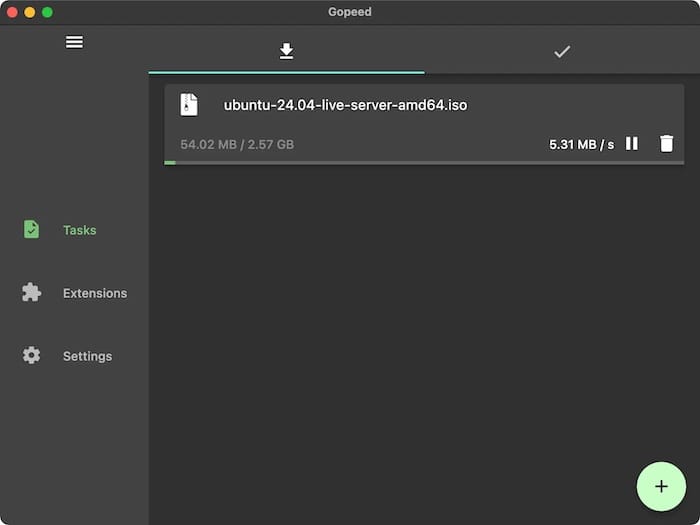
Step 6: Install Gopeed via AppImage (No Installation Required)
The AppImage method requires zero system integration. The entire application lives in a single portable file — perfect for testing Gopeed without committing to a system install or if you’re on a locked-down environment.
Download the AppImage
wget https://github.com/GopeedLab/gopeed/releases/latest/download/Gopeed-v1.6.6-linux-amd64.AppImageMake It Executable
chmod +x Gopeed-v1.6.6-linux-amd64.AppImageWhat this does: chmod +x adds the executable permission bit to the file, allowing Linux to run it as a program rather than treat it as data.
Run the AppImage
./Gopeed-v1.6.6-linux-amd64.AppImageGopeed launches immediately — no install needed. For a cleaner setup, move it to /opt/:
sudo mv Gopeed-v1.6.6-linux-amd64.AppImage /opt/gopeed.AppImageThen run it from anywhere:
/opt/gopeed.AppImageTip: To add Gopeed AppImage to your application launcher, create a .desktop file in ~/.local/share/applications/ pointing to /opt/gopeed.AppImage.

Step 7: Configure Gopeed After Installation on Debian 13
Whether you installed via .deb, Flatpak, Snap, or AppImage, the post-installation configuration steps for your Gopeed on Debian 13 setup are identical.
Set Your Default Download Directory
- Open Gopeed → click the hamburger menu (☰) in the top-left corner
- Navigate to Settings → Basic Settings
- Set your preferred Download Directory (e.g.,
/home/youruser/Downloads) - Click Save
Optimize Connection Settings
- Go to Settings → Download Settings
- Set Max Connections to
16(default) or higher for high-bandwidth connections - For BitTorrent, enable DHT and PEX options for better peer discovery
Configure HTTP API (Optional — Headless/Server Use)
If you’re running Gopeed as a background service or in a Docker/headless environment, enable HTTP Basic Auth via command-line flags:
gopeed -u admin -p yourpassword -P 9999Then access the web UI from any browser at:
http://your-server-ip:9999Available CLI flags:
gopeed -h
# -A  Bind address (default "0.0.0.0")
# -P  Bind port (default 9999)
# -u  HTTP Basic Auth username
# -p  HTTP Basic Auth password
⚠️ Security note: Always enable authentication if Gopeed is accessible on a public IP or network interface.
Set Up Proxy (Optional)
- Go to Settings → Network
- Enable Proxy and enter your proxy address and port
- Save and restart Gopeed
How to Uninstall Gopeed from Debian 13
Need to remove Gopeed? Use the command matching your original installation method.
.deb package:
sudo apt remove gopeed
# To also remove config files:
sudo apt purge gopeed
Flatpak:
flatpak uninstall com.gopeed.Gopeed
# Remove unused runtimes:
flatpak uninstall --unused
Snap:
sudo snap remove gopeedAppImage:
rm /opt/gopeed.AppImageRemove leftover configuration files (all methods):
rm -rf ~/.config/gopeed/Troubleshooting Common Gopeed Issues on Debian 13
Even with clean installations, you may hit edge cases. Here are the five most common problems and their fixes.
1. dpkg: dependency problems After .deb Install
Symptom: The dpkg -i command exits with unmet dependency errors.
Fix:
sudo apt install -fThis tells apt to automatically resolve and install any missing libraries, then complete the Gopeed install.
2. Gopeed Not Appearing in Application Menu After Flatpak Install
Symptom: The flatpak install command succeeded, but Gopeed doesn’t show up in GNOME or KDE launcher.
Fix: This is almost always a session cache issue. Simply reboot:
sudo rebootAlternatively, force-refresh the icon cache without rebooting:
sudo update-desktop-database3. snap: command not found After Installing Snapd
Symptom: After running sudo apt install snapd, the snap command returns “command not found.”
Fix: The /snap/bin path hasn’t been added to your shell session yet. Log out and back in, or source your profile:
source ~/.profileIf still not working, add it manually:
export PATH=$PATH:/snap/bin
echo 'export PATH=$PATH:/snap/bin' >> ~/.bashrc
4. Gopeed Crashes on Launch (Flutter/GPU Error)
Symptom: Gopeed opens briefly then crashes, or shows a blank white window.
Fix: Install missing GTK and graphics libraries:
sudo apt install libgtk-3-0 libblkid1 liblzma5 -yCheck system logs for the specific error:
journalctl -xe | grep gopeed5. Downloads Are Slow or Stalling
Symptom: Download speeds are far below your connection’s capacity or tasks stall at random intervals.
Fixes to try in order:
- Increase max connections: Settings → Download Settings → Max Connections (try
16or32) - Check your firewall isn’t throttling outbound connections:
sudo ufw status - If using BitTorrent, ensure ports 6881–6889 are open:
sudo ufw allow 6881:6889/tcp sudo ufw allow 6881:6889/udp - Test raw network speed:
curl -o /dev/null https://speed.cloudflare.com/__down?bytes=104857600
Congratulations! You have successfully installed Gopeed. Thanks for using this tutorial to install the latest version of Gopeed modern download manager on Debian 13 “Trixie” Linux system. For additional help or useful information, we recommend you check the official Gopeed website.
