How To Install GParted on Fedora 43

Managing disk partitions is a fundamental skill for Linux users. Whether you’re setting up a dual-boot system, organizing your storage, or resizing existing partitions, having the right tool makes all the difference. GParted stands out as the go-to partition editor for Fedora 43 users who need a reliable, graphical interface for disk management tasks.
This comprehensive guide walks you through installing GParted on Fedora 43, from initial setup to launching the application and performing basic operations. You’ll learn multiple installation methods, discover essential troubleshooting techniques, and understand best practices for safe partition management. By the end of this tutorial, you’ll have GParted fully operational on your Fedora 43 system and the confidence to manage your disk partitions effectively.
The installation process takes approximately 5-10 minutes, depending on your internet connection and system specifications. Let’s dive in.
What is GParted?
GParted, short for GNOME Partition Editor, is a free and open-source partition management application designed for Linux systems. It provides a user-friendly graphical interface that simplifies complex disk operations, making partition management accessible to both beginners and advanced users.
The application is written in C++ and uses gtkmm to interface with GTK, conforming to GNOME Human Interface Guidelines for consistency and ease of use. Under the hood, GParted relies on libparted to detect and manipulate storage devices and partition tables, ensuring reliable and accurate operations.
Core Capabilities and Features
GParted offers an impressive array of partition management features. You can create new partition tables in both msdos (MBR) and GPT formats, essential for different system configurations. The tool allows you to create, move, copy, resize, check, label, and delete partitions with precision.
Advanced operations include setting partition flags such as boot and hidden attributes, assigning new UUIDs to partitions, and even attempting data rescue from lost partitions. GParted supports an extensive list of filesystems including ext2, ext3, ext4, FAT16, FAT32, NTFS, HFS+, XFS, Btrfs, ReiserFS, and many others.
The software works seamlessly with various storage devices. Whether you’re managing traditional hard drives (SATA, IDE, SCSI), solid-state drives, NVMe storage, USB flash drives, or even RAID arrays, GParted handles them all. It supports all sector sizes from 512 bytes to 4096 bytes and beyond, ensuring compatibility with modern storage technology.
Another valuable feature is partition alignment. GParted can align partitions to MiB boundaries or traditional cylinder boundaries, optimizing performance for your specific storage configuration.
Prerequisites and System Requirements
Before installing GParted on Fedora 43, ensure your system meets the necessary requirements and you have the appropriate access privileges.
Fedora 43 System Specifications
Fedora 43 requires at minimum a dual-core 2 GHz 64-bit processor, 2 GB of RAM, and 15 GB of available storage space. However, for optimal performance, especially when working with large partitions, consider using a system with a 2 GHz quad-core processor or better, 4 GB of RAM, and at least 40 GB of free storage.
Your display should support a minimum resolution of 800×600 pixels, though 1024×768 or higher is recommended for comfortable viewing of the GParted interface.
User Requirements and Preparation
You’ll need basic familiarity with the Linux command line interface. Root or sudo privileges are essential since partition management requires administrative access to disk devices. An active internet connection enables downloading GParted packages and their dependencies from Fedora repositories.
Critical Safety Considerations
Partition management always carries inherent risks. Always back up important data before modifying any partitions. Even with GParted’s robust safety features and undo queuing system, unexpected power loss or system failure during operations can result in data loss.
Keep in mind that you cannot modify mounted system partitions while running Fedora from your normal boot. To work with system partitions, you’ll need to boot from a live USB or CD environment where those partitions aren’t actively in use.
Installing GParted on Fedora 43
Installing GParted on Fedora 43 is straightforward thanks to its inclusion in the official Fedora repositories. You won’t need to add EPEL or any third-party repositories, simplifying the installation process considerably.
Step 1: Open Terminal and Update System
Begin by opening the Terminal application. You can find it in the Activities menu or quickly launch it using the keyboard shortcut Ctrl+Alt+T.
Before installing any new software, updating your system repositories ensures you have access to the latest package versions and prevents potential dependency conflicts. Execute the following commands:
sudo dnf clean all
sudo dnf update
Enter your password when prompted. The first command clears the package cache, while the second updates all installed packages to their latest versions. This process may take several minutes depending on how recently you’ve updated your system and how many packages require updating.
DNF, which stands for Dandified YUM, serves as Fedora’s modern package manager. It automatically resolves dependencies, manages repositories, and ensures clean installations.
Step 2: Install GParted Using DNF
With your system updated, installing GParted requires just one simple command:
sudo dnf install gpartedDNF will calculate all necessary dependencies and display information about what will be installed. The package is relatively lightweight, typically under 5 MB, though additional dependencies may increase the total download size.
When prompted to confirm the installation, type y and press Enter. The package manager will automatically download and install GParted along with all required libraries and dependencies. This process usually completes within 2-5 minutes depending on your internet connection speed.
Step 3: Verify Successful Installation
After installation completes, verify that GParted was installed correctly. Check the installed package list:
dnf list installed | grep gpartedThis command should return output showing the gparted package and its version number. To view detailed version information, use:
gparted --versionYou can also confirm the installation location with:
which gpartedThis typically returns /usr/sbin/gparted, indicating the executable’s location on your system.
Launching and Using GParted
GParted requires root privileges to access and modify disk partitions. You have two primary methods for launching the application with the necessary permissions.
Method 1: Terminal Launch with Sudo
The most straightforward method is launching GParted directly from the terminal with sudo:
sudo gpartedEnter your password when prompted. The GParted window will open with full administrative privileges, ready for partition operations. This method ensures proper elevated permissions and is preferred by many experienced users.
Method 2: Application Menu Launch
For a more graphical approach, access the Activities overview by clicking in the top-left corner of your screen or pressing the Super key. Search for “GParted” or navigate to the System Tools or Utilities category.
Click the GParted icon. The system will display an authentication dialog requesting your root password. Enter your credentials, and the application will launch with administrative privileges.
Understanding the GParted Interface
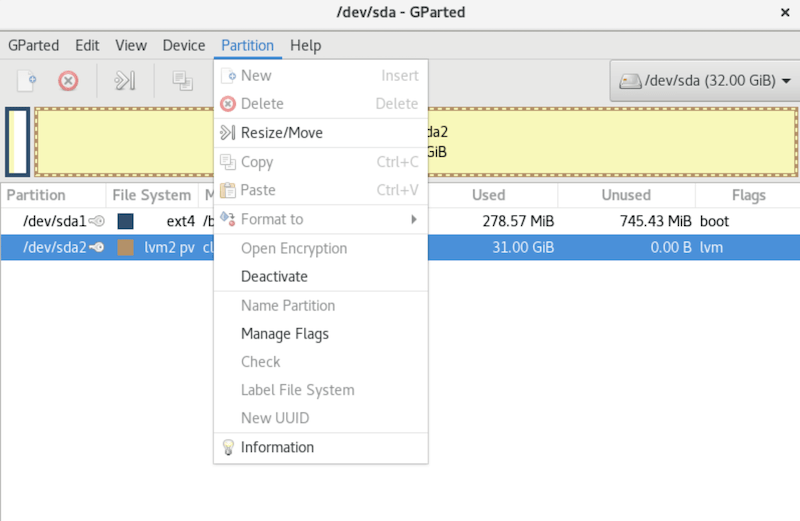
The GParted interface is designed for clarity and efficiency. At the top-right corner, you’ll find a dropdown menu displaying all detected storage devices. Select the device you want to manage from this list.
The main window area shows a visual representation of the selected device’s partition layout. Each partition appears as a colored block, with the size proportional to its actual capacity. Below the visual bar, a detailed list displays each partition’s device name, filesystem type, mount point, size, used space, and unused space.
The information panel at the bottom shows detailed specifications for the currently selected partition. This includes the device path, filesystem type, total size, used capacity, and available free space.
A toolbar provides quick access to common operations like resize/move, copy, paste, and delete. The menu bar offers access to Device, Partition, View, and Help menus for more advanced options.
Performing Basic Operations
GParted uses a queue-based operation system for safety. When you perform any action—whether resizing, deleting, or creating partitions—the operation is added to a pending queue rather than executed immediately. This allows you to review all planned changes before committing them.
To view partition information, simply select a device from the dropdown and examine the partition layout. Click on individual partitions to see their detailed specifications in the information panel.
All queued operations appear in a list at the bottom of the window. You can review each operation, and if you change your mind, you can remove operations from the queue before applying them. When you’re ready to execute your changes, navigate to the Edit menu and select “Apply All Operations,” or click the green checkmark button in the toolbar.
The application will display a final confirmation dialog summarizing all operations. Review this carefully, then click “Apply” to proceed. GParted will execute each operation sequentially, displaying progress indicators for each step.
Important Usage Guidelines
Remember that GParted requires unmounted partitions for most operations. You cannot resize, move, or modify a partition that’s currently mounted and in use. The currently running system partition will typically appear with a key icon, indicating it’s locked and cannot be modified from the current boot environment.
To work with your system partitions, you’ll need to boot from a Fedora live USB or the installation media. From that live environment, your installed system’s partitions will be unmounted and available for modification.
Changes to large partitions can take considerable time. Be patient and never interrupt operations once they’ve started, as this could result in data corruption or loss.
Common Use Cases for GParted on Fedora 43
Understanding practical applications helps you leverage GParted’s full potential for your specific needs.
Dual Boot Configuration
Setting up dual-boot systems is one of the most common reasons users install GParted. If you’re adding Fedora alongside Windows or another Linux distribution, you’ll need to resize existing partitions to create space.
GParted excels at shrinking Windows partitions safely, allowing you to reclaim space for your Fedora installation. You can create a gap in the partition layout where Fedora’s installer will place the new system. The tool also helps manage recovery partitions that Windows often places between the main partition and free space, which can complicate dual-boot setups.
For UEFI systems, you may need to verify or create an EFI System Partition (ESP) that both operating systems will share for bootloader files.
Fresh Installation Partition Layout
When performing a custom Fedora installation with manual partitioning, GParted provides precise control over your disk layout. You can create an EFI System Partition of 512 MB to 1 GB for UEFI boot configurations, ensuring proper boot management.
A swap partition is typically recommended, ranging from 2 GB to 8 GB depending on your RAM capacity and whether you plan to use hibernation. The root partition (/) needs at least 20-25 GB, though 40 GB or more is recommended for comfortable long-term use with applications and updates.
Many users also create a separate home partition (/home) to isolate user data from system files. This arrangement simplifies system reinstallation or upgrades, as your personal data remains untouched on its dedicated partition.
Ongoing Partition Maintenance
As your Fedora system evolves, you may need to adjust partition sizes. Perhaps your root partition is running low on space, or you have an underutilized data partition that could be reallocated. GParted makes these adjustments straightforward.
The tool is also valuable for formatting and preparing USB drives, external hard drives, and other removable storage devices. You can create partition tables optimized for specific uses, format drives with appropriate filesystems, and set partition labels for easy identification.
Storage Organization and Management
Creating separate data partitions helps organize different types of content. You might dedicate one partition to media files, another to backups, and another to virtual machine images. This organization improves both system performance and data management.
GParted also facilitates preparing drives for cross-platform compatibility. For drives that will be used with both Linux and Windows systems, you can format them with exFAT or NTFS filesystems that both operating systems recognize.
Troubleshooting Common Issues
Even straightforward installations and operations occasionally encounter obstacles. Here’s how to resolve the most common GParted issues on Fedora 43.
Unable to Resize or Modify Partitions
The most frequent problem users encounter is attempting to modify mounted partitions. If you see an error stating operations cannot be performed, check if the partition is currently mounted.
Right-click the partition in GParted and select “Unmount” if the option is available. For system partitions that cannot be unmounted during normal operation, reboot your system from a Fedora live USB. From the live environment, launch GParted, and you’ll have full access to all partitions on your installed system.
You can also identify processes using a partition with the terminal command:
lsof | grep /dev/sdXYReplace sdXY with your actual partition identifier. This shows which processes are accessing the partition, allowing you to close applications or services that might be preventing unmounting.
Permission Denied Errors
If GParted fails to launch or displays permission errors, ensure you’re running it with administrative privileges. Always use sudo gparted from the terminal or ensure you enter your password correctly when launching from the application menu.
Verify your user account has sudo privileges by running:
sudo -vIf this command prompts for a password and accepts it without errors, your account has proper administrative access. Check system logs for specific error messages:
journalctl -xeLocked or Grayed Out Partitions
Partitions appear grayed out or locked when they’re actively in use. For swap partitions, you must disable them before modification:
sudo swapoff -aAfter completing your partition operations, re-enable swap with:
sudo swapon -aFor persistent locking issues, close all applications that might be accessing the drive, including file managers with that drive open. If problems persist, reboot your system or boot from live media to ensure no processes are using the target partitions.
Invalid Partition Table Problems
Occasionally, you might encounter errors about invalid or unrecognized partition tables. GParted supports both msdos (MBR) and GPT partition table formats, but some specialized or corrupted partition tables cause issues.
If you see warnings about partition table problems, GParted may offer to repair them. Review these suggestions carefully before accepting, as repairs sometimes require rewriting the partition table. Always ensure you have current backups before attempting partition table repairs.
For drives with unrecoverable partition table errors, you may need to create a fresh partition table. This destroys all existing partitions and data, so this should be a last resort after recovering any important files.
Application Won’t Launch
If GParted fails to start, first verify the installation:
which gparted
rpm -q gparted
If these commands show the package is installed but the application still won’t launch, try reinstalling:
sudo dnf reinstall gpartedCheck for missing dependencies:
sudo dnf checkThis command identifies and reports any broken dependencies that might prevent GParted from functioning correctly.
Best Practices and Safety Tips
Successful partition management relies on preparation and caution. Following these guidelines minimizes risks and ensures smooth operations.
Pre-Operation Preparation
Never begin partition operations without current backups of important data. Even though GParted is reliable and includes safety features, unexpected events like power failures can cause data loss during partition modifications.
Review all queued operations in GParted before clicking Apply. The queue system exists specifically to give you a chance to verify your planned changes before execution. Take advantage of this safety feature.
Understand what each operation will do. Resizing a partition is non-destructive if done correctly, but deleting or formatting will erase all data on that partition. Make sure you’ve selected the correct device and partition before proceeding.
When resizing partitions, leave some buffer room. Don’t shrink a partition to its absolute minimum size, as filesystems need some breathing room. Leave at least 10-20% free space for optimal performance.
For laptop users, ensure your battery is fully charged or the system is plugged into power. Losing power during partition operations can corrupt filesystems or render systems unbootable.
During Operations
Once you click Apply and operations begin, never interrupt the process. Don’t power off your system, close GParted, or disconnect external drives during active operations. Partition modifications must complete fully to maintain data integrity.
Monitor the progress indicators and any messages GParted displays. If an operation is taking longer than expected for large partitions, be patient. Resizing a 500 GB partition can take 30 minutes or more depending on the filesystem and how much data needs to be moved.
Avoid running multiple partition management tools simultaneously. Using fdisk, parted, or disk utilities while GParted is operating can cause conflicts and data corruption.
Post-Operation Verification
After operations complete successfully, verify the changes before rebooting. Check that partition sizes match your expectations and that filesystems are recognized correctly.
If you modified system partitions, test that your system boots properly. For significant changes to boot partitions, you might need to update GRUB or reinstall the bootloader.
Mount modified partitions and verify that data is accessible and intact. Better to discover problems immediately while recovery options are fresh than after multiple reboots and further changes.
Advanced Tips for Power Users
Experienced Linux administrators can leverage additional techniques for more efficient partition management.
Command-Line Alternatives
While GParted provides an excellent graphical interface, the underlying parted command-line tool offers scriptable automation for repetitive tasks. The fdisk and gdisk utilities provide alternative approaches for partition table manipulation, particularly useful in remote SSH sessions where graphical applications aren’t available.
For automated deployments or system imaging workflows, incorporating command-line partition tools into shell scripts creates reproducible, consistent disk configurations across multiple systems.
GParted Live Environment
The GParted Live CD/USB is a specialized Debian-based distribution containing only GParted and essential supporting tools. This bootable environment is invaluable for system recovery and major partition modifications.
You can create a GParted Live USB or simply boot from your Fedora installation media, which includes partition tools in its live environment. This approach provides a clean environment where no partitions are mounted, giving you complete freedom to modify your installed system’s disk layout.
Integration with Advanced Storage
For systems using LVM (Logical Volume Manager), GParted can manage physical partitions that serve as LVM physical volumes. However, LVM-specific operations require additional tools like lvmdiskscan and lvresize.
When working with software RAID arrays, GParted can partition RAID devices, but array creation and management require mdadm utilities. Understanding how GParted integrates with these advanced storage technologies expands your system administration capabilities.
Congratulations! You have successfully installed GParted. Thanks for using this tutorial for installing GParted on your Fedora 43 Linux system. For additional or useful information, we recommend you check the official GParted website.
