How To Install Grafana on AlmaLinux 10

If you manage Linux servers and rely on log files and command-line tools to understand what is happening, you already know how time-consuming that gets at scale. Grafana gives you a centralized, browser-based dashboard where you can visualize metrics, set up alerts, and monitor everything from a single pane of glass. This guide walks you through a complete install Grafana on AlmaLinux 10 setup, from adding the official RPM repository all the way to connecting your first data source. By the end, you will have a fully operational Grafana instance running as a system service, accessible via your browser, and secured with a custom admin password.
AlmaLinux 10 is a community-driven, RHEL 10-compatible distribution built for production server environments. It fills the gap that CentOS left behind and uses the same dnf package manager and RPM toolchain that Grafana’s official repository supports. This makes AlmaLinux 10 one of the cleanest platforms to deploy Grafana on, with no hacks or workarounds needed.
Prerequisites
Before you start, confirm your environment meets the following requirements:
- Operating system: AlmaLinux 10 (fresh or existing installation)
- User access: Root or a user with
sudoprivileges - RAM: Minimum 512 MB (2 GB recommended; 8 GB+ for large-scale deployments)
- Disk space: At least 1 GB free for the package and initial data storage
- Network: Active internet access to reach
rpm.grafana.comanddl.grafana.com - Firewall:
firewalldinstalled and running (default on AlmaLinux 10) - Skills: Basic comfort with the Linux terminal and the
dnfpackage manager
Verify you are on AlmaLinux 10 before proceeding:
cat /etc/almalinux-releaseThe output should confirm AlmaLinux release 10.x. If it does not, stop here and confirm your OS before continuing.
Step 1: Update Your System
Always update the system before installing new software. Outdated packages create dependency conflicts that are painful to debug after the fact.
Run the following command to refresh all package metadata and apply available updates:
sudo dnf update -y && sudo dnf upgrade -yThe -y flag answers “yes” automatically to all prompts. This command updates the base OS packages and ensures your package manager fetches the latest metadata when you add the Grafana repo in the next step.
Expected output: You will see a list of updated packages scroll by, ending with Complete!. If the kernel was updated, a reboot is recommended before continuing:
sudo rebootStep 2: Import the Grafana GPG Key
GPG key verification is a cryptographic check that confirms the packages you download actually come from Grafana Labs and have not been tampered with in transit. Skipping this step causes dnf to reject every Grafana package with a signature verification error.
Download and import the key with these two commands:
wget -q -O gpg.key https://rpm.grafana.com/gpg.key
sudo rpm --import gpg.key
Breaking this down:
wget -qdownloads the file quietly, without progress bars-O gpg.keysaves it to a local file namedgpg.keysudo rpm --import gpg.keyregisters the key with your RPM keystore
There is no visible success output from the import command. That is normal. You can verify the key was imported with:
rpm -q gpg-pubkey --qf '%{name}-%{version}-%{release} --> %{summary}\n'Look for an entry referencing Grafana Labs in the output.
Step 3: Add the Official Grafana RPM Repository
Grafana is not included in AlmaLinux’s default repositories. You need to add the official Grafana RPM repository so dnf knows where to find and download the package.
Create the repository file:
sudo nano /etc/yum.repos.d/grafana.repoPaste the following content exactly as shown:
[grafana]
name=grafana
baseurl=https://rpm.grafana.com
repo_gpgcheck=1
enabled=1
gpgcheck=1
gpgkey=https://rpm.grafana.com/gpg.key
sslverify=1
sslcacert=/etc/pki/tls/certs/ca-bundle.crt
Save the file with CTRL+X, then Y, then Enter.
Here is what each directive does:
| Directive | Purpose |
|---|---|
baseurl |
Points dnf to the Grafana package server |
repo_gpgcheck |
Verifies the repo metadata signature |
gpgcheck |
Verifies each downloaded package signature |
gpgkey |
URL of the public GPG key for verification |
sslverify |
Enforces HTTPS certificate validation |
sslcacert |
Path to the trusted CA certificate bundle |
Confirm the repository registered successfully:
sudo dnf repolist | grep grafanaYou should see a line showing grafana with the base URL alongside it.
Step 4: Install Grafana on AlmaLinux 10
Now you are ready to install Grafana. Grafana Labs offers two editions: Grafana OSS (fully open-source) and Grafana Enterprise (recommended default, free to use, and functionally identical to OSS with optional upgradeable enterprise features).
Install Grafana Enterprise (Recommended)
sudo dnf install grafana-enterprise -yAlternatively, install directly via the RPM package URL for the latest release:
sudo yum install -y https://dl.grafana.com/enterprise/release/grafana-enterprise-12.0.1-1.x86_64.rpmInstall Grafana OSS
If you prefer the pure open-source edition:
sudo dnf install grafana -yInstall Required Font Dependencies
Grafana uses fonts for panel rendering, PDF export, and image generation. Install these supporting packages to avoid missing-font errors later:
sudo dnf install -y fontconfig freetype* urw-fontsConfirm the installation completed successfully by checking the version:
grafana-server -vExpected output example:
Version 12.0.1 (commit: xxxxxxx, branch: HEAD)Step 5: Start and Enable the Grafana Service
With Grafana installed, you need to start the service and configure it to launch automatically on every system boot. AlmaLinux 10 uses systemd to manage services.
Start the Grafana server:
sudo systemctl start grafana-serverEnable it to start at boot:
sudo systemctl enable grafana-serverVerify it is running:
sudo systemctl status grafana-serverExpected output (truncated):
grafana-server.service - Grafana instance
   Loaded: loaded (/usr/lib/systemd/system/grafana-server.service; enabled)
   Active: active (running) since ...
The key line is Active: active (running). If you see failed instead, check the logs immediately:
sudo journalctl -u grafana-server -fThis streams the live service log output. Common causes of a failed start include a port already in use or missing font packages. The log output will point you directly at the problem.
Note: During installation, dnf automatically creates a dedicated grafana system user. The Grafana server process runs as this user for security isolation and does not run as root.
Step 6: Configure the Firewall for Grafana on AlmaLinux 10 Setup
AlmaLinux 10 ships with firewalld active by default. Grafana listens on TCP port 3000. Until you open this port, the Grafana web interface is unreachable from any external machine.
Open port 3000:
sudo firewall-cmd --permanent --add-port=3000/tcpReload the firewall to apply the change:
sudo firewall-cmd --reloadVerify the rule is active:
sudo firewall-cmd --list-portsYou should see 3000/tcp in the output.
Cloud Environment Users
If your AlmaLinux 10 server runs on AWS EC2, Google Cloud, DigitalOcean, or any other cloud provider, you must also open port 3000 in the provider’s security group or network firewall. The firewalld rule alone is not enough when a cloud-level network ACL sits in front of your server.
SELinux Consideration
On AlmaLinux 10 with SELinux in enforcing mode, Grafana’s port is typically permitted by default. If you encounter access issues related to SELinux, run:
sudo semanage port -a -t http_port_t -p tcp 3000Step 7: Access the Grafana Web Interface
Open a web browser on any machine that can reach your server and navigate to:
http://<your_server_ip>:3000Replace <your_server_ip> with your actual server IP address.
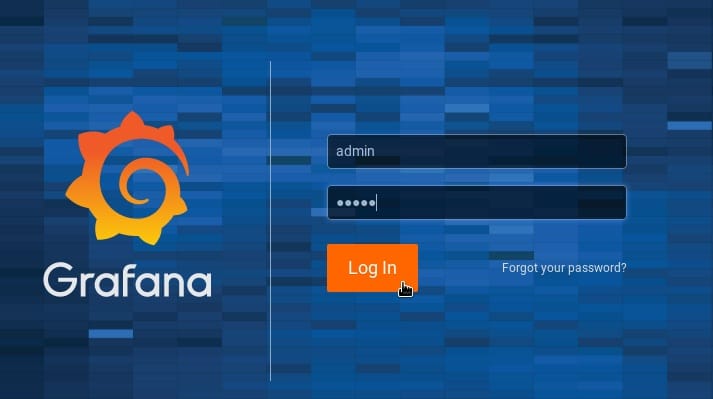
The Grafana login screen appears. Use these default credentials:
- Username:
admin - Password:
admin
Grafana immediately prompts you to change the admin password. Do this before anything else. The default credentials are publicly documented and well-known, so leaving them unchanged is a genuine security risk on any internet-facing server.
Once you set a new password, you land on the Grafana home dashboard. The left-side navigation rail gives you access to:
- Dashboards — create, import, and organize panels
- Explore — ad-hoc metric and log queries
- Alerting — configure notification rules and contact points
- Connections — manage data sources and plugins
- Administration — users, teams, roles, and server settings
Step 8: Basic Initial Configuration
The main Grafana configuration file lives at /etc/grafana/grafana.ini. Most defaults work fine out of the box, but a few settings are worth reviewing on a fresh install.
Open the config file:
sudo nano /etc/grafana/grafana.iniChange Admin Password via CLI
If you skipped the browser prompt or need to reset the password without UI access:
sudo grafana-cli admin reset-admin-password <yournewpassword>Set the Server Domain
Under the [server] section, configure your domain and root URL if you have a domain pointing at this server:
domain = yourdomain.com
root_url = http://yourdomain.com:3000/
Disable Public Sign-Up
If this is a private instance, prevent anyone from registering their own account. Under the [users] section:
allow_sign_up = falseAfter any change to grafana.ini, restart the service for the new settings to take effect:
sudo systemctl restart grafana-serverStep 9: Add Your First Data Source
A Grafana dashboard with no data source is just an empty canvas. Data sources are the connections Grafana uses to pull metrics, logs, or time-series data from external systems.
Connect Prometheus (Most Common)
In the Grafana UI, navigate to Connections > Data Sources > Add data source. Select Prometheus from the list.
Set the connection URL:
http://localhost:9090Use this URL if Prometheus is running locally on the same server. Click Save & Test. Grafana confirms the connection with a green “Data source is working” message.
Other widely used data sources include:
- MySQL / PostgreSQL for application database metrics
- InfluxDB for high-frequency time-series data
- Loki for log aggregation and query (Grafana’s native log store)
- Elasticsearch for search and analytics workloads
Step 10: Import a Pre-Built Dashboard
Building dashboards from scratch takes time. Grafana’s community dashboard library at grafana.com/grafana/dashboards hosts thousands of ready-to-use dashboards that you can import in seconds.
In the Grafana UI, go to Dashboards > Import. Enter a Dashboard ID in the “Import via grafana.com” field.
A popular starting point is Dashboard ID 1860 — the Node Exporter Full dashboard. It gives you CPU usage, memory consumption, disk I/O, network throughput, and system load across all monitored hosts.
Enter 1860, click Load, select your Prometheus data source from the dropdown, then click Import. The dashboard populates immediately with live data from your server.
Troubleshooting Common Issues
Even with a clean install, things occasionally go wrong. Here are the most common problems and how to fix them.
Grafana service fails to start
Check the service logs first:
sudo journalctl -u grafana-server -n 50Common causes include a port 3000 conflict (another service already using it), missing font packages, or file permission issues on /var/lib/grafana.
Cannot reach port 3000 from the browser
Confirm the firewall rule is active:
sudo firewall-cmd --list-portsIf 3000/tcp is missing, re-run the firewall-cmd commands from Step 6. For cloud servers, also check the provider’s security group rules.
GPG key import fails
Re-download the key and try again:
wget -q -O gpg.key https://rpm.grafana.com/gpg.key && sudo rpm --import gpg.keyA DNS failure or interrupted download is usually the cause.
Data source shows “connection refused”
Confirm the data source (e.g., Prometheus) is actually running:
sudo systemctl status prometheusIf the service is stopped, start it and try the Grafana connection test again.
Forgot the admin password
Reset it via CLI without touching the database:
sudo grafana-cli admin reset-admin-password <newpassword>Then restart the server:
sudo systemctl restart grafana-serverSecuring Your Grafana Installation
A running Grafana instance is only as safe as you make it. These steps cover the most critical hardening tasks for a production or internet-facing server.
Change default credentials immediately. The admin/admin default is publicly documented. Anyone who reaches port 3000 can try it.
Disable public sign-up. Set allow_sign_up = false in grafana.ini under the [users] section.
Enable HTTPS. Configure TLS directly in grafana.ini under [server]:
protocol = https
cert_file = /etc/ssl/certs/grafana.crt
cert_key = /etc/ssl/private/grafana.key
For most setups, placing Grafana behind an Nginx reverse proxy is easier than managing TLS inside Grafana directly. Nginx handles SSL termination, and Grafana continues listening on port 3000 internally.
Use Role-Based Access Control (RBAC). Grafana Enterprise includes fine-grained RBAC to restrict what each user can view or modify. Assign roles at the organization level rather than giving everyone admin access.
Disable dashboard embedding unless you explicitly need it. In grafana.ini:
allow_embedding = falseHow To Uninstall Grafana from AlmaLinux 10
If you need to remove Grafana cleanly, follow these steps in order.
Stop the service first:
sudo systemctl stop grafana-serverRemove the package (choose the edition you installed):
# For Enterprise
sudo dnf remove grafana-enterprise -y

# For OSS
sudo dnf remove grafana -y
Remove the repository file to prevent future installs:
sudo rm -i /etc/yum.repos.d/grafana.repoNote that uninstalling the package does not remove Grafana’s data directory at /var/lib/grafana. This directory holds your dashboards, users, data source credentials, and configuration history. Delete it manually only if you want a completely clean removal:
sudo rm -rf /var/lib/grafanaCongratulations! You have successfully installed Grafana. Thanks for using this tutorial for installing Grafana open source dashboard monitoring tools on your AlmaLinux OS 10 system. For additional help or useful information, we recommend you check the official Grafana website.
