How To Install Grafana on Debian 13

Grafana has become the go-to open-source platform for monitoring and observability across modern infrastructure. Whether you’re tracking server metrics, application performance, or IoT data, Grafana transforms complex datasets into visual dashboards that make sense at a glance. This comprehensive guide walks you through installing Grafana on Debian 13 (Trixie), ensuring you have a powerful monitoring solution up and running quickly.
Debian 13 brings enhanced stability and security features, making it an excellent choice for hosting Grafana in production environments. You’ll learn every step needed to deploy Grafana successfully, from system preparation to accessing your first dashboard. By the end of this tutorial, you’ll have a fully functional Grafana instance ready to connect to your data sources and create stunning visualizations.
Prerequisites
Before diving into the Grafana installation process, ensure your system meets the following requirements.
Your Debian 13 server needs at least 1GB of RAM, though 2GB is recommended for smoother operation. Allocate a minimum of 10GB free disk space to accommodate Grafana files, databases, and log storage. You’ll need root or sudo privileges to execute installation commands and modify system configurations.
Basic familiarity with Linux command-line operations is essential. Understanding systemd service management and the APT package manager will help you troubleshoot issues independently. Your server requires an active internet connection to download Grafana packages from official repositories.
Network configuration is equally important. Port 3000 must be available, as Grafana uses this as its default listening port. DNS resolution should work properly to download packages and potentially access external data sources later. If you’re installing Grafana on a remote server, ensure SSH access is configured and functioning correctly.
Having a web browser ready on your local machine or another system will allow you to access the Grafana web interface once installation completes. Optional tools like UFW (Uncomplicated Firewall) can simplify firewall management, though we’ll cover alternative methods as well.
Understanding Grafana Editions
Grafana comes in two primary editions, each serving different organizational needs.
- Grafana OSS (Open Source Software) is the community-supported version offering all core features for data visualization and dashboarding. It’s completely free and includes support for numerous data sources, alerting capabilities, and dashboard sharing. For most monitoring scenarios, Grafana OSS provides everything you need without licensing costs.
- Grafana Enterprise adds premium features like enhanced authentication methods, premium data sources, and dedicated support from Grafana Labs. Enterprise users gain access to advanced reporting, whitelabeling options, and priority bug fixes. A free trial lets you explore Enterprise features before committing.
This guide focuses on installing Grafana OSS, which covers the vast majority of use cases. You can always upgrade to Enterprise later if your organization requires additional capabilities.
Step 1: Update Your Debian 13 System
Starting with a fully updated system prevents compatibility issues and ensures you have the latest security patches.
Open your terminal and execute the following command to refresh your package index:
sudo apt updateThis command contacts Debian repositories and downloads the latest package information. You’ll see a list of repositories being queried, which typically takes 10-30 seconds depending on your internet connection.
Next, upgrade all installed packages to their newest versions:
sudo apt upgrade -yThe -y flag automatically confirms the upgrade, preventing interactive prompts. This process might take several minutes if many packages need updating. Your system may require a reboot if kernel updates were applied, though this isn’t always necessary.
Verify your system is current by checking for any remaining upgrades:
sudo apt list --upgradableIf this returns an empty list, your system is fully updated and ready for Grafana installation.
Step 2: Install Required Dependencies
Grafana requires several packages to function properly. These dependencies enable secure package downloads and repository management.
Install the necessary packages with this single command:
sudo apt install -y apt-transport-https software-properties-common wgetLet’s break down what each package does:
- apt-transport-https enables APT to retrieve packages over HTTPS connections, ensuring encrypted downloads
- software-properties-common provides tools to manage software repositories easily
- wget is a command-line utility for downloading files from web servers
The installation completes in seconds. Verify the packages installed correctly by checking their versions:
wget --versionYou should see version information displayed, confirming wget is available. These tools are foundational for adding the Grafana repository securely.
Step 3: Add Grafana GPG Key and Repository
GPG keys verify package authenticity, protecting against tampered or malicious software. Adding Grafana’s official GPG key ensures you download legitimate packages.
First, create a directory for keyrings if it doesn’t exist:
sudo mkdir -p /etc/apt/keyrings/Download and import Grafana’s GPG key:
wget -q -O - https://packages.grafana.com/gpg.key | gpg --dearmor | sudo tee /usr/share/keyrings/grafana.gpg > /dev/nullThis command downloads the GPG key, converts it to the appropriate format, and saves it to the keyrings directory. The -q flag keeps wget quiet, while > /dev/null suppresses unnecessary output.
Now add the Grafana repository to your system. For Grafana OSS, execute:
echo "deb [signed-by=/usr/share/keyrings/grafana.gpg] https://packages.grafana.com/oss/deb stable main" | sudo tee -a /etc/apt/sources.list.d/grafana.listThis creates a new repository file at /etc/apt/sources.list.d/grafana.list containing the Grafana repository information. The signed-by parameter tells APT which GPG key to use for package verification.
Update your package index to include the newly added repository:
sudo apt updateYou should see the Grafana repository listed among those being queried. If no errors appear, the repository was added successfully.
Step 4: Install Grafana on Debian 13
With repositories configured, installing Grafana requires just one command.
Execute the following to install Grafana OSS:
sudo apt install grafana -yAPT downloads the Grafana package and all remaining dependencies automatically. The installation creates several important files and directories:
- /usr/sbin/grafana-server – The main Grafana binary
- /etc/grafana/grafana.ini – Primary configuration file
- /var/lib/grafana – Data storage directory
- /var/log/grafana – Log file location
- /lib/systemd/system/grafana-server.service – Systemd service definition
During installation, the Grafana package automatically creates a dedicated system user and group named grafana. This user runs the Grafana process with minimal privileges, following security best practices.
Confirm Grafana installed successfully by checking its version:
grafana-server -vThe output displays the installed Grafana version number. At this point, Grafana is installed but not yet running.
Step 5: Start and Enable Grafana Service
Systemd manages services on Debian 13, providing reliable process control and automatic startup capabilities.
Start the Grafana service:
sudo systemctl start grafana-serverThis command launches Grafana immediately. Check the service status to confirm it’s running:
sudo systemctl status grafana-serverLook for active (running) in the output. The status display shows when the service started, its process ID, and recent log entries. Green text typically indicates healthy operation.
Enable Grafana to start automatically at boot:
sudo systemctl enable grafana-serverThis creates a symbolic link in the appropriate systemd directory, ensuring Grafana launches whenever your server restarts. Verify the service is enabled:
sudo systemctl is-enabled grafana-serverThe output should return enabled. These steps ensure Grafana remains available even after server reboots, critical for production monitoring systems.
Step 6: Configure Firewall for Grafana
Firewall configuration controls network access to your Grafana instance. Port 3000 must be accessible for web browsers to reach the Grafana interface.
If you’re using UFW (Uncomplicated Firewall), check its status first:
sudo ufw statusBefore enabling UFW, ensure SSH access remains available:
sudo ufw allow sshAllow traffic on Grafana’s default port:
sudo ufw allow 3000/tcpFor enhanced security in production environments, restrict access to specific IP addresses or subnets:
sudo ufw allow from 192.168.1.0/24 to any port 3000This command permits only devices on the 192.168.1.0/24 network to access Grafana. Enable UFW if it’s not already active:
sudo ufw enableVerify your firewall rules:
sudo ufw status verboseAlternatively, if using iptables directly, add this rule:
sudo iptables -A INPUT -p tcp --dport 3000 -j ACCEPTSave iptables rules for persistence using iptables-persistent package. Always test firewall changes carefully to avoid locking yourself out of remote servers.
Step 7: Access Grafana Web Interface
With Grafana running and firewall configured, you’re ready to access the web interface.
Open your web browser and navigate to:
http://localhost:3000If accessing from a remote machine, replace localhost with your server’s IP address:
http://your-server-ip:3000The Grafana login page loads, featuring a clean interface with the Grafana logo. Use these default credentials:
- Username: admin
- Password: admin
Click “Log In” to proceed. Grafana immediately prompts you to change the default password. Choose a strong password combining uppercase letters, lowercase letters, numbers, and special characters. Password managers like Bitwarden or 1Password help generate and store complex passwords securely.
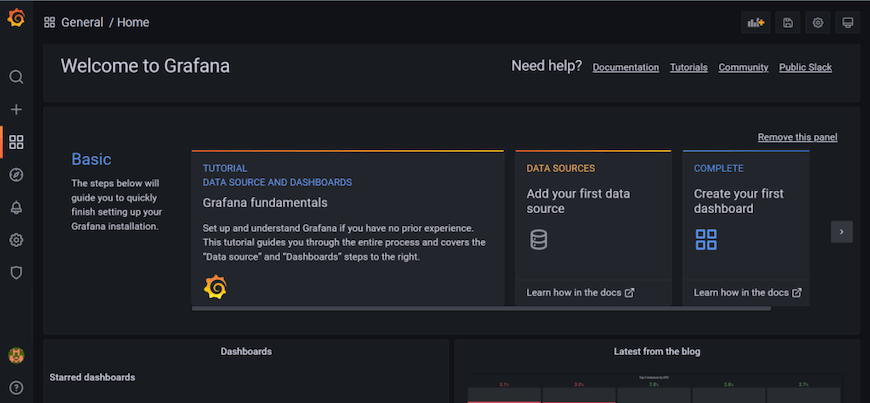
After setting a new password, Grafana displays the welcome screen. The left sidebar contains navigation for Home, Dashboards, Explore, Alerting, and Configuration sections. You’ve successfully logged into your Grafana instance.
Basic Grafana Configuration
While Grafana works out of the box, customizing configuration enhances security and functionality.
The main configuration file resides at /etc/grafana/grafana.ini. Before editing, create a backup:
sudo cp /etc/grafana/grafana.ini /etc/grafana/grafana.ini.backupOpen the configuration file with your preferred text editor:
sudo nano /etc/grafana/grafana.iniKey configuration options include:
Changing the default port: Find the http_port setting under the [server] section. Change 3000 to your preferred port if needed.
Setting your domain: Update the domain parameter to match your server’s hostname or domain name.
Root URL configuration: Set root_url to the full URL where users access Grafana, like https://grafana.yourdomain.com.
Grafana uses SQLite as its default database, stored at /var/lib/grafana/grafana.db. For larger deployments, consider migrating to PostgreSQL or MySQL for better performance.
After making configuration changes, restart Grafana:
sudo systemctl restart grafana-serverVerify changes took effect by checking the service status and accessing the web interface.
Troubleshooting Common Issues
Even straightforward installations occasionally encounter problems. These solutions address the most common issues.
Grafana Service Won’t Start
Check systemd logs for error messages:
sudo journalctl -u grafana-server -n 50Review detailed Grafana logs:
sudo tail -f /var/log/grafana/grafana.logPermission issues often prevent startup. Verify the grafana user owns necessary directories:
sudo chown -R grafana:grafana /var/lib/grafana
sudo chown -R grafana:grafana /var/log/grafana
If another process uses port 3000, Grafana fails to start. Check which process occupies the port:
sudo lsof -i :3000Connection Refused Error
Confirm Grafana is actually running:
sudo systemctl status grafana-serverVerify Grafana binds to the correct address:
sudo netstat -tulpn | grep 3000Firewall rules might block connections. Double-check UFW or iptables configuration.
Cannot Access from Remote Machine
Test network connectivity from your remote machine:
ping your-server-ip
telnet your-server-ip 3000
Cloud providers often require security group rules allowing inbound traffic on port 3000. Check your provider’s firewall settings in addition to the server’s local firewall.
Verifying Successful Installation
Confirm your Grafana installation functions correctly through several checks.
Verify the service runs without errors:
sudo systemctl status grafana-serverTest web interface accessibility from both local and remote locations. Check log files for any warning messages:
sudo grep -i error /var/log/grafana/grafana.logConfirm the Grafana process is running:
ps aux | grep grafana-serverEnsure port 3000 is listening for connections:
sudo ss -tlnp | grep 3000All checks should return positive results, indicating a healthy Grafana installation ready for configuration and use.
Congratulations! You have successfully installed Grafana. Thanks for using this tutorial to install the latest version of Grafana open source analytics & monitoring on Debian 13 “Trixie” system. For additional help or useful information, we recommend you check the official Grafana website.
