How To Install Grafana on Fedora 43

Monitoring your infrastructure without clear, visual dashboards is like navigating in the dark. Grafana changes that. It transforms raw metrics into actionable, real-time visual dashboards — and installing it on Fedora 43 is straightforward once you know the exact steps. This guide walks you through how to install Grafana on Fedora 43 using three proven methods, configure it correctly, access the web UI, and troubleshoot the most common issues. Every command here is verified against the official Grafana documentation so you can follow along with confidence.
What Is Grafana?
Grafana is an open-source observability and data visualization platform developed by Grafana Labs. It connects to a wide range of data sources — including Prometheus, InfluxDB, Elasticsearch, MySQL, PostgreSQL, Graphite, and Loki — and renders their data into interactive, customizable dashboards. Whether you are monitoring a single Linux server or an entire Kubernetes cluster, Grafana gives you a centralized, browser-based view of everything that matters.
There are two main editions available for download:
- Grafana Enterprise — The recommended default. Free to use and functionally identical to OSS, with optional paid enterprise plugin support.
- Grafana OSS — Fully open-source, no license required.
Grafana runs its HTTP server on port 3000 by default. Its main configuration file lives at /etc/grafana/grafana.ini, and the SQLite database is stored at /var/lib/grafana/grafana.db.
Why Install Grafana on Fedora 43?
Fedora is one of the most developer-friendly RPM-based Linux distributions available. It sits directly upstream of Red Hat Enterprise Linux (RHEL), which means it receives the latest kernel updates, tooling, and package versions faster than almost any other distro. Fedora 43 ships with a modern version of dnf, full systemd integration, and an active firewalld setup — all of which makes Grafana installation clean and reliable.
Importantly, Grafana officially supports Fedora through its RHEL/Fedora RPM repository channel. This means you get native package management, automatic updates via dnf, and no compatibility hacks. If you are building a monitoring stack — for example, pairing Grafana with Prometheus — Fedora 43 is an excellent foundation.
Prerequisites
Before you begin, make sure the following requirements are in place:
- A running Fedora 43 installation — bare metal, virtual machine, or cloud instance
- sudo or root access to the terminal
- An active internet connection
- Minimum 512 MB RAM (1 GB or more recommended for production use)
- At least 1 GB of free disk space
- Basic familiarity with Linux CLI tools:
dnf,systemctl, andfirewall-cmd - Optionally, a data source ready to connect — such as Prometheus or InfluxDB
Pro tip: If you are working in a virtual machine, take a snapshot before starting. It takes less than a minute and gives you a clean rollback point if anything goes wrong.
Installation Methods at a Glance
There are three supported ways to install Grafana on Fedora 43:
- RPM Repository — Recommended for most users. Enables automatic updates through
dnf update. - Standalone RPM Package — Useful for offline installs or when you need to pin a specific Grafana version.
- Standalone Binary (.tar.gz) — Best for portable, rootless, or custom-directory deployments.
The RPM repository method is the best choice for general use. It keeps Grafana updated automatically every time you run dnf update, requires no manual file management, and mirrors how every other system package is managed on Fedora.
Method 1: Install Grafana via RPM Repository (Recommended)
This is the most straightforward and maintainable approach. Follow each step carefully.
Step 1 — Import the Grafana GPG Key
GPG key verification ensures that the packages you download are genuinely from Grafana Labs and have not been tampered with. Run the following commands to download and import the key:
wget -q -O gpg.key https://rpm.grafana.com/gpg.key
sudo rpm --import gpg.key
If wget is not installed on your system, install it first:
sudo dnf install wget -yTo verify that the GPG key was imported successfully, run:
rpm -q gpg-pubkeyStep 2 — Add the Grafana DNF Repository
Create the repository file at /etc/yum.repos.d/grafana.repo with the content below. This points dnf to the official Grafana RPM package server:
[grafana]
name=grafana
baseurl=https://rpm.grafana.com
repo_gpgcheck=1
enabled=1
gpgcheck=1
gpgkey=https://rpm.grafana.com/gpg.key
sslverify=1
sslcacert=/etc/pki/tls/certs/ca-bundle.crt
Note: The current repository URL is https://rpm.grafana.com. Some older tutorials reference https://packages.grafana.com/oss/rpm, which is the legacy endpoint and may not always return the latest builds.
You can create this file using a single tee command:
cat <<EOF | sudo tee /etc/yum.repos.d/grafana.repo
[grafana]
name=grafana
baseurl=https://rpm.grafana.com
repo_gpgcheck=1
enabled=1
gpgcheck=1
gpgkey=https://rpm.grafana.com/gpg.key
sslverify=1
sslcacert=/etc/pki/tls/certs/ca-bundle.crt
EOF
Step 3 — Install Grafana
With the repository configured, install Grafana Enterprise (recommended) or Grafana OSS using dnf:
Install Grafana Enterprise:
sudo dnf install grafana-enterprise -yInstall Grafana OSS:
sudo dnf install grafana -yDuring installation, dnf automatically creates a grafana system user and group, places the systemd unit file at /usr/lib/systemd/system/grafana-server.service, and sets up the default configuration directory at /etc/grafana/.
Step 4 — Start and Enable the Grafana Server
Once the installation finishes, start the grafana-server service and configure it to launch automatically on every system boot:
sudo systemctl start grafana-server
sudo systemctl enable grafana-server
Verify that the service is running correctly:
systemctl status grafana-serverA healthy output looks like this:
● grafana-server.service - Grafana instance
   Active: active (running) since ...
   Main PID: XXXX (grafana-server)
If you see Active: active (running), Grafana is up and listening. The server process runs as the grafana user. Logs are written to /var/log/grafana/, and the default SQLite database is stored at /var/lib/grafana/grafana.db.
Step 5 — Open Port 3000 in the Firewall
Fedora 43 runs firewalld by default. Without explicitly opening port 3000, you will not be able to reach the Grafana web interface from another machine on your network. This is the single most common reason users report being unable to access Grafana after installation.
Run the following commands to permanently allow TCP traffic on port 3000 and reload the firewall rules:
sudo firewall-cmd --add-port=3000/tcp --permanent
sudo firewall-cmd --reload
Confirm the port is open:
sudo firewall-cmd --list-portsYou should see 3000/tcp listed in the output.
Method 2: Install via Standalone RPM Package
This method is ideal when you need to install a specific version of Grafana, work in an air-gapped environment, or want full control over which release is deployed.
- Visit the official Grafana download page at
https://grafana.com/grafana/download - Select the Grafana version you want, choose your edition (Enterprise or OSS), and click the Linux tab
- Copy the RPM package URL from the page and run:
sudo yum install -y <rpm-package-url>Replace <rpm-package-url> with the full URL copied from the download page. After installation completes, start and enable the service exactly as described in Step 4 of Method 1. The key trade-off here: you will need to manually repeat this process for every future Grafana upgrade, since there is no repository to pull automatic updates from.
Method 3: Install Grafana as a Standalone Binary
The binary installation method gives you the most flexibility. It works without root access for the binary itself, supports custom installation directories, and is handy in containerized or portable environments.
Step 1: Go to https://grafana.com/grafana/download, select your version, and download the .tar.gz binary for Linux or ARM.
Step 2: Create a dedicated Grafana system user with no login shell:
sudo useradd -r -s /bin/false grafanaStep 3: Move the unpacked binary to /usr/local/grafana:
sudo mv <DOWNLOAD_PATH> /usr/local/grafanaStep 4: Set the correct ownership:
sudo chown -R grafana:users /usr/local/grafanaStep 5: Create a systemd unit file at /etc/systemd/system/grafana-server.service with the following content:
[Unit]
Description=Grafana Server
After=network.target

[Service]
Type=simple
User=grafana
Group=users
ExecStart=/usr/local/grafana/bin/grafana server \
  --config=/usr/local/grafana/conf/grafana.ini \
  --homepath=/usr/local/grafana
Restart=on-failure

[Install]
WantedBy=multi-user.target
Step 6: Start the server manually once to initialize the /data directory:
/usr/local/grafana/bin/grafana-server --homepath /usr/local/grafanaPress CTRL+C to stop it. Then re-apply ownership so the newly created /data directory has the correct permissions:
sudo chown -R grafana:users /usr/local/grafanaFinally, reload systemd and enable the service at boot:
sudo systemctl daemon-reload
sudo systemctl start grafana-server
sudo systemctl enable grafana-server
Accessing the Grafana Web UI
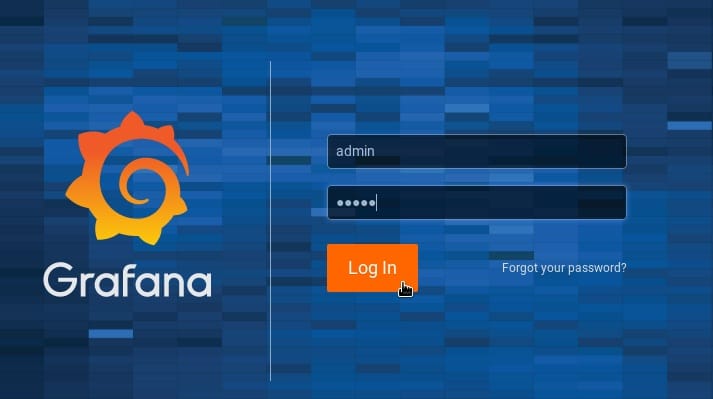
Once Grafana is running and the firewall port is open, open a web browser and navigate to:
http://<Your-Server-IP>:3000The default login credentials are:
- Username:
admin - Password:
admin
Grafana will immediately prompt you to set a new password on first login. Do not skip this step. The left sidebar gives you access to all key areas: Dashboards, Explore, Alerting, Administration, and Configuration. The interface is intuitive even for first-time users.
⚠️ Security warning: Never leave the default admin:admin credentials in place on any server accessible from the internet. Change your password immediately on first login.
Post-Installation Configuration
Change the Admin Password via CLI
If you ever lose access to the UI, reset the admin password directly from the terminal:
grafana-cli admin reset-admin-password <new-password>Edit the Main Configuration File
The primary Grafana configuration file is /etc/grafana/grafana.ini. The most important sections to review are:
[server]— Adjusthttp_port,domain, androot_urlif you plan to serve Grafana behind a reverse proxy[security]— Set a uniquesecret_keyand review theadmin_passwordfield[database]— Defaults to SQLite3; switch to MySQL or PostgreSQL for production deployments[log]— Configure log level (debug,info,warn,error) and log file path
After editing the configuration file, always restart the service for changes to take effect:
sudo systemctl restart grafana-serverConnect Your First Data Source
Grafana without a data source is just an empty canvas. To add one, go to Configuration → Data Sources → Add data source in the UI. Supported data sources include:
- Prometheus — Most common for cloud-native monitoring stacks
- InfluxDB — Popular for time-series metrics
- Elasticsearch — Useful for log aggregation and search
- MySQL / PostgreSQL — For application-level database metrics
- Loki — Grafana’s native log aggregation solution
For example, to add a Prometheus data source, select Prometheus from the list, enter http://localhost:9090 as the URL, and click Save & Test. A green confirmation banner means the connection is working. The Prometheus + Grafana combination is the most widely deployed open-source monitoring stack in the cloud-native ecosystem today.
How To Verify Grafana Is Running Correctly
After installation, run these quick checks to confirm everything is healthy:
# Check service status
systemctl status grafana-server

# View live logs
sudo journalctl -u grafana-server -f

# Confirm port 3000 is actively listening
ss -tlnp | grep 3000

# Check the installed Grafana version
grafana-server -v
If the service is active, the port is open, and the version is printed cleanly, your installation is complete and healthy.
Troubleshooting Common Issues
Even on a clean Fedora 43 system, a few things can go wrong. Here are the most commonly reported problems and their fixes:
| Problem | Likely Cause | Solution |
|---|---|---|
| Cannot access port 3000 from browser | firewalld is blocking the port |
Run firewall-cmd --add-port=3000/tcp --permanent && firewall-cmd --reload |
grafana-server.service fails to start |
Port conflict or malformed grafana.ini |
Run journalctl -u grafana-server -xe to read the error log |
“Permission denied” on /var/lib/grafana |
Incorrect file ownership | Run sudo chown -R grafana:grafana /var/lib/grafana |
| Admin password not accepted | Password was previously changed or DB corrupted | Run grafana-cli admin reset-admin-password <newpass> |
wget: command not found during GPG import |
wget is not installed |
Run sudo dnf install wget -y then retry |
| Dashboard loads but shows no data | No data source connected | Go to Configuration → Data Sources and add one |
| GPG key import fails silently | Wrong URL or network timeout | Verify the URL https://rpm.grafana.com/gpg.key is reachable |
When in doubt, the Grafana server log at /var/log/grafana/grafana.log is your most reliable source of diagnostic information. It records every startup event, plugin load, data source connection attempt, and error message in detail.
How To Uninstall Grafana on Fedora 43
If you need to remove Grafana from your system, start by stopping the service:
sudo systemctl stop grafana-serverThen remove the package depending on the edition you installed:
# Remove OSS edition
sudo dnf remove grafana

# Remove Enterprise edition
sudo dnf remove grafana-enterprise
Optionally, remove the repository file to prevent dnf from referencing it in future updates:
sudo rm -i /etc/yum.repos.d/grafana.repoImportant: The dnf remove command does not delete your configuration files at /etc/grafana/ or your database at /var/lib/grafana/. If you want a complete wipe, remove those directories manually after uninstalling the package.
Congratulations! You have successfully installed Grafana. Thanks for using this tutorial for installing Grafana on your Fedora 43 Linux system. For additional help or useful information, we recommend you check the official Grafana website.
