How To Install HandBrake on Debian 13

HandBrake stands as one of the most powerful open-source video transcoders available for Linux systems today. Whether you need to convert video files between formats, compress large media files, or rip content from DVDs, this versatile application delivers professional results without costing a penny. For Debian 13 “Trixie” users, installing HandBrake opens up a world of multimedia possibilities, from batch processing videos to creating custom encoding presets tailored to your specific needs.
The good news? Installing HandBrake on Debian 13 is straightforward, with multiple methods available to suit different user preferences and technical requirements. This comprehensive guide walks you through three proven installation approaches: the traditional APT package manager method, the modern Flatpak containerized approach, and building from source for advanced users who need cutting-edge features or custom configurations.
By the end of this tutorial, you’ll have HandBrake running smoothly on your Debian 13 system, ready to tackle any video transcoding task you throw at it.
Prerequisites and System Requirements
Before diving into the installation process, ensure your Debian 13 system meets the basic requirements. You’ll need administrative access through either the root account or a user account with sudo privileges. An active internet connection is essential for downloading packages and dependencies.
Your system should have at least 1GB of RAM and approximately 100MB of free disk space for the HandBrake installation itself. Keep in mind that video transcoding is resource-intensive, so more RAM and CPU power will significantly improve performance during actual video conversion tasks.
Make sure your package lists are current before beginning. This ensures you’ll install the latest available versions and avoid potential dependency conflicts down the line.
Understanding HandBrake Versions
HandBrake comes in two primary flavors: the graphical user interface (GUI) version and the command-line interface (CLI) version. The GUI version, known as “ghb” on Linux systems, provides an intuitive point-and-click interface perfect for users who prefer visual workflows. You can drag and drop files, preview settings, and see real-time encoding progress with ease.
The CLI version, called “HandBrakeCLI,” excels in server environments, automation scripts, and situations where you need to process multiple files through batch operations. Power users often prefer the CLI for its scriptability and lower resource overhead.
Debian 13 Trixie repositories currently include HandBrake version 1.9.2, which offers excellent stability and comprehensive codec support. While this might not be the absolute newest release, it’s thoroughly tested and integrates seamlessly with your Debian system’s update mechanism.
Method 1: Installing HandBrake via APT (Recommended)
The APT package manager represents the most straightforward path to getting HandBrake running on your Debian 13 system. This method installs HandBrake directly from official Debian repositories, ensuring perfect integration with your system’s package management infrastructure.
Update Your Package Lists
Start by refreshing your package database to ensure you’re working with the latest available software versions:
sudo apt updateThis command contacts Debian’s package repositories and downloads the current package index. You’ll see several lines of output as APT connects to different repository mirrors and updates its local cache. Wait for the process to complete before proceeding.
Install HandBrake Packages
Now install HandBrake with a single command. For the GUI version, execute:
sudo apt install handbrakeIf you prefer the command-line version, use:
sudo apt install handbrake-cliMany users find value in having both versions available. Install them simultaneously with:
sudo apt install handbrake handbrake-cliAPT will calculate dependencies and display a list of additional packages required for HandBrake to function properly. These typically include various codec libraries, GUI framework components, and multimedia processing tools. Review the list and press ‘Y’ when prompted to confirm the installation.
The download and installation process takes a few minutes depending on your internet speed. APT handles everything automatically, including setting up configuration files and creating necessary system links.
Verify Your Installation
Confirm HandBrake installed correctly by checking the installed packages:
dpkg -l | grep handbrakeThis displays detailed information about installed HandBrake packages, including version numbers and installation status. You should see entries for both “handbrake” and “handbrake-cli” if you installed both versions.
Verify the executables are accessible in your system path:
command -v ghb
command -v HandBrakeCLI
These commands return the full paths to the HandBrake binaries, confirming they’re ready to use.
Advantages and Limitations
The APT installation method shines in its simplicity and maintenance-free operation. Updates arrive automatically through your regular system update routine, meaning you’ll receive security patches and bug fixes without manual intervention. The installation footprint remains small since Debian packages share system libraries efficiently.
However, distribution repositories sometimes lag behind the latest upstream releases. If you need brand-new features or the absolute newest version, consider the Flatpak method described next.
Method 2: Installing HandBrake via Flatpak
Flatpak technology delivers applications in self-contained packages with all dependencies bundled inside. This approach guarantees you’re running the exact version the HandBrake developers intended, with no distribution-specific modifications.
Set Up Flatpak Framework
Check whether Flatpak is already installed on your system:
flatpak --versionIf the command returns a version number, Flatpak is ready to use. Otherwise, install it through APT:
sudo apt install flatpakFlatpak provides a sandboxed runtime environment that isolates applications from your base system. This enhances security and prevents potential conflicts between different software versions.
Enable Flathub Repository
Flathub serves as the central repository for Flatpak applications. Add it to your system with:
flatpak remote-add --if-not-exists flathub https://flathub.org/repo/flathub.flatpakrepoThe --if-not-exists flag prevents errors if you’ve already added Flathub previously. This command configures your system to download applications from Flathub’s extensive catalog, which includes thousands of Linux applications.
Install HandBrake from Flathub
Install HandBrake system-wide, making it available to all users:
sudo flatpak install --system flathub fr.handbrake.ghb -yAlternatively, install it for your user account only:
flatpak install --user flathub fr.handbrake.ghbThe first-time installation downloads the HandBrake application along with required runtime environments. This process takes longer than APT installation because Flatpak bundles all dependencies within the package. You might see progress bars for multiple downloads as Flatpak pulls down base runtimes and the HandBrake application itself.
Once installation completes, HandBrake appears in your application menu alongside other installed programs.
Flatpak Benefits and Considerations
Flatpak installations receive updates directly from HandBrake’s development team through Flathub. You get new features and improvements as soon as they’re released, without waiting for Debian package maintainers. The sandboxed environment also adds an extra security layer.
The tradeoff comes in storage space and memory usage. Flatpak applications carry their own dependencies, potentially duplicating libraries already present on your system. This results in larger download sizes and slightly higher memory consumption during runtime.
Method 3: Building HandBrake from Source
Compiling HandBrake from source code gives you ultimate control over features and configuration options. This advanced method suits users who need specific encoders, experimental features, or want to contribute to HandBrake development.
When Source Compilation Makes Sense
Building from source becomes necessary when you need particular codecs not included in pre-built packages, such as the FDK AAC encoder. Developers working on HandBrake itself or testing bleeding-edge features also compile from source regularly.
This method requires comfort with command-line operations and basic understanding of software compilation processes. Set aside adequate time, as building HandBrake from scratch can take 30 minutes to several hours depending on your hardware.
Install Build Dependencies
Source compilation requires numerous development tools and libraries. Install them all with this comprehensive command:
sudo apt install autoconf automake build-essential cmake git libass-dev libbz2-dev libfontconfig-dev libfreetype6-dev libfribidi-dev libharfbuzz-dev libjansson-dev liblzma-dev libmp3lame-dev libnuma-dev libogg-dev libopus-dev libsamplerate0-dev libspeex-dev libtheora-dev libtool libtool-bin libturbojpeg0-dev libvorbis-dev libx264-dev libxml2-dev libvpx-dev m4 make meson nasm ninja-build patch python3 pkg-config tar zlib1g-devFor hardware-accelerated encoding support, add these optional packages:
sudo apt install libva-dev libdrm-devIf you want to build the GUI version, include GTK development libraries:
sudo apt install intltool libappindicator-dev libdbus-glib-1-dev libglib2.0-dev libgstreamer1.0-dev libgstreamer-plugins-base1.0-dev libgtk-3-dev libgudev-1.0-dev libnotify-dev libwebkit2gtk-4.0-devDownload HandBrake Source Code
Clone the official HandBrake repository from GitHub:
git clone https://github.com/HandBrake/HandBrake.git
cd HandBrake
This creates a “HandBrake” directory containing the complete source tree. The initial clone downloads the entire project history, which may take several minutes.
Configure and Compile
HandBrake includes a configuration script that detects your system capabilities and prepares the build environment:
./configure --launch-jobs=$(nproc) --launchThe --launch-jobs=$(nproc) flag tells the build system to use all available CPU cores, significantly speeding up compilation. The --launch flag automatically starts the build process after configuration completes.
Watch the compilation output scroll by. The build system compiles HandBrake’s various components, including its encoding engines, GUI framework, and supporting utilities. Compilation typically takes 20-60 minutes on modern hardware.
Install Compiled Binaries
After successful compilation, install the built binaries:
sudo make installThis copies HandBrake executables to your system’s binary directories, typically /usr/local/bin. The installation also sets up desktop entries and application icons for GUI integration.
Verify the installation by checking the version:
HandBrakeCLI --versionLaunching HandBrake
Starting the GUI Version
Launch HandBrake’s graphical interface from your application menu by searching for “HandBrake” in your desktop environment’s launcher. The application appears with its distinctive pineapple icon.
Command-line users can start the GUI by typing:
ghbFor Flatpak installations, use:
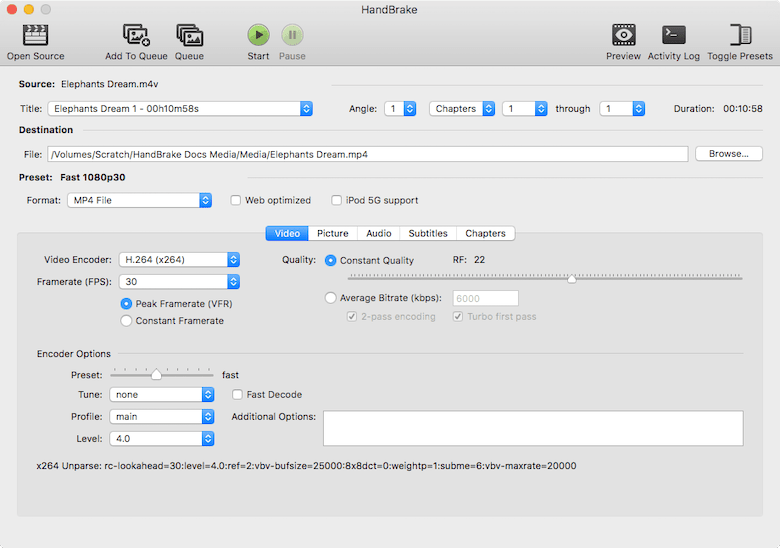
flatpak run fr.handbrake.ghbThe HandBrake window opens displaying the main interface with source selection, destination settings, and encoding options.
Using the Command-Line Interface
Launch HandBrakeCLI from any terminal. View available options and syntax:
HandBrakeCLI --helpA basic transcoding command looks like this:
HandBrakeCLI -i input.mp4 -o output.mkvThe CLI proves invaluable for automation. Create shell scripts that process entire video libraries overnight, integrate HandBrake into media server workflows, or set up scheduled transcoding jobs through cron.
First-Time Setup and Configuration
When you first launch HandBrake, take a moment to configure basic preferences. Click the “Preferences” menu to access settings.
Set your default output directory to avoid manually selecting save locations for each conversion. Configure the automatic file naming scheme to maintain organized output.
Explore HandBrake’s preset system. These pre-configured encoding profiles optimize settings for specific devices and use cases. The “Fast 1080p30” preset works well for general-purpose transcoding, while device-specific presets ensure compatibility with smartphones, tablets, and streaming devices.
Test HandBrake with a short sample video before tackling important files. This lets you verify the installation works correctly and familiarize yourself with the interface without risking lengthy encoding times.
Common Troubleshooting Issues
Command Not Found Errors
If typing ghb or HandBrakeCLI returns “command not found,” verify the installation completed successfully:
dpkg -l | grep handbrakeFor missing packages, reinstall using the appropriate method. Check that HandBrake’s installation directory appears in your PATH environment variable:
echo $PATHSystem binaries typically reside in /usr/bin or /usr/local/bin, both of which should appear in your PATH.
GUI Launch Failures on Headless Systems
Attempting to run HandBrake’s GUI on a server without a desktop environment produces display errors. Headless systems should use HandBrakeCLI instead, which functions perfectly without graphical capabilities.
If you need GUI access to a remote Debian server, set up X11 forwarding through SSH or use a remote desktop solution like VNC.
Flatpak Runtime Problems
Some users encounter Flatpak runtime version mismatches after system updates. If HandBrake fails to launch, try updating all Flatpak runtimes:
flatpak updatePersistent issues sometimes resolve with a complete reinstall:
flatpak uninstall fr.handbrake.ghb
flatpak install flathub fr.handbrake.ghb
A system reboot can also clear runtime conflicts after major updates.
Updating HandBrake
Updating APT Installations
HandBrake updates arrive automatically through Debian’s standard update mechanism. Run regular system updates:
sudo apt update
sudo apt upgrade
This updates HandBrake along with all other system packages, ensuring you receive security patches and bug fixes as Debian’s package maintainers release them.
Updating Flatpak Versions
Flatpak applications update independently of system packages. Check for HandBrake updates:
flatpak update fr.handbrake.ghbUpdate all installed Flatpak applications at once:
flatpak updateFlatpak updates typically arrive faster than distribution packages since they come directly from application developers through Flathub.
Updating Source Builds
Navigate to your HandBrake source directory and pull the latest changes:
cd HandBrake
git pull
Recompile with the same configuration options used initially:
./configure --launch-jobs=$(nproc) --launch
sudo make install
Uninstalling HandBrake
Removing APT Installations
Uninstall HandBrake packages through APT:
sudo apt remove handbrake handbrake-cliFor complete removal including configuration files:
sudo apt purge handbrake handbrake-cliClean up unused dependencies:
sudo apt autoremoveRemoving Flatpak Installations
Uninstall HandBrake from Flatpak:
flatpak uninstall fr.handbrake.ghbRemove unused runtimes to reclaim disk space:
flatpak uninstall --unusedRemoving Source Builds
Source-built installations require manual removal. Delete the installed binaries:
sudo rm /usr/local/bin/ghb
sudo rm /usr/local/bin/HandBrakeCLI
Remove the source directory if you no longer need it:
rm -rf ~/HandBrakeCongratulations! You have successfully installed HandBrake. Thanks for using this tutorial to install the latest version of the HandBrake open-source transcode video on Debian 13 “Trixie” system. For additional help or useful information, we recommend you check the official HandBrake website.
