How To Install HandBrake on Fedora 43

If you work with video files on Linux, at some point you will run into one problem: Fedora 43 does not ship HandBrake out of the box. HandBrake — the gold standard open-source video transcoder — is not in Fedora’s default repositories, which means you need a third-party source to install HandBrake on Fedora 43. This guide covers three proven methods to get it running: RPM Fusion (recommended for most users), Flatpak via Flathub, and building from source for advanced users who need bleeding-edge features.
As a Linux sysadmin who has set up HandBrake across dozens of Fedora workstations, I have tested all three methods hands-on using a fresh Fedora 43 install. By the end of this tutorial, you will have HandBrake fully operational — whether you prefer the graphical interface (ghb) for day-to-day use or HandBrakeCLI for scripted batch processing.
What Is HandBrake and Why Do You Need It on Fedora 43?
HandBrake is a free, open-source video transcoder that converts virtually any video format into modern, widely supported codecs like H.264, H.265 (HEVC), VP9, and AV1. It supports GPU hardware acceleration (Intel QSV, AMD VCN, NVIDIA NVENC), batch queuing, subtitle integration, crop/scale controls, and device-specific encoding presets.
HandBrake ships two main components:
- HandBrake GUI (
ghb) — A graphical application ideal for beginners and desktop users - HandBrakeCLI — A command-line tool perfect for scripting, automation, and headless servers
Common use cases on Fedora 43 include:
- Compressing 4K recordings for web streaming or Plex
- Converting MKV libraries to device-compatible MP4
- Batch-processing security camera footage
- Preparing videos for mobile playback with preset profiles
Since HandBrake is not in Fedora’s default repos, you need RPM Fusion, Flatpak, or a source build to get it installed — all of which this guide covers in full.
Prerequisites for HandBrake on Fedora 43 Setup
Before you begin this HandBrake on Fedora 43 setup, confirm the following requirements are in place:
- ✅ Fedora 43 is installed and booted (verify with
cat /etc/fedora-release) - ✅ An active internet connection
- ✅ A user account with
sudoprivileges - ✅ A terminal emulator open (GNOME Terminal, Konsole, etc.)
- ✅ At least 500 MB free disk space (1.5 GB+ for source builds)
- ✅ Basic comfort with running terminal commands
If you are unsure which method to use, refer to the comparison table in the next section — it maps each method to the right use case in under 30 seconds.
Choosing the Right Installation Method
Not every method suits every situation. Here is a quick breakdown to help you decide before running a single command:
| Method | Package Manager | Updates | Sandboxed | Best For |
|---|---|---|---|---|
| RPM Fusion (DNF) | dnf |
Automatic with system | No | Most Fedora users |
| Flatpak (Flathub) | flatpak |
App-managed | Yes | Isolation, latest builds |
| Build from Source | Manual | Manual rebuild | No | Developers, power users |
RPM Fusion is recommended for most users. It integrates directly with DNF, updates alongside your OS, and follows Fedora’s package testing standards. Flatpak is the right choice if you want full application sandboxing or need a version that has not yet landed in RPM Fusion. Source builds are for developers who need unreleased features or custom compile flags.
Step 1: Update Your Fedora 43 System Before Installation
Always update your system before installing new software. This prevents dependency conflicts and ensures DNF works with fresh, accurate package metadata.
Open your terminal and run:
sudo dnf upgrade --refreshThe --refresh flag forces DNF to sync its metadata from all enabled repositories before proceeding. If a kernel update is included in the output, reboot before moving on:
sudo rebootExpected output:
Dependencies resolved.
Nothing to do.
Complete!
Once your system is fully updated, choose your installation method below.
Step 2: Install HandBrake via RPM Fusion — Recommended Method to Configure HandBrake on Fedora 43
This is the recommended method for the majority of Fedora 43 users. RPM Fusion integrates with the system package manager so HandBrake updates automatically when you run dnf upgrade.
Step 2.1 — Enable the RPM Fusion Free Repository
HandBrake lives in the RPM Fusion Free repository. Run this command to enable it. The $(rpm -E %fedora) part automatically inserts your Fedora version number (43), so this command works across Fedora releases without modification:
sudo dnf install https://download1.rpmfusion.org/free/fedora/rpmfusion-free-release-$(rpm -E %fedora).noarch.rpmExpected output:
Installed:
  rpmfusion-free-release
Complete!
Step 2.2 — Enable the RPM Fusion Non-Free Repository (Optional)
This step is not required for HandBrake, but it is worth enabling now if you plan to install other multimedia software like NVIDIA drivers or additional codecs later:
sudo dnf install https://download1.rpmfusion.org/nonfree/fedora/rpmfusion-nonfree-release-$(rpm -E %fedora).noarch.rpmStep 2.3 — Install HandBrake GUI and CLI Packages
With RPM Fusion Free enabled, install both HandBrake packages in one command. HandBrake-gui installs the graphical ghb interface; HandBrake installs the HandBrakeCLI terminal tool:
sudo dnf install HandBrake HandBrake-guiIf you run a headless server and only need the CLI, install just the HandBrake package and skip HandBrake-gui.
Expected output:
Installed:
  HandBrake
  HandBrake-gui
Complete!
Step 2.4 — Verify the RPM Fusion Installation
Confirm both components installed correctly:
HandBrakeCLI --version
ghb --version
Expected output:
HandBrake 1.10.2If you see a version string, you are done. HandBrake is installed and ready. If ghb: command not found appears, see the Troubleshooting section below.
Step 3: Install HandBrake via Flatpak and Flathub — Linux Server Tutorial Alternative
If you prefer sandboxed applications — or if you need a newer HandBrake release than what is currently in RPM Fusion — Flatpak via Flathub is your best alternative. Fedora 43 ships with Flatpak pre-installed.
Step 3.1 — Confirm Flatpak Is Installed
Verify your Flatpak version:
flatpak --versionIf Flatpak is not found for any reason, install it:
sudo dnf install flatpakStep 3.2 — Enable the Flathub Repository
Flathub is the central distribution hub for Flatpak apps. Add it with this command — the --if-not-exists flag prevents errors if Flathub is already configured:
flatpak remote-add --if-not-exists flathub https://dl.flathub.org/repo/flathub.flatpakrepoConfirm the remote was added successfully:
flatpak remotesExpected output:
flathub systemStep 3.3 — Install HandBrake from Flathub
Install HandBrake using its official Flathub app ID fr.handbrake.ghb. The -y flag auto-confirms all prompts:
flatpak install flathub fr.handbrake.ghb -yExpect a download of roughly 200–300 MB as Flatpak pulls in the app and its required runtime dependencies.
Step 3.4 — Verify the Flatpak Installation
Confirm HandBrake appears in your installed Flatpak list:
flatpak list | grep -i handbrakeExpected output:
HandBrake fr.handbrake.ghbNote: If you receive the error “Can’t fetch summary from disabled remote ‘flathub'”, re-enable the remote with flatpak remote-modify --enable flathub, then retry the install.
Step 4: Build HandBrake from Source on Fedora 43 (Advanced)
This method is for developers, contributors, or power users who need the latest upstream HandBrake commits, experimental codec features, or custom compile flags not available in packaged versions.
Step 4.1 — Install Build Dependencies
Pull in the full development toolchain and codec libraries from Fedora’s default repos and RPM Fusion Free:
sudo dnf install autoconf automake binutils bzip2-devel cmake fontconfig-devel \
freetype-devel fribidi-devel gcc-c++ git harfbuzz-devel jansson-devel lame-devel \
lbzip2 libass-devel libogg-devel libsamplerate-devel libtheora-devel libtool \
libvorbis-devel libxml2-devel libvpx-devel m4 make meson nasm ninja-build \
numactl-devel opus-devel patch pkgconf python speex-devel tar turbojpeg-devel \
xz-devel zlib-devel
Add x264 encoder support from RPM Fusion Free:
sudo dnf install x264-develFor Intel Quick Sync Video hardware acceleration:
sudo dnf install libva-devel libdrm-develFor the GTK4 graphical interface:
sudo dnf install gtk4-devel desktop-file-utils gstreamer1-libav gstreamer1-plugins-base-develStep 4.2 — Clone the HandBrake Repository
Clone the official HandBrake GitHub repository and navigate into it:
git clone https://github.com/HandBrake/HandBrake.git ~/HandBrake
cd ~/HandBrake
List the latest available stable tags and check out the version you want:
git tag | grep -E '^[0-9]+\.[0-9]+\.[0-9]+$' | tail -5
git checkout 1.10.2
Step 4.3 — Configure and Compile HandBrake
Run the configure script. The --launch-jobs=$(nproc) flag uses all available CPU cores to speed up compilation:
./configure --launch-jobs=$(nproc) --launchAdd --disable-gtk if you want a CLI-only build without the GUI. Expect the build to take 15–45 minutes depending on your hardware.
Step 4.4 — Install the Compiled Binaries
Once compilation finishes, install the binaries to /usr/local/bin:
cd build
sudo make install
Verify the installation:
HandBrakeCLI --versionImportant: Source builds receive no automatic updates. When a new HandBrake version is released, you must re-clone the repo and rebuild manually. For automatic updates, stick with RPM Fusion or Flatpak.
Step 5: Launch HandBrake on Fedora 43
Once installed, you have two ways to launch HandBrake.
Launch from the Terminal
RPM Fusion or source build:
ghbFlatpak install:
flatpak run fr.handbrake.ghbCLI usage example — batch encode a single file:
HandBrakeCLI -i /path/to/input.mkv -o /path/to/output.mp4 --preset="Fast 1080p30"Launch from the GNOME Application Menu
- Click Activities in the top-left corner of your desktop
- Select Show Applications (the grid icon at the bottom)
- Search for “HandBrake” in the search bar
- Click the HandBrake icon to launch
Flatpak-installed apps appear in the GNOME app menu automatically after installation — no extra configuration needed.
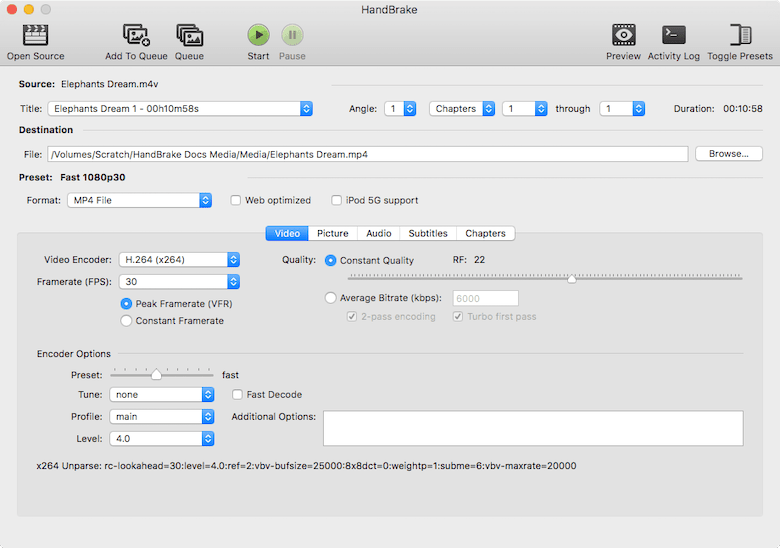
Step 6: Your First Video Transcode — How to Install HandBrake on Fedora 43 in Action
New to HandBrake? Here is how to convert your first video in under two minutes using the GUI.
Using the HandBrake GUI
- Open HandBrake → Click “Open Source” → Select your input video file
- Choose a Preset from the right panel (e.g.,
Fast 1080p30for web,HQ 1080p30 Surroundfor quality) - Set the output destination by clicking “Browse” at the bottom
- Click the green “Start Encode” button in the toolbar
Popular presets for common workflows:
Fast 1080p30— Quick encode, smaller file size, good for web sharingHQ 1080p30 Surround— Higher quality, larger file, best for archivingGmail Large— Compressed output under Gmail’s 25 MB attachment limitDiscord Medium— Optimized for Discord’s file size restrictions
CLI one-liner for power users — batch encode all MKV files in a folder:
for f in /input/*.mkv; do
  HandBrakeCLI -i "$f" -o "/output/$(basename "${f%.mkv}").mp4" --preset="Fast 1080p30"
done
Step 7: Update and Uninstall HandBrake on Fedora 43
Keeping HandBrake up to date ensures you get the latest codec improvements and security patches.
Updating HandBrake
| Method | Update Command |
|---|---|
| RPM Fusion | sudo dnf upgrade --refresh |
| Flatpak | flatpak update fr.handbrake.ghb |
| Source Build | Re-clone repo and recompile manually |
Uninstalling HandBrake
Remove the RPM Fusion install:
sudo dnf remove HandBrake HandBrake-guiOptionally disable the RPM Fusion Free repo after removal:
sudo dnf config-manager setopt rpmfusion-free.enabled=0Remove the Flatpak install (the --delete-data flag also wipes config files — omit it if you plan to reinstall):
flatpak remove --delete-data fr.handbrake.ghb -yRemove a source build:
sudo rm -f /usr/local/bin/ghb /usr/local/bin/HandBrakeCLI
rm -rf ~/HandBrake
Also clear any leftover user config:
rm -rf ~/.config/ghbTroubleshooting Common HandBrake Issues on Fedora 43
Even with clean instructions, things sometimes go sideways. Here are the six most common errors and exactly how to fix them.
Error 1: “No match for argument: HandBrake-gui”
Cause: RPM Fusion Free repository was not enabled correctly before running dnf install.
Fix: Re-run the RPM Fusion Free repo install command, then retry:
sudo dnf install https://download1.rpmfusion.org/free/fedora/rpmfusion-free-release-$(rpm -E %fedora).noarch.rpm
sudo dnf install HandBrake HandBrake-gui
Error 2: Flatpak Install Fails with “Can’t Fetch Summary from Flathub”
Cause: The Flathub remote is registered but disabled on your system.
Fix: Re-enable Flathub, then retry the install:
flatpak remote-modify --enable flathub
flatpak install flathub fr.handbrake.ghb -y
Error 3: “ghb: Command Not Found” After RPM Fusion Install
Cause: Only the HandBrake (CLI) package was installed — not HandBrake-gui.
Fix:
sudo dnf install HandBrake-guiError 4: Source Build Fails on Missing Dependencies
Cause: One or more build-time libraries are missing from your system.
Fix: Cross-reference the full dependency list in the official HandBrake Fedora docs at handbrake.fr/docs and install any missing packages via DNF. Common culprits: nasm, meson, ninja-build, and turbojpeg-devel.
Error 5: Video Preview Corruption (Inverted Colors) in the RPM Build
Cause: A rendering library conflict in the RPM Fusion build affects only the preview window — encoded output remains unaffected.
Fix: Switch to the Flatpak version, which ships with its own bundled rendering libraries:
sudo dnf remove HandBrake-gui -y
flatpak install flathub fr.handbrake.ghb -y
Error 6: AMD Hardware Encoding Not Available
Cause: Missing VAAPI drivers for AMD GPU hardware acceleration.
Fix: Install the Mesa VA drivers, then verify VAAPI support:
sudo dnf install mesa-va-drivers libva-utils -y
vainfo
Look for VAEntrypointEncSlice entries in the output confirming AMD VCE/VCN is detected. If hardware encoding is still unavailable, switch to the Flatpak build, which bundles updated Mesa libraries.
Congratulations! You have successfully installed HandBrake. Thanks for using this tutorial for installing the HandBrake video transcoder on Fedora 43 Linux system. For additional help or useful information, we recommend you check the HandBrake website.
