How To Install Inkscape on Fedora 43

Installing vector graphics software on Linux has never been more straightforward, yet choosing the right installation method matters significantly for your workflow and system stability. Inkscape, the powerful open-source vector graphics editor, offers multiple installation paths on Fedora 43, each with distinct advantages tailored to different user needs. This comprehensive guide walks you through every available method—from the traditional DNF package manager to modern containerized solutions like Flatpak and Snap—ensuring you can make an informed decision based on your specific requirements. Whether you’re a graphic designer, web developer, or hobbyist creator, you’ll find detailed instructions, troubleshooting solutions, and optimization tips to get Inkscape running smoothly on your Fedora 43 system.
What is Inkscape?
Inkscape stands as a professional-grade vector graphics editor that rivals commercial alternatives like Adobe Illustrator, yet remains completely free and open-source. Unlike raster graphics programs that work with pixels, Inkscape creates scalable vector graphics (SVG) that maintain perfect clarity at any size—from business card logos to billboard advertisements.
The software excels at creating logos, icons, illustrations, diagrams, technical drawings, and user interface mockups. Its SVG native format ensures your designs remain crisp and editable regardless of scaling, making it invaluable for modern responsive web design and print production. Professional designers appreciate Inkscape’s comprehensive toolset, including precise pen and pencil tools, geometric shapes, calligraphy brushes, and advanced text typography capabilities.
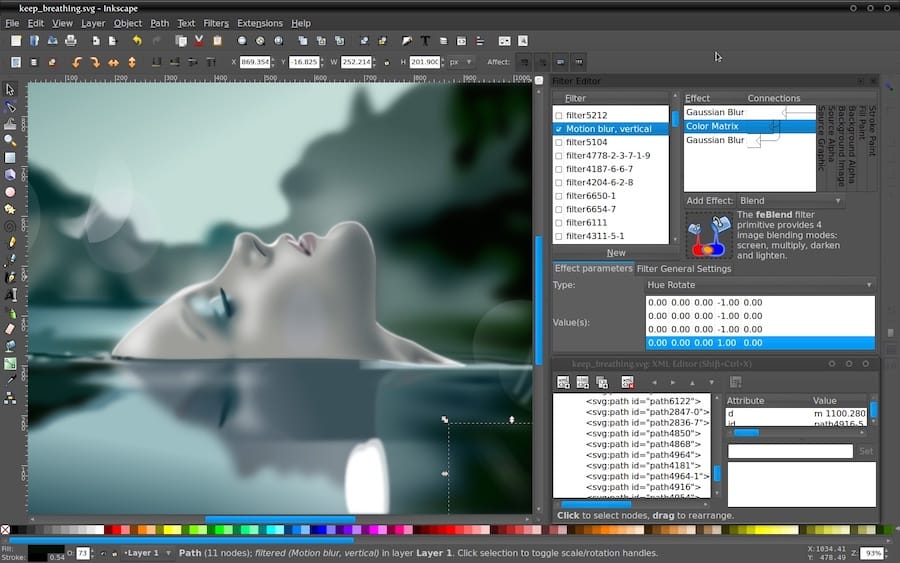
Inkscape’s feature set extends far beyond basic drawing. The application provides sophisticated path editing with node manipulation, layer management for complex compositions, filter effects, blend modes, and an extensive library of extensions. Multi-format support allows seamless import and export across PDF, PNG, EPS, AI, and DXF formats. The active development community continuously adds new features while maintaining compatibility with industry-standard workflows.
Understanding Fedora 43 Compatibility
Fedora 43 represents the latest iteration of this cutting-edge Linux distribution, bringing updated packages and system libraries to desktop users. The current Inkscape version available through Fedora’s official repositories is 1.4.2, which includes modern features and performance improvements. However, recent community discussions have revealed specific compatibility challenges with the RPM package on Fedora 43 that users should consider before installation.
Some Fedora 43 users have reported stuttering, crashes, and launch failures when using the traditional DNF-installed version of Inkscape. These issues appear related to library dependencies and possible conflicts with Wayland display server implementation. The Flatpak version has demonstrated superior stability on Fedora 43, making it the recommended installation method for most users seeking a reliable experience.
Graphics stack considerations matter significantly. Fedora 43 defaults to Wayland on compatible hardware, which occasionally causes rendering issues with certain applications. Understanding these platform-specific nuances helps you select the most appropriate installation method for your hardware configuration and workflow requirements.
System Requirements and Prerequisites
Hardware Requirements
Inkscape performs best with adequate system resources. A minimum of 4GB RAM and 500MB free disk space allows basic functionality, though professional work with complex illustrations demands more substantial resources. Systems with 8GB or more RAM handle intricate designs with multiple layers, complex filters, and large documents without performance degradation.
CPU performance directly affects rendering speed, particularly when applying filters or working with thousands of objects. Modern multi-core processors provide smoother real-time preview during editing operations. A dedicated graphics card improves canvas rendering, though Inkscape runs adequately on integrated graphics for most design work.
Software Prerequisites
Your Fedora 43 installation should be current before adding new software. This guide assumes you’re running Fedora 43 Workstation, though the instructions apply equally to Silverblue or Kinoite editions with minor adaptations. You’ll need an active internet connection for downloading packages, sudo privileges for system modifications, and terminal access for executing installation commands.
Administrative access enables package installation and system configuration changes. If you’re using a standard user account, ensure you’re part of the wheel group to execute sudo commands. Terminal applications like GNOME Terminal or Konsole provide the command-line interface necessary for most installation methods.
Preparing Your Fedora 43 System
System Update
Begin by refreshing your system to ensure all existing packages use their latest versions. Open your terminal using Ctrl+Alt+T or through the Activities menu. Execute the following commands to clean package metadata and update your system:
sudo dnf clean all
sudo dnf update
The first command clears cached package information, preventing conflicts from outdated repository data. The second performs a comprehensive system upgrade, installing security patches and library updates that Inkscape may depend upon. Reboot your system if kernel updates were installed during this process.
System Verification
Confirm you’re running Fedora 43 by checking your system version. Type cat /etc/fedora-release in your terminal to display the exact Fedora version. Verify available disk space using df -h / to ensure sufficient room for your chosen installation method. Flatpak and Snap installations typically require more space than traditional DNF packages due to bundled dependencies.
Method 1: Installing Inkscape via DNF (Official Repository)
Overview
The DNF package manager represents Fedora’s native software installation system, providing deep integration with system libraries and automatic security updates. This traditional approach installs Inkscape directly from Fedora’s official repositories, ensuring packages are tested and verified by Fedora maintainers.
However, be aware that the RPM version currently experiences stability issues on Fedora 43, including potential crashes and performance stuttering. Despite these challenges, this method remains viable for users prioritizing minimal disk usage and native desktop integration.
Step-by-Step Installation Process
Launch your terminal and execute the installation command:
sudo dnf install inkscapeEnter your administrative password when prompted. DNF resolves dependencies automatically, displaying a list of packages to be installed. Review the package list and type ‘y’ to confirm installation. The download and installation process typically completes within a few minutes, depending on your internet connection speed.
Verify successful installation by checking the installed version:
inkscape --versionThis command displays the Inkscape version number and build information, confirming the application installed correctly on your system.
Advantages of DNF Installation
Traditional package management offers seamless system integration with automatic updates through your regular system upgrade process. The DNF method requires minimal disk space compared to containerized alternatives since it shares system libraries with other applications. Native theme integration ensures Inkscape matches your desktop appearance without additional configuration.
Fedora maintainers verify DNF packages for security and compatibility, providing an additional trust layer. Updates arrive through the standard system update mechanism, requiring no separate maintenance routines.
Disadvantages
The DNF repository may lag behind the absolute latest Inkscape releases, though this trade-off provides stability. More significantly, the current Fedora 43 RPM package exhibits known issues including launch failures and performance problems that may disrupt your workflow. Wayland compatibility remains imperfect, potentially causing rendering glitches on default Fedora 43 configurations.
When to Choose This Method
Select DNF installation when you prioritize system integration over cutting-edge features and can tolerate potential stability issues. This method suits users comfortable troubleshooting problems who want the smallest disk footprint. If you encounter the reported Fedora 43 issues, consider switching to the Flatpak method described below.
Method 2: Installing Inkscape via Flatpak (Recommended for Fedora 43)
Overview
Flatpak has emerged as the recommended installation method for Inkscape on Fedora 43, successfully avoiding the stability problems that plague the RPM version. This universal packaging format delivers applications in secure sandboxed containers with bundled dependencies, ensuring consistent behavior across different systems.
Fedora Workstation includes Flatpak support out of the box, making this installation path seamless for most users. The sandboxed environment provides enhanced security while delivering stable performance that current RPM packages cannot match on Fedora 43.
Understanding Flatpak
Flatpak isolates applications from your base system through containerization technology. Each application runs in its own sandbox with explicit permissions for file system access, network connectivity, and hardware resources. This isolation prevents application crashes from affecting system stability while allowing users to run multiple versions of the same software simultaneously.
The technology bundles all required libraries within the application container, eliminating dependency conflicts that occasionally plague traditional package management. Updates arrive directly from application developers or Flathub repository, independent of Fedora’s release cycle.
Step-by-Step Installation
Fedora Workstation ships with Flatpak pre-installed, though you should verify the Flathub repository is configured. Add Flathub if necessary using this command:
flatpak remote-add --if-not-exists flathub https://flathub.org/repo/flathub.flatpakrepoThe --if-not-exists flag prevents errors if Flathub is already configured on your system. Now install Inkscape from Flathub:
flatpak install flathub org.inkscape.InkscapeConfirm the installation when prompted. Flatpak downloads the application and its runtime dependencies, which may take several minutes for the initial installation. Launch Inkscape using:
flatpak run org.inkscape.InkscapeAlternatively, find Inkscape in your application menu under Graphics or Design categories—Flatpak automatically creates desktop entries for installed applications.
Advantages of Flatpak Installation
The Flatpak version resolves stability issues encountered with Fedora 43’s RPM package, providing reliable performance without crashes or stuttering. You receive Inkscape updates independently from Fedora’s release schedule, accessing new features faster than repository-based installations allow. Enhanced security through sandboxing protects your system from potential application vulnerabilities.
Self-contained dependencies eliminate library conflicts with other system software. The consistent runtime environment ensures Inkscape behaves identically across different Linux distributions, simplifying troubleshooting and support.
Disadvantages
Flatpak applications consume more disk space than traditional packages because they bundle dependencies rather than sharing system libraries. Initial launch times may be slightly longer due to sandbox initialization. Some workflows require adjusting filesystem permissions to access files in restricted directories.
Granting Filesystem Permissions
Flatpak’s security model restricts filesystem access by default. Grant additional permissions if Inkscape cannot access files in certain locations:
flatpak override --user --filesystem=/path/to/your/files org.inkscape.InkscapeReplace /path/to/your/files with your actual working directory. For unrestricted home directory access, use --filesystem=home. These permission adjustments balance security with practical usability for your specific workflow needs.
Method 3: Installing Inkscape via Snap
Overview
Snap packages provide another universal Linux application format, though Fedora doesn’t include Snap support by default. Canonical develops Snap with a focus on automatic updates and strong application confinement, making it popular among users who prefer hands-off software management.
Installing Snap on Fedora 43
Enable Snap functionality by installing the snapd daemon:
sudo dnf install snapdActivate the Snap service:
sudo systemctl enable --now snapd.socketCreate the classic Snap support symlink:
sudo ln -s /var/lib/snapd/snap /snapLog out and back in, or restart your system, to ensure PATH environment variables update correctly. This step is crucial for Snap commands to function properly from any terminal session.
Installing Inkscape via Snap
With Snap configured, install Inkscape using:
sudo snap install inkscapeLaunch the application from your menu or via terminal:
snap run inkscapeSnap automatically creates menu entries and desktop icons for convenient access.
Advantages of Snap
Snap excels at automatic background updates, ensuring you always run the latest version without manual intervention. Strong application confinement provides security benefits similar to Flatpak. Easy rollback functionality lets you revert to previous versions if updates introduce problems:
sudo snap revert inkscapeCross-distribution consistency means Snap-packaged applications behave identically whether you’re running Fedora, Ubuntu, or other Linux distributions.
Disadvantages
Snap applications often exhibit longer initial startup times due to compressed filesystem mounts. Adding another package manager increases system complexity and maintenance overhead. Snap stores require more storage space than traditional packages. The Snap ecosystem isn’t native to Fedora’s infrastructure, potentially complicating system integration compared to DNF or Flatpak.
When to Choose Snap
Select Snap if you’re migrating from Ubuntu or other distributions where Snap is standard, maintaining familiar workflows. Automatic background updates suit users who prefer minimal manual intervention. However, for most Fedora 43 users, Flatpak offers better native integration with comparable benefits.
Method 4: Installing Inkscape via AppImage
Overview
AppImage delivers the ultimate in portability—a single executable file containing Inkscape and all dependencies that runs on virtually any Linux distribution without installation. This format appeals to users who need temporary Inkscape access, want to test versions without system changes, or prefer fully portable applications.
Step-by-Step Process
Download the latest Inkscape AppImage from the official GitHub releases page. Navigate to your downloads folder:
cd ~/DownloadsMake the AppImage executable:
chmod +x Inkscape-*.AppImageThe asterisk wildcard matches the specific version number in the filename. Run Inkscape directly:
./Inkscape-*.AppImageNo installation occurs—the application runs entirely from the single file. Move this file anywhere on your system or external storage for portable access.
Advantages
AppImages require zero system modification, making them perfect for testing or temporary use. Multiple Inkscape versions can coexist by keeping different AppImage files. Distribution across systems is simple—copy the file to any Linux machine and run it. No root privileges are necessary for execution, useful on restricted systems.
Disadvantages
Manual updates require downloading new AppImage files when releases occur. Desktop integration doesn’t happen automatically—no menu entries appear without manual .desktop file creation. Larger file sizes include all dependencies within each AppImage. Limited system integration means missing automatic file associations and theme matching.
Creating Desktop Integration
Create a desktop entry for menu access. Generate a .desktop file in ~/.local/share/applications/:
[Desktop Entry]
Name=Inkscape
Exec=/home/yourusername/Downloads/Inkscape-*.AppImage
Icon=inkscape
Type=Application
Categories=Graphics;VectorGraphics;
Replace the path with your AppImage location. Extract the icon from the AppImage or download it separately for proper menu display. This manual process provides convenience similar to properly installed applications.
Method 5: Compiling Inkscape from Source
Overview
Compiling from source grants complete control over build configuration and access to bleeding-edge development features. This advanced method suits experienced Linux users comfortable with compilation processes and troubleshooting build errors. Source compilation enables custom optimizations for your specific hardware and allows contributing to Inkscape development.
Installing Build Dependencies
Install the Development Tools group and required libraries:
sudo dnf groupinstall "Development Tools"
sudo dnf install cmake ninja-build gtk3-devel gtkmm30-devel libxml2-devel libxslt-devel boost-devel gc-devel gsl-devel popt-devel poppler-glib-devel ImageMagick-c++-devel
Additional dependencies may be necessary depending on enabled features. The Inkscape GitLab repository documentation provides comprehensive dependency lists.
Downloading Source Code
Clone the official Inkscape repository:
git clone https://gitlab.com/inkscape/inkscape.git
cd inkscape
This downloads the complete source code and development history. Switch to a stable branch or tag for production use rather than potentially unstable development code.
Compilation Process
Create and enter a build directory:
mkdir build
cd build
Configure the build with CMake:
cmake -G Ninja ..Compile Inkscape:
ninjaCompilation time varies from 10 minutes to over an hour depending on your CPU. Finally, install the compiled application:
sudo ninja installThis places Inkscape binaries in system directories, making them available system-wide.
Advantages
Source compilation provides access to features unavailable in stable releases. Custom compiler optimization flags can enhance performance for your specific processor architecture. Hardware-specific optimizations maximize efficiency. The experience deepens understanding of software development and Linux system architecture.
Disadvantages
Compilation consumes significant time and requires technical knowledge to troubleshoot errors. No automatic updates occur—you must manually pull new code and recompile. Dependency management falls entirely on you, potentially causing conflicts with system libraries. The process demands substantial CPU resources and disk space during builds.
Launching and Verifying Inkscape Installation
Launch Methods
Access Inkscape through multiple paths depending on your installation method. Click Activities in GNOME, search for “Inkscape,” and select the application icon. Browse the application menu under Graphics or Design categories for direct access.
Terminal launch commands vary by installation method:
- DNF:
inkscape - Flatpak:
flatpak run org.inkscape.Inkscape - Snap:
snap run inkscape - AppImage: Navigate to file location and execute
Desktop shortcuts provide quick access if properly configured during installation or through manual .desktop file creation.
Verification Steps
Confirm successful installation by checking the version number. Open the terminal and run the appropriate version command for your installation method. The output should display Inkscape 1.4.x or later, indicating proper installation.
Test basic functionality by creating a new document, selecting the rectangle tool, and drawing a shape. Access various menus to ensure all interface elements load correctly. Open a sample SVG file to verify rendering capabilities. These quick tests confirm Inkscape functions as expected before beginning serious work.
First Launch Considerations
Inkscape may display a welcome dialog or setup wizard on initial launch. Configure basic preferences such as default units, page sizes, and interface language. Import settings from previous Inkscape installations if migrating from another system. The first startup initializes user directories and creates default configuration files in ~/.config/inkscape/.
Post-Installation Configuration
Interface Customization
Navigate to Edit > Preferences > Interface to personalize Inkscape’s appearance. Select light or dark themes to match your desktop environment and reduce eye strain during extended sessions. Adjust icon sizes for better visibility or to maximize canvas space on smaller displays.
Customize toolbar layouts by right-clicking toolbars and selecting visible tools. Arrange panels by dragging them to preferred positions. Save your workspace layout for consistency across sessions. These interface adjustments optimize Inkscape for your specific workflow and screen configuration.
Document Settings
Configure default document properties through Edit > Preferences > Document. Set standard page sizes for your typical projects—whether letter, A4, or custom dimensions. Choose preferred units of measurement: pixels for web graphics, millimeters for print design, or inches for traditional layouts.
Establish grid and guide settings that facilitate precise object alignment. Configure snap behavior to assist with accurate positioning while drawing. These foundational settings streamline new document creation, reducing repetitive setup tasks.
Performance Settings
Optimize Inkscape performance through Preferences > Behavior. Adjust memory usage limits based on your available RAM—higher limits improve performance with complex documents but may affect system responsiveness. Set appropriate cache sizes to balance speed and memory consumption.
Configure the number of undo levels based on your workflow. More levels provide greater flexibility to backtrack through design changes but consume additional memory. Adjust autosave frequency to protect work without causing disruptive pauses during creative flow. Balance rendering quality settings between visual accuracy and real-time editing performance.
Input Device Configuration
Customize keyboard shortcuts through Edit > Preferences > Input. Modify default shortcuts to match your muscle memory from other graphics applications. Configure graphics tablet settings to enable pressure sensitivity for natural brush strokes and calligraphic effects.
Adjust mouse behavior, scroll speeds, and zoom sensitivity to match your interaction preferences. Configure touchpad gestures on laptops for intuitive navigation. These input customizations make Inkscape feel responsive and natural for your specific hardware and working style.
Troubleshooting Common Installation Issues
DNF Repository Issues
Missing dependencies occasionally block DNF installations. Resolve stubborn dependency problems with:
sudo dnf install --setopt=strict=0 inkscapeThis relaxes dependency strictness, allowing installation to proceed. Repository connection failures may occur due to network issues or mirror problems. Clean metadata and rebuild the cache:
sudo dnf clean all
sudo dnf makecache
GPG key verification errors indicate repository authentication problems. Import missing keys or temporarily disable GPG checking if you trust the source.
Flatpak Installation Problems
Remote repository configuration errors prevent Flatpak installations. Remove and re-add Flathub if you encounter repository issues:
flatpak remote-delete flathub
flatpak remote-add --if-not-exists flathub https://flathub.org/repo/flathub.flatpakrepo
Permission denied errors during installation suggest incorrect user privileges. Ensure you’re part of appropriate user groups or install with --user flag for user-specific installation.
Filesystem access issues prevent opening files from certain directories. Override Flatpak permissions to grant necessary access:
flatpak override --user --filesystem=host org.inkscape.InkscapeApplication Launch Failures
Inkscape crashes on startup represent the most commonly reported Fedora 43 issue with the RPM package. Reset configuration to eliminate corrupted settings:
mv ~/.config/inkscape ~/.config/inkscape-backupThis preserves existing settings while allowing Inkscape to generate fresh configuration. Update graphics drivers to ensure proper rendering:
sudo dnf update --refreshWayland compatibility problems may cause launch failures or rendering issues. Switch to an X11 session from your login screen if problems persist. The Flatpak version typically avoids these issues, providing the most reliable solution for Fedora 43 users.
Performance Issues
Stuttering and lag plague the Fedora 43 RPM version for some users. Switch to the Flatpak installation to resolve these performance problems. Check graphics driver status with glxinfo | grep "direct rendering" to verify hardware acceleration is active.
Enable hardware acceleration if disabled, ensuring your graphics drivers are properly installed and configured. Disable resource-intensive desktop effects temporarily to identify whether system-level graphics settings contribute to slowdowns.
Updating Inkscape
Update Methods by Installation Type
Each installation method requires different update commands. DNF users receive Inkscape updates through normal system updates:
sudo dnf update inkscapeFlatpak updates occur independently:
flatpak update org.inkscape.InkscapeSnap automatically updates in the background, though manual updates are possible:
sudo snap refresh inkscapeAppImage requires manually downloading new versions from the official release page. Source installations need pulling the latest code and recompiling.
Update Best Practices
Review release notes before major version updates to understand new features and potential breaking changes. Backup important projects before updating, protecting against rare issues that might affect file compatibility. Test updates on non-critical work initially to ensure stability in your specific workflow.
Schedule regular update checks weekly or monthly depending on your needs. Balance staying current with stability requirements—bleeding-edge versions offer new features but may introduce occasional bugs.
Uninstalling Inkscape
Uninstallation Commands
Remove Inkscape cleanly using the appropriate command for your installation method:
DNF removal:
sudo dnf remove inkscapeFlatpak uninstallation:
flatpak uninstall org.inkscape.InkscapeSnap removal:
sudo snap remove inkscapeAppImage deletion simply requires removing the .AppImage file. Source installations uninstall with sudo ninja uninstall from the build directory.
Removing Configuration Files
Personal configuration files persist after uninstallation, preserving your settings for potential reinstallation. Remove user configuration completely:
rm -rf ~/.config/inkscape
rm -rf ~/.cache/inkscape
Clean thumbnail caches and temporary files to reclaim disk space. These manual cleanup steps ensure complete removal when migrating to different installation methods or abandoning Inkscape.
Removing Dependencies
DNF allows automatic removal of unused dependencies:
sudo dnf autoremoveThis command safely removes packages installed solely for Inkscape’s benefit, freeing disk space while preserving libraries other applications require.
Performance Optimization Tips
System-Level Optimizations
Adjust swap settings for better memory management on systems with limited RAM. Enable TuneD desktop performance profile:
sudo dnf install tuned
sudo tuned-adm profile desktop
Ensure graphics drivers are current—outdated drivers cause rendering problems and performance degradation. Verify hardware acceleration is active for optimal canvas rendering speed.
Application-Level Settings
Reduce autosave frequency for large projects to minimize interruption during creative flow. Optimize undo history size based on your typical workflow—smaller histories use less memory. Disable automatic filter preview during editing to maintain responsiveness when working with complex effects.
Adjust rendering quality versus performance balance in preferences. Lower quality settings during active editing provide smoother interaction, while high quality for final export ensures output perfection.
Congratulations! You have successfully installed Inkscape. Thanks for using this tutorial for installing Inkscape free and open-source vector graphics editor on Fedora 43 Linux system. For additional help or useful information, we recommend you check the Inkscape website.
