How To Install InvoicePlane on Fedora 43

Managing invoices, tracking clients, and handling billing can overwhelm small businesses and freelancers. InvoicePlane offers a powerful solution: a self-hosted, open-source invoicing application that puts you in complete control of your financial data. Unlike cloud-based alternatives that charge monthly fees and store your sensitive business information on third-party servers, InvoicePlane runs entirely on your own infrastructure. This comprehensive guide walks you through installing InvoicePlane on Fedora 43, transforming your server into a professional billing platform. You’ll learn every step from preparing your system to completing the web-based setup wizard.
Understanding InvoicePlane and System Requirements
What is InvoicePlane?
InvoicePlane stands out as a robust invoicing and billing platform designed for businesses that value data ownership and customization. The application handles invoice generation, client management, quote creation, and payment tracking through an intuitive web interface. You can customize invoice templates, manage multiple clients, track payments, and generate financial reports without paying subscription fees. The self-hosted nature means your business data never leaves your control, addressing privacy concerns that plague cloud-based solutions.
System Requirements
Before diving into installation, verify your Fedora 43 system meets InvoicePlane’s requirements. Your server needs at least 1GB of RAM, though 2GB ensures smoother performance during heavy usage. Storage requirements are modest—5GB of free disk space accommodates the application and database growth for typical small business usage.
The software stack requires careful attention. InvoicePlane runs on Apache or Nginx web servers, MySQL 5.5+ or MariaDB for database management, and PHP 5.5.0 or higher. Critical PHP extensions include php-gd for image processing, php-hash for security functions, php-json for data handling, php-mbstring for multi-byte string support, php-mysqli for database connectivity, php-openssl for encryption, php-recode for character encoding, php-xmlrpc for remote procedure calls, and php-zlib for compression. Missing even one extension can prevent InvoicePlane from functioning properly.
Preparing Your Fedora 43 System
System Update
Fresh installations benefit from updated packages. Open your terminal and execute the update command to refresh package repositories:
sudo dnf updateThis command contacts Fedora’s repositories and identifies available updates. Follow up with a full upgrade:
sudo dnf upgrade -yThe -y flag automatically confirms installations, streamlining the process. If kernel updates install, reboot your system to ensure changes take effect. Verify your Fedora version matches expectations:
cat /etc/fedora-releaseInstalling Prerequisites
InvoicePlane installation requires several utility packages. Install them collectively:
sudo dnf install curl wget unzip git -yThese tools download files, extract archives, and manage repositories. Next, configure your firewall to allow web traffic. Fedora 43 uses firewalld by default. Open HTTP and HTTPS ports:
sudo firewall-cmd --permanent --add-service={http,https}Reload the firewall to apply changes:
sudo firewall-cmd --reloadVerify the firewall accepted your rules:
sudo firewall-cmd --list-allYou should see http and https listed under services.
Installing Apache Web Server
Apache Installation
Apache powers InvoicePlane’s web interface. On Fedora, the package is called httpd rather than apache2. Install it:
sudo dnf install httpd -yThis command fetches Apache and its dependencies. Start the web server:
sudo systemctl start httpdConfigure Apache to launch automatically during system boots:
sudo systemctl enable httpdBoth commands use systemd, Fedora’s service management system. Check Apache’s status:
sudo systemctl status httpdA green “active (running)” status confirms successful installation.
Apache Configuration
Create a dedicated directory for InvoicePlane within Apache’s web root. The virtual host configuration comes later, but basic Apache setup requires setting proper permissions and testing functionality. Navigate to your browser and enter your server’s IP address. You should see Apache’s default test page, confirming the web server responds to requests.
Installing and Configuring MariaDB Database
MariaDB Installation
InvoicePlane stores invoice data, client information, and settings in a relational database. MariaDB, a MySQL fork, integrates seamlessly with Fedora. Install the server package:
sudo dnf install mariadb-server -yLaunch MariaDB:
sudo systemctl start mariadbEnable automatic startup:
sudo systemctl enable mariadbVerify the database server runs correctly:
sudo systemctl status mariadbSecuring MariaDB
Fresh MariaDB installations lack security hardening. Run the security script:
sudo mysql_secure_installationThe wizard prompts for several decisions. First, set a strong root password—use a combination of uppercase, lowercase, numbers, and special characters. Remove anonymous users that allow unauthenticated access. Disallow remote root login to prevent attacks. Delete the test database that serves no production purpose. Reload privilege tables to apply changes immediately.
Creating InvoicePlane Database
Log into MariaDB as root:
mysql -u root -pEnter your root password when prompted. The MariaDB prompt appears. Create a dedicated database:
CREATE DATABASE invoiceplane_db;Choose a descriptive name; invoiceplane_db works well. Create a user specifically for InvoicePlane:
CREATE USER 'invoiceplane_user'@'localhost' IDENTIFIED BY 'strong_password';Replace strong_password with a secure credential. Grant this user complete access to the database:
GRANT ALL PRIVILEGES ON invoiceplane_db.* TO 'invoiceplane_user'@'localhost';This command limits access to only the InvoicePlane database. Flush privileges:
FLUSH PRIVILEGES;Exit MariaDB:
EXIT;Installing PHP and Required Extensions
PHP Installation
PHP processes InvoicePlane’s dynamic content. Install the core PHP packages:
sudo dnf install php php-cli php-fpm php-common -yFedora 43 typically includes PHP 8.x, which exceeds InvoicePlane’s minimum requirement. Now install required extensions:
sudo dnf install php-gd php-json php-mbstring php-mysqli php-openssl php-xmlrpc php-mysqlnd php-pdo php-xml -yThese extensions enable graphics processing, database connectivity, and data handling. Verify installation:
php --versionCheck which modules loaded successfully:
php -mScroll through the list, confirming all required extensions appear.
PHP Configuration
InvoicePlane functions optimally with specific PHP settings. Edit the configuration file:
sudo nano /etc/php.iniLocate and modify these directives:
memory_limit = 256M
upload_max_filesize = 128M
max_execution_time = 360
date.timezone = Asia/Jakarta
The memory limit prevents crashes during complex operations. Upload limits accommodate logo images and attachments. Execution time allows lengthy database operations to complete. Set the timezone to match your location. Save and exit the editor (Ctrl+X, then Y, then Enter).
Restart Apache to load changes:
sudo systemctl restart httpdTest PHP integration by creating a simple info page:
echo "<?php phpinfo(); ?>" | sudo tee /var/www/html/info.phpVisit http://your-server-ip/info.php in your browser. A detailed PHP information page should display.
Downloading and Installing InvoicePlane
Downloading InvoicePlane
Navigate to the temporary directory:
cd /tmpDownload the latest InvoicePlane release. The official repository hosts stable versions:
wget https://github.com/InvoicePlane/InvoicePlane/releases/latest/download/InvoicePlane-v1.6.0.zip -O invoiceplane.zipVerify the download succeeded:
ls -lh invoiceplane.zipThe file should show several megabytes in size.
Extracting and Placing Files
Create InvoicePlane’s directory:
sudo mkdir -p /var/www/html/invoiceplaneExtract the archive directly into this location:
sudo unzip invoiceplane.zip -d /var/www/html/invoiceplaneInvoicePlane includes an example configuration file. Copy it to create your active configuration:
sudo cp /var/www/html/invoiceplane/ipconfig.php.example /var/www/html/invoiceplane/ipconfig.phpSet ownership to Apache’s user:
sudo chown -R apache:apache /var/www/html/invoiceplaneFedora uses SELinux for security. Configure the security context:
sudo chcon -t httpd_sys_rw_content_t /var/www/html/invoiceplane -RThis command allows Apache to read and write InvoicePlane files. Set directory permissions:
sudo chmod -R 755 /var/www/html/invoiceplaneThe uploads directory needs write access:
sudo chmod -R 777 /var/www/html/invoiceplane/uploadsClean up the downloaded archive:
rm /tmp/invoiceplane.zipConfiguring InvoicePlane
Base Configuration File
Edit InvoicePlane’s configuration:
sudo nano /var/www/html/invoiceplane/ipconfig.phpLocate the URL setting and configure it to match your server:
IP_URL=http://your-server-ip/invoiceplaneEnsure DISABLE_SETUP is set to false for initial installation:
DISABLE_SETUP=falseThe installation wizard generates an encryption key automatically. Save your changes and exit.
Apache Virtual Host Configuration
Create a dedicated virtual host configuration:
sudo nano /etc/httpd/conf.d/invoiceplane.confAdd this configuration:
<VirtualHost *:80>
    ServerName your-domain.com
    DocumentRoot /var/www/html/invoiceplane

    <Directory /var/www/html/invoiceplane>
        Options FollowSymLinks
        AllowOverride All
        Require all granted
    </Directory>

    ErrorLog /var/log/httpd/invoiceplane-error.log
    CustomLog /var/log/httpd/invoiceplane-access.log combined
</VirtualHost>
Replace your-domain.com with your actual domain or use your server’s IP address. The AllowOverride directive enables .htaccess files InvoicePlane uses for URL rewriting. Test your configuration:
sudo apachectl configtestYou should see “Syntax OK”. Restart Apache:
sudo systemctl restart httpdRunning the InvoicePlane Web Installer
Accessing the Installer
Open your web browser and navigate to the installation URL:
http://your-server-ip/invoiceplane/index.php/setupIf you configured a domain name, use:
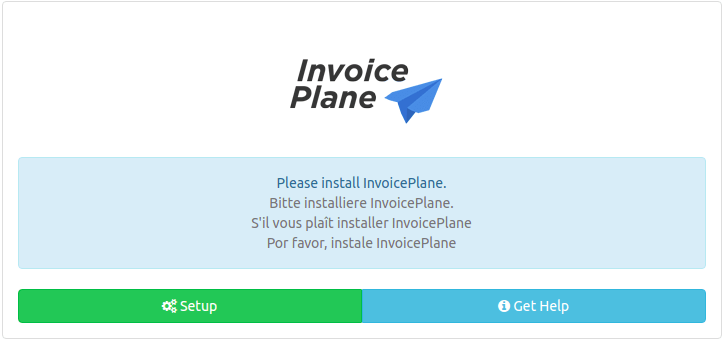
http://your-domain.com/invoiceplane/index.php/setupThe InvoicePlane setup page loads, displaying the installation wizard.
Installation Steps
Click the “Setup” button to begin. Select your preferred language from the dropdown menu and click Continue. The prerequisites screen appears, checking your system configuration. Green checkmarks should appear next to all requirements. Red X marks indicate missing components—return to earlier steps and install missing PHP extensions.
The database configuration page appears next. Enter your credentials:
- Hostname: localhost
- Database Name: invoiceplane_db
- Username: invoiceplane_user
- Password: [your database password]
Click Continue. InvoicePlane connects to the database and creates necessary tables. The administrator account creation page appears. Enter your email address and choose a strong password. This account manages your entire InvoicePlane installation.
Configure basic site settings including your company name and URL. Click Complete Setup. The installation wizard processes your information and redirects you to the login page. Success!
Post-Installation Security and Configuration
Securing the Installation
Immediately disable the setup wizard to prevent unauthorized access. Edit the configuration file:
sudo nano /var/www/html/invoiceplane/ipconfig.phpChange the setup parameter:
DISABLE_SETUP=trueSave and exit. Alternatively, use sed for quick modification:
sudo sed -i 's/DISABLE_SETUP=false/DISABLE_SETUP=true/g' /var/www/html/invoiceplane/ipconfig.phpRemove the PHP info page created earlier:
sudo rm /var/www/html/info.phpThis file exposes sensitive configuration details. Establish a backup routine—databases and uploaded files require regular backups to prevent data loss.
Initial Configuration
Log into InvoicePlane using your administrator credentials. The dashboard welcomes you with quick-start tips. Navigate to the settings section and complete your company profile. Upload your logo, enter contact information, and configure default email templates.
Email settings enable automatic invoice delivery. Configure your SMTP server details or use PHP’s mail function for simple setups. Test email functionality before sending client invoices.
Customize invoice templates to match your branding. InvoicePlane includes several layouts—preview each to find your preferred style. Configure invoice numbering schemes, choosing between sequential numbers, date-based formats, or custom patterns.
Set up tax rates applicable to your business. Add multiple rates for different product categories or geographic regions. Configure your primary currency and decimal precision. Create user accounts for team members, assigning appropriate permission levels to restrict access to sensitive financial data.
Troubleshooting Common Issues
Installation doesn’t always proceed smoothly. Missing PHP extensions generate error messages during the prerequisites check. Return to the PHP installation step and verify each extension installed correctly. Database connection failures typically result from incorrect credentials. Double-check your database name, username, and password match those created in MariaDB.
Permission denied errors often stem from incorrect file ownership or SELinux contexts. Verify Apache owns InvoicePlane files and the SELinux context matches httpd_sys_rw_content_t. The 500 Internal Server Error usually indicates misconfigured .htaccess files or Apache modules. Ensure mod_rewrite is enabled and AllowOverride is set to All in your virtual host configuration.
File upload problems trace back to PHP’s upload_max_filesize setting. Increase this value in php.ini and restart Apache. Timezone errors cause date display issues. Set date.timezone in php.ini to your local timezone.
Browser caching can display outdated setup pages. Clear your browser cache and cookies if the installation wizard behaves unexpectedly. Check Apache’s error log for detailed diagnostics:
sudo tail -f /var/log/httpd/error_logThis command displays real-time errors, helping identify configuration problems.
Congratulations! You have successfully installed InvoicePlane. Thanks for using this tutorial for installing the InvoicePlane self host invoice system on Fedora 43 Linux. For additional help or useful information, we recommend you check the official InvoicePlane website.
