How To Install IPTVnator on Debian 13

Cord-cutting is no longer a trend — it is the new normal. Millions of users worldwide have ditched traditional cable subscriptions in favor of Internet Protocol Television (IPTV), and Linux users on Debian 13 are no exception. If you are looking for a reliable, feature-rich, and completely free IPTV player for your Debian 13 “Trixie” desktop, IPTVnator is one of the best options available today. It is open-source, actively maintained, cross-platform, and packed with every feature a serious cord-cutter could need.
This guide walks you through exactly how to install IPTVnator on Debian 13 using four proven methods — Snap, AppImage, DEB package, and building from source — along with step-by-step post-installation configuration, channel management tips, troubleshooting solutions, and update instructions. Whether you are a casual Linux user or an experienced system administrator, this tutorial has you fully covered.
What Is IPTVnator?
IPTVnator is a free, open-source, cross-platform IPTV player application developed by Sergej (GitHub: 4gray/iptvnator) and released under the MIT License. Built with TypeScript, Tauri, and Angular, it is designed to deliver smooth IPTV playlist playback on Linux, macOS, and Windows from a single, unified application.
The project has earned over 5,000 stars and 600+ forks on GitHub, which speaks to its credibility and active community adoption. At its core, IPTVnator plays M3U and M3U8 playlists — the standard format used by virtually every IPTV service provider globally. It does not supply playlists, streaming channels, or any copyrighted content. It is simply a player, and what you stream is entirely up to you and your IPTV provider.
Key Features of IPTVnator
Understanding what IPTVnator offers helps you appreciate why it stands out among open-source IPTV solutions for Linux. Here is a quick look at its most important capabilities:
- M3U and M3U8 playlist support — the universal IPTV format, supported natively
- Xtream Code (XC) and Stalker Portal (STB) support — connect to provider APIs directly
- External player support — route streams to MPV or VLC for advanced codec handling
- EPG (Electronic Program Guide) — XMLTV-based TV guide with detailed program info
- TV archive / catchup / timeshift — watch previously aired content when supported
- Channel search and group-based navigation — manage large playlists with ease
- Global favorites — aggregate starred channels from multiple playlists in one view
- HTML video player — HLS.js and Video.js-based built-in player
- Custom User-Agent headers — bypass restrictions on certain streams
- 16-language interface — English, Arabic, German, Russian, Chinese, French, Spanish, and more
- Light and Dark themes — personalize the interface to your preference
- Docker self-hosting version — available for advanced home-server deployments
- Automatic playlist updates on startup — always stay current without manual refreshes
Prerequisites and System Requirements
Before diving into the installation, take a few minutes to prepare your Debian 13 system. This ensures the process goes smoothly the first time.
Your system should meet these minimum hardware requirements:
- Processor: At least 2-core CPU (quad-core recommended for 4K/HD content)
- RAM: Minimum 2 GB (4 GB recommended for HD IPTV streaming)
- Disk Space: At least 100 MB of free space
- Internet Connection: Minimum 5 Mbps (10 Mbps+ for HD; 25 Mbps+ for 4K)
- OS: Debian 13 “Trixie” with a working terminal and
sudoprivileges
Start by updating your package list and upgrading installed packages to their latest versions:
sudo apt update && sudo apt upgrade -yThis one command reduces the risk of dependency conflicts during installation. Always back up your system or create a snapshot before making significant changes — it is a small habit that saves a lot of headaches.
Method 1: Install IPTVnator on Debian 13 via Snap
The Snap method is the easiest and most beginner-friendly approach. It handles all dependencies automatically and keeps IPTVnator updated without any extra effort on your part.
Step 1: Install snapd
Debian 13 does not include Snap by default, so you need to install the snapd daemon first:
sudo apt update
sudo apt install snapd
Step 2: Install the Core Snap
Run this command to ensure the snapd runtime itself is fully up to date:
sudo snap install snapdAfter this, log out and log back in (or reboot your system). This step is important — without it, Snap may not resolve application paths correctly.
Step 3: Install IPTVnator
Now install IPTVnator from the Snap Store with a single command:
sudo snap install iptvnatorThis automatically downloads the latest stable release and installs it with all required dependencies. No additional configuration is needed.
Step 4: Launch IPTVnator
Open IPTVnator from your desktop application menu, or launch it directly from the terminal:
iptvnatorTroubleshooting Snap Issues:
- Check that
snapdis running:systemctl status snapd - Verify the Snap version:
snap version - If the app misbehaves, refresh it:
sudo snap refresh iptvnator - Reinstall cleanly:
sudo snap remove iptvnator && sudo snap install iptvnator
Method 2: Install IPTVnator on Debian 13 via AppImage
The AppImage method is ideal if you prefer a portable, self-contained application that makes zero changes to your system libraries or configuration. One file, one app — that is the AppImage philosophy.
Step 1: Download the AppImage
Visit the official GitHub releases page: https://github.com/4gray/iptvnator/releases
Download the latest file named something like IPTVnator-x.x.x.AppImage. You can also use wget in the terminal if you have the direct download URL:
wget -O ~/Downloads/IPTVnator.AppImage \
  https://github.com/4gray/iptvnator/releases/latest/download/IPTVnator-x.x.x.AppImage
Step 2: Make the AppImage Executable
Navigate to your Downloads folder and grant the file execute permission:
cd ~/Downloads
chmod +x IPTVnator-*.AppImage
The chmod +x command adds the execute bit to the file, telling the OS it is allowed to run as a program.
Step 3: Run IPTVnator
Launch the application directly:
./IPTVnator-*.AppImageThat is all. No installation wizard, no root privileges, no system files modified.
Step 4 (Optional): Create a Desktop Shortcut
For convenient daily access, create a .desktop launcher file so IPTVnator appears in your application menu:
nano ~/.local/share/applications/iptvnator.desktopPaste the following content, adjusting the file paths to match where you saved the AppImage:
[Desktop Entry]
Name=IPTVnator
Comment=Open-source IPTV Player Application
Exec=/home/yourusername/Downloads/IPTVnator-*.AppImage
Icon=/home/yourusername/Downloads/iptvnator-icon.png
Terminal=false
Type=Application
Categories=AudioVideo;Player;
Save the file (Ctrl+O, then Enter), exit nano (Ctrl+X), and IPTVnator will appear in your applications menu.
Keeping AppImage Updated: AppImages do not update automatically. Periodically check the GitHub releases page and replace the old file with the new download. Rename consistently so your .desktop shortcut path remains valid.
Method 3: Install IPTVnator via DEB Package
The DEB package method installs IPTVnator as a native Debian package, integrating it with the standard apt package management system. This is a great middle ground between ease-of-use and system-native integration.
Step 1: Download the DEB Package
Go to the GitHub releases page and download the file ending in .deb, for example: IPTVnator-x.x.x.deb
Step 2: Install with dpkg
Navigate to where you saved the file and install it:
cd ~/Downloads
sudo dpkg -i IPTVnator-*.deb
Step 3: Resolve Any Missing Dependencies
If dpkg reports errors about missing libraries or packages, run this to fix them automatically:
sudo apt --fix-broken installThis instructs apt to scan and install any missing dependencies that the DEB package requires.
Step 4: Launch IPTVnator
Find IPTVnator in your application menu under Sound & Video, or run it from the terminal:
iptvnatorNote: DEB package releases on GitHub may occasionally lag behind the Snap Store version by a minor version. If you always want the absolute latest release, use Snap or build from source.
Method 4: Build IPTVnator from Source
Building from source gives you access to the absolute latest features and fixes before they appear in any packaged release. This method suits advanced users comfortable with the terminal and development toolchains.
Step 1: Install Build Dependencies
IPTVnator uses Tauri (which requires Rust) and Angular (which requires Node.js). Install all prerequisites:
sudo apt update
sudo apt install nodejs npm git build-essential \
  libwebkit2gtk-4.0-dev curl wget libssl-dev \
  libgtk-3-dev libayatana-appindicator3-dev librsvg2-dev
Now install Rust using the official installer:
curl --proto '=https' --tlsv1.2 -sSf https://sh.rustup.rs | shFollow the on-screen prompts and select the default installation option. After installation, load Rust into your current shell session:
source $HOME/.cargo/envStep 2: Clone the Repository
git clone https://github.com/4gray/iptvnator.git
cd iptvnator
Step 3: Install Node.js Dependencies
npm installThis reads the package.json file and pulls all required JavaScript packages. It may take a minute or two.
Step 4: Build the Application
npm run tauri buildThe compiled binary will be placed in src-tauri/target/release/. The build process typically takes 5–15 minutes depending on your CPU and available RAM. A minimum of 2 GB RAM is required during compilation.
Common Build Errors:
- Missing Rust libraries: Re-read the error output carefully and install the flagged packages with
sudo apt install <package-name> - Node.js version mismatch: Check the
.nvmrcfile in the repo and install the correct Node.js version usingnvm - Low memory crash: Close other applications or add a temporary swap file to free up RAM
Post-Installation Configuration
Once IPTVnator is running, a few quick configuration steps dramatically improve your experience.
First Launch & Interface Setup
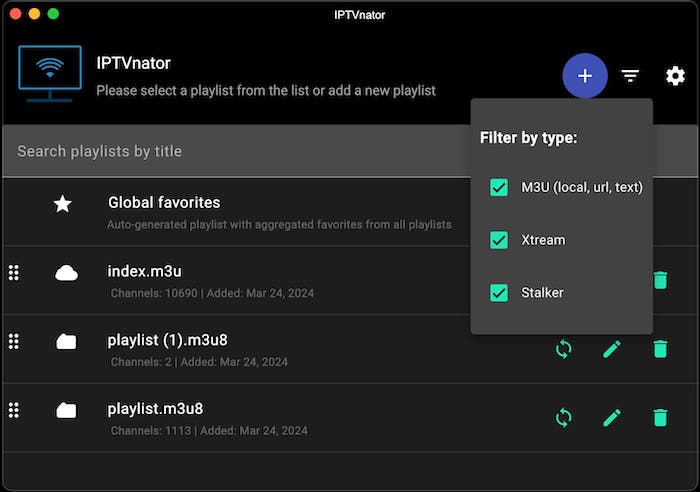
On first launch, click the gear icon (⚙️) in the upper-right corner to open Settings. From here:
- Select your preferred language from 16 available options
- Switch between Light and Dark themes
- Configure default playback preferences and player engine
Adding Your IPTV Playlist
IPTVnator supports three ways to load a playlist:
- Upload from file — click “Add Playlist” → “Upload from file,” then browse to a local
.m3uor.m3u8file on your system - Add from URL — paste a remote M3U playlist link provided by your IPTV service directly into the URL field
- Add from text — paste raw M3U content directly if you have it saved in a text editor
For each playlist, set a descriptive name, configure auto-update frequency (daily or weekly is recommended), and add a custom User-Agent string if your provider requires it to authenticate streams.
Configuring EPG (Electronic Program Guide)
A properly configured TV guide transforms IPTVnator from a simple player into a full-featured IPTV application:
- Go to playlist settings for the playlist you just added
- Paste your provider’s XMLTV URL into the EPG field
- Set the EPG refresh frequency — once every 24 hours is standard
- Wait a few moments for initial EPG data to load
Once loaded, you will see program titles, descriptions, and schedules directly in the channel browser. This is especially useful for discovering what is currently airing across hundreds of channels.
Managing Channels and Advanced Features
IPTVnator offers several tools that help you cut through the noise and quickly get to the content you actually want.
- Favorites: Click the ⭐ star icon on any channel to add it to favorites. The global favorites view aggregates starred channels from all playlists — a huge time-saver when managing multiple providers.
- Channel Groups: Most M3U playlists include predefined categories (Sports, News, Movies, etc.). Use the group filter to narrow down thousands of channels instantly.
- Channel Search: The built-in search bar filters channels in real-time as you type. Incredibly useful for large playlists with 5,000+ entries.
- External Player Support: In Settings, enable MPV or VLC as your preferred playback engine. These external players handle a wider range of codecs and offer hardware acceleration, significantly improving playback quality on lower-end hardware.
- Xtream Code / Stalker Portal: To use provider API-based subscriptions, select “Add Playlist” → “Xtream Code” or “Stalker Portal,” then enter your server URL, username, and password.
- TV Catchup and Timeshift: On channels that support it, navigate to past time slots via the EPG to access archived or previously aired programming — essentially a DVR experience without a tuner.
Troubleshooting Common Issues
Even with a flawless installation, occasional issues can arise. Here is how to diagnose and fix the most common ones.
Channels won’t play: Check your internet connection speed first. Run a speed test — if you are below 5 Mbps, buffering is inevitable. Next, test the stream URL directly in VLC to determine whether the issue is with IPTVnator or the stream itself. If VLC plays it fine, try enabling an external player in IPTVnator settings.
Snap won’t install or launch: Run systemctl status snapd to check the daemon status. If it shows as inactive, start it with sudo systemctl start snapd. Ensure the snap path is in your system environment by logging out and back in after installing snapd.
AppImage won’t execute: The most common cause is a missing execute bit. Re-run chmod +x IPTVnator-*.AppImage and try again. If it still fails, check whether your filesystem is mounted with the noexec flag using the mount command.
EPG data not loading: Verify the XMLTV URL is accessible by opening it in a browser or running curl -I <your-epg-url> in the terminal. Allow 2–5 minutes for initial EPG parsing after adding it for the first time. If the URL is valid but data still does not appear, manually trigger a refresh from the playlist settings panel.
Playlist update failures: If your remote M3U playlist URL returns a 404 or connection error, contact your IPTV provider — the issue is on their end. In the meantime, remove and re-add the playlist with a fresh URL.
Build errors from source: Always check that your Rust toolchain is current (rustup update) and that your Node.js version matches the version specified in the project’s .nvmrc file. Most build failures trace back to version mismatches rather than missing packages.
Updating and Uninstalling IPTVnator
Keeping IPTVnator current ensures you benefit from bug fixes, new features, and improved stream compatibility.
Updating IPTVnator
| Method | Update Command |
|---|---|
| Snap | sudo snap refresh iptvnator (or updates automatically) |
| AppImage | Download the latest .AppImage from GitHub Releases and replace the old file |
| DEB Package | Re-download the new .deb from GitHub and run sudo dpkg -i IPTVnator-*.deb |
| Source Build | git pull inside the repo directory, then re-run npm install && npm run tauri build |
Uninstalling IPTVnator
Removing the application is straightforward regardless of how you installed it:
- Snap:
sudo snap remove iptvnator - AppImage: Delete the
.AppImagefile — nothing else to clean up - DEB Package:
sudo apt remove iptvnator - Source Build: Delete the cloned repository folder and the compiled binary
To also remove all your playlists, favorites, and saved settings, delete the configuration directory:
rm -rf ~/.config/iptvnator/Congratulations! You have successfully installed IPTVnator. Thanks for using this tutorial for installing IPTVnator video player on Debian 13 “Trixie” system. For additional help or useful information, we recommend you check the official IPTVnator website.
