How To Install IPTVnator on Linux Mint 22

Streaming live television has evolved beyond traditional cable boxes and satellite dishes. IPTV (Internet Protocol Television) delivers your favorite channels directly through your internet connection, offering flexibility and convenience. For Linux Mint 22 users seeking a powerful, open-source IPTV player, IPTVnator stands out as the premier choice.
This comprehensive guide walks you through every installation method for IPTVnator on Linux Mint 22 “Wilma.” Whether you’re a Linux beginner or an experienced power user, you’ll find a method that suits your technical comfort level. We’ll cover snap packages, AppImage files, DEB installations, and even building from source code.
What Makes IPTVnator the Best Choice for Linux
IPTVnator is a cross-platform IPTV streaming application built with modern web technologies. Unlike proprietary alternatives, this free and open-source player gives you complete control over your viewing experience.
The application supports M3U and M3U8 playlist formats, which are industry standards for IPTV streaming. You can add unlimited playlists, organize channels into favorites, and search through thousands of channels instantly. The built-in Electronic Program Guide (EPG) displays what’s currently playing and upcoming shows, just like traditional cable TV.
What truly sets IPTVnator apart is its versatility. The player includes Xtream Codes API integration for premium IPTV services and Stalker Portal support for STB-based providers. You can choose between the internal HTML5 player or external players like VLC and MPV for enhanced codec support.
Advanced features include TV archive functionality for rewatching past programs, automatic playlist updates, and multi-language support covering eight languages. The interface adapts to your preferences with light and dark themes.
Linux Mint 22, released in July 2024 and based on Ubuntu 24.04 LTS, provides rock-solid stability with support extending until 2029. This makes it the perfect foundation for your IPTV streaming setup.
System Requirements and Prerequisites
Before installing IPTVnator, ensure your system meets these requirements. Linux Mint 22 needs a 64-bit processor with at least 2GB RAM, though 4GB provides smoother performance. Allocate 20GB disk space minimum, but 100GB is recommended for comfort.
Your display should support 1024×768 resolution or higher. Streaming quality depends heavily on internet speed—aim for 5Mbps minimum, with 10Mbps or faster for HD content.
You’ll need administrative privileges (sudo access) for most installation methods. Back up important data before making system changes, though IPTVnator installation poses minimal risk.
The application itself requires approximately 100MB of free disk space. Most importantly, have your IPTV playlist ready. This comes as an M3U or M3U8 file, either saved locally or accessible via URL. Optional XMLTV-format EPG data enhances your viewing experience with detailed program information.
Method 1: Installing IPTVnator via Snap Package
The snap package method offers the simplest installation experience for Linux users. Snap packages include all dependencies in one container, eliminating compatibility issues.
Linux Mint 22 comes with snap support pre-installed, making this the recommended approach for beginners. Snaps update automatically in the background, ensuring you always run the latest version with security patches and new features.
Installing IPTVnator Using Snap
Open your terminal application from the menu or press Ctrl+Alt+T. First, verify snap is installed by typing:
snap versionYou should see version information displayed. Next, update your system packages to ensure everything is current:
sudo apt updateEnter your password when prompted. If snap isn’t installed (rare on Linux Mint 22), install it with:
sudo apt install snapdThen install the core snap system:
sudo snap install snapdNow install IPTVnator with a single command:
sudo snap install iptvnatorThe system downloads and installs the application automatically. This takes a few minutes depending on your internet speed. When complete, you’ll see a confirmation message.
Find IPTVnator in your application menu under the Internet or Video category. The snap icon appears immediately without requiring a system restart.
Understanding Snap Permissions
Snap packages run in isolated environments for security. IPTVnator snap has appropriate permissions pre-configured for accessing your playlists and streaming content. The sandboxed environment protects your system while delivering full functionality.
Method 2: Running IPTVnator as an AppImage
AppImage provides portable application execution without installation. This self-contained format works across different Linux distributions and doesn’t require root privileges.
AppImages suit users who prefer testing software before committing to installation, or those working on systems where they lack administrative access. The application runs entirely from a single file.
Downloading and Using the AppImage
Navigate to the IPTVnator GitHub repository releases page in your web browser. Visit github.com/4gray/iptvnator and click the “Releases” section.
Download the latest AppImage file for Linux. It follows the naming pattern IPTVnator-X.X.X.AppImage where X represents version numbers. Save this file to your Downloads folder.
Open the file manager and locate your Downloads directory. Right-click the AppImage file and select “Properties,” then navigate to the “Permissions” tab. Check the box marked “Allow executing file as program.”
Alternatively, use the terminal. Navigate to Downloads:
cd ~/DownloadsMake the AppImage executable with chmod:
chmod +x IPTVnator-*.AppImageThe asterisk wildcard matches any version number. Run IPTVnator by double-clicking the file in your file manager or executing from terminal:
./IPTVnator-*.AppImageThe application launches immediately.
Creating a Desktop Shortcut
For convenient access, move the AppImage to a permanent location. Create an Applications directory in your home folder:
mkdir -p ~/Applications
mv ~/Downloads/IPTVnator-*.AppImage ~/Applications/
Create a desktop entry file for menu integration. Open a text editor and create ~/.local/share/applications/iptvnator.desktop with these contents:
[Desktop Entry]
Name=IPTVnator
Exec=/home/YOUR_USERNAME/Applications/IPTVnator-VERSION.AppImage
Icon=tv
Type=Application
Categories=AudioVideo;Video;Player;
Replace YOUR_USERNAME and VERSION with actual values. Save the file. IPTVnator now appears in your application menu.
Method 3: Installing the DEB Package
DEB packages integrate directly with Debian-based systems like Linux Mint. This traditional package format provides system-wide installation familiar to Ubuntu and Debian users.
DEB Installation Process
Visit the IPTVnator GitHub releases page and download the .deb file for the latest version. The file name follows the pattern iptvnator_X.X.X_amd64.deb.
Open your terminal and navigate to the download location:
cd ~/DownloadsInstall the package using dpkg:
sudo dpkg -i iptvnator_*.debIf dependency errors appear, resolve them automatically:
sudo apt-get install -fThis command installs any missing dependencies and completes the IPTVnator setup.
Alternative Graphical Installation
Linux Mint includes GDebi Package Installer for graphical DEB installation. Right-click the downloaded DEB file and select “Open With GDebi Package Installer.”
Click the “Install Package” button and enter your password. GDebi handles dependencies automatically. When installation completes, you’ll see confirmation status.
The Software Manager also handles DEB files. Double-click the package, and Software Manager opens with an install button.
Launch IPTVnator from your application menu under Internet or Video categories. The installation creates desktop icons and file associations automatically.
Method 4: Building IPTVnator from Source
Compiling from source code gives you access to the absolute latest development features before official releases. This method suits advanced users comfortable with development tools and command-line operations.
Installing Build Dependencies
IPTVnator requires Node.js, npm, git, and various development libraries. Install the complete development stack:
sudo apt install nodejs npm git cmake g++ build-essentialInstall additional libraries required for the Tauri framework:
sudo apt install libwebkit2gtk-4.0-dev libssl-dev libgtk-3-dev librsvg2-devThese packages provide WebKit rendering, SSL security, GTK interface components, and SVG support.
Cloning and Building
Clone the IPTVnator repository from GitHub:
git clone https://github.com/4gray/iptvnator.gitNavigate into the project directory:
cd iptvnatorInstall all project dependencies through npm:
npm installThis downloads hundreds of JavaScript packages. The process takes several minutes.
Build the application using the Tauri build system:
npm run tauri buildCompilation takes 10-20 minutes depending on your processor speed. The build system compiles Rust code and bundles the application.
Installing the Compiled Application
After successful compilation, install system-wide:
sudo make installThe compiled binary installs to /usr/local/bin with menu entries created automatically.
Building from source lets you customize features, contribute patches to the project, and experiment with cutting-edge functionality before stable releases.
Configuring IPTVnator for First Use
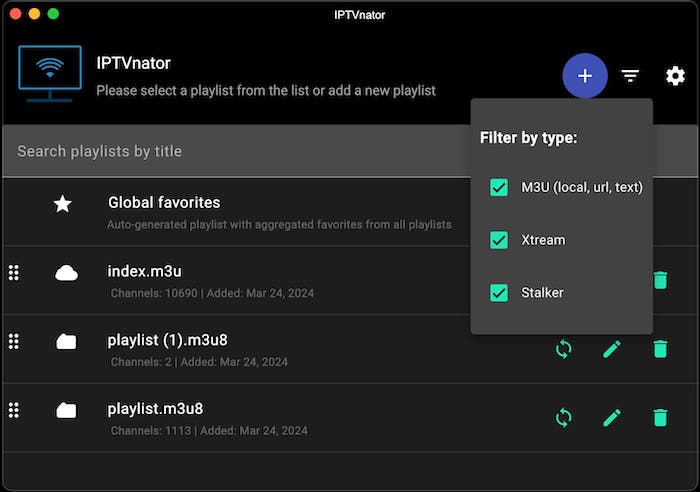
Launch IPTVnator from your application menu. The clean interface greets you with a welcome screen and playlist management options.
Adding Your IPTV Playlist
Click the “Add Playlist” button prominently displayed on the initial screen. IPTVnator offers three methods for importing playlists.
Adding via URL: Select “Add via URL” from the options. Paste your M3U or M3U8 playlist URL into the text field. Give your playlist a memorable name for easy identification. Click “Add” to import. The application downloads and parses channel information immediately.
Uploading from File: Choose “Upload from file” if you have a local M3U file. Click “Browse” and navigate to your playlist location. Select the file and confirm. IPTVnator imports all channels and groups.
Testing with Sample Playlists: The IPTVnator GitHub repository provides sample playlists for testing functionality. These free public channels let you verify installation before adding your subscription.
Configuring Electronic Program Guide
EPG data transforms IPTVnator into a full-featured TV guide. Navigate to Settings from the main menu. Locate the EPG section and add your XMLTV source URL.
Enable automatic EPG updates to keep program information current. Configure update frequency based on your provider’s recommendations. Most services update EPG data daily.
Set your preferred time zone for accurate program scheduling. IPTVnator automatically adjusts show times to your local timezone.
Customizing Playback Settings
Choose between the built-in HTML player and external applications like VLC or MPV. External players often provide better codec support and hardware acceleration.
Enable automatic playlist refresh to keep channel lists updated. Set refresh intervals from hourly to weekly based on how frequently your provider updates streams.
Adjust video quality settings if you experience buffering. Lower quality streams consume less bandwidth while maintaining watchability.
Essential Features and Navigation
The channel list displays on the left sidebar, organized by groups from your playlist. Categories might include Sports, Movies, News, Entertainment, and International channels.
Use the search bar at the top to find specific channels instantly. Type channel names, and results filter in real-time. Right-click any channel to add it to favorites for quick access.
The TV archive feature lets you rewind live television or watch previously aired programs. This catchup functionality depends on your IPTV provider supporting the feature.
Switch between light and dark themes from Settings. Dark mode reduces eye strain during evening viewing sessions.
Advanced users can configure custom User Agent headers for providers requiring specific client identification. This setting appears in advanced configuration options.
Troubleshooting Common Issues
- Dependency Errors During Installation: If dpkg reports missing dependencies, run
sudo apt-get install -fto automatically resolve them. This command fetches and installs required packages. - AppImage Won’t Execute: Verify execute permissions are set. Use
chmod +xon the AppImage file. Some file managers don’t properly set executable flags through the GUI. - Snap Connection Problems: If snap fails to connect to the store, check your internet connection and try again. Corporate networks sometimes block snap domains. Use
sudo snap refreshto manually update. - Blank Window with libwebkit2gtk: This rare issue occurs with webkit rendering. Switch to an external player like VLC:
sudo apt install vlcthen configure IPTVnator to use VLC for playback. - Buffering and Stream Loading Issues: Buffering usually indicates network problems or server issues. Test your internet speed first. Close bandwidth-heavy applications. If problems persist, contact your IPTV provider as the issue may be server-side.
- Playlist Won’t Load: Verify your M3U URL is accessible. Paste it directly into a web browser to check. Some providers require authentication tokens that expire. Generate a new playlist URL from your provider’s dashboard.
- No Video with Audio Only: This codec problem requires external player support. Install VLC or MPV and configure IPTVnator to use them for playback rather than the internal player.
- Geographic Restrictions: Some IPTV streams are geo-blocked. Consider using a VPN service to access region-restricted content. Configure the VPN before launching IPTVnator.
Congratulations! You have successfully installed IPTVnator. Thanks for using this tutorial for installing IPTVnator video player on Linux Mint 22 system. For additional help or useful information, we recommend you check the official IPTVnator website.
