How To Install IPTVnator on Manjaro

Finding a capable, open-source IPTV player on Linux that actually works without constant fiddling is a real challenge. If you’re a Manjaro user tired of clunky browser workarounds or unstable media players, IPTVnator is exactly what you need. This guide walks you through how to install IPTVnator on Manjaro using three tested methods — AUR, Snap, and AppImage — so you can pick the one that fits your workflow.
By the end, you’ll have a fully configured IPTV player streaming your playlists, with EPG support and external player integration, all from the comfort of your Manjaro desktop.
IPTVnator is a free, open-source, cross-platform IPTV player application developed by Sergej (GitHub: 4gray/iptvnator). It supports M3U/M3U8 playlists, Xtream Codes API, Stalker Portal, EPG TV guides, and even TV archive/catchup features. Since Manjaro is Arch-based, it inherits full access to the Arch User Repository (AUR) — one of the richest software repositories in the Linux ecosystem — making the Install IPTVnator Manjaro setup straightforward to complete and maintain.
What Is IPTVnator and Why Should Manjaro Users Care?
IPTVnator is a dedicated IPTV management and playback application built with TypeScript and Electron. Unlike general-purpose players like VLC, it is purpose-built for IPTV — handling playlist management, channel grouping, EPG integration, and Xtream Codes natively in one clean UI.
Here’s a quick snapshot of what IPTVnator brings to your Manjaro desktop:
- M3U and M3U8 playlist support — import via URL or local file
- Xtream Codes (XC) and Stalker Portal (STB) — connect directly to provider APIs
- EPG/XMLTV TV Guide — load schedule data via URL
- TV Archive / Catchup / Timeshift — replay previously broadcast content
- External player support — route streams to MPV or VLC for hardware acceleration
- Channel search and group-based browsing — find channels fast
- Favorites — aggregated across all loaded playlists
- Dark and Light themes with 8-language interface support
- Auto-update playlists on startup
- Docker self-hosting — for advanced home server setups
Manjaro is an ideal host for IPTVnator because its Arch foundation provides three clean installation paths: AUR (most native), Snap (easiest), and AppImage (most portable). No method requires compiling from scratch or fighting with missing dependencies.
Prerequisites
Before you run a single command, make sure your environment is ready. Skipping this step is the number one reason installs go sideways.
System requirements:
- Manjaro Linux (any desktop environment: KDE, GNOME, or XFCE)
- Active internet connection
- A terminal emulator (Konsole, GNOME Terminal, XFCE Terminal, etc.)
- Standard user account with
sudoprivileges
For AUR installation:
base-develpackage group installedgitinstalled
For Snap installation:
snapdpackage (installed during setup)
For AppImage installation:
- No extra tools required
Always update your system first:
sudo pacman -SyuThis command synchronizes the package database and upgrades all installed packages. Running it before installing anything prevents version conflict errors. Never skip this step on a rolling-release distro like Manjaro.
Step 1: Update Your System and Install Required Build Tools
Keeping your system current is not optional on a rolling-release distro like Manjaro. A stale package cache causes broken dependencies during AUR builds.
sudo pacman -SyuExpected output:
:: Synchronizing package databases...
 core           154.2 KiB
 extra         1842.4 KiB
:: Starting full system upgrade...
 there is nothing to do
If packages need updating, confirm with Y and let Pacman finish before proceeding.
Install base-devel and git (Required for AUR)
sudo pacman -S --needed base-devel gitbase-devel— providesmake,gcc,fakeroot, and other build utilitiesgit— needed to clone AUR repositories--needed— skips reinstalling packages already present
Step 2: Install IPTVnator on Manjaro via AUR (Recommended Method)
The AUR (Arch User Repository) method is the most native way to install IPTVnator on Manjaro. It integrates cleanly with the system, creates proper desktop entries, and updates through your regular AUR helper workflow.
You have two sub-options: using the Pamac GUI (great for beginners) or an AUR helper like yay (faster for power users).
Option A: Install via Pamac (GUI Method)
- Open Pamac (Add/Remove Software) from your application menu
- Click the three-dot menu (top-right) → select Preferences
- Navigate to the AUR tab
- Toggle “Enable AUR Support” to ON
- Enter your password → click Apply
Now search and install:
- In the Pamac search bar, type iptvnator
- Find
iptvnator-binunder the AUR section - Click Install → review dependencies → confirm
- Enter your password and wait for the build to finish
Option B: Install via yay (CLI Method)
Install yay if not already present:
git clone https://aur.archlinux.org/yay.git
cd yay
makepkg -si
git clone— downloads the yay source from AURmakepkg -si— builds the package and installs it with dependencies
Then install IPTVnator:
yay -S iptvnator-binThe -bin suffix means you’re installing a pre-compiled binary — much faster than building from source and perfectly safe for production use.
Expected output:
:: Resolving dependencies...
:: Checking inter-conflicts...
[sudo] password for username:
(1/1) Installing iptvnator-bin  [###########] 100%
Option C: Manual AUR Build (Advanced)
git clone https://aur.archlinux.org/iptvnator-bin.git
cd iptvnator-bin
cat PKGBUILD
makepkg -si
Always review the PKGBUILD file before running makepkg. It’s a shell script — treat it like any untrusted code before executing.
⚠️ Known Issue: After AUR installation, the binary path may point to /opt/iptvnator/ (lowercase) instead of /opt/IPTVnator/ (uppercase I). If the app won’t launch, fix it with:
sudo ln -sf /opt/IPTVnator/iptvnator /usr/bin/iptvnatorStep 3: Install IPTVnator on Manjaro via Snap
The Snap method is the simplest installation path and is officially supported on Manjaro via Snapcraft. It’s ideal for users who want automatic updates without manually running yay -Syu.
Install and Enable snapd
sudo pacman -S snapd
sudo systemctl enable --now snapd.socket
sudo pacman -S snapd— installs the Snap daemonsystemctl enable --now snapd.socket— enables and immediately starts the snap socket
Check if snapd is already installed:
snap versionEnable AppArmor for Snap (Recommended)
sudo systemctl enable --now snapd.apparmorThis enables AppArmor security profiles for snaps, adding an extra layer of sandboxing.
Create the Classic Snap Symlink
sudo ln -s /var/lib/snapd/snap /snapThis symbolic link is required for classic-confinement snaps to work correctly. Without it, some snaps may fail to launch.
Now log out and back in, or reboot:
sudo rebootInstall IPTVnator via Snap
sudo snap install iptvnatorExpected output:
iptvnator 0.x.x from IPTVnator✓ installedSnap handles all dependencies automatically, and IPTVnator will self-update whenever a new version hits the Snap Store.
| Pros | Cons |
|---|---|
| Easiest setup | Slightly larger disk footprint |
| Auto-updates | Snap confinement may limit some features |
| Sandboxed and safe | Requires snapd daemon running |
Step 4: Install IPTVnator on Manjaro via AppImage (Portable Method)
The AppImage method requires zero installation. You download a single file, mark it executable, and run it — nothing touches your system libraries. This is perfect for testing IPTVnator before committing to a permanent install, or for running it from a USB drive.
Download the AppImage
Visit the official GitHub releases page:
https://github.com/4gray/iptvnator/releasesOr use wget directly from the terminal:
wget https://github.com/4gray/iptvnator/releases/latest/download/IPTVnator-x86_64.AppImageMake It Executable and Run
chmod +x IPTVnator-*.AppImage
./IPTVnator-*.AppImage
chmod +x— grants execute permission (required for all downloaded binaries on Linux)./— runs the file from the current directory
Optional: Integrate Into Your Desktop
mkdir -p ~/Applications
mv IPTVnator-*.AppImage ~/Applications/
Create a .desktop launcher:
nano ~/.local/share/applications/iptvnator.desktopPaste the following:
[Desktop Entry]
Name=IPTVnator
Exec=/home/YOUR_USERNAME/Applications/IPTVnator-x86_64.AppImage
Icon=iptvnator
Type=Application
Categories=Video;Player;
Replace YOUR_USERNAME with your actual username. Save with Ctrl+O then exit with Ctrl+X.
| Pros | Cons |
|---|---|
| No installation needed | No auto-update |
| Fully portable | Must manage updates manually |
| Works across distros | Larger single file size |
Step 5: First Launch and Configure IPTVnator on Manjaro
Once IPTVnator is installed via any method, the setup experience is identical. Here’s how to configure IPTVnator Manjaro properly from scratch.
Launch the Application
iptvnatorOr find it in your application menu under Video or Multimedia.
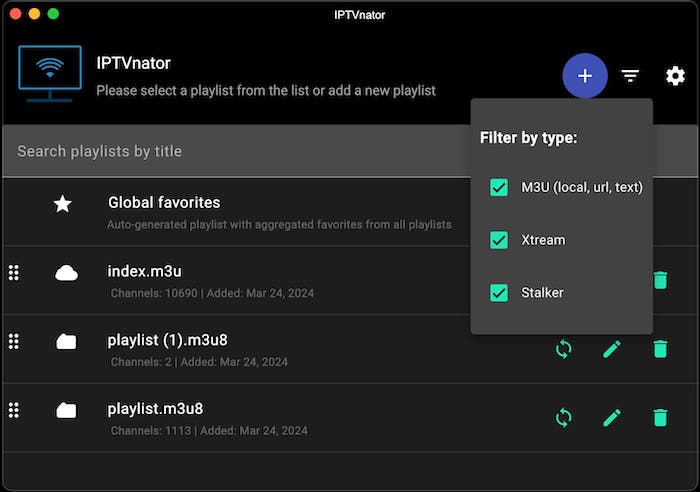
Add Your First M3U Playlist
- Click “Add Playlist”
- Choose “Upload from URL” and paste your M3U/M3U8 playlist URL
- Or choose “Upload from File” and browse to your local
.m3ufile - Click “Add” — IPTVnator will parse and load all channels automatically
Configure EPG (TV Guide)
- Go to Settings (gear icon, top-right)
- Find the EPG/XMLTV URL field
- Paste your provider’s XMLTV URL
- Save and restart the app
Set an External Player for Better Performance
- Navigate to Settings → Player
- Select MPV or VLC from the external player dropdown
- Install your chosen player if not already present:
sudo pacman -S mpv
# or
sudo pacman -S vlc
Using MPV is generally recommended for Manjaro because it supports va-api and vdpau hardware decoding out of the box, which dramatically reduces CPU load during high-bitrate IPTV streams.
Step 6: Verify the Installation
After completing setup, confirm everything works correctly before trusting it with a live stream.
Check the Installed Version
For AUR:
pacman -Qi iptvnator-binFor Snap:
snap list iptvnatorFor AppImage:
./IPTVnator-*.AppImage --versionTest a Public Stream
Validate playback using a free public M3U8 stream:
mpv https://multiplatform-f.akamaihd.net/i/multi/will/bunny/big_buck_bunny_,640x360_400,640x360_700,1280x720_1500,.f4v.cpe/master.m3u8If MPV plays correctly but IPTVnator doesn’t, the issue is in the app’s player settings — switch to external player mode in Settings.
Troubleshooting Common Issues on How To IPTVnator Manjaro
Even a clean install can hit a few bumps. Here are the five most common problems and how to fix them fast.
Issue 1: IPTVnator Won’t Launch After AUR Install
Symptom: Running iptvnator returns “No such file or directory.”
Cause: Binary path points to /opt/iptvnator/ (lowercase) instead of /opt/IPTVnator/ (uppercase I).
Fix:
sudo ln -sf /opt/IPTVnator/iptvnator /usr/bin/iptvnatorVerify with:
which iptvnator
iptvnator --version
Issue 2: Snap Command Not Found After Installing snapd
Symptom: snap: command not found even after installing snapd.
Cause: The snap binary path hasn’t been loaded into the current session.
Fix:
sudo rebootAlso verify the socket is active:
sudo systemctl status snapd.socket
sudo systemctl enable --now snapd.socket
Issue 3: Playlist URL Not Loading
Symptom: IPTVnator shows a loading spinner indefinitely or returns an error.
Cause: The M3U URL may be unreachable, expired, or behind a redirect.
Fix:
curl -I "https://your-m3u-url.com/playlist.m3u"A 200 OK response confirms the URL is valid. If you get 403 or 301, request a fresh URL from your IPTV provider.
Issue 4: Video Freezes or Stutters During Playback
Symptom: The stream loads but freezes every few seconds on HD/4K channels.
Cause: The built-in HTML player uses software rendering, straining CPU on high-bitrate streams.
Fix: Switch to MPV or VLC in Settings → Player and test hardware decoding:
mpv --hwdec=auto https://your-test-stream-urlIssue 5: AppImage Fails to Open — FUSE Error
Symptom: Running the AppImage returns: fuse: device not found, try 'modprobe fuse' first
Fix: Install FUSE2:
sudo pacman -S fuse2How to Uninstall IPTVnator on Manjaro
If you need to remove IPTVnator, each installation method has a clean one-liner.
AUR (yay):
yay -Rns iptvnator-binThe -Rns flags remove the package, its unneeded dependencies, and configuration files.
Snap:
sudo snap remove iptvnatorAppImage:
rm ~/Applications/IPTVnator-*.AppImage
rm ~/.local/share/applications/iptvnator.desktop
Congratulations! You have successfully installed IPTVnator. Thanks for using this tutorial for installing IPTVnator video player on Manjaro Linux system. For additional help or useful information, we recommend you check the official IPTVnator website.
