How To Install ISPConfig on Fedora 43

Managing a web hosting server doesn’t have to be complicated or expensive. ISPConfig offers a robust, open-source solution that brings enterprise-level control panel features to your Fedora 43 server without the hefty price tag of commercial alternatives. This comprehensive guide walks you through every step of installing ISPConfig on Fedora 43, from initial system preparation to post-installation configuration. Whether you’re setting up your first hosting server or migrating from another control panel, you’ll find detailed instructions, practical troubleshooting tips, and security best practices to ensure a smooth deployment.
Understanding ISPConfig
What is ISPConfig?
ISPConfig is a powerful, free hosting control panel that manages multiple servers from a single interface. It provides complete control over websites, email accounts, databases, DNS zones, and FTP accounts through an intuitive web-based dashboard. The platform supports multi-server environments, making it perfect for hosting providers and system administrators managing complex infrastructure.
The control panel operates on a three-tier hierarchy: administrators manage the entire system, resellers create and manage client accounts, and clients control their own hosting resources within assigned limits. This structure makes ISPConfig ideal for commercial hosting operations and internal IT departments alike.
Why Use ISPConfig on Fedora 43?
Fedora 43 brings cutting-edge features and security enhancements that complement ISPConfig’s capabilities perfectly. The distribution’s rapid release cycle ensures you’re working with the latest software packages and kernel improvements. Unlike commercial control panels that charge per server or domain, ISPConfig remains completely free while delivering comparable functionality.
The combination of Fedora 43’s stability and ISPConfig’s feature set creates a powerful hosting platform. You’ll save thousands of dollars annually compared to cPanel or Plesk licenses while maintaining full control over your hosting environment. The active community surrounding both projects ensures you’ll find help when needed and regular updates that keep your server secure.
Prerequisites and System Requirements
Server Requirements
Before beginning installation, ensure your Fedora 43 server meets these minimum specifications. You’ll need a fresh Fedora 43 x86_64 installation with at least 2GB RAM, though 4GB is recommended for production environments handling multiple websites. Storage requirements vary based on expected usage, but start with at least 20GB of available disk space.
Root access or sudo privileges are mandatory for installation. The server should have a stable internet connection for downloading packages and updates. Most importantly, start with a clean server—avoid installing ISPConfig on systems running other control panels or heavily customized web stacks, as conflicts will cause installation failures.
Network and Domain Prerequisites
Configure a Fully Qualified Domain Name (FQDN) pointing to your server before installation. ISPConfig requires proper hostname resolution for email functionality and SSL certificate generation. Set up appropriate DNS records including A records for your domain, MX records for mail services, and ideally PTR records for better email deliverability.
Your firewall must allow traffic on multiple ports. HTTP (80), HTTPS (443), ISPConfig panel (8080, 8081), FTP (21), SSH (22), SMTP (25), POP3 (110), IMAP (143), secure mail ports (993, 995), DNS (53), and MySQL (3306) all require open access. Plan your SSL certificate strategy—ISPConfig integrates seamlessly with Let’s Encrypt for free, automated SSL certificates.
Pre-Installation Setup
Step 1: Update Your Fedora 43 System
Always start with a fully updated system. Open your terminal and execute:
sudo dnf update -yThis command updates all installed packages to their latest versions. If kernel updates are installed, reboot your server to ensure you’re running the newest kernel:
sudo rebootWait a few minutes for the server to restart, then reconnect via SSH.
Step 2: Configure Hostname and FQDN
Proper hostname configuration is critical for ISPConfig functionality. Set your hostname using the hostnamectl command:
sudo hostnamectl set-hostname server1.yourdomain.comReplace “server1.yourdomain.com” with your actual FQDN. Edit the hosts file to ensure proper name resolution:
sudo nano /etc/hostsAdd your server’s IP address and FQDN:
192.168.1.100 server1.yourdomain.com server1Verify the configuration works correctly:
hostname -fThis should return your full domain name. If it doesn’t, double-check your hosts file entries.
Step 3: Install Development Tools
ISPConfig and its components may require compilation tools during installation. Install the necessary development packages:
sudo dnf groupinstall "Development Tools" "Development Libraries" -yThese packages provide compilers, libraries, and build utilities needed throughout the installation process.
Step 4: Disable SELinux (Optional)
SELinux provides enhanced security but can interfere with ISPConfig operations. For easier installation, you can disable it:
sudo nano /etc/selinux/configChange SELINUX=enforcing to SELINUX=disabled. Alternatively, experienced administrators can configure SELinux policies specifically for ISPConfig, maintaining security while ensuring proper functionality.
Installing Required Dependencies
Step 5: Install Apache Web Server
Apache serves as the foundation for ISPConfig’s web hosting capabilities. Install Apache and essential modules:
sudo dnf install httpd mod_ssl mod_fcgid mod_suexec -yEnable and start the Apache service:
sudo systemctl enable httpd
sudo systemctl start httpd
Verify Apache is running:
sudo systemctl status httpdYou should see “active (running)” in the output.
Step 6: Install PHP and Extensions
ISPConfig requires PHP with multiple extensions for full functionality. Install PHP and all necessary modules:
sudo dnf install php php-fpm php-mysql php-mbstring php-gd php-xml php-curl php-zip php-intl php-soap php-opcache php-json php-bz2 php-pear -yThese extensions enable database connectivity, image processing, XML parsing, API integrations, and more. Configure PHP-FPM for improved performance:
sudo systemctl enable php-fpm
sudo systemctl start php-fpm
Edit PHP settings for hosting environments:
sudo nano /etc/php.iniAdjust these values based on your requirements:
memory_limit = 256M
upload_max_filesize = 100M
post_max_size = 100M
max_execution_time = 300
Step 7: Install MariaDB/MySQL Database Server
MariaDB stores ISPConfig configuration, website databases, and user information. Install the database server:
sudo dnf install mariadb-server mariadb -yEnable and start MariaDB:
sudo systemctl enable mariadb
sudo systemctl start mariadb
Secure your installation by running the security script:
sudo mysql_secure_installationFollow the prompts: set a strong root password, remove anonymous users, disallow remote root login, remove test databases, and reload privileges. Remember this root password—you’ll need it during ISPConfig installation.
Step 8: Install Mail Server Components
Complete mail functionality requires multiple packages. Install Postfix for sending mail and Dovecot for receiving:
sudo dnf install postfix dovecot dovecot-mysql -yAdd spam filtering and antivirus protection:
sudo dnf install spamassassin clamav clamav-update -yEnable the services:
sudo systemctl enable postfix dovecot spamassassin clamd@scan
sudo systemctl start postfix dovecot
Update ClamAV virus definitions:
sudo freshclamBasic configuration will be handled by ISPConfig during installation, but these packages must be present beforehand.
ISPConfig Installation Methods
Method 1: Automated Installation (Recommended)
The ISPConfig autoinstaller dramatically simplifies the installation process, handling configuration automatically while allowing customization through command-line options.
Download and execute the autoinstaller script:
wget -O - https://get.ispconfig.org | sudo shThe installer performs comprehensive system checks and displays warnings about potential issues. Read these carefully. The script automatically installs missing dependencies, configures services, generates SSL certificates, and sets up the ISPConfig control panel.
During installation, you’ll answer several prompts:
- Language: Select your preferred interface language
- Install mode: Choose “standard” for typical installations
- SSL certificate: Select “Generate Let’s Encrypt certificate” for free SSL
The automated process typically completes in 15-20 minutes depending on your server’s performance and internet speed. Upon completion, the installer displays your admin credentials—save these immediately.
For advanced installations, the autoinstaller supports various options:
wget -O - https://get.ispconfig.org | sudo sh -s -- --use-nginx --unattended-upgradesThe --use-nginx flag installs Nginx instead of Apache. The --unattended-upgrades option enables automatic security updates. Use --i-know-what-i-am-doing to skip confirmation prompts for automated deployments.
Method 2: Manual Installation
Experienced administrators preferring granular control can perform manual installation. Download ISPConfig from the official repository:
cd /tmp
wget https://www.ispconfig.org/downloads/ISPConfig-3-stable.tar.gz
tar xfz ISPConfig-3-stable.tar.gz
cd ispconfig3_install/install
Launch the installation script:
sudo php -q install.phpThe installer offers expert and standard modes. Standard mode suits most deployments with sensible defaults. Expert mode allows detailed customization of every component.
Provide your MariaDB root password when prompted. The installer creates the ISPConfig database and populates initial configuration. Choose whether to generate a new SSL certificate or import an existing one. Configure the admin panel port (8080 by default).
Enter certificate details including country code, state, organization name, and hostname. These appear in your SSL certificate and should accurately represent your organization.
Monitor installation progress as the script configures services, creates directories, sets permissions, and initializes the control panel. Manual installation typically takes 10-15 minutes with active monitoring.
Post-Installation Configuration
Step 9: Configure Firewall Rules
Fedora 43 uses firewalld for firewall management. Open required ports for ISPConfig services:
sudo firewall-cmd --permanent --add-service=http
sudo firewall-cmd --permanent --add-service=https
sudo firewall-cmd --permanent --add-port=8080/tcp
sudo firewall-cmd --permanent --add-port=8081/tcp
sudo firewall-cmd --permanent --add-service=ftp
sudo firewall-cmd --permanent --add-service=smtp
sudo firewall-cmd --permanent --add-service=pop3
sudo firewall-cmd --permanent --add-service=imap
sudo firewall-cmd --permanent --add-service=dns
Reload firewall rules to apply changes:
sudo firewall-cmd --reloadVerify your configuration:
sudo firewall-cmd --list-allStep 10: Access ISPConfig Admin Panel
Open your web browser and navigate to your ISPConfig installation:
https://your-server-ip:8080You’ll see an SSL warning if using a self-signed certificate—this is expected. Accept the warning to proceed.
Log in using the default credentials displayed during installation (typically username: admin, initial password provided by installer). Your first action should be changing the default password. Navigate to System > Users, select the admin user, and set a strong, unique password.
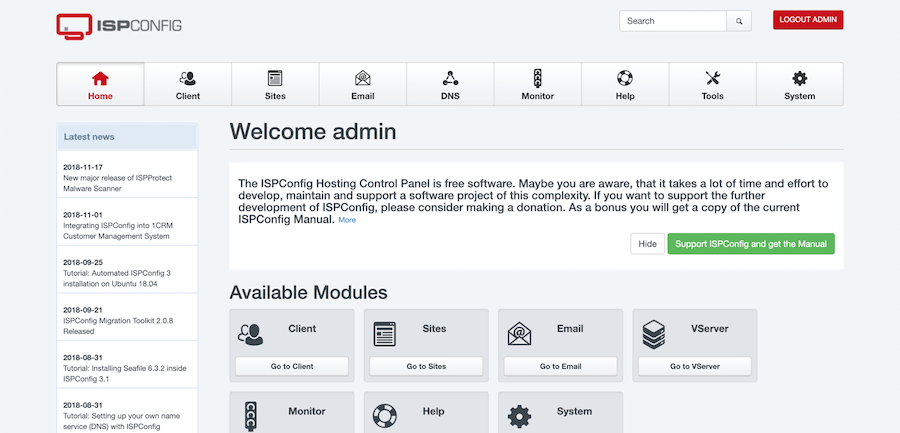
Step 11: Initial ISPConfig Configuration
Explore the ISPConfig interface to familiarize yourself with its layout. The main sections include Sites (websites and databases), Email, DNS, Client management, and System configuration.
Configure basic server settings under System > Server Config. Review mail relay settings, backup configuration options, and default service parameters. Set up automated backups to protect your data—ISPConfig can backup to local storage or remote locations.
Verification and Testing
Testing Apache and Web Services
Create a test website to verify web server functionality. Navigate to Sites > Website, click Add new website, and create a basic site. Upload a simple index.html file via FTP or the file manager.
Test PHP functionality by creating a phpinfo file:
<?php phpinfo(); ?>Save this as info.php in your website directory and access it through your browser. You should see comprehensive PHP configuration information. Delete this file after testing—it reveals sensitive server details.
Verify SSL certificates load correctly by accessing your website via HTTPS. Check for secure padlock icons and valid certificate information.
Testing Mail Server
Create an email account under Email > Email Mailbox. Configure your email client with the provided SMTP, IMAP, and POP3 settings. Send test emails both internally and to external addresses. Verify you can receive replies.
Test spam filtering by sending emails containing obvious spam markers. SpamAssassin should flag these appropriately. Check mail logs if emails don’t arrive:
sudo tail -f /var/log/maillogTesting FTP and DNS
Create an FTP account under Sites > FTP Accounts. Use an FTP client like FileZilla to connect using the credentials. Upload and download test files to confirm functionality.
Configure a DNS zone under DNS > Add new DNS Zone. Create A records, MX records, and other necessary entries. Use dig or nslookup to verify DNS resolution:
dig @your-server-ip yourdomain.comTroubleshooting Common Issues
Installation Errors
Dependency conflicts occasionally occur during installation. Review error messages carefully—they usually indicate which package causes problems. Resolve conflicts by updating specific packages or using dnf to handle dependencies automatically.
Missing PHP modules generate errors in ISPConfig. Install any missing extensions using dnf and restart services. Database connection failures typically indicate incorrect root passwords during installation—verify your MariaDB root credentials.
Port conflicts prevent services from starting. Use netstat to identify processes using required ports:
sudo netstat -tulpn | grep :8080Stop conflicting services or reconfigure them to use alternative ports.
Access and Permission Issues
If the admin panel won’t load, verify Apache is running and listening on port 8080. Check firewall rules permit access to the management port. SSL certificate errors may require regenerating certificates or importing valid ones.
File permission problems affect website functionality. ISPConfig sets appropriate permissions automatically, but manual changes can cause issues. Restore correct permissions through the ISPConfig interface under Sites > Website > Options.
SELinux blocks can prevent services from functioning. Check audit logs for denials:
sudo ausearch -m avc -ts recentCreate policies to allow legitimate operations or temporarily set SELinux to permissive mode for troubleshooting.
Service-Specific Problems
Apache failures often stem from configuration syntax errors. Test configuration before restarting:
sudo apachectl configtestAddress any reported errors before attempting to start Apache.
Mail server issues require checking multiple components. Verify Postfix and Dovecot are running. Review logs for specific error messages. Confirm DNS records are properly configured—many mail servers reject email from domains without valid SPF, DKIM, and DMARC records.
FTP connection problems may indicate firewall issues or passive port configuration. ISPConfig typically handles this automatically, but manual firewall configurations sometimes block FTP data connections.
DNS server problems usually relate to zone configuration errors or firewall restrictions on port 53. Verify BIND is running and responding to queries.
Security Best Practices
Hardening Your ISPConfig Installation
Change default ports to reduce automated attack exposure. Modify the ISPConfig admin port in /usr/local/ispconfig/interface/lib/config.inc.php to something less predictable than 8080.
Implement fail2ban to prevent brute-force attacks:
sudo dnf install fail2ban -y
sudo systemctl enable fail2ban
sudo systemctl start fail2ban
Configure fail2ban jails for SSH, FTP, mail services, and the ISPConfig panel itself.
Ensure all services use SSL/TLS encryption. ISPConfig generates certificates for web services, but verify mail services also use encryption. Configure opportunistic TLS for SMTP and require SSL for IMAP and POP3 connections.
Maintain security through regular updates. Fedora’s dnf update keeps system packages current. ISPConfig includes an updater script:
sudo ispconfig_update.shRun this periodically to apply ISPConfig security patches and feature updates.
Disable unnecessary services to reduce attack surface. If you’re not using certain features like FTP or DNS, disable those services and close their ports.
Backup and Monitoring
Configure automated backups in ISPConfig under System > Backup. Schedule regular backups of websites, databases, email accounts, and system configuration. Store backups remotely or on separate storage to protect against hardware failures.
Set up monitoring alerts for critical services. ISPConfig includes basic monitoring that can send alerts when services fail. Consider implementing additional monitoring tools like Nagios or Zabbix for comprehensive infrastructure monitoring.
Implement log rotation to manage disk space while preserving important security information. Fedora includes logrotate by default, but verify it’s configured for all services.
Conduct regular security audits. Review user accounts, examine access logs for suspicious activity, verify SSL certificates remain valid, and test backup restoration procedures periodically.
Congratulations! You have successfully installed ISPConfig. Thanks for using this tutorial for installing the ISPConfig on your Fedora 43 Linux system. For additional help or useful information, we recommend you check the official ISPConfig website.
