How To Install JasperReports on openSUSE

JasperReports Server stands as one of the most powerful open-source business intelligence and reporting platforms available today. This robust Java-based solution enables organizations to create, deploy, and manage pixel-perfect reports with dynamic data visualization capabilities. Whether you’re building analytical dashboards, generating financial statements, or creating operational reports, JasperReports delivers enterprise-grade functionality without licensing costs. The platform supports multiple data sources, exports to various formats including PDF, Excel, HTML, and Word, and integrates seamlessly with existing Java applications. This comprehensive guide walks through every step of installing JasperReports Server on openSUSE Linux, from initial system preparation to production deployment.
OpenSUSE provides an excellent foundation for running business intelligence tools like JasperReports Server. The distribution’s stability, robust package management through zypper, and enterprise-ready features make it ideal for both development and production environments. This tutorial covers the complete installation process, including prerequisite software configuration, database setup, application server deployment, and post-installation security hardening.
Understanding JasperReports Architecture
Before diving into installation procedures, understanding the architectural components proves essential. JasperReports consists of two primary elements: the JasperReports Library and JasperReports Server. The library handles report compilation and rendering, while the server provides web-based management, scheduling, and distribution capabilities.
The Community Edition offers full reporting functionality suitable for most organizations. Enterprise editions add advanced features like ad-hoc reporting tools, domain-based semantic layers, and premium support options. For most installations, the Community Edition provides everything needed for professional report generation and distribution.
JasperReports Server requires three core components: a Java Runtime Environment (JRE) or Java Development Kit (JDK), a servlet container like Apache Tomcat, and a relational database for repository storage. The system follows a clear workflow: report templates are designed in Jaspersoft Studio, compiled into binary formats, executed against data sources, and rendered into various output formats. Understanding this architecture helps troubleshoot issues and optimize performance.
Prerequisites and System Requirements
Hardware Specifications
Proper hardware allocation ensures smooth operation. Minimum requirements include a dual-core processor, 8GB of RAM, and at least 10GB of available disk space. These specifications support development environments and light production workloads.
Production deployments benefit significantly from enhanced resources. A multi-core processor running at 2.5GHz or higher, 12GB to 16GB of RAM, and 40GB or more of storage accommodate larger report repositories, more concurrent users, and complex report execution. Storage requirements grow with the number of stored reports and scheduled output files.
Software Dependencies
OpenSUSE compatibility spans both the rolling-release Tumbleweed and stable Leap 15.x versions. This guide focuses on Leap for production stability, though Tumbleweed works equally well for development purposes.
Java Development Kit version 8 or 11 provides the runtime environment. OpenJDK offers excellent compatibility and receives regular security updates through openSUSE repositories. JasperReports Server officially supports both Oracle JDK and OpenJDK implementations.
Database selection depends on organizational requirements and existing infrastructure. JasperReports Server supports PostgreSQL, MySQL, MariaDB, and Oracle Database. This guide demonstrates MariaDB installation for its performance characteristics and openSUSE integration. PostgreSQL serves as another excellent choice, particularly for organizations prioritizing data integrity features.
Apache Tomcat version 9 provides the servlet container. Tomcat 8.5 also works, but version 9 offers improved performance, enhanced security features, and active long-term support. Basic command-line utilities including wget, unzip, and tar facilitate file downloads and archive extraction.
User Permissions
Root access or sudo privileges are required for system-level package installation, service configuration, and security settings. While JasperReports Server can run with root permissions, security best practices strongly discourage this approach. Creating a dedicated system user for Tomcat and JasperReports Server limits potential security exposure and follows the principle of least privilege.
System Preparation and Updates
Begin by ensuring the openSUSE system runs current packages. System updates patch security vulnerabilities, resolve bugs, and ensure compatibility with newly installed software. Execute the following commands to refresh repository metadata and update installed packages:
sudo zypper refresh
sudo zypper update
The refresh command updates repository indices, while the update command installs newer package versions. Review proposed changes before confirming. System updates occasionally require a reboot, particularly when updating the kernel or core system libraries.
Install essential utilities needed throughout the installation process:
sudo zypper install wget unzip tar nanoThese tools enable file downloads, archive extraction, and configuration file editing. The wget utility downloads files from web servers, unzip handles ZIP archives, tar manages compressed tarballs, and nano provides a user-friendly text editor. Veteran administrators may prefer vim, which can substitute for nano in subsequent steps.
Installing Java Development Kit
OpenJDK Installation
OpenJDK provides full Java functionality with excellent openSUSE integration. Install both the runtime environment and development tools:
sudo zypper install java-11-openjdk java-11-openjdk-develThe java-11-openjdk package supplies the Java Runtime Environment needed to execute JasperReports Server. The java-11-openjdk-devel package adds development tools and libraries required during application deployment. Installation typically completes in two to three minutes, depending on network speed and system performance.
Organizations with specific requirements may opt for Oracle JDK instead. Download the appropriate RPM package from Oracle’s website and install using zypper or rpm commands. OpenJDK satisfies most use cases and receives timely security updates through standard system maintenance.
Configuring Environment Variables
Java applications rely on the JAVA_HOME environment variable to locate the JDK installation. Configure this variable system-wide by editing the profile configuration:
sudo nano /etc/profile.d/java.shAdd the following lines to set JAVA_HOME and update the system PATH:
export JAVA_HOME=/usr/lib64/jvm/java-11-openjdk
export PATH=$PATH:$JAVA_HOME/bin
Save the file and exit the editor. Load the new configuration into the current shell session:
source /etc/profile.d/java.shThis approach ensures all users and services can locate the Java installation. Alternative methods include adding these exports to individual user profiles in ~/.bashrc or ~/.profile, which works for single-user development systems.
Verification Steps
Confirm successful Java installation and proper configuration by checking the version:
java --versionExpected output displays the OpenJDK version number, build date, and runtime environment details. Something similar to “openjdk 11.0.x” indicates correct installation. Verify the JAVA_HOME variable:
echo $JAVA_HOMEThis command should display “/usr/lib64/jvm/java-11-openjdk” or the path specified in the configuration file. If either command fails or produces unexpected output, review the installation steps and environment variable configuration.
Creating a Dedicated Tomcat User
Security best practices mandate running application servers with dedicated system accounts rather than root privileges. Create a system user specifically for Tomcat and JasperReports Server:
sudo useradd -r -m -d /opt/tomcat -s /bin/bash tomcatCommand flag explanations: -r creates a system account, -m generates the home directory, -d specifies the directory path, and -s sets the default shell. System accounts typically use IDs below 1000 and don’t appear in standard login prompts.
Verify user creation:
id tomcatThe output displays user ID, group ID, and group memberships. This dedicated account isolates Tomcat processes from other system services. If security compromises affect Tomcat, the damage remains contained to this user’s permissions rather than exposing the entire system. Production environments often implement additional restrictions through SELinux or AppArmor policies.
Database Installation and Configuration
Installing MariaDB Server
MariaDB provides robust relational database capabilities with excellent performance characteristics. Install the database server and client tools:
sudo zypper install mariadb mariadb-serverPackage installation creates necessary database directories, installs system tables, and configures default settings. Start the database service immediately after installation:
sudo systemctl start mysqlConfigure the service to start automatically during system boot:
sudo systemctl enable mysqlCheck service status to confirm successful startup:
sudo systemctl status mysqlActive status with green indicators confirms the database server is running properly. Common startup failures involve port conflicts or insufficient disk space in the data directory.
Security Hardening
MariaDB installations include default test databases and anonymous user accounts suitable for development but inappropriate for production. Run the security configuration wizard:
sudo mysql_secure_installationThe script prompts for several security decisions. When asked about switching to unix_socket authentication, choose based on existing authentication preferences. Set a strong root password containing uppercase letters, lowercase letters, numbers, and special characters. Remove anonymous users, disallow remote root login, remove test databases, and reload privilege tables. These settings significantly reduce attack surfaces.
Creating Application Database and User
JasperReports Server requires a dedicated database and user account. Connect to MariaDB as root:
sudo mysqlExecute the following SQL commands at the MariaDB prompt:
CREATE DATABASE jasperserver DEFAULT CHARACTER SET utf8;
CREATE USER 'jasperdb'@'localhost' IDENTIFIED BY 'SecurePassword123!';
GRANT ALL PRIVILEGES ON jasperserver.* TO 'jasperdb'@'localhost';
FLUSH PRIVILEGES;
EXIT;
Replace “SecurePassword123!” with a genuinely secure password containing at least 16 characters. The UTF-8 character set ensures proper handling of international characters in reports and data. Granting privileges only on the jasperserver database follows the principle of least privilege—the application account cannot access other databases or server administration functions.
Test the new database connection:
mysql -u jasperdb -pEnter the password when prompted. Successful login confirms proper user creation and permission assignment. Execute SHOW DATABASES; to verify access to the jasperserver database.
Apache Tomcat Installation
Downloading Tomcat
Switch to the tomcat user account to maintain proper file ownership:
sudo su - tomcatNavigate to the home directory if not already there:
cd /opt/tomcatDownload the latest Tomcat 9 release. Visit the Apache Tomcat website to identify the current version number, then download using wget:
wget https://dlcdn.apache.org/tomcat/tomcat-9/v9.0.82/bin/apache-tomcat-9.0.82.tar.gzVersion numbers change as updates release. Adjust the URL accordingly. Download times vary based on network speed—the archive typically ranges from 10 to 12 megabytes.
Extract the archive:
tar -xzf apache-tomcat-9.0.82.tar.gzMove extracted files to the proper location:
mv apache-tomcat-9.0.82/* /opt/tomcat/Remove the empty directory and downloaded archive:
rmdir apache-tomcat-9.0.82
rm apache-tomcat-9.0.82.tar.gz
Exit the tomcat user session:
exitSetting Permissions
Ensure proper file ownership for all Tomcat files:
sudo chown -R tomcat:tomcat /opt/tomcat/Make shell scripts executable:
sudo chmod +x /opt/tomcat/bin/*.shThese permissions prevent unauthorized modifications while allowing the tomcat user full control over application files.
Creating Systemd Service
Systemd integration enables automatic startup, graceful shutdown, and standard service management. Create a service unit file:
sudo nano /etc/systemd/system/tomcat.serviceAdd the following configuration:
[Unit]
Description=Apache Tomcat Web Application Container
After=network.target

[Service]
Type=forking

User=tomcat
Group=tomcat

Environment="JAVA_HOME=/usr/lib64/jvm/java-11-openjdk"
Environment="CATALINA_HOME=/opt/tomcat"
Environment="CATALINA_BASE=/opt/tomcat"
Environment="CATALINA_OPTS=-Xms512m -Xmx2048m -server -XX:+UseParallelGC"

ExecStart=/opt/tomcat/bin/startup.sh
ExecStop=/opt/tomcat/bin/shutdown.sh

Restart=on-failure
RestartSec=10

[Install]
WantedBy=multi-user.target
Memory allocation parameters (-Xms and -Xmx) determine initial and maximum heap sizes. Adjust these values based on available system RAM. Systems with 8GB total memory work well with 2GB allocated to Tomcat. Servers with 16GB or more can allocate 4GB or higher.
Reload systemd to recognize the new service:
sudo systemctl daemon-reloadEnable automatic startup:
sudo systemctl enable tomcatStart the Tomcat service:
sudo systemctl start tomcatVerify successful startup:
sudo systemctl status tomcatActive status indicates Tomcat is running. Check for the listening port:
sudo netstat -tulpn | grep 8080This command confirms Tomcat listens on port 8080. Test by accessing http://localhost:8080 in a web browser. The Tomcat welcome page confirms successful installation.
Downloading JasperReports Server
Visit the Jaspersoft Community website to download the latest Community Edition release. The binary installer and WAR file distribution both work on openSUSE. WAR file deployment offers more flexibility for experienced administrators. Download using wget:
cd /tmp
wget https://sourceforge.net/projects/jasperserver/files/JasperServer/JasperReports%20Server%20Community%20Edition%209.0.0/TIB_js-jrs-cp_9.0.0_bin.zip
Version numbers change with new releases. Adjust the URL to match the current version. Download sizes typically range from 200 to 300 megabytes. SourceForge mirrors sometimes redirect, so download times vary.
Community Edition provides full reporting capabilities without licensing restrictions. Commercial editions add advanced features like ad-hoc reporting, domain-based semantic layers, and professional support. Most organizations find Community Edition sufficient for their reporting needs.
Extracting and Preparing Installation Files
Unzip the downloaded package:
unzip TIB_js-jrs-cp_9.0.0_bin.zipNavigate to the buildomatic directory:
cd jasperreports-server-cp-9.0.0-bin/buildomaticThe buildomatic tool automates database schema creation, application configuration, and deployment tasks. Examine the sample_conf directory to understand available configuration templates:
ls sample_conf/Templates exist for PostgreSQL, MySQL, Oracle, and SQL Server. Copy the appropriate template based on your database choice:
cp sample_conf/mysql_master.properties default_master.propertiesThis file controls all deployment parameters. Template copying creates a starting point requiring modification for your specific environment.
Configuring Database Connection Properties
Edit the configuration file:
nano default_master.propertiesLocate and modify the following parameters:
appServerType=tomcat9
appServerDir=/opt/tomcat
CATALINA_HOME=/opt/tomcat
CATALINA_BASE=/opt/tomcat

dbHost=localhost
dbUsername=jasperdb
dbPassword=SecurePassword123!
dbPort=3306

js.dbName=jasperserver
Additional important settings include:
maven=/usr/bin/mvn
js.jdbc.driverClass=org.mariadb.jdbc.Driver
js.jdbc.url=jdbc:mysql://localhost:3306/jasperserver
Replace password placeholders with your actual database password. The dbHost parameter typically remains “localhost” for single-server installations. Remote database servers require hostname or IP address specification.
Understanding these parameters prevents common configuration mistakes. The appServerType tells buildomatic which servlet container you’re deploying to. The database connection parameters must exactly match the credentials created earlier. Mismatched passwords or usernames cause deployment failures with cryptic error messages.
Save the file after making all necessary changes.
Building and Deploying JasperReports
Creating Database Schema
The buildomatic tool creates necessary database tables, loads default data, and configures the repository structure:
./js-ant create-js-dbAnt script execution typically takes three to five minutes. Watch for error messages indicating database connection problems or permission issues. Successful completion displays “BUILD SUCCESSFUL” near the end of the output. The script creates dozens of tables storing reports, users, roles, schedules, and configuration data.
Verify database population by checking table count:
mysql -u jasperdb -p jasperserver -e "SHOW TABLES;"The output should list numerous tables including JIResource, JIUser, JIRole, and others. An empty result indicates schema creation failed.
Compiling WAR Files
Build the application web archive:
./js-ant build-ce-warThis process compiles Java code, processes resources, and packages everything into deployable WAR files. Build time ranges from two to four minutes depending on system performance. The script creates jasperserver.war in the buildomatic directory.
Deploying to Tomcat
Deploy the compiled application:
./js-ant deploy-webapp-ceThis command copies the WAR file to Tomcat’s webapps directory and configures necessary resources. The script also copies required JDBC drivers to Tomcat’s library directory. Manual deployment offers an alternative approach for troubleshooting:
sudo cp jasperserver.war /opt/tomcat/webapps/Ensure proper file ownership:
sudo chown tomcat:tomcat /opt/tomcat/webapps/jasperserver.warDownload and install MariaDB JDBC driver if not already present:
wget https://downloads.mariadb.com/Connectors/java/connector-java-3.3.0/mariadb-java-client-3.3.0.jar
sudo cp mariadb-java-client-3.3.0.jar /opt/tomcat/lib/
sudo chown tomcat:tomcat /opt/tomcat/lib/mariadb-java-client-3.3.0.jar
The JDBC driver enables JasperReports Server to communicate with the MariaDB database. Missing or incorrect driver versions cause application startup failures.
Starting and Verifying JasperReports Server
Restart Tomcat to load the newly deployed application:
sudo systemctl restart tomcatMonitor the startup process through Tomcat logs:
tail -f /opt/tomcat/logs/catalina.outInitial startup typically takes two to three minutes as JasperReports Server initializes connections, loads resources, and prepares the reporting engine. Watch for “Server startup in XXXXX milliseconds” indicating successful initialization. Error messages during startup often indicate configuration problems, missing dependencies, or database connection failures.
Verify the service status:
sudo systemctl status tomcatConfirm port availability:
sudo ss -tulpn | grep 8080The ss command replaces older netstat functionality in modern Linux systems. Both tools confirm Tomcat listens on the expected port.
Accessing the Web Interface
Open a web browser and navigate to the JasperReports Server URL:
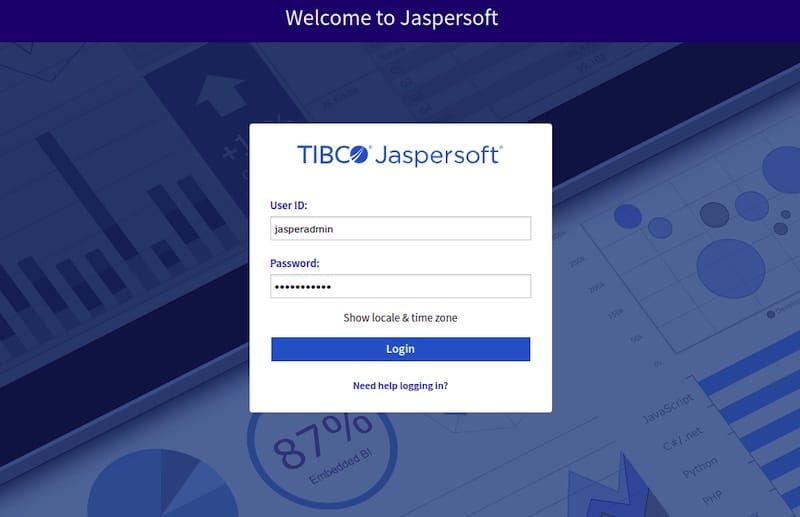
http://localhost:8080/jasperserverRemote access requires substituting the server’s IP address or hostname for “localhost.” The login page displays the JasperReports Server branding and authentication form. Default administrator credentials are:
- Username: jasperadmin
- Password: jasperadmin
Security-conscious deployments must change these credentials immediately after first login. Default passwords represent the most common security vulnerability in web applications.
The home page displays navigation panels for the repository, library, view, create, and manage functions. The repository browser shows sample reports included with the installation. The interface provides intuitive access to all reporting functionality without requiring command-line interaction.
Post-Installation Security Configuration
Changing Administrator Password
Navigate to Manage > Users in the main menu. Select the jasperadmin user from the list. Click the edit icon and update the password field. Strong passwords contain at least 12 characters mixing uppercase letters, lowercase letters, numbers, and special characters. Avoid dictionary words, personal information, or predictable patterns.
Password policies can be configured through the administrative interface to enforce complexity requirements for all users. Role-based access control enables granular permission management. Organizations with compliance requirements should review security documentation to implement appropriate controls.
Creating Additional User Accounts
Production environments require multiple user accounts with appropriate permission levels. Create accounts for report developers, analysts, and consumers based on their functional requirements. JasperReports Server supports several predefined roles:
- Administrator: Full system access including user management and configuration
- Power User: Report creation and scheduling without administrative functions
- User: View and run existing reports without creation privileges
Navigate to Manage > Users and click the Add User button. Fill in username, password, and profile information. Assign roles based on job function. Users can belong to multiple roles, inheriting combined permissions.
Firewall Configuration
OpenSUSE uses firewalld for network security. Open port 8080 to allow external access:
sudo firewall-cmd --permanent --add-port=8080/tcp
sudo firewall-cmd --reload
Verify the configuration:
sudo firewall-cmd --list-allProduction environments often place application servers behind reverse proxies. This configuration allows closing port 8080 while routing traffic through nginx or Apache on standard HTTP/HTTPS ports. Reverse proxies add SSL/TLS encryption, load balancing, and additional security layers.
Performance Optimization
JVM Memory Tuning
Edit the Tomcat systemd service file to adjust Java memory allocation:
sudo nano /etc/systemd/system/tomcat.serviceModify the CATALINA_OPTS line:
Environment="CATALINA_OPTS=-Xms1024m -Xmx4096m -server -XX:+UseG1GC"Systems with 16GB RAM can allocate 4GB or more to the JVM. The G1 garbage collector improves performance for applications with large heap sizes. Reload systemd and restart Tomcat after changes:
sudo systemctl daemon-reload
sudo systemctl restart tomcat
Monitor memory usage with system tools:
free -h
top
These commands display available memory and process resource consumption. Insufficient memory allocation causes performance problems and out-of-memory errors.
Database Connection Pooling
Edit the application context file to optimize database connections:
sudo nano /opt/tomcat/webapps/jasperserver/WEB-INF/context.xmlAdjust connection pool parameters based on concurrent user expectations. Increase maxActive for environments with many simultaneous users. Connection pooling reduces database overhead by reusing connections rather than creating new ones for each request.
Common Troubleshooting Scenarios
Application Startup Failures
Check Tomcat logs for specific error messages:
sudo less /opt/tomcat/logs/catalina.outCommon issues include incorrect JAVA_HOME settings, missing database drivers, or configuration file syntax errors. ClassNotFoundException errors indicate missing JAR files. SQLException messages point to database connectivity problems.
Verify database connectivity independently:
mysql -u jasperdb -p jasperserverFailed login indicates incorrect credentials in the configuration file.
Performance Problems
Slow report execution often stems from insufficient memory allocation or unoptimized database queries. Monitor JVM memory:
sudo su - tomcat
cd /opt/tomcat/bin
./catalina.sh version
Review garbage collection logs to identify memory pressure. Database query optimization may require analyzing slow query logs and adding appropriate indexes.
Access and Permission Issues
Users experiencing authentication problems should verify account status in the Manage Users interface. Accounts can be locked after multiple failed login attempts. Password resets resolve forgotten credential issues.
Browser cache occasionally causes display problems after updates. Clear browser cache and cookies if interface elements appear broken or outdated.
Backup and Maintenance Procedures
Regular backups protect against data loss and enable disaster recovery. Back up the database regularly:
mysqldump -u jasperdb -p jasperserver > jasperserver-backup-$(date +%Y%m%d).sqlThis command creates a dated backup file containing complete database contents. Store backups on separate storage systems for redundancy. Test restoration procedures periodically to verify backup integrity.
File system backups should include the Tomcat webapps directory and JasperReports Server configuration files. Automated backup scripts running via cron ensure regular backups without manual intervention:
0 2 * * * /usr/local/bin/backup-jasperserver.shThis cron entry runs nightly at 2:00 AM. Schedule backups during low-usage periods to minimize performance impact.
Congratulations! You have successfully installed JasperReports. Thanks for using this tutorial for installing JasperReports on openSUSE Linux system. For additional help or useful information, we recommend you check the official JasperReports website.
