How To Install JDownloader on Debian 13

Managing multiple downloads from various file hosting services can be frustrating and time-consuming. JDownloader offers a powerful solution for Debian 13 users who need to handle large files, batch downloads, and automated downloads from hundreds of hosting platforms. This comprehensive guide walks through three proven installation methods, from the official installer to modern package management systems like Flatpak and Snap, ensuring you can choose the approach that best fits your workflow.
Prerequisites and System Requirements
Before diving into the installation process, verify that your system meets the necessary specifications. JDownloader runs smoothly on most modern hardware configurations.
Minimum System Requirements
Your Debian 13 “Trixie” system should have at least 2GB of RAM, though 4GB is recommended for optimal performance. Allocate approximately 500MB of disk space for the application and additional space for downloads. The latest Debian 13 release comes with Linux Kernel 6.12 and APT 3.0, both providing excellent compatibility with JDownloader.
An active internet connection is essential during installation. You’ll also need terminal access with sudo privileges to execute administrative commands.
Required Software Dependencies
JDownloader is built using Java technology, making the Java Runtime Environment (JRE) an absolute requirement. The application works with Java 8 or newer, though Java 17 or Java 21 delivers better performance and security. Most Debian 13 installations don’t include Java by default, so you’ll need to install it manually.
Standard command-line tools like wget or curl help streamline the download process. These utilities typically come pre-installed on Debian systems.
Understanding JDownloader
JDownloader is an open-source download manager designed specifically for automating downloads from file hosting websites. Written in Java, it runs seamlessly across different operating systems while maintaining consistent functionality.
The software excels at handling links from over 100 file hosting services including Mega, Google Drive, Dropbox, MediaFire, RapidShare, and countless others. Automatic captcha recognition, link decryption, automatic extraction of compressed archives, and premium account support make it invaluable for power users.
Whether you’re downloading large media collections, backing up cloud storage, or managing batch downloads, JDownloader handles the heavy lifting automatically.
Method 1: Installing JDownloader Using Official Installer
The official installer provides the most direct installation path with complete control over configuration options. This method works universally across all Linux distributions.
Installing Java Runtime Environment
Open your terminal application. Update the package repository to ensure access to the latest software versions:
sudo apt updateInstall OpenJDK, the open-source implementation of Java. Debian 13 repositories include multiple Java versions. Install Java 17 for stability:
sudo apt install -y openjdk-17-jreAlternatively, install Java 21 for the latest features:
sudo apt install -y openjdk-21-jreVerify the installation completed successfully:
java -versionThis command displays the installed Java version. You should see output confirming OpenJDK 17 or 21 is properly configured.
Downloading the Official Installer
Navigate to your Downloads directory:
cd ~/DownloadsDownload the JDownloader installer script directly using wget:
wget http://installer.jdownloader.org/JD2Setup_unix_nojre.shThe filename indicates this version doesn’t bundle Java, which is perfect since you’ve already installed it separately. This keeps the download size smaller.
Making the Installer Executable
Linux systems require explicit permission to execute scripts. Grant execution rights to the installer:
chmod +x JD2Setup_unix_nojre.shThe chmod command modifies file permissions. The +x flag adds executable permission, allowing you to run the script.
Running the Installation Wizard
Execute the installer script:
./JD2Setup_unix_nojre.shThe installation wizard launches. Accept the license agreement when prompted. Choose your preferred installation directory—the default location is typically ~/JDownloader or ~/JD2 in your home folder.
The installer downloads additional components and libraries from JDownloader servers. This process takes several minutes depending on your connection speed. The wizard displays progress information throughout the installation.
Wait for the “Installation complete” message before proceeding.
Launching JDownloader
Start JDownloader from the terminal by navigating to the installation directory:
cd ~/JDownloader
./JDownloader2
Alternatively, search for “JDownloader” in your applications menu. Most desktop environments automatically detect the newly installed application. The installer creates menu entries and application shortcuts during setup.
You can also create a desktop launcher for quick access from your desktop environment.
Method 2: Installing JDownloader via Flatpak
Flatpak offers a modern approach to application distribution on Linux systems. It provides sandboxed applications with bundled dependencies, eliminating compatibility issues.
Understanding Flatpak
Flatpak packages applications in isolated containers, preventing conflicts with system libraries. Each application includes all required dependencies, ensuring consistent behavior across different Linux distributions. Security improves through sandboxing, which limits application access to system resources.
Updates happen independently from system updates, allowing you to run the latest JDownloader version regardless of your Debian release.
Installing Flatpak on Debian 13
Debian 13 includes Flatpak support out of the box for most desktop editions. Verify Flatpak is installed:
flatpak --versionIf Flatpak isn’t installed, add it manually:
sudo apt install flatpakAdd the Flathub repository, the primary source for Flatpak applications:
flatpak remote-add --if-not-exists flathub https://flathub.org/repo/flathub.flatpakrepoRestart your system to ensure all components initialize properly. This step is crucial for desktop environment integration.
Installing JDownloader via Flatpak
Install JDownloader from Flathub:
flatpak install flathub org.jdownloader.JDownloaderThe system prompts for confirmation. Type ‘y’ and press Enter. Flatpak automatically downloads JDownloader along with the required Java runtime and other dependencies. The package size is larger than the official installer because it includes everything needed for standalone operation.
Installation progress displays in the terminal. The process completes within a few minutes.
Launching JDownloader from Flatpak
Run JDownloader from the command line:
flatpak run org.jdownloader.JDownloaderOr simply search for JDownloader in your applications menu. The Flatpak version integrates seamlessly with GNOME Software Center and other graphical package managers.
Flatpak installations update automatically when new versions release. Check for updates manually:
flatpak updateMethod 3: Installing JDownloader via Snap
Snap packages provide another universal installation method. Developed by Canonical, Snap offers similar benefits to Flatpak with different implementation details.
Understanding Snap Packages
Snap packages bundle applications with their dependencies in compressed filesystem images. They auto-update in the background and run in confined environments for improved security. Snaps work across numerous Linux distributions using the same package format.
Installing Snapd on Debian 13
Install the Snap daemon:
sudo apt install snapdEnable and start the snapd service:
sudo systemctl enable --now snapd.socketCreate a symbolic link for classic snap support:
sudo ln -s /var/lib/snapd/snap /snapLog out and back in, or reboot your system for the changes to take full effect.
Installing JDownloader via Snap
Install JDownloader from the Snap Store:
sudo snap install jdownloader2The installation proceeds automatically. Snap downloads the package and sets up the application.
Launching JDownloader from Snap
Execute JDownloader from the terminal:
snap run jdownloader2The application also appears in your desktop environment’s application menu. Snaps update automatically in the background, typically during system idle time.
Creating a Desktop Shortcut (Optional)
Manual desktop shortcuts give you quick access without navigating through menus. This step is particularly useful if the automatic installer didn’t create application menu entries.
Create a desktop entry file:
nano ~/.local/share/applications/JDownloader2.desktopAdd this content:
[Desktop Entry]
Name=JDownloader 2
Comment=Download Manager
Exec=/home/YOUR_USERNAME/JDownloader/JDownloader2
Icon=/home/YOUR_USERNAME/JDownloader/JDownloader.png
Type=Application
Categories=Network;
Replace YOUR_USERNAME with your actual username. Save the file and make it executable:
chmod +x ~/.local/share/applications/JDownloader2.desktopThe shortcut now appears in your applications menu.
Initial Configuration and Setup
Launch JDownloader for the first time. The application presents a welcome screen with configuration options.
Creating a MyJDownloader account is optional but highly recommended. This free account enables remote management of downloads through web browsers and mobile apps. Register at my.jdownloader.org and enter your credentials in the application.
The interface consists of three main sections. LinkGrabber analyzes and collects download links. The Downloads tab shows active and completed downloads. Settings provides comprehensive configuration options.
Configure your default download directory in Settings > General > Default Download Folder. Choose a location with sufficient storage space.
Adjust connection settings under Settings > Connections. Set the maximum number of simultaneous downloads and chunks per file based on your internet bandwidth. More connections speed up downloads but consume more bandwidth.
Enable browser integration for automatic link capturing. Install the browser extension for Chrome, Firefox, or your preferred browser. Links automatically appear in LinkGrabber when you visit supported hosting sites.
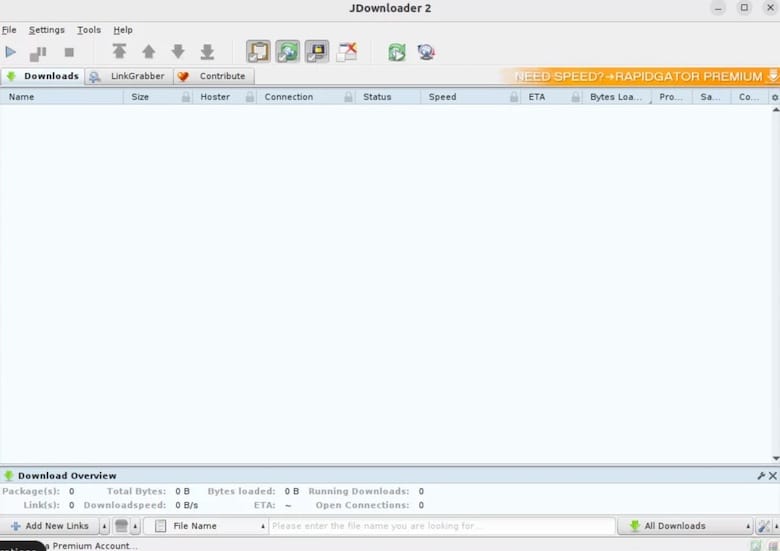
Using JDownloader on Debian 13
Copy download links from websites. Click the “Add New Links” button in LinkGrabber, or use the clipboard monitor to automatically detect copied URLs.
JDownloader analyzes the links and organizes them into packages. Each package can contain multiple files from the same source. Review the detected files before downloading.
Select the packages you want to download. Right-click and choose “Start Downloads” or click the play button. Downloads begin immediately.
Schedule downloads for specific times when bandwidth is cheaper or network traffic is lower. Right-click a package and select “Set Download Schedule.”
JDownloader automatically extracts compressed archives after download completion. Configure extraction settings in Settings > Archive Extractor.
Manage the download queue by dragging packages to reorder priorities. Pause individual downloads or entire packages as needed.
Troubleshooting Common Issues
Java-Related Errors
If JDownloader displays “Java not found,” verify Java installation:
which javaThis command shows the Java executable location. If nothing appears, reinstall Java using the commands in the installation section.
Set the JAVA_HOME environment variable if errors persist:
export JAVA_HOME=/usr/lib/jvm/java-17-openjdk-amd64Add this line to ~/.bashrc for permanent configuration.
Permission Issues
Permission errors during installation indicate insufficient privileges. Ensure you’re using sudo for administrative commands.
If downloads fail due to permission errors, verify the download directory is writable:
chmod u+w ~/DownloadsJDownloader Won’t Start
Launch JDownloader from the terminal to see error messages:
cd ~/JDownloader
./JDownloader2
Error output helps identify the problem. Common issues include missing dependencies or corrupted configuration files.
For Flatpak installations, check permissions:
flatpak override --user --filesystem=home org.jdownloader.JDownloaderCheck application logs for detailed error information:
cat ~/.jdownloader/logs/0.logLogs contain stack traces and error messages that pinpoint issues.
Update Issues
JDownloader includes automatic update functionality. Updates occasionally fail due to network issues or permission problems.
Manually trigger updates through Help > Check for Updates in the application menu.
For persistent update failures, reinstall JDownloader using the original installation method.
Updating and Maintaining JDownloader
Official Installer Method
JDownloader automatically checks for updates on startup. When updates are available, the application downloads and installs them automatically.
Manually check for updates in Help > Check for Updates. The built-in updater handles all necessary file replacements.
Major version updates may require downloading and running the installer script again. This ensures all components update correctly.
Flatpak Update
Update Flatpak applications including JDownloader:
flatpak updateGNOME Software and other graphical package managers also handle Flatpak updates. Enable automatic updates in your package manager settings for hands-free maintenance.
Snap Update
Snap applications update automatically. The snapd daemon checks for updates multiple times daily and installs them during system idle periods.
Force an immediate update:
sudo snap refresh jdownloader2View update history:
snap changesUninstalling JDownloader
Remove JDownloader if you no longer need it or want to switch installation methods.
For official installations, delete the installation directory:
rm -rf ~/JDownloaderUninstall the Flatpak version:
flatpak uninstall org.jdownloader.JDownloaderRemove the Snap package:
sudo snap remove jdownloader2Delete configuration files and download history:
rm -rf ~/.jdownloaderRemove desktop shortcuts from ~/.local/share/applications/ if you created them manually.
Congratulations! You have successfully installed JDownloader. Thanks for using this tutorial for installing JDownloader on the Debian 13 “Trixie” system. For additional help or useful information, we recommend you check the official JDownloader website.
