How To Install Jekyll on Ubuntu 24.04 LTS

Jekyll transforms plain text into beautiful static websites without the complexity of traditional content management systems. This powerful static site generator, built on Ruby, has become the go-to solution for developers and bloggers who value speed, security, and simplicity. Whether you’re creating a personal blog, documentation site, or project portfolio, Jekyll delivers exceptional performance without requiring databases or server-side processing.
Installing Jekyll on Ubuntu 24.04 LTS is straightforward when you follow the right steps. This comprehensive guide walks you through every stage of the installation process, from preparing your system to launching your first Jekyll-powered website. You’ll learn how to properly configure Ruby, manage dependencies with Bundler, and troubleshoot common issues that might arise during setup.
What is Jekyll?
Jekyll is an open-source static site generator written in Ruby that converts plain text files into complete websites. Unlike WordPress or other dynamic platforms, Jekyll generates HTML files that can be served directly without database queries or PHP processing. This approach makes Jekyll sites incredibly fast and secure.
The platform excels at blog-aware functionality, making it perfect for content creators. Jekyll understands blog post conventions, automatically organizing content by date and category. It supports Markdown for writing, Liquid templating for customization, and includes built-in features for permalinks, categories, and pagination.
One of Jekyll’s most compelling features is its seamless integration with GitHub Pages. You can host your Jekyll site entirely free while maintaining full version control. Developers appreciate Jekyll’s flexibility, while writers love its simplicity—write in Markdown, commit changes, and your site updates automatically.
Prerequisites
Before diving into the installation process, ensure your system meets these requirements.
System Requirements
Your Ubuntu 24.04 LTS installation should have at least 4GB of RAM and 15GB of available storage space. While Jekyll itself is lightweight, the Ruby development environment and gem dependencies require adequate resources. A stable internet connection is essential for downloading packages and dependencies throughout the installation.
Access Requirements
You’ll need sudo privileges to install system-level packages. Make sure you have access to a terminal emulator—whether the default GNOME Terminal, Terminator, or any alternative you prefer. Your user account should have a properly configured home directory where Jekyll will store gems and project files.
Knowledge Prerequisites
Basic command-line familiarity helps tremendously. You should be comfortable navigating directories, editing files, and understanding terminal output. Familiarity with a text editor like nano, vim, or Visual Studio Code makes configuration easier, though you can learn as you go.
Step 1: Update Your Ubuntu System
Start by ensuring your Ubuntu system has the latest security patches and package information. Open your terminal and run these commands:
sudo apt update
sudo apt upgrade -y
The first command refreshes your package index, downloading information about available software versions. The second command upgrades all installed packages to their latest versions. This process typically takes 2-5 minutes, depending on how recently you’ve updated your system.
Keeping your system current prevents compatibility issues with Jekyll dependencies. Many Ruby gems compile native extensions during installation, requiring up-to-date development libraries. Skipping this step might cause cryptic errors later in the installation process.
Step 2: Install Ruby and Essential Dependencies
Jekyll requires Ruby to function since it’s built entirely on the Ruby programming language. Ubuntu 24.04 repositories include Ruby packages, making installation simple.
Installing Ruby Full Package
Execute this command to install Ruby along with necessary development tools:
sudo apt install ruby-full build-essential zlib1g-dev -yThis single command installs three critical components. The ruby-full package provides the complete Ruby interpreter and standard library. The build-essential package includes compilers like gcc and make, which Jekyll needs to compile native extensions for certain gems. Finally, zlib1g-dev provides compression library headers required by many Ruby gems.
Installation typically completes in 1-2 minutes. You’ll see package names scroll by as apt downloads and configures each component.
Verifying Ruby Installation
Confirm Ruby installed correctly by checking its version:
ruby -v
gem -v
The first command should display Ruby version 3.x (Ubuntu 24.04 typically includes Ruby 3.1 or newer). The second command shows the RubyGems version, which manages Ruby library installations. If both commands return version numbers, you’re ready to proceed.
Step 3: Configure Gem Installation Directory
By default, RubyGems installs system-wide, requiring sudo privileges. This approach creates security risks and permission headaches. A better practice involves configuring gems to install in your home directory.
Why Configure GEM_HOME
Installing gems as a regular user prevents system-wide modifications that could affect other applications. It eliminates the need for sudo when managing Jekyll and its dependencies. User-level gem installation also simplifies troubleshooting and keeps your system cleaner.
Setting Up Environment Variables
Add these lines to your shell configuration file:
echo 'export GEM_HOME="$HOME/gems"' >> ~/.bashrc
echo 'export PATH="$HOME/gems/bin:$PATH"' >> ~/.bashrc
These commands append two environment variables to your .bashrc file. The GEM_HOME variable tells RubyGems to install gems in the gems directory within your home folder. The PATH modification ensures your shell can find executables installed by gems, including Jekyll itself.
If you use Zsh instead of Bash, modify ~/.zshrc instead. After adding these lines, reload your configuration:
source ~/.bashrcVerify the configuration took effect:
echo $GEM_HOMEThis should display /home/yourusername/gems. If the output is empty, double-check your .bashrc edits and re-source the file.
Step 4: Install Bundler
Bundler is Ruby’s dependency manager, ensuring consistent gem versions across different environments. Jekyll projects rely heavily on Bundler for managing themes, plugins, and Jekyll itself.
Install Bundler with this simple command:
gem install bundlerNotice you don’t need sudo—your GEM_HOME configuration handles permissions automatically. Bundler downloads and installs within seconds. Verify the installation:
bundler -vYou should see Bundler version 2.x or higher. Bundler works by reading a Gemfile that lists your project’s dependencies, then installing exactly those versions. This approach prevents the “works on my machine” problem that plagued earlier Ruby development.
Modern Jekyll workflows depend on Bundler. It manages not just Jekyll itself but also themes, plugins, and their dependencies. Learning basic Bundler commands now saves countless hours debugging version conflicts later.
Step 5: Install Jekyll
With Ruby, RubyGems, and Bundler configured, installing Jekyll takes one command:
gem install jekyllRubyGems downloads Jekyll and all its dependencies. The process typically takes 2-3 minutes as it compiles native extensions for several gems. You’ll see progress messages indicating which gems are being installed.
Some gems display documentation installation messages. Don’t worry if this seems to take time—building documentation for all dependencies adds up.
Verifying Jekyll Installation
Check that Jekyll installed successfully:
jekyll -vThis should display Jekyll version 4.x (as of early 2026, version 4.3 is current). If you see the version number, congratulations—Jekyll is ready to use.
Test Jekyll’s command-line interface:
jekyll --helpThis displays all available Jekyll commands, including new, build, serve, and doctor. Familiarize yourself with these options—they’re your primary interface to Jekyll’s functionality.
Step 6: Create Your First Jekyll Site
Time to build something. Jekyll’s new command scaffolds a complete site structure.
Using Jekyll New Command
Navigate to where you want to create your project:
cd ~/Documents
jekyll new my-blog
Replace my-blog with your preferred site name. Jekyll creates a new directory with that name, populating it with essential files and folders. The process takes 30-60 seconds as Jekyll generates the initial structure and installs default theme files.
If you want to create a Jekyll site in an existing directory:
cd ~/Documents/existing-folder
jekyll new . --force
The --force flag allows Jekyll to initialize in a non-empty directory.
Understanding the Generated Files
Jekyll creates several important files and directories:
The _posts directory stores your blog posts. Jekyll expects posts to follow a specific naming convention: YEAR-MONTH-DAY-title.md. For example, 2026-01-28-my-first-post.md.
The _config.yml file contains site-wide settings like your site title, description, and URL. This YAML file is Jekyll’s control center—most customization starts here.
The Gemfile lists Ruby dependencies, similar to package.json in Node.js projects. Jekyll includes itself and the default Minima theme in this file.
The index.md file becomes your homepage, while about.md creates an about page. Both use Markdown with front matter—YAML metadata at the file’s beginning that Jekyll processes.
The _site directory (generated when you build the site) contains the final HTML output. Never edit files here directly—Jekyll overwrites this folder with each build.
Step 7: Install Project Dependencies
Jekyll sites require specific gem versions defined in their Gemfile. Navigate into your new site directory:
cd my-blogNow install all dependencies:
bundle installBundler reads your Gemfile, resolves dependencies, and installs the exact gem versions needed. It creates Gemfile.lock, which records precise versions for reproducibility. This ensures everyone working on the project uses identical dependencies.
You’ll see Bundler fetch and install gems including Jekyll itself, the Minima theme, jekyll-feed for RSS generation, and jekyll-seo-tag for search engine optimization. The process typically completes in under a minute.
Step 8: Run the Jekyll Development Server
The moment of truth—launching your Jekyll site locally.
Starting the Server
From your site directory, run:
bundle exec jekyll serveThe bundle exec prefix ensures Jekyll runs with the exact gem versions specified in your Gemfile.lock. Without it, you might accidentally use a different Jekyll version installed elsewhere on your system.
Jekyll builds your site and starts a local web server. You’ll see output indicating the server address:
Server address: http://127.0.0.1:4000/
Server running... press ctrl-c to stop.
For automatic page reloading when you edit files:
bundle exec jekyll serve --livereloadLive reload injects JavaScript that refreshes your browser automatically whenever you save changes. This feature dramatically speeds up development.
Accessing Your Site
Open your web browser and navigate to http://localhost:4000. You should see your Jekyll site with the default Minima theme—a clean, responsive design with your site title and sample content.
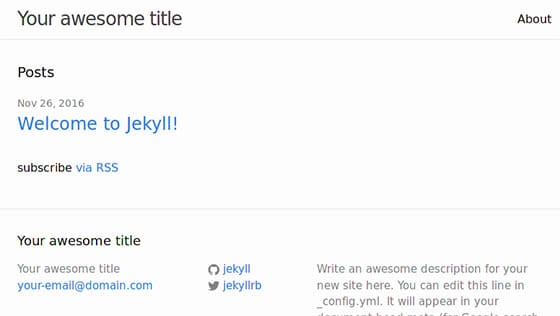
Explore the default pages. Click through to the sample post in the _posts directory. The site is fully functional, ready for customization.
Stop the server anytime by pressing Ctrl+C in the terminal.
Alternative Server Options
Run on a different port if 4000 is occupied:
bundle exec jekyll serve --port 4001Make your site accessible from other devices on your network:
bundle exec jekyll serve --host 0.0.0.0Enable drafts (posts without dates) during development:
bundle exec jekyll serve --draftsCommon Issues and Troubleshooting
Even with careful installation, issues can arise. Here’s how to solve the most common problems.
Issue 1: Permission Errors
Symptoms: “Permission denied” errors when installing gems or running Jekyll commands.
Cause: Incorrect GEM_HOME configuration or attempting system-wide gem installation.
Solution: Verify your environment variables. Run echo $GEM_HOME and confirm it points to your home directory. Re-source your .bashrc file: source ~/.bashrc. Never use sudo with gem commands after configuring GEM_HOME—doing so bypasses your user configuration and installs gems system-wide.
Issue 2: Could Not Locate Gemfile Error
Symptoms: Error message “Could not locate Gemfile” when running bundle exec jekyll serve.
Cause: You’re not in your Jekyll site directory, or the Gemfile was accidentally deleted.
Solution: Use pwd to verify your current directory. Navigate to your Jekyll site folder with cd. Confirm Gemfile exists by running ls -la. If the Gemfile exists but Bundler can’t find it, try running bundle install again.
Issue 3: WebRick Missing Error
Symptoms: “cannot load such file — webrick” error when starting the Jekyll server.
Cause: Ruby 3.0 and newer removed webrick from the standard library. Jekyll requires it for the development server.
Solution: Add webrick to your project’s dependencies:
bundle add webrickThis command updates your Gemfile and installs webrick. Retry bundle exec jekyll serve.
Issue 4: Build Failures
Symptoms: Jekyll fails to build with dependency errors or version conflicts.
Cause: Incompatible gem versions or outdated dependencies.
Solution: Update all gems to compatible versions:
bundle updateIf problems persist, check Gemfile.lock for specific version conflicts. You may need to manually specify compatible versions in your Gemfile.
Issue 5: Port Already in Use
Symptoms: “Address already in use – bind(2)” error when starting the server.
Cause: Another process is using port 4000, or a previous Jekyll server didn’t shut down cleanly.
Solution: Find the process using port 4000:
lsof -i :4000Kill that process or simply run Jekyll on a different port:
bundle exec jekyll serve --port 4001Congratulations! You have successfully installed Jekyll. Thanks for using this tutorial for installing Jekyll static site generator on Ubuntu 24.04 LTS system. For additional help or useful information, we recommend you check the official Jekyll website.
