How To Install Jellyfin on Fedora 43

Jellyfin has emerged as the leading free and open-source media server solution, offering complete control over your digital media library without subscription fees or privacy concerns. Unlike proprietary alternatives such as Plex or Emby, Jellyfin gives you full ownership of your streaming experience while supporting virtually every device and platform you can imagine. Fedora 43, with its cutting-edge packages, robust security features, and excellent stability, provides an ideal foundation for hosting your personal media server.
This comprehensive guide walks you through every step of installing Jellyfin on Fedora 43, from initial system preparation to advanced configuration options. Whether you’re a Linux newcomer or an experienced system administrator, you’ll find detailed instructions, practical troubleshooting solutions, and expert tips to get your media server running smoothly. By the end of this tutorial, you’ll have a fully functional Jellyfin server capable of streaming your movies, TV shows, music, and photos to any device on your network or across the internet.
Prerequisites and System Requirements
Before diving into the installation process, ensuring your system meets the necessary requirements will save time and prevent potential issues down the road.
Hardware Requirements
Jellyfin performs admirably on modest hardware, though your specific needs depend on usage patterns. A minimum of 2GB RAM and a modern multi-core processor handles basic playback smoothly. However, if you plan to enable transcoding for multiple simultaneous streams, consider allocating at least 4GB RAM and a quad-core processor. Storage requirements vary dramatically based on your media collection size—budget generously for your library’s growth over time.
Software Prerequisites
You’ll need a working Fedora 43 installation, either fresh or existing. Root access or sudo privileges are essential for installing packages and configuring system services. A stable internet connection enables package downloads, and basic command-line familiarity helps you navigate the terminal with confidence. Don’t worry if you’re still building these skills—the instructions provided are beginner-friendly.
Pre-Installation Checklist
Smart administrators always create backups before making significant system changes. Consider using Timeshift or similar backup tools to create a system snapshot. This precaution allows quick recovery if anything goes wrong during installation. Additionally, verify your network connectivity and firewall status to avoid troubleshooting surprises later.
Step 1: Update Your Fedora 43 System
Keeping your system current is the foundation of security and stability. Outdated packages can cause compatibility issues with new software installations.
Open your terminal and execute the following command:
sudo dnf updateThe DNF package manager, Fedora’s powerful software management tool, will check for available updates across all installed packages. This process typically takes several minutes depending on how many updates are pending. If the system prompts you to install a new kernel version, plan to reboot your machine afterward to ensure all changes take effect properly.
After the update completes, verify everything is current:
sudo dnf upgrade --refreshA system reboot at this stage ensures kernel updates and critical services reload correctly.
Step 2: Install Required Dependencies
Jellyfin relies on several supporting packages to deliver its full feature set, particularly for media transcoding and format conversion.
Installing RPM Fusion Repositories
RPM Fusion provides packages that Fedora cannot include in its official repositories due to licensing or patent restrictions. FFmpeg, absolutely critical for media transcoding, lives in these repositories.
Add both the free and nonfree RPM Fusion repositories:
sudo dnf install https://mirrors.rpmfusion.org/free/fedora/rpmfusion-free-release-$(rpm -E %fedora).noarch.rpm https://mirrors.rpmfusion.org/nonfree/fedora/rpmfusion-nonfree-release-$(rpm -E %fedora).noarch.rpmThe free repository contains open-source software excluded from Fedora for various reasons, while the nonfree repository houses software with licensing restrictions. Both are essential for a complete Jellyfin experience.
Installing FFmpeg and Essential Packages
FFmpeg handles the heavy lifting of media transcoding, converting files between formats and bitrates to ensure compatibility across different devices. Install it alongside other helpful utilities:
sudo dnf install -y ffmpeg ffmpeg-libs wget htop curlEach package serves a specific purpose: FFmpeg manages media processing, wget downloads files from the web, htop provides system resource monitoring, and curl tests network connections. Verify successful installation by checking the FFmpeg version:
ffmpeg -versionStep 3: Choose Your Installation Method
Jellyfin offers multiple installation approaches, each with distinct advantages suited to different use cases and preferences.
The Official Jellyfin Repository method provides the most straightforward installation with excellent stability and community support. Most users should choose this approach. The COPR Repository method offers an alternative for specific architectures or those who want more frequent updates. Finally, Container-based installation with Podman delivers complete isolation and portability, ideal for advanced users managing multiple services.
For this tutorial, we’ll focus primarily on the official repository method while covering alternatives for those with specific needs.
Step 4A: Installation via Official Jellyfin Repository
The official Jellyfin repository ensures you receive tested, stable releases directly from the project maintainers.
Adding the Jellyfin Repository
First, download and install the repository configuration file:
sudo wget -O /etc/yum.repos.d/jellyfin.repo https://repo.jellyfin.org/releases/server/fedora/jellyfin.repoThis command places the repository definition in Fedora’s configuration directory, allowing DNF to discover Jellyfin packages. Update your package cache to include the newly added repository:
sudo dnf updateInstalling Jellyfin Server
Now install Jellyfin with a single command:
sudo dnf install jellyfinDNF automatically handles dependencies, downloading and installing everything Jellyfin needs to function properly. The installation process creates a dedicated jellyfin system user and installs systemd service files for automatic service management. This approach follows Linux best practices by isolating the application with its own user account, enhancing security.
Verifying Installation
Confirm Jellyfin installed successfully:
rpm -qa | grep jellyfinThis command lists all installed packages matching “jellyfin,” showing the exact version now running on your system. You should see entries for the jellyfin server and web interface components.
Understanding the default installation directories helps with troubleshooting and customization later. Configuration files reside in /etc/jellyfin/, while data and media metadata live in /var/lib/jellyfin/.
Step 4B: Alternative Installation via COPR Repository
COPR (Cool Other Package Repo) provides community-maintained packages that sometimes offer advantages for specific use cases.
When to Use COPR Method
Consider COPR if you’re running ARM architecture systems or need bleeding-edge features not yet in the official repository. The COPR method also works well for users who prefer more frequent updates.
Enabling COPR Repository
Enable the Jellyfin COPR repository:
sudo dnf copr enable leo3418/jellyfinAccept the prompt to add the repository, then install Jellyfin:
sudo dnf install jellyfinAlternatively, some users successfully install Jellyfin directly from RPM Fusion after enabling those repositories. The installation process mirrors the official repository method, with the same commands for service management and configuration.
Step 4C: Container-Based Installation with Podman
Containers provide isolation, making them excellent for managing multiple services without conflicts.
Installing Podman
Fedora ships with Podman, Red Hat’s daemonless container engine. Install it if not already present:
sudo dnf install podman podman-composeCreating Directory Structure
Establish directories for configuration and media storage:
mkdir -p ~/jellyfin/config ~/jellyfin/cache ~/jellyfin/mediaProper directory organization simplifies backup and maintenance.
Deploying Jellyfin Container
Pull the official Jellyfin container image:
podman pull jellyfin/jellyfin:latestRun the container with appropriate volume mounts:
podman run -d \
  --name=jellyfin \
  -p 8096:8096 \
  -p 8920:8920 \
  -v ~/jellyfin/config:/config \
  -v ~/jellyfin/cache:/cache \
  -v ~/jellyfin/media:/media \
  --restart=unless-stopped \
  jellyfin/jellyfin:latest
This command creates a persistent Jellyfin container that survives reboots. Hardware acceleration in containers requires additional configuration, including passing through GPU devices to the container environment.
Step 5: Configure Jellyfin Service
With Jellyfin installed, configure it to run automatically as a system service.
Starting the Jellyfin Service
Launch the service immediately:
sudo systemctl start jellyfinSystemd, Fedora’s service manager, initializes Jellyfin and begins listening for connections.
Enabling Automatic Startup
Configure Jellyfin to start automatically when your server boots:
sudo systemctl enable jellyfinThis ensures your media server remains available even after system restarts or power failures.
Checking Service Status
Verify the service is running correctly:
sudo systemctl status jellyfinA successful startup shows an “active (running)” status with green indicators. If you encounter errors, the output provides clues about what went wrong. The service logs, accessible through this command, often reveal configuration issues or permission problems.
Understanding Default Paths
Familiarizing yourself with key directories helps with advanced configuration. The systemd service definition lives at /usr/lib/systemd/system/jellyfin.service. Configuration files reside in /etc/jellyfin/, while data, including your media library database and metadata, stores in /var/lib/jellyfin/. Logs accumulate in /var/log/jellyfin/, proving invaluable for troubleshooting.
Step 6: Configure Firewall Rules
Fedora’s robust firewall protects your system but requires explicit rules to allow network services.
Opening Required Ports
Jellyfin’s web interface operates on port 8096 by default. Open this port for TCP traffic:
sudo firewall-cmd --permanent --add-port=8096/tcpFor secure HTTPS connections, also open port 8920:
sudo firewall-cmd --permanent --add-port=8920/tcpThe --permanent flag ensures these rules persist across reboots.
Enabling DLNA Support (Optional)
DLNA allows automatic discovery by smart TVs and streaming devices on your network. Enable it by opening UDP port 1900:
sudo firewall-cmd --permanent --add-port=1900/udpApplying and Verifying Firewall Changes
Reload the firewall to activate your new rules:
sudo firewall-cmd --reloadVerify the configuration took effect:
sudo firewall-cmd --list-allThis command displays all active firewall rules. Confirm your Jellyfin ports appear in the output. Proper firewall configuration is essential—many “Jellyfin won’t connect” issues stem from blocked ports rather than service problems.
Step 7: Initial Jellyfin Setup and Configuration
With the server running and ports open, complete the initial setup through Jellyfin’s intuitive web interface.
Accessing the Web Interface
Open your preferred web browser and navigate to:
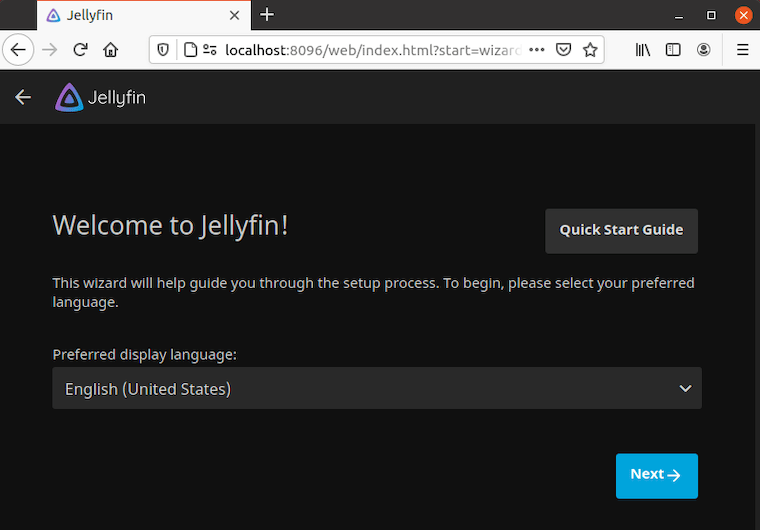
http://localhost:8096Replace localhost with your server’s IP address if accessing from another device on your network. Jellyfin’s setup wizard greets you with a clean, welcoming interface.
Language and User Configuration
Select your preferred display language from the dropdown menu. This affects the entire interface, making Jellyfin accessible to users worldwide.
Next, create your administrator account. Choose a strong, unique password—this account controls your entire media server. Jellyfin stores passwords securely, but your initial selection determines your server’s security posture. Consider using a password manager to generate and store complex credentials.
Setting Up Media Libraries
Click “Add Media Library” to begin organizing your content. Jellyfin supports multiple library types: Movies, TV Shows, Music, Photos, and more. Each library type receives optimized metadata scrapers and display layouts.
Select the appropriate content type, then click “Add Folder” to specify where your media files reside. Jellyfin’s jellyfin user must have read permissions on these directories. The interface displays any permission issues immediately.
Configure metadata fetchers for each library. Jellyfin automatically downloads movie posters, TV show descriptions, cast information, and other enriching details from online databases. Enable all relevant metadata providers for the best experience. Consider organizing your media following standard naming conventions—this dramatically improves automatic metadata matching.
Network and Remote Access Settings
Configure remote access if you want to stream content outside your home network. Jellyfin supports both manual port forwarding and automatic UPnP configuration. Enable the DLNA server to allow compatible devices like smart TVs and game consoles to discover your server automatically.
Troubleshooting Common Issues
Even with careful installation, you might encounter occasional hiccups. These solutions address the most common problems.
Service Fails to Start
If Jellyfin won’t start, check the service status and logs:
sudo systemctl status jellyfin
journalctl -u jellyfin -b
The journalctl command displays detailed service logs from the current boot. SELinux, Fedora’s mandatory access control system, occasionally blocks Jellyfin operations. Check for SELinux denials:
sudo ausearch -c 'jellyfin' --raw | audit2allow -M jellyfinThis generates a custom SELinux policy module. Install it:
sudo semodule -i jellyfin.ppFor testing purposes, temporarily set SELinux to permissive mode:
sudo setenforce 0Never leave SELinux disabled permanently—it’s a critical security layer. Instead, create proper policy exceptions.
Cannot Access Web Interface
If the web interface won’t load, verify the service is actually running:
sudo systemctl is-active jellyfinTest local network connectivity:
curl http://localhost:8096If this succeeds but remote access fails, revisit your firewall configuration. Many connectivity problems trace back to firewall rules or network configuration rather than Jellyfin itself.
Media Files Not Appearing
File permission issues frequently prevent media from appearing in your libraries. Test whether the jellyfin user can access your media directory:
sudo -u jellyfin ls -la /path/to/mediaIf this command fails, adjust permissions or add jellyfin to the appropriate group. Manually trigger a library scan from the web interface under Dashboard > Libraries. Sometimes files need a rescan after permission changes.
Viewing Log Files
Jellyfin’s logs provide detailed information about server operations. Access them at /var/log/jellyfin/. Monitor logs in real-time during troubleshooting:
sudo tail -f /var/log/jellyfin/jellyfin.logThis displays new log entries as they occur, perfect for diagnosing intermittent issues.
Advanced Configuration and Optimization
Once your basic installation works, these optimizations enhance performance and capabilities.
Hardware Acceleration Setup
GPU-accelerated transcoding dramatically reduces CPU load and power consumption while handling multiple streams simultaneously. For Intel GPUs, install VAAPI support:
sudo dnf install libva libva-intel-driver intel-media-driverAdd the jellyfin user to the render group:
sudo usermod -aG render jellyfinNVIDIA GPU owners should install the proprietary drivers and appropriate libraries for NVENC support. Configure hardware acceleration in the Jellyfin web interface under Dashboard > Playback > Transcoding. Select the appropriate hardware acceleration method for your GPU.
File Permissions Management
Proper permissions balance security with functionality. Add your user account to the jellyfin group to simplify file management:
sudo usermod -aG jellyfin $USERSet appropriate folder permissions for shared media directories:
sudo chmod -R 755 /path/to/media
sudo chown -R jellyfin:jellyfin /var/lib/jellyfin
These commands ensure Jellyfin can read media files while maintaining secure ownership.
Performance Tuning
Adjust transcoding thread count based on your CPU core count in Dashboard > Playback settings. More threads accelerate transcoding but increase system load. For optimal performance, install your operating system and Jellyfin’s database on an SSD while keeping bulk media storage on traditional hard drives. This configuration balances speed with storage capacity economically.
Security Best Practices
Protecting your media server safeguards both your content and your network.
Enforce strong password policies for all user accounts. Jellyfin supports local authentication and external providers like LDAP. Consider implementing a reverse proxy with NGINX or Apache to add HTTPS encryption and additional security layers. Install fail2ban to automatically block brute-force login attempts:
sudo dnf install fail2banConfigure fail2ban with a Jellyfin jail to monitor authentication failures. Keep both Fedora and Jellyfin current with security updates:
sudo dnf upgrade --securityRegular updates patch vulnerabilities before they’re exploited. Network segmentation, placing your media server on a separate VLAN from critical systems, adds another defensive layer.
Maintenance and Updates
Regular maintenance keeps your media server running smoothly for years.
Update Jellyfin when new versions release:
sudo dnf update jellyfinBack up critical directories regularly, particularly /etc/jellyfin and /var/lib/jellyfin/data. These contain your configuration and media library database. Automated backup scripts simplify this process. Configure log rotation to prevent log files from consuming excessive disk space. Monitor system resources with htop to identify performance bottlenecks before they impact user experience.
Establish a maintenance schedule—monthly updates and quarterly deep maintenance sessions work well for most installations.
Accessing Jellyfin from Other Devices
Jellyfin’s true value emerges when you access your media library from any device, anywhere.
Install official Jellyfin apps from the Google Play Store for Android or Apple App Store for iOS. Smart TV platforms including Android TV, Fire TV, Roku, Samsung Tizen, and LG webOS all offer native clients. Desktop applications for Windows, macOS, and Linux provide optimized experiences for computers.
Kodi users can install the official Jellyfin addon for seamless integration. The web interface works perfectly in any modern browser, requiring no installation. Configure each client with your server address—the format is http://server-ip:8096. Enable remote access in Jellyfin’s network settings if accessing from outside your home network.
Useful Commands Reference
Keep these commands handy for routine administration:
Service Management:
sudo systemctl start jellyfin– Start servicesudo systemctl stop jellyfin– Stop servicesudo systemctl restart jellyfin– Restart servicesudo systemctl status jellyfin– Check status
Firewall Management:
sudo firewall-cmd --list-all– List rulessudo firewall-cmd --reload– Apply changes
Logs and Troubleshooting:
journalctl -u jellyfin -f– Follow service logssudo tail -f /var/log/jellyfin/jellyfin.log– Monitor logssudo -u jellyfin ls -la /path– Test permissions
Congratulations! You have successfully installed Jellyfin. Thanks for using this tutorial for installing Jellyfin Media Server on your Fedora 43 Linux system. For additional help or useful information, we recommend you check the official Jellyfin website.
