
Jenkins stands as one of the most popular open-source automation servers for continuous integration and continuous delivery (CI/CD) pipelines. Installing Jenkins on Debian 13 provides a stable, secure foundation for automating software builds, tests, and deployments. This comprehensive guide walks you through every step of setting up Jenkins on Debian 13, from system preparation to creating your first automated job.
Introduction to Jenkins on Debian 13
Jenkins is a powerful, Java-based automation server that enables development teams to build, test, and deploy applications efficiently. With over 1,800 plugins available, Jenkins integrates seamlessly with virtually every tool in the modern DevOps ecosystem, including Git, Docker, Kubernetes, Maven, and cloud platforms. Organizations worldwide rely on Jenkins to accelerate software delivery while maintaining code quality.
Debian 13 offers an excellent platform for hosting Jenkins due to its legendary stability, robust security practices, and long-term support cycles. The combination of Debian’s reliable package management system and Jenkins’ extensibility creates an environment where automation workflows can run continuously with minimal intervention. Whether you’re managing a small development team or orchestrating complex enterprise deployments, this installation process establishes a production-ready Jenkins instance.
Prerequisites and System Requirements
Before installing Jenkins, ensure your Debian 13 system meets the necessary requirements. Jenkins performs optimally with at least 2 CPU cores and 4GB of RAM for small to medium-sized teams, though larger organizations should allocate 8GB or more depending on concurrent build demands. Storage requirements vary based on your build artifacts and workspace needs, but starting with 50GB of available disk space provides adequate room for growth.
Jenkins requires Java Runtime Environment (JRE) to function, specifically Java 11, 17, or 21. Modern Jenkins LTS releases work best with Java 17, which balances compatibility and performance. You’ll need sudo or root privileges to install packages, configure services, and modify system settings. Additionally, administrative access to your firewall configuration is essential for opening network ports.
From a networking perspective, plan to expose Jenkins on port 8080 by default, or configure a custom port if 8080 conflicts with existing services. For production environments accessible from the internet, implementing a reverse proxy with HTTPS encryption is strongly recommended. Having a static IP address or proper DNS configuration ensures consistent access to your Jenkins controller.
Environment Preparation on Debian 13
Start by updating your Debian 13 system to ensure all packages receive the latest security patches and bug fixes. Run the following commands:
sudo apt update
sudo apt upgrade -y
This two-step process refreshes the package index and upgrades all installed packages to their newest versions. The upgrade might take several minutes depending on how recently you’ve updated the system.
Next, install essential utilities required for adding external repositories and verifying package signatures:
sudo apt install curl wget gnupg ca-certificates apt-transport-https -yThese tools enable secure package downloads and cryptographic verification of repository keys. Verify your Debian version to confirm you’re running Debian 13:
lsb_release -aOptionally, set your system timezone to ensure build logs display timestamps accurately:
sudo timedatectl set-timezone Asia/JakartaInstalling Java for Jenkins (OpenJDK)
Jenkins requires a compatible Java Development Kit to run. OpenJDK 17 represents the current long-term support version and works reliably with modern Jenkins releases. Install OpenJDK 17 from Debian’s official repositories:
sudo apt install openjdk-17-jdk -yThis command installs both the Java runtime and development tools. Once installation completes, verify the Java version:
java -versionYou should see output indicating OpenJDK 17 is installed. If multiple Java versions exist on your system, configure the default version using:
sudo update-alternatives --config javaSelect the OpenJDK 17 option from the menu. Setting the correct Java version prevents compatibility issues that can cause Jenkins to fail during startup or plugin execution. Some older Jenkins plugins may require specific Java versions, but Java 17 provides the broadest compatibility with current Jenkins LTS releases.
Adding the Official Jenkins Repository
Installing Jenkins from the official repository ensures you receive timely security updates and access to the latest features. Debian’s default repositories often contain outdated Jenkins versions, making the official repository the preferred source.
First, download and add the Jenkins GPG key to verify package authenticity:
curl -fsSL https://pkg.jenkins.io/debian-stable/jenkins.io-2023.key | sudo tee /usr/share/keyrings/jenkins-keyring.asc > /dev/nullThis command securely fetches the cryptographic key and stores it in the system keyring. Modern Debian systems use the /usr/share/keyrings directory for improved security isolation.
Next, add the Jenkins repository to your system’s sources list:
echo "deb [signed-by=/usr/share/keyrings/jenkins-keyring.asc] https://pkg.jenkins.io/debian-stable binary/" | sudo tee /etc/apt/sources.list.d/jenkins.listThis configuration points apt to the LTS (Long-Term Support) Jenkins repository. The signed-by directive ensures apt only accepts packages signed with the Jenkins key, preventing package spoofing attacks.
Update the package index to recognize the new repository:
sudo apt updateVerify Jenkins appears in the available packages:
apt-cache search jenkinsInstalling Jenkins on Debian 13
With the repository configured, install Jenkins using a single command:
sudo apt install jenkins -yThe installation process creates a dedicated jenkins system user, establishes the Jenkins home directory at /var/lib/jenkins, configures logging to /var/log/jenkins, and registers a systemd service for automatic management. Package installation typically completes within one to two minutes.
Confirm the installed Jenkins version:
dpkg -l | grep jenkinsUsing official distribution packages provides several advantages over manual WAR file deployment, including automatic dependency management, standardized file locations, and seamless integration with system service managers. This approach simplifies maintenance and reduces configuration complexity.
The Jenkins package installs configuration files in /etc/default/jenkins, where you can customize Java options, heap memory allocation, and HTTP port settings if needed. Most users can proceed with default settings initially and tune performance parameters later based on actual workload requirements.
Managing the Jenkins Service with systemd
Debian 13 uses systemd for service management, providing reliable control over Jenkins daemon operations. Start the Jenkins service:
sudo systemctl start jenkinsEnable Jenkins to launch automatically during system boot:
sudo systemctl enable jenkinsThese commands ensure Jenkins runs continuously even after server restarts. Check the service status:
sudo systemctl status jenkinsA properly running Jenkins service displays an “active (running)” status with recent log entries. If Jenkins fails to start, investigate the issue using:
sudo journalctl -u jenkins -n 50This command displays the last 50 log entries for the Jenkins service, revealing startup errors such as port conflicts, Java path issues, or permission problems. Common startup failures include incorrect Java versions, insufficient system resources, or port 8080 already being occupied by another application.
Additional useful systemd commands include:
sudo systemctl restart jenkins  # Restart Jenkins
sudo systemctl stop jenkins     # Stop Jenkins
Configuring Firewall and Network Access
Jenkins listens on port 8080 by default, requiring firewall configuration to permit inbound connections. If you’re using UFW (Uncomplicated Firewall), allow access with:
sudo ufw allow 8080/tcp
sudo ufw reload
For security-conscious environments, restrict access to specific IP addresses or networks:
sudo ufw allow from 192.168.1.0/24 to any port 8080This rule limits Jenkins access to devices within the 192.168.1.0/24 subnet. Alternatively, if you’re using nftables or iptables directly, add corresponding rules to your firewall configuration.
For production deployments exposed to the internet, consider implementing a reverse proxy with HTTPS termination rather than exposing port 8080 directly. SSH tunneling provides another secure option for administrators who need occasional access:
ssh -L 8080:localhost:8080 user@jenkins-serverThis creates an encrypted tunnel, allowing you to access Jenkins at http://localhost:8080 on your local machine without opening firewall ports.
Initial Web-Based Setup of Jenkins
With the service running and firewall configured, access Jenkins through your web browser. Navigate to:
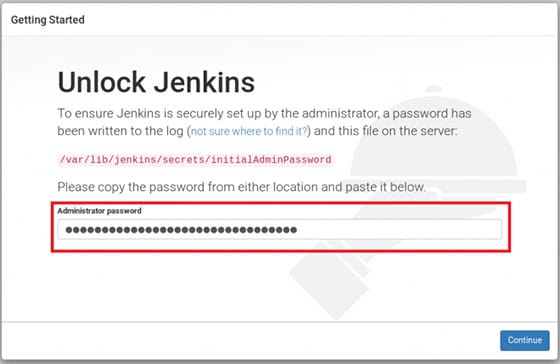
http://your-server-ip:8080Replace your-server-ip with your Debian server’s IP address or domain name. The initial setup screen prompts for an administrator password. Retrieve this password from the Jenkins secrets file:
sudo cat /var/lib/jenkins/secrets/initialAdminPasswordCopy the displayed password and paste it into the web interface. This one-time password ensures only users with server access can complete initial configuration, providing basic security during setup.
After unlocking Jenkins, the setup wizard presents two plugin installation options: “Install suggested plugins” or “Select plugins to install”. For most users, selecting suggested plugins offers the best starting point, installing essential integrations for Git, Maven, Pipeline, and other common tools. Advanced users who want minimal installations can choose specific plugins, though this requires familiarity with Jenkins plugin ecosystem.
The plugin installation process downloads and installs components, typically taking three to five minutes depending on network speed. Progress indicators show installation status for each plugin.
Creating the First Admin User
Once plugin installation completes, create your primary administrator account. Provide a username, password, full name, and email address. Avoid generic usernames like “admin” or “administrator” for security reasons. Choose a strong password combining uppercase letters, lowercase letters, numbers, and special characters.
The email address receives important notifications about build failures, security advisories, and system alerts. Configure a functional email address to ensure you receive critical updates.
Next, set the Jenkins URL to match your server’s address. This URL appears in email notifications, build reports, and API responses. If you plan to implement a reverse proxy later, use the final public-facing URL here rather than the direct port 8080 address.
Security best practices for Jenkins administration include using unique credentials for each administrator, enabling two-factor authentication through plugins, regularly reviewing user permissions, and avoiding the use of the default admin account for daily operations. Jenkins’ matrix-based security system allows granular permission control, enabling you to grant specific privileges to different users and teams.
Optional: Setting Up Reverse Proxy and HTTPS
Production Jenkins instances benefit significantly from HTTPS encryption and professional URL structures. Nginx provides an excellent reverse proxy solution for Jenkins. Install Nginx:
sudo apt install nginx -yCreate a new Nginx server block configuration:
sudo nano /etc/nginx/sites-available/jenkinsAdd the following configuration, replacing jenkins.yourdomain.com with your domain:
server {
    listen 80;
    server_name jenkins.yourdomain.com;

    location / {
        proxy_pass http://127.0.0.1:8080;
        proxy_set_header Host $host;
        proxy_set_header X-Real-IP $remote_addr;
        proxy_set_header X-Forwarded-For $proxy_add_x_forwarded_for;
        proxy_set_header X-Forwarded-Proto $scheme;
    }
}
Enable the configuration and restart Nginx:
sudo ln -s /etc/nginx/sites-available/jenkins /etc/nginx/sites-enabled/
sudo nginx -t
sudo systemctl restart nginx
Install Let’s Encrypt certificates using Certbot:
sudo apt install certbot python3-certbot-nginx -y
sudo certbot --nginx -d jenkins.yourdomain.com
Certbot automatically configures HTTPS and obtains valid SSL certificates. After completing certificate installation, update your firewall to allow HTTPS traffic and optionally block direct access to port 8080 from external networks, forcing all traffic through the encrypted proxy.
Basic Post-Install Configuration
Navigate to “Manage Jenkins” from the dashboard to access configuration options. The “Manage Plugins” section allows you to install additional plugins, update existing ones, and remove unused components. Popular plugins include Docker Pipeline, Kubernetes, Blue Ocean (modern UI), and platform-specific integrations for GitHub, GitLab, or Bitbucket.
Configure global tools under “Global Tool Configuration”. Add JDK installations, Git paths, Maven versions, Gradle installations, and other build tools your projects require. Jenkins can automatically install tools like Maven and Gradle on-demand, simplifying agent configuration for distributed builds.
For teams requiring centralized authentication, explore integration options under “Configure Global Security.” Jenkins supports LDAP, Active Directory, SAML, and OAuth providers. These integrations eliminate the need to manage separate Jenkins credentials, improving security and user experience.
Creating Your First Jenkins Job
Test your installation by creating a simple Freestyle project. From the dashboard, click “New Item,” enter a job name, and select “Freestyle project”. In the configuration screen, add a build step such as “Execute shell” and enter a basic command:
echo "Hello from Jenkins on Debian 13!"
date
uname -a
Save the job and click “Build Now.” Jenkins executes the commands and displays output in the build console. This confirms your installation functions correctly.
For modern CI/CD workflows, Pipeline jobs offer superior flexibility. Create a Pipeline job and add this declarative Jenkinsfile:
pipeline {
    agent any
    stages {
        stage('Checkout') {
            steps {
                echo 'Checking out source code...'
            }
        }
        stage('Build') {
            steps {
                echo 'Building application...'
            }
        }
        stage('Test') {
            steps {
                echo 'Running tests...'
            }
        }
    }
}
Pipeline-as-Code stored in version control enables reproducible builds and infrastructure-as-code practices. Real-world Jenkins implementations automate unit testing on every commit, build Docker images, deploy to staging environments, and execute integration tests before production releases.
Maintenance, Updates, and Backup Considerations
Keep Jenkins current with regular updates to receive security patches and new features. Jenkins displays update notifications in the web interface when new versions become available. Apply updates through “Manage Jenkins” → “Manage Plugins” for plugin updates.
For core Jenkins updates on Debian, use:
sudo apt update
sudo apt upgrade jenkins
Always back up Jenkins before major upgrades. The critical data resides in /var/lib/jenkins, containing job configurations, build histories, plugin data, and credentials. Create backups using:
sudo systemctl stop jenkins
sudo tar -czf jenkins-backup-$(date +%Y%m%d).tar.gz /var/lib/jenkins
sudo systemctl start jenkins
Store backups on separate storage systems or cloud platforms. For configuration files, also backup /etc/default/jenkins. Automated backup solutions like ThinBackup plugin provide scheduled backups directly from Jenkins interface.
Common Problems and Troubleshooting Tips
Jenkins won’t start: Check if port 8080 is already in use by running sudo lsof -i :8080. If another service occupies the port, either stop that service or change Jenkins’ port in /etc/default/jenkins by modifying the HTTP_PORT variable.
Java version errors: Jenkins requires compatible Java versions. Verify your Java installation and ensure it meets minimum requirements. Downgrade or upgrade Java as needed using apt install with specific version numbers.
Permission issues: The jenkins user must own its home directory and workspace folders. Fix permissions with:
sudo chown -R jenkins:jenkins /var/lib/jenkinsBuild failures: Review build console output for specific error messages. Common causes include missing dependencies, incorrect tool paths, or authentication failures when accessing external resources.
Congratulations! You have successfully installed Jenkins. Thanks for using this tutorial to install Jenkins open source automation server on Debian 13 “Trixie” system. For additional help or useful information, we recommend you check the official Jenkins website.

