
Video conferencing has become an essential tool for remote work, online education, and virtual meetings. While commercial platforms dominate the market, many organizations and individuals seek privacy-focused, self-hosted alternatives that provide complete control over their data. Jitsi Meet stands out as a powerful open-source video conferencing solution that rivals proprietary platforms in functionality while respecting user privacy.
Debian 13, known for its stability and security, provides an excellent foundation for hosting a Jitsi Meet server. This comprehensive guide walks you through every step of installing and configuring Jitsi Meet on Debian 13, from initial system preparation to advanced security configurations. Whether you’re setting up a video conferencing server for your organization, community group, or personal use, this tutorial ensures you’ll have a fully functional system ready to handle multiple participants with crystal-clear audio and video quality.
By the end of this guide, you’ll have a production-ready Jitsi Meet instance secured with SSL/TLS certificates, protected by user authentication, and optimized for performance. The installation process typically takes 30-45 minutes for those familiar with Linux systems, though first-time administrators should allocate additional time for understanding each configuration step.
Prerequisites and Requirements
Server Requirements
Successful Jitsi Meet deployment begins with appropriate hardware resources. For small meetings with up to 10 participants, a virtual private server (VPS) or cloud instance with 2 CPU cores and 4GB RAM suffices. Organizations planning to host larger conferences with 20-50 concurrent participants should provision at least 4 CPU cores and 8GB RAM. Storage requirements remain modest—20GB disk space accommodates the Jitsi installation and logs comfortably.
Your server must run a fresh installation of Debian 13. Attempting to install Jitsi on systems with existing web servers or conflicting software packages often leads to configuration headaches. Starting with a clean slate eliminates compatibility issues and ensures smooth installation.
Domain and Network Requirements
Jitsi Meet requires a fully qualified domain name (FQDN) to function properly. Browser security restrictions for WebRTC demand valid SSL certificates, which in turn require domain validation. Purchase a domain name and create an A record pointing to your server’s public IP address. Allow 24-48 hours for DNS propagation, though changes often appear within minutes.
Your server needs a public IP address accessible from the internet. If hosting behind NAT or a home network, configure port forwarding on your router for the necessary ports. While Jitsi can work in NAT scenarios, direct internet connectivity simplifies troubleshooting and improves performance.
Access Requirements
You’ll need root access or a user account with sudo privileges to execute administrative commands throughout this installation. SSH access to your server is essential—configure SSH key authentication for enhanced security before beginning. Basic familiarity with Linux command-line operations, text editors like nano or vim, and systemd service management will help you understand each step rather than blindly copying commands.
Preparing Your Debian 13 System
Setting the Hostname
Proper hostname configuration prevents numerous installation problems. Jitsi’s automated setup scripts rely on correctly configured hostnames to generate appropriate configuration files. Set your hostname to match your domain exactly.
Execute this command, replacing meet.yourdomain.com with your actual domain:
sudo hostnamectl set-hostname meet.yourdomain.comVerify the change:
hostnamectlNext, edit the hosts file to establish proper name resolution:
sudo nano /etc/hostsAdd this line after the localhost entries:
YOUR_SERVER_IP meet.yourdomain.com meetReplace YOUR_SERVER_IP with your actual server IP address. Save and exit the editor. This configuration ensures Jitsi components communicate properly using your domain name.
System Updates
Outdated packages introduce security vulnerabilities and compatibility issues. Update your Debian system before proceeding:
sudo apt update
sudo apt upgrade -y
The update process downloads package information from Debian repositories, while upgrade installs newer versions of installed packages. This may take several minutes depending on your internet connection and how recently the system was installed. Reboot if kernel updates were applied:
sudo rebootInstalling Prerequisites
Jitsi requires several foundational packages. Install Nginx as your web server:
sudo apt install nginx -yNginx outperforms Apache in reverse proxy scenarios and consumes fewer resources—critical factors for video conferencing servers handling multiple simultaneous connections. Start and enable Nginx:
sudo systemctl start nginx
sudo systemctl enable nginx
Install additional utilities needed for repository management:
sudo apt install gnupg curl wget -yThese tools facilitate secure package downloads and repository authentication.
Configuring Firewall Rules
Jitsi Meet requires specific ports open for web access and media streaming. If you’re using UFW (Uncomplicated Firewall), configure these essential ports:
sudo ufw allow 80/tcp
sudo ufw allow 443/tcp
sudo ufw allow 4443/tcp
sudo ufw allow 10000/udp
Port 80 serves HTTP traffic, while port 443 handles encrypted HTTPS connections. Port 4443 enables RTP media over TCP for participants behind restrictive firewalls. Port 10000 UDP carries real-time video and audio streams—the lifeblood of your video conferences.
Enable the firewall if not already active:
sudo ufw enableVerify your configuration:
sudo ufw statusCloud hosting providers often implement additional firewall layers through security groups or cloud firewalls. Check your provider’s control panel and ensure these same ports are open at the network level.
Adding the Jitsi Repository
Downloading and Adding GPG Key
Debian’s package management system verifies package authenticity using GPG signatures. Add Jitsi’s official repository key:
curl -sL https://download.jitsi.org/jitsi-key.gpg.key | sudo gpg --dearmor -o /usr/share/keyrings/jitsi-keyring.gpgThis command downloads the GPG key and converts it to the proper format for modern Debian systems. The keyring file ensures you’re installing authentic Jitsi packages rather than potentially compromised alternatives.
Creating Repository Source File
Create a new repository source file:
echo "deb [signed-by=/usr/share/keyrings/jitsi-keyring.gpg] https://download.jitsi.org stable/" | sudo tee /etc/apt/sources.list.d/jitsi-stable.listThe stable repository contains thoroughly tested releases suitable for production environments. While an unstable repository exists, production servers should always use stable packages.
Update your package lists to include Jitsi packages:
sudo apt updateInstalling Jitsi Meet
Running the Installation Command
Install the complete Jitsi Meet package:
sudo apt install jitsi-meet -yThis meta-package installs all necessary components: Jitsi Videobridge for routing media streams, Jicofo (Jitsi Conference Focus) for managing conferences, Prosody XMPP server for signaling, and preconfigured Nginx virtual hosts for the web interface.
Interactive Configuration During Installation
The installation wizard presents several prompts. First, enter your fully qualified domain name exactly as configured in DNS. This value becomes embedded in multiple configuration files.
For SSL certificate selection, choose “Generate a new self-signed certificate” initially. Self-signed certificates allow immediate testing though browsers display security warnings. We’ll replace this with a trusted Let’s Encrypt certificate shortly.
Installation typically completes within 5-10 minutes. The package manager handles service startup and basic configuration automatically.
Installation Components
Understanding installed components helps with troubleshooting. Jitsi Videobridge receives media streams from participants and routes them efficiently to other participants, acting as a selective forwarding unit (SFU). This architecture scales better than traditional MCU designs.
Jicofo orchestrates conferences—handling participant joining, managing media sessions, and coordinating between components. Prosody, a lightweight XMPP server written in Lua, manages all signaling traffic. Nginx serves the web interface and reverse proxies WebSocket connections.
Post-Installation Verification
Check that all services are running:
sudo systemctl status jitsi-videobridge2
sudo systemctl status jicofo
sudo systemctl status prosody
sudo systemctl status nginx
Each service should display “active (running)” in green. If any service shows failed status, check logs for errors:
sudo journalctl -u jitsi-videobridge2 -n 50Open a web browser and navigate to https://yourdomain.com. Your browser will display a certificate warning since you’re using a self-signed certificate. Proceed past the warning to verify the Jitsi interface loads correctly.
Configuring SSL/TLS Certificate with Let’s Encrypt
WebRTC, the underlying technology powering Jitsi Meet, mandates encrypted connections for accessing cameras and microphones. Self-signed certificates trigger persistent browser warnings that frustrate users. Let’s Encrypt provides free, automated SSL certificates trusted by all major browsers.
Jitsi includes a convenient script for Let’s Encrypt integration:
sudo /usr/share/jitsi-meet/scripts/install-letsencrypt-cert.shEnter your email address when prompted. Let’s Encrypt uses this for certificate expiration notices, though automatic renewal typically prevents certificates from expiring.
The script validates domain ownership by placing temporary files on your web server, requests certificate issuance, and configures Nginx automatically. The process takes 2-3 minutes.
Let’s Encrypt certificates expire after 90 days. The installation script configures automatic renewal through systemd timers. Verify renewal configuration:
sudo systemctl list-timers | grep certbotAccess your Jitsi instance again via HTTPS. The browser security warning should disappear, replaced by a padlock icon indicating a secure connection.
Securing Your Jitsi Meet Instance
Enabling Host Authentication
Fresh Jitsi installations allow anyone who knows your domain to create conferences. While convenient for testing, this open access invites abuse—strangers could host conferences on your server, consuming bandwidth and resources.
Host authentication restricts conference creation to authenticated users while permitting guests to join existing meetings. This model balances security with usability.
Edit Prosody’s main configuration:
sudo nano /etc/prosody/conf.avail/yourdomain.com.cfg.luaFind this line under your VirtualHost:
authentication = "jitsi-anonymous"Change it to:
authentication = "internal_hashed"This enables password-based authentication for hosts. Now add a guest domain for unauthenticated participants. Append these lines to the file:
VirtualHost "guest.yourdomain.com"
    authentication = "anonymous"
    c2s_require_encryption = false
Save and exit.
Configuring Guest Access
Tell Jicofo about the guest domain:
sudo nano /etc/jitsi/jicofo/jicofo.confAdd this configuration block:
authentication {
  enabled = true
  type = XMPP
  login-url = yourdomain.com
}
Configure the web interface to use the guest domain:
sudo nano /etc/jitsi/meet/yourdomain.com-config.jsFind the hosts section and add:
hosts: {
    domain: 'yourdomain.com',
    anonymousdomain: 'guest.yourdomain.com',
    // other configuration...
}
Creating Authenticated Users
Create your first host user:
sudo prosodyctl register username yourdomain.com passwordReplace username with your desired username and password with a strong password. Create additional users by running this command multiple times with different credentials.
Restart all Jitsi services to apply authentication changes:
sudo systemctl restart prosody
sudo systemctl restart jicofo
sudo systemctl restart jitsi-videobridge2
Testing Authentication
Visit your Jitsi domain and attempt to create a room. You should see a login prompt. Enter the credentials you created. After authenticating, you’ll gain the ability to create and manage conferences.
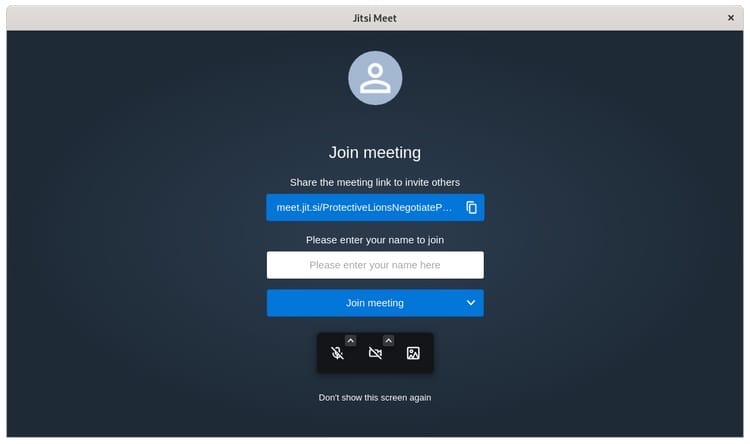
Share the meeting link with other participants. They should join directly without authentication, confirming guest access works properly.
Optimizing Jitsi Meet Performance
Default Jitsi configurations work well for most scenarios, but optimization improves quality and resource efficiency. Adjust video resolution limits based on available bandwidth:
sudo nano /etc/jitsi/meet/yourdomain.com-config.jsSet maximum resolution:
constraints: {
    video: {
        height: {
            ideal: 720,
            max: 720,
            min: 240
        }
    }
}
Limiting maximum resolution to 720p reduces server load significantly while maintaining acceptable quality.
Configure participant limits to prevent server overload:
maxVideoQuality: 720,Jitsi switches from peer-to-peer to server-mediated mode when a third participant joins. For small servers, consider increasing the P2P threshold:
p2p: {
    enabled: true,
    preferH264: true,
    disableH264: false,
    useStunTurn: true
}
Adjust Videobridge memory allocation for systems with abundant RAM:
sudo nano /etc/jitsi/videobridge/sip-communicator.propertiesAdd or modify:
org.jitsi.videobridge.STATISTICS_TRANSPORT=muc,colibriMonitor system resources during conferences using htop to identify bottlenecks and adjust accordingly.
Customizing Your Jitsi Meet Interface
Branding and interface customization distinguish your installation from generic Jitsi instances. Edit the interface configuration:
sudo nano /etc/jitsi/meet/yourdomain.com-interface_config.jsChange the application name:
APP_NAME: 'Your Organization Video',Modify available toolbar buttons:
TOOLBAR_BUTTONS: [
    'microphone', 'camera', 'closedcaptions', 'desktop',
    'fullscreen', 'fodeviceselection', 'hangup', 'chat',
    'settings', 'videoquality', 'tileview'
],
Remove buttons you don’t want users to access. Disable features like recording or live streaming if unnecessary:
DISABLE_RINGING: true,
DISABLE_VIDEO_BACKGROUND: false,
Changes require browser cache clearing to appear for users. Customize the logo by replacing images in /usr/share/jitsi-meet/images/.
Testing Your Installation
Thorough testing prevents surprises during production use. Create a test conference and verify audio functionality using your computer’s microphone. Enable video and confirm your camera feed appears.
Invite a colleague or use a second device to test multi-participant scenarios. Check that both participants see and hear each other clearly. Test screen sharing by sharing your display and confirming the other participant sees the shared content.
Try Jitsi Meet on different browsers—Chrome, Firefox, Safari, and Edge all support WebRTC but occasionally exhibit quirks. Mobile testing matters equally; install the Jitsi Meet mobile app or access through mobile browsers.
Record a short test meeting if you’ve enabled recording features. Verify recordings save correctly and play back without corruption.
Common Issues and Troubleshooting
Connection Problems
“Connection timeout” errors typically indicate firewall issues. Double-check that UDP port 10000 is open both on your server firewall and cloud provider security groups. Some restrictive networks block UDP entirely; in these cases, connections fall back to TCP through port 4443.
ICE connection failures occur when clients cannot establish peer connections. Verify your firewall configuration and ensure your server’s public IP address is correctly configured. Check the Videobridge configuration:
sudo nano /etc/jitsi/videobridge/sip-communicator.propertiesEnsure the public IP address is set:
org.ice4j.ice.harvest.NAT_HARVESTER_PUBLIC_ADDRESS=YOUR_PUBLIC_IPAudio/Video Issues
Participants reporting no audio or video detection usually face browser permission problems. Browsers require explicit permission to access media devices. Instruct users to check browser settings and grant camera/microphone access.
Poor video quality or freezing indicates bandwidth limitations. Reduce the maximum video resolution or limit participant counts. Enable simulcast, which allows the server to send different quality streams to different participants based on their network conditions.
Echo and feedback problems arise when participants use speakers instead of headphones. This isn’t a server configuration issue but user education helps—recommend headphones for all participants.
Certificate Issues
SSL certificate errors after initial Let’s Encrypt installation suggest DNS problems or firewall blocking the validation process. Let’s Encrypt must reach your server via HTTP (port 80) for domain validation. Ensure port 80 remains open even though Jitsi operates over HTTPS.
Certificate renewal failures generate email notifications to the address you provided. Manual renewal:
sudo certbot renewCheck renewal logs for specific error messages:
sudo journalctl -u certbot -n 100Authentication Problems
Users unable to create rooms despite correct credentials often face configuration mismatches. Verify all services restarted after configuration changes. Check Prosody logs for authentication errors:
sudo journalctl -u prosody -fGuest access failures usually stem from incorrect anonymousdomain configuration. Ensure the guest domain in your config file matches the Prosody VirtualHost exactly, including the “guest.” prefix.
Maintenance and Updates
Regular maintenance ensures security and stability. Update Jitsi components monthly:
sudo apt update
sudo apt upgrade jitsi-meet
Review release notes before major updates—Jitsi occasionally introduces breaking changes requiring configuration adjustments. Backup configuration files before updating:
sudo tar -czf jitsi-backup-$(date +%Y%m%d).tar.gz /etc/jitsi/ /etc/prosody/Monitor disk space consumption, particularly log files. Jitsi generates substantial logs during heavy use. Implement log rotation:
sudo nano /etc/logrotate.d/jitsi-meetAdd rotation rules to prevent logs from consuming all available disk space.
System resource monitoring helps identify performance degradation before users complain. Install monitoring tools like netdata or prometheus for real-time visibility into CPU, memory, and network usage.
Security Best Practices
Security extends beyond authentication. Change default ports for SSH to reduce automated attack attempts. Implement fail2ban to block IP addresses exhibiting suspicious behavior:
sudo apt install fail2ban -yConfigure rate limiting in Nginx to prevent abuse. Add to your Nginx configuration:
limit_req_zone $binary_remote_addr zone=jitsi:10m rate=10r/s;This limits each IP address to 10 requests per second, thwarting basic DoS attempts.
Keep all system packages updated, not just Jitsi components. Security vulnerabilities in the kernel, Nginx, or Prosody could compromise your entire server. Subscribe to Debian security announcements to stay informed about critical patches.
Disable unnecessary Jitsi features. If you don’t need recording capabilities, disable them to reduce attack surface. Review configuration files quarterly and remove unused options.
Consider GDPR compliance if serving European users. Implement privacy policies explaining data handling, retention periods, and user rights. Jitsi’s self-hosted nature provides inherent privacy advantages over cloud services.
Congratulations! You have successfully installed Jitsi Meet. Thanks for using this tutorial for installing the latest version of Jitsi Meet on Debian 13 “Trixie” system. For additional help or useful information, we recommend you check the official Jitsi Meet website.

