How To Install Jitsi Meet on Linux Mint 22

If you’re tired of paying for Zoom or handing your meeting data over to Google Meet, it’s time to take back control. Jitsi Meet is a free, open-source video conferencing platform you can host entirely on your own server — and Linux Mint 22 is one of the best environments to run it.
In this guide, you’ll learn exactly how to install Jitsi Meet on Linux Mint 22, step by step — from updating your system to securing it with a free SSL certificate. Whether you’re a sysadmin setting up a private conferencing server or a developer experimenting with self-hosted tools, this tutorial gives you everything you need.
Linux Mint 22 is built on Ubuntu 22.04 (Jammy Jellyfish), which is officially supported by Jitsi’s Debian/Ubuntu APT repository. That means every command in this guide works natively on Linux Mint 22 — no workarounds, no hacks.
By the end of this article, you’ll have a fully functional, SSL-secured Jitsi Meet instance running on your own machine or VPS. Let’s get into it.
What Is Jitsi Meet and Why Should You Self-Host It?
Jitsi Meet is a WebRTC-based, open-source video conferencing application that runs entirely in the browser — no plugins, no accounts required for participants. It’s a direct alternative to Zoom, Google Meet, and Microsoft Teams, but with one major difference: you own the server, and you own the data.
Key Features of Jitsi Meet
- No account needed for meeting participants — just share a link
- End-to-end encryption support for private meetings
- Screen sharing, recording (via Jibri), and live streaming
- Mobile apps for iOS and Android
- Completely free — no license fees, no per-user costs
Self-hosting Jitsi on Linux Mint 22 is ideal for schools, small businesses, remote teams, and developers who need a reliable video platform without recurring subscription fees or third-party data exposure.
Why Linux Mint 22 Is a Great Choice for Jitsi Meet
Linux Mint 22 ships with the same package base as Ubuntu 22.04 LTS, which Jitsi officially supports. This makes the setup process straightforward — you add Jitsi’s official APT repository and install with a single command, just like any other Debian/Ubuntu package.
LTS releases also mean you get long-term security patches and a stable base — exactly what you want under a production video conferencing server. If you’re running Linux Mint 22 on a VPS or a dedicated machine, you’re in a great position to run Jitsi reliably.
Prerequisites
Before you start the Jitsi Meet on Linux Mint 22 setup, make sure you have the following ready:
- ✅ A machine or VPS running Linux Mint 22 (fresh install recommended)
- ✅ Root or sudo access — most commands require elevated privileges
- ✅ A registered domain name pointed to your server’s public IP (e.g.,
meet.yourdomain.com) via an A-record - ✅ Open ports: 80 (HTTP), 443 (HTTPS), 4443 (TCP), and 10000 (UDP)
- ✅ Minimum 2 CPU cores and 4 GB RAM for small to medium meetings
- ✅ Basic familiarity with the Linux terminal
- ✅ A stable internet connection on the server
💡 Pro Tip: Port 10000/UDP is the most commonly forgotten port in firewall configurations. Skipping it will cause audio and video to fail silently — the web interface loads fine, but media streams won’t work.
Step 1: Update Your Linux Mint 22 System
Always start with a fully updated system. This prevents dependency conflicts during installation and ensures you’re pulling packages against the latest index.
sudo apt update && sudo apt upgrade -yThe apt update command refreshes your local package list from all configured repositories. The apt upgrade -y command installs all available updates without prompting for confirmation.
Expected Output
You’ll see a list of packages being updated, followed by a summary like:
XX upgraded, X newly installed, 0 to remove and 0 not upgraded.If a kernel update is applied, reboot your system before continuing:
sudo rebootOnce the system is back online, also enable the universe repository, which Jitsi depends on for some of its components:
sudo apt-add-repository universe
sudo apt update
This adds Ubuntu’s community-maintained packages to your APT sources — Jitsi’s components like Prosody pull from it during install.
Step 2: Set the System Hostname
This is a step that many low-quality guides skip entirely — and it’s the reason installations silently break. Jitsi uses your system hostname to configure its virtual host during setup. If the hostname doesn’t match your domain, the installer will configure incorrectly.
Set the Hostname
Replace meet.yourdomain.com with your actual domain:
sudo hostnamectl set-hostname meet.yourdomain.comUpdate /etc/hosts
Open the hosts file:
sudo nano /etc/hostsAdd this line (replace with your domain and server’s actual IP):
127.0.1.1 meet.yourdomain.comSave the file with Ctrl+O, press Enter, then exit with Ctrl+X.
Verify the Hostname
hostname -fThe output should return your full domain name — for example:
meet.yourdomain.comIf it does, you’re good to move on.
Step 3: Configure the Firewall with UFW
Security isn’t optional on a public-facing server. Before installing Jitsi, open the required ports using UFW (Uncomplicated Firewall).
Enable UFW
sudo ufw enableOpen Required Ports
sudo ufw allow 80/tcp
sudo ufw allow 443/tcp
sudo ufw allow 4443/tcp
sudo ufw allow 10000/udp
sudo ufw allow OpenSSH
Here’s what each port does:
| Port | Protocol | Purpose |
|---|---|---|
| 80 | TCP | HTTP traffic (redirected to HTTPS) |
| 443 | TCP | HTTPS — main web interface |
| 4443 | TCP | Jitsi Videobridge fallback tunnel |
| 10000 | UDP | WebRTC media streams (audio/video) |
| SSH | TCP | Remote terminal access |
Reload and Verify
sudo ufw reload
sudo ufw status
You should see all five rules listed as ALLOW.
Step 4: Add the Official Jitsi APT Repository
Jitsi Meet is not included in the default Linux Mint or Ubuntu package repositories. You need to add Jitsi’s own APT repository and its GPG signing key so your system can verify package integrity.
Install Required Dependencies
sudo apt install apt-transport-https -yDownload and Add the Jitsi GPG Key
curl https://download.jitsi.org/jitsi-key.gpg.key -o jitsi-key.gpg.keyThis downloads Jitsi’s signing key. Now convert it to the format APT uses and place it in the trusted keyrings directory:
sudo gpg --output /usr/share/keyrings/jitsi-key.gpg --dearmor jitsi-key.gpg.keyAdd the Jitsi Stable Repository
echo 'deb [signed-by=/usr/share/keyrings/jitsi-key.gpg] https://download.jitsi.org stable/' | sudo tee /etc/apt/sources.list.d/jitsi-stable.listThe signed-by parameter tells APT to validate packages from this repo using specifically the Jitsi key — a security best practice over the legacy apt-key method.
Add the Prosody Repository
Prosody is an XMPP server that Jitsi uses for chat and authentication. Add its repository as well:
curl https://prosody.im/files/prosody-debian-packages.key -o prosody-debian-packages.key
sudo gpg --output /usr/share/keyrings/prosody-key.gpg --dearmor prosody-debian-packages.key
echo 'deb [signed-by=/usr/share/keyrings/prosody-key.gpg] https://packages.prosody.im/debian jammy main' | sudo tee /etc/apt/sources.list.d/prosody-latest.list
Update the Package Index
sudo apt updateClean Up Downloaded Key Files
rm jitsi-key.gpg.key prosody-debian-packages.keyYour system is now ready to pull Jitsi packages.
Step 5: Install Jitsi Meet on Linux Mint 22
This is the core step of your How To Install Jitsi Meet on Linux Mint 22 journey. The jitsi-meet meta-package pulls in all required components automatically.
sudo apt install jitsi-meet -yInteractive Prompts During Installation
The installer will pause twice with interactive prompts:
Prompt 1 — Hostname:
Enter your domain name exactly as configured earlier:
meet.yourdomain.comPrompt 2 — SSL Certificate:
Select: “Generate a new self-signed certificate (You will later get a certificate from Let’s Encrypt)”
We’ll replace this with a trusted certificate in the next step.
What Gets Installed
The jitsi-meet package automatically installs and configures:
- Prosody — XMPP server for messaging and authentication
- Jicofo — Conference focus component, manages sessions
- Jitsi Videobridge (JVB) — Routes audio and video streams between participants
- Nginx — Serves the Jitsi Meet web interface (or Apache, if already installed)
Installation typically takes 2–5 minutes depending on your internet speed.
Verify All Services Are Running
sudo systemctl status prosody jicofo jitsi-videobridge2All three services should show active (running) in green. If any service shows failed, note the error — we cover fixes in the Troubleshooting section below.
Step 6: Install a Free SSL Certificate with Let’s Encrypt
Running Jitsi over plain HTTP is not an option — browsers block microphone and camera access on non-HTTPS pages. Fortunately, Jitsi ships a built-in script that handles Let’s Encrypt certificate installation automatically.
sudo /usr/share/jitsi-meet/scripts/install-letsencrypt-cert.shThe script will ask for an email address for certificate renewal notifications. Enter a valid email and press Enter.
What the Script Does Automatically
- Requests a certificate from Let’s Encrypt for your domain
- Configures Nginx to use the new certificate
- Sets up a weekly cron job to automatically renew the certificate before it expires
- Reloads Nginx when done
⚠️ Important: Your domain’s DNS A-record must already be pointing to your server’s IP address before running this script. If Let’s Encrypt can’t reach your domain publicly, the script will fail. Wait 15–30 minutes after updating DNS before proceeding.
Verify SSL
Open your browser and go to:
https://meet.yourdomain.comYou should see the Jitsi Meet homepage with a padlock icon in the address bar, confirming a valid HTTPS connection.
Step 7: Access, Test, and Configure Jitsi Meet
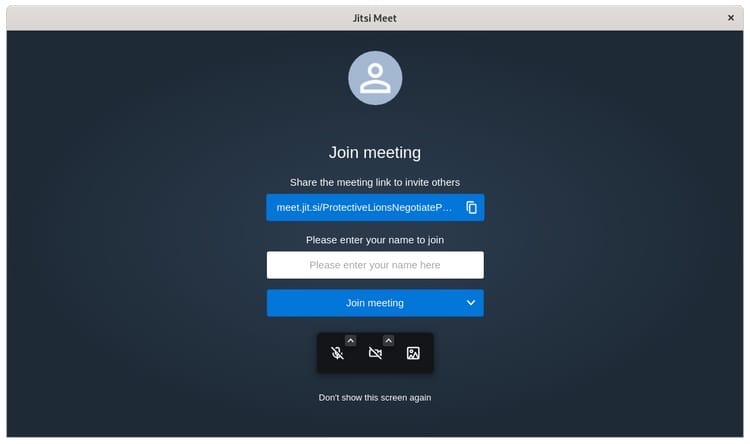
Your configure Jitsi Meet on Linux Mint 22 setup is nearly complete. Open a browser and navigate to your domain. You’ll see the Jitsi Meet home screen with a text field prompting you to enter a room name.
Click “Start a meeting”, grant microphone and camera permissions, and enter your first meeting room. Test from a second device or a second browser tab to confirm audio and video are working bidirectionally.
Enable User Authentication (Recommended for Production)
By default, anyone who knows your URL can create a meeting room. For any public-facing server, you should restrict room creation to authenticated users.
Edit the Prosody config:
sudo nano /etc/prosody/conf.avail/meet.yourdomain.com.cfg.luaFind this line:
authentication = "anonymous"Change it to:
authentication = "internal_hashed"Now add a guest section below the VirtualHost block so participants can still join without an account:
VirtualHost "guest.meet.yourdomain.com"
    authentication = "anonymous"
    c2s_require_encryption = false
Save and exit. Then edit the Jitsi config file:
sudo nano /etc/jitsi/meet/meet.yourdomain.com-config.jsFind // anonymousdomain: and update it:
anonymousdomain: 'guest.meet.yourdomain.com',Register your first moderator/host account:
sudo prosodyctl register admin meet.yourdomain.com yourpasswordRestart all services to apply changes:
sudo systemctl restart prosody jicofo jitsi-videobridge2Step 8: Keep Jitsi Meet Updated and Know How to Remove It
Updating Jitsi Meet
Since Jitsi is installed via its own APT repository, updates are handled through the standard APT workflow — no manual intervention needed.
sudo apt update && sudo apt upgrade -yThis updates Jitsi Meet, Jicofo, and Jitsi Videobridge2 all at once. Check the currently installed version with:
apt-cache policy jitsi-meetUninstalling Jitsi Meet
To fully remove Jitsi from your Linux Mint 22 system:
sudo apt purge jitsi-meet jitsi-videobridge2 jicofo prosody nginx -y
sudo apt autoremove -y
Remove the repository sources:
sudo rm /etc/apt/sources.list.d/jitsi-stable.list
sudo rm /usr/share/keyrings/jitsi-key.gpg
sudo apt update
This leaves your system clean without leftover configs.
Troubleshooting Common Jitsi Meet Issues on Linux Mint 22
Even a clean install can hit snags. Here are the five most common issues and how to fix them fast.
1. Video and Audio Not Working After Install
Cause: Port 10000/UDP is blocked by the firewall.
Fix:
sudo ufw allow 10000/udp
sudo ufw reload
Test again in the browser. This is the most common post-install issue.
2. Let’s Encrypt Script Fails
Cause: DNS A-record hasn’t propagated yet, or the domain doesn’t point to the server’s IP.
Fix: Verify your DNS with:
dig +short meet.yourdomain.comThe output should return your server’s public IP. If not, update your DNS and wait 15–30 minutes before re-running the script.
3. Jitsi Web Page Returns 502 Bad Gateway
Cause: Nginx is running but one of the backend Jitsi services has crashed.
Fix:
sudo systemctl restart jicofo jitsi-videobridge2
sudo systemctl restart nginx
Check logs for the root cause:
sudo tail -f /var/log/jitsi/jicofo.log
sudo tail -f /var/log/jitsi/jvb.log
4. “Conference Focus Is Unavailable” Error in Browser
Cause: The Jicofo service is down or failed to start.
Fix:
sudo systemctl status jicofo
sudo systemctl restart jicofo
5. Browser Shows “Your Connection Is Not Private” Warning
Cause: The Let’s Encrypt certificate wasn’t installed, and the self-signed cert is still active.
Fix: Re-run the Let’s Encrypt script:
sudo /usr/share/jitsi-meet/scripts/install-letsencrypt-cert.shMake sure your domain is publicly reachable before running it.
Congratulations! You have successfully installed Jitsi Meet. Thanks for using this tutorial for installing the latest version of Jitsi Meet on Linux Mint 22 system. For additional help or useful information, we recommend you check the official Jitsi Meet website.
