How To Install Joomla on Fedora 43

Joomla stands as one of the world’s most trusted content management systems, powering millions of websites across diverse industries. When paired with Fedora 43’s cutting-edge features and robust security architecture, you get a powerful hosting environment that delivers both performance and reliability. This comprehensive guide walks you through every step of installing Joomla on Fedora 43, from initial system preparation to final security configuration.
Whether you’re setting up a corporate website, an online magazine, or a community portal, Joomla’s flexibility meets your needs. Fedora 43 brings significant improvements with Linux Kernel 6.11, enhanced security through RPM 6.0, and optimized package management that makes it an excellent choice for hosting CMS applications. By the end of this tutorial, you’ll have a fully functional Joomla installation ready to build your web presence.
Understanding System Requirements
Before diving into installation, verify that your environment meets all necessary specifications. Proper planning prevents issues down the road.
Joomla 5.x Technical Requirements
Modern Joomla versions demand specific server capabilities. Your Fedora 43 system must run PHP 8.1.0 or higher, though PHP 8.3 delivers optimal performance and security patches. The database layer requires MySQL 8.0.13+ or MariaDB 10.4.0+, both of which integrate seamlessly with Fedora’s repository system.
Essential PHP extensions include json, simplexml, dom, gd, mysqlnd, xml, mbstring, zip, and intl. These extensions handle everything from image processing to internationalization features. Apache 2.4+ serves as the recommended web server, offering excellent compatibility with Joomla’s URL rewriting features and .htaccess configurations.
Fedora 43 Advantages for Web Hosting
Fedora 43 ships with updated software stacks that align perfectly with Joomla’s requirements. The distribution’s six-month release cycle ensures you access current technologies without sacrificing stability. Security enhancements built into the latest kernel protect your web applications from emerging threats. The DNF package manager simplifies software installation and dependency resolution, making system administration more efficient.
Pre-Installation System Preparation
A properly prepared system forms the foundation of a successful Joomla deployment. These preliminary steps ensure smooth installation.
Updating Your Fedora 43 System
Open your terminal and execute the system update command:
sudo dnf update -yThis command refreshes package repositories and installs the latest versions of installed software. Updates often include security patches and bug fixes that enhance system stability. If kernel updates are applied, reboot your server to activate new features and security improvements.
Configuring Firewall Rules
Fedora 43 includes firewalld, a dynamic firewall management tool. Allow HTTP and HTTPS traffic with these commands:
sudo firewall-cmd --permanent --add-service=http
sudo firewall-cmd --permanent --add-service=https
sudo firewall-cmd --reload
Verify your firewall configuration:
sudo firewall-cmd --list-allThese rules permit web traffic while maintaining protection against unauthorized access. The permanent flag ensures rules persist across reboots.
SELinux Configuration for Web Directories
Security-Enhanced Linux (SELinux) provides mandatory access control. Configure proper contexts for your web directory:
sudo semanage fcontext -a -t httpd_sys_rw_content_t "/var/www/html/joomla(/.*)?"
sudo restorecon -Rv /var/www/html/
SELinux prevents unauthorized modifications to web content, adding crucial protection against exploits. While some administrators disable SELinux, proper configuration maintains security without compromising functionality.
Installing the LAMP Stack Components
LAMP (Linux, Apache, MySQL/MariaDB, PHP) provides the software foundation for Joomla. Each component plays a vital role.
Setting Up Apache Web Server
Install Apache with the following command:
sudo dnf install httpd -yStart and enable Apache to launch automatically at boot:
sudo systemctl start httpd
sudo systemctl enable httpd
Verify Apache runs correctly:
sudo systemctl status httpdTest your web server by visiting your server’s IP address in a browser. You should see the Fedora test page, confirming Apache processes requests successfully. Apache serves as the intermediary between users and your Joomla application, handling HTTP requests and responses.
Installing MariaDB Database Server
MariaDB stores all Joomla content, user data, and configuration settings. Install it with:
sudo dnf install mariadb-server -yStart the database service:
sudo systemctl start mariadb
sudo systemctl enable mariadb
Run the security script to harden your installation:
sudo mysql_secure_installationThe script prompts you through several security measures. Set a strong root password combining uppercase letters, lowercase letters, numbers, and special characters. Remove anonymous users that could provide unauthorized access. Delete the test database that serves no production purpose. Disallow remote root login to prevent brute force attacks. These steps significantly reduce your attack surface.
Installing PHP and Required Extensions
Joomla’s core functionality depends on PHP. Install PHP along with necessary extensions:
sudo dnf install php php-common php-mysqlnd php-curl php-xml php-json php-gd php-mbstring php-zip php-intl php-cli php-pdo -yEach extension serves specific purposes. The mysqlnd extension enables database connectivity. The gd library processes images for thumbnails and media management. The mbstring extension handles multi-byte character encoding for international content. The xml and simplexml extensions parse configuration files and data feeds. The intl extension provides internationalization features.
Edit PHP configuration for optimal Joomla performance:
sudo nano /etc/php.iniAdjust these directives:
upload_max_filesize = 32M
post_max_size = 48M
memory_limit = 256M
max_execution_time = 300
These values accommodate large file uploads and complex operations. Save changes and restart Apache:
sudo systemctl restart httpdCreating the Joomla Database
Joomla requires a dedicated database with proper user permissions. This separation enhances security and organization.
Accessing the MariaDB Console
Log into MariaDB as root:
sudo mysql -u root -pEnter the root password you configured earlier. The MariaDB prompt appears, ready for SQL commands.
Database and User Creation
Create a database specifically for Joomla:
CREATE DATABASE joomla CHARACTER SET utf8mb4 COLLATE utf8mb4_unicode_ci;The UTF-8 character set supports international characters and emoji. Create a dedicated database user:
CREATE USER 'joomlauser'@'localhost' IDENTIFIED BY 'your_secure_password_here';Replace ‘your_secure_password_here’ with a strong, unique password. Grant necessary privileges:
GRANT ALL PRIVILEGES ON joomla.* TO 'joomlauser'@'localhost';
FLUSH PRIVILEGES;
This user has complete control over the joomla database but cannot access other databases. Exit MariaDB:
EXIT;Verifying Database Configuration
Test your new user credentials:
mysql -u joomlauser -pEnter the password and verify access. List available databases:
SHOW DATABASES;You should see the joomla database listed. This confirms proper setup.
Downloading and Extracting Joomla Files
With your server stack configured, acquire the Joomla software package from official sources.
Installing Download Tools
Ensure wget and unzip utilities are available:
sudo dnf install wget unzip -yThese tools handle file downloads and archive extraction efficiently.
Retrieving the Latest Joomla Package
Navigate to a temporary directory:
cd /tmpDownload Joomla from the official website:
wget https://downloads.joomla.org/cms/joomla5/5-2-1/Joomla_5-2-1-Stable-Full_Package.zipAlways download from official sources to ensure package integrity. Check the Joomla downloads page for the latest version number and update the URL accordingly.
Creating the Installation Directory
Establish a dedicated directory for your Joomla installation:
sudo mkdir -p /var/www/html/joomlaThe -p flag creates parent directories if needed, preventing errors.
Extracting Files and Setting Permissions
Unzip the Joomla package to your web directory:
sudo unzip Joomla_5-2-1-Stable-Full_Package.zip -d /var/www/html/joomlaSet proper ownership so Apache can read and write files:
sudo chown -R apache:apache /var/www/html/joomla
sudo chmod -R 755 /var/www/html/joomla
The 755 permission allows the web server to read and execute files while preventing unauthorized modifications. Specific directories like cache and logs require write permissions, which Joomla’s installer handles automatically.
Clean up the downloaded archive:
rm /tmp/Joomla_5-2-1-Stable-Full_Package.zipConfiguring Apache Virtual Host
Virtual hosts enable Apache to serve multiple websites from a single server. Create a dedicated configuration for Joomla.
Creating the Configuration File
Generate a new virtual host configuration:
sudo nano /etc/httpd/conf.d/joomla.confAdd the following configuration:
<VirtualHost *:80>
    ServerAdmin admin@yourdomain.com
    DocumentRoot /var/www/html/joomla
    ServerName yourdomain.com
    ServerAlias www.yourdomain.com

    <Directory /var/www/html/joomla>
        Options FollowSymlinks
        AllowOverride All
        Require all granted
    </Directory>

    ErrorLog /var/log/httpd/joomla_error.log
    CustomLog /var/log/httpd/joomla_access.log combined
</VirtualHost>
Replace yourdomain.com with your actual domain name or use your server’s IP address during testing. The AllowOverride All directive enables .htaccess files, which Joomla uses for URL rewriting and security rules.
Testing Apache Configuration
Check for syntax errors:
sudo apachectl configtestYou should see “Syntax OK” if everything is correct. Fix any reported errors before proceeding.
Restart Apache to apply changes:
sudo systemctl restart httpdVerify the service status:
sudo systemctl status httpdRunning the Joomla Web Installation Wizard
Joomla’s graphical installer simplifies the remaining configuration steps. Access it through your web browser.
Accessing the Installation Interface
Open your preferred web browser and navigate to:
http://yourdomain.comOr use your server’s IP address if you haven’t configured DNS:
http://your_server_ip/joomlaThe Joomla installation wizard loads, presenting a clean interface with step-by-step instructions.
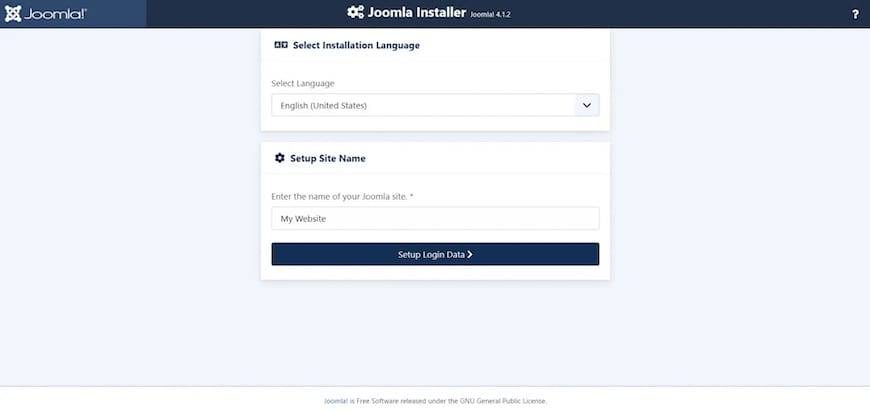
Configuration Step One: Site Information
Select your preferred language from the dropdown menu. Enter your site name, which appears in browser titles and headers. Choose wisely—this represents your brand identity.
Provide your administrator email address. Joomla sends system notifications to this address. Create an administrator username. Avoid common names like “admin” or “administrator” that attackers target. Select a strong password combining varied character types. This account has complete control over your website, making security paramount.
Configuration Step Two: Database Connection
Select “MySQLi” as the database type. This optimized driver provides better performance than legacy options. Enter “localhost” as the hostname since your database runs on the same server.
Input the database username (joomlauser) and password you created earlier. Enter the database name (joomla). Leave the table prefix as the default random value, which adds security by making database structure less predictable. Click “Next” to test the connection.
Joomla verifies credentials and confirms successful database communication. Any errors here indicate incorrect credentials or database configuration issues.
Configuration Step Three: Finalization
Review your configuration summary. Joomla offers sample data options for different site types. Beginners benefit from installing sample data to understand content organization. Production sites should skip this step to start with a clean slate.
Configure basic email settings if prompted. These control how Joomla sends password resets and notifications. Click “Install” to begin the automated installation process.
The wizard creates database tables, configures core settings, and prepares your Joomla site. This process takes one to two minutes depending on server performance. Upon completion, you see a success message with next steps.
Essential Post-Installation Security Measures
Securing your fresh Joomla installation protects against common vulnerabilities and attacks.
Removing the Installation Directory
Joomla prompts you to remove the installation directory immediately. This critical security step prevents reinstallation attacks. Click the provided button or execute:
sudo rm -rf /var/www/html/joomla/installationLeaving this directory accessible allows attackers to reinitialize your database, destroying all content. Never skip this step.
Implementing SSL/TLS Encryption
Secure connections protect user data and boost search engine rankings. Install Certbot for free SSL certificates:
sudo dnf install certbot python3-certbot-apache -yObtain and configure your certificate:
sudo certbot --apache -d yourdomain.com -d www.yourdomain.comCertbot automatically configures Apache for HTTPS and sets up automatic renewal. Update Joomla’s configuration to use HTTPS:
sudo nano /var/www/html/joomla/configuration.phpChange the live_site parameter:
public $live_site = 'https://yourdomain.com';Hardening Administrator Access
Access Joomla’s administrator panel at:
https://yourdomain.com/administratorNavigate to System > Global Configuration > Site. Enable “Force HTTPS” for the entire site. Under Users > Manage, enable two-factor authentication for your administrator account. This adds crucial protection against compromised passwords.
Consider restricting administrator directory access by IP address through .htaccess rules if your IP remains static.
Testing Your Joomla Installation
Thorough testing confirms everything works correctly before building content.
Frontend Verification
Visit your site’s main URL. The default Joomla template loads, displaying sample content if you installed it. Navigate through menus and test links. Check that images display correctly. Verify responsive design by resizing your browser window or testing on mobile devices.
Backend Functionality Check
Log into the administrator panel using the credentials you created. Explore the dashboard and verify all sections load without errors. Test creating a sample article to confirm editor functionality. Check that the media manager uploads files successfully. Review system information under System > System Information to verify PHP settings and file permissions.
Performance and Connectivity Tests
Monitor page load times using browser developer tools. Initial loads may take longer while caches populate. Subsequent page loads should be significantly faster. Test database connectivity by saving configuration changes. Verify email functionality by using the “Test Mail” feature under Global Configuration.
Optimizing Performance and Maintenance
Ongoing maintenance keeps your Joomla site running smoothly and securely.
Update Management Strategy
Check for Joomla updates regularly through the administrator panel. Navigate to System > Update to see available updates. Always backup before updating core software, extensions, or templates. Test updates on a staging environment before applying to production sites.
Keep your Fedora system current with:
sudo dnf update -ySubscribe to Joomla’s security mailing list to receive vulnerability notifications promptly.
Performance Optimization Techniques
Enable Joomla’s built-in caching under System > Global Configuration > System. Set cache to “Conservative” for dynamic sites or “Progressive” for mostly static content. Configure Gzip compression under Server settings to reduce bandwidth usage.
Optimize your database periodically:
mysqlcheck -u joomlauser -p --optimize joomlaInstall a caching extension like JotCache for advanced performance improvements. Consider implementing a CDN (Content Delivery Network) for global audiences.
Backup Implementation
Establish automated backup procedures immediately. Use Akeeba Backup or similar extensions to schedule regular full backups. Store backups off-server—cloud storage or external servers provide protection against total server failure.
Test restore procedures to ensure backups actually work. Many administrators discover backup failures only when restoration becomes necessary.
Troubleshooting Common Installation Issues
Even careful installations encounter occasional problems. These solutions address frequent issues.
Database Connection Failures
If Joomla cannot connect to your database, verify credentials in configuration.php:
sudo nano /var/www/html/joomla/configuration.phpConfirm the database hostname, username, password, and database name match your MariaDB configuration. Test database connectivity directly:
mysql -u joomlauser -p joomlaCheck that MariaDB runs:
sudo systemctl status mariadbSELinux sometimes blocks database connections. Verify proper contexts:
sudo getsebool -a | grep httpd_can_network_connect_dbEnable if disabled:
sudo setsebool -P httpd_can_network_connect_db 1File Permission Problems
Joomla reports permission errors when Apache lacks necessary access. Reset ownership:
sudo chown -R apache:apache /var/www/html/joomlaSpecific directories need write permissions:
sudo chmod -R 775 /var/www/html/joomla/cache
sudo chmod -R 775 /var/www/html/joomla/logs
sudo chmod -R 775 /var/www/html/joomla/tmp
sudo chmod -R 775 /var/www/html/joomla/images
Check Apache error logs for permission details:
sudo tail -f /var/log/httpd/joomla_error.logWhite Screen and PHP Errors
Blank pages or “white screen of death” indicate PHP errors. Enable error display temporarily:
sudo nano /etc/php.iniSet:
display_errors = On
error_reporting = E_ALL
Restart Apache and reload the page to see specific errors. Check PHP error logs:
sudo tail -f /var/log/httpd/error_logMemory exhaustion requires increasing PHP’s memory limit. Extension conflicts often resolve by disabling recently installed plugins one by one.
Congratulations! You have successfully installed Joomla. Thanks for using this tutorial for installing Joomla with LAMP on your Fedora 43 Linux system. For additional help or useful information, we recommend you check the official Joomla website.
