How To Install Joomla on Rocky Linux 10

Joomla is one of the most powerful open-source content management systems on the planet, powering over 2 million active websites across every industry imaginable. If you want a flexible, battle-tested CMS that gives you more control than WordPress without the complexity of Drupal, Joomla is a smart choice. This guide walks you through a complete install Joomla on Rocky Linux 10 setup — from a bare server to a fully working, production-ready site.
Whether you’re a developer spinning up a client project or a sysadmin setting up an enterprise content portal, this Linux server tutorial has everything you need. We’ll use the LAMP stack (Linux, Apache, MariaDB, PHP) — the most stable and widely supported environment for Joomla deployments. By the end, you’ll have Joomla running, secured, and ready to build on.
What Is Joomla and Why Use It?
Joomla is a free, open-source CMS built on PHP. It launched in 2005 and has since grown into a mature platform used by governments, universities, NGOs, and commercial businesses worldwide. The current stable release is Joomla 5.x, which requires PHP 8.1 or higher.
Here’s why developers and sysadmins choose Joomla:
- Flexible architecture — supports complex multi-language, multi-site deployments
- Massive extension library — over 8,000 extensions in the Joomla Extensions Directory (JED)
- Strong access control — granular user roles and permissions built in
- Active community — regular security releases and long-term support versions
Why Rocky Linux 10 Is the Right Server Choice
Rocky Linux 10 is a community-maintained, enterprise-grade Linux distribution that is 100% binary-compatible with Red Hat Enterprise Linux (RHEL). It replaced CentOS as the go-to free RHEL alternative for production server environments.
Rocky Linux 10 offers:
- Long-term support — predictable, stable updates for years
- SELinux enforced by default — strong mandatory access control out of the box
- DNF package management — fast, reliable package resolution
- Enterprise-level reliability — the same foundation used in corporate data centers
For a Joomla on Rocky Linux 10 setup, this OS is an excellent match. Its stability and RHEL compatibility make it ideal for hosting production web applications.
Prerequisites
Before you begin, make sure you have the following in place:
- A fresh Rocky Linux 10 server (VPS or dedicated machine)
- Root access or a sudo-privileged user account
- At least 1 GB RAM, 1 CPU core, and 10 GB of disk space
- A domain name pointed to your server’s IP (optional, but recommended for SSL)
- Ports 80 (HTTP) and 443 (HTTPS) available
- Basic comfort with the Linux command line
Pro Tip: Take a server snapshot before you start. It takes 30 seconds and saves hours if something goes wrong.
Step 1: Update Your System
Always start with a fully updated system. This ensures you’re installing packages against current, patched dependencies — and avoids hard-to-debug version conflicts later.
sudo dnf update -yIf a kernel update is applied, reboot your server:
sudo rebootAfter the system comes back online, reconnect via SSH and continue.
Step 2: Install Apache Web Server
Apache (httpd) is the web server that will serve your Joomla site to the world. It’s the most widely deployed web server for LAMP stacks and has excellent Joomla compatibility.
Install and Enable Apache
sudo dnf install httpd -yStart Apache and configure it to launch automatically on every reboot:
sudo systemctl start httpd
sudo systemctl enable httpd
Verify it’s running:
sudo systemctl status httpdYou should see active (running) in green.
Open Firewall Ports
Rocky Linux 10 uses firewalld by default. You need to explicitly allow HTTP and HTTPS traffic:
sudo firewall-cmd --permanent --add-service=http
sudo firewall-cmd --permanent --add-service=https
sudo firewall-cmd --reload
To confirm Apache is working, open a browser and navigate to http://your-server-ip. You should see the default Apache test page.
Step 3: Install MariaDB and Secure It
Joomla stores all its content, configuration, and user data in a relational database. MariaDB is the default MySQL-compatible database on Rocky Linux and works perfectly with Joomla.
Install MariaDB
sudo dnf install mariadb-server mariadb -yStart and enable the service:
sudo systemctl start mariadb
sudo systemctl enable mariadb
Run the Security Script
This script removes insecure defaults that ship with MariaDB out of the box:
sudo mysql_secure_installationFollow the prompts:
- Set a strong root password
- Remove anonymous users — Yes
- Disallow remote root login — Yes
- Remove the test database — Yes
- Reload privilege tables — Yes
Never skip this step on a production server.
Create a Joomla Database and User
Log into the MariaDB shell:
sudo mysql -u root -pRun these SQL commands to create a dedicated database and user for Joomla:
CREATE DATABASE joomla_db DEFAULT CHARACTER SET utf8mb4 COLLATE utf8mb4_unicode_ci;
CREATE USER 'joomla_user'@'localhost' IDENTIFIED BY 'StrongPassword123!';
GRANT ALL PRIVILEGES ON joomla_db.* TO 'joomla_user'@'localhost';
FLUSH PRIVILEGES;
EXIT;
Why utf8mb4? It fully supports emoji and international characters — important for multilingual Joomla sites. Never use the root account to connect Joomla to your database. Dedicated users with limited privileges are a core security principle.
Step 4: Install PHP and Required Extensions
Joomla 5.x requires PHP 8.1 or higher. Rocky Linux 10 ships with a compatible version via its default DNF repositories.
Install PHP
sudo dnf install php php-mysqlnd php-curl php-xml php-zip php-intl php-gd php-mbstring php-json php-ldap php-bcmath php-soap php-opcache -yVerify the installed version:
php -vExpected output:
PHP 8.2.x (cli) (built: ...) ...Tune PHP for Joomla
Open the PHP configuration file:
sudo nano /etc/php.iniFind and update these values:
memory_limit = 256M
upload_max_filesize = 64M
post_max_size = 64M
max_execution_time = 300
date.timezone = Asia/Jakarta
Note: Replace Asia/Jakarta with your actual server timezone. Run timedatectl list-timezones for a full list.
Save the file, then restart Apache to load the new PHP settings:
sudo systemctl restart httpdMissing PHP extensions are the #1 cause of Joomla installation failures. If the installer shows warnings about missing modules, go back and install what’s flagged before continuing.
Step 5: Download and Extract Joomla
Now you’ll pull the latest Joomla package directly from the official download servers and deploy it to your web root.
Download Joomla
Navigate to the temporary directory:
cd /tmpDownload the latest stable Joomla package:
wget https://downloads.joomla.org/cms/joomla5/5-3-1/Joomla_5-3-1-Stable-Full_Package.zip -O joomla.zipTip: Always check the official Joomla downloads page for the most current version number before running this command.
Extract and Deploy
Install unzip if it’s not already available:
sudo dnf install unzip -yCreate the target web directory and extract Joomla into it:
sudo mkdir -p /var/www/html/joomla
sudo unzip joomla.zip -d /var/www/html/joomla/
Set Correct Permissions
Set Apache as the owner of all Joomla files:
sudo chown -R apache:apache /var/www/html/joomla
sudo find /var/www/html/joomla -type d -exec chmod 755 {} \;
sudo find /var/www/html/joomla -type f -exec chmod 644 {} \;
Using find with -type d and -type f separately gives you precise control — directories get 755, files get 644. This is the correct production approach.
Step 6: Configure Apache Virtual Host for Joomla
A Virtual Host tells Apache how to serve your Joomla site — where the files live, what domain to respond to, and how to handle URL rewrites. This step is critical for Joomla’s SEF (Search Engine Friendly) URLs to work correctly.
Create the Virtual Host Configuration File
sudo nano /etc/httpd/conf.d/joomla.confPaste in the following configuration:
<VirtualHost *:80>
    ServerName yourdomain.com
    ServerAlias www.yourdomain.com
    DocumentRoot /var/www/html/joomla

    <Directory /var/www/html/joomla>
        AllowOverride All
        Require all granted
        Options -Indexes
    </Directory>

    ErrorLog /var/log/httpd/joomla_error.log
    CustomLog /var/log/httpd/joomla_access.log combined
</VirtualHost>
Replace yourdomain.com with your actual domain or server IP. Key directives explained:
AllowOverride All— allows Joomla’s.htaccessfile to control URL rewritingOptions -Indexes— disables directory listing (security best practice)- Dedicated log files make troubleshooting much easier
Test and Restart Apache
Always validate your Apache config before restarting:
sudo apachectl configtestIf you see Syntax OK, restart Apache:
sudo systemctl restart httpdStep 7: Configure SELinux for Joomla
This is the step most tutorials skip — and the #1 reason Rocky Linux Joomla installations fail silently. SELinux is enforced by default on Rocky Linux 10. Without the right SELinux context, Apache will be blocked from writing Joomla’s configuration.php during installation.
Apply the Correct SELinux File Context
sudo chcon -Rv --type=httpd_sys_rw_content_t /var/www/html/joomla/If Joomla still shows the “Insufficient permission to create configuration.php” error, run:
sudo touch /var/www/html/joomla/configuration.php
sudo chmod 664 /var/www/html/joomla/configuration.php
sudo chown apache:apache /var/www/html/joomla/configuration.php
sudo chcon -t httpd_sys_rw_content_t /var/www/html/joomla/configuration.php
Allow Apache to make outbound network connections:
sudo setsebool -P httpd_can_network_connect 1Check your current SELinux mode:
sestatusNever disable SELinux in production. Configure it correctly instead. Disabling it trades a few minutes of convenience for a permanent security hole.
Step 8: Install Joomla on Rocky Linux 10 — Complete the Web Installer
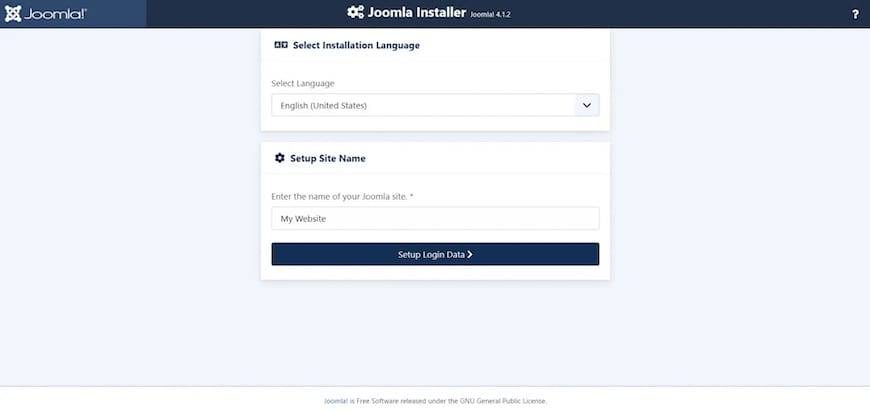
With the server stack fully configured, finish the installation through Joomla’s browser-based setup wizard. Open your browser and navigate to:
http://yourdomain.comSite Configuration
Fill in the Joomla Installation Wizard:
- Site Name — the name of your website
- Admin Email — use a real, monitored address
- Admin Username — do NOT use “admin”
- Admin Password — 12+ characters, mixed case, numbers, symbols
Click “Setup Login Data” to continue.
Database Configuration
On the database configuration screen, enter:
| Field | Value |
|---|---|
| Database Type | MySQLi |
| Hostname | localhost |
| Username | joomla_user |
| Password | StrongPassword123! |
| Database Name | joomla_db |
| Table Prefix | jml_ (auto-generated or custom) |
Click “Setup Database Connection”.
Install and Finalize
Review the installation summary, then click “Install Joomla”. When you see the “Congratulations! Joomla is now installed” screen, you’re done.
If the installer doesn’t auto-remove the installation directory, run this manually:
sudo rm -rf /var/www/html/joomla/installation/Leaving the installation directory in place is a serious security risk — Joomla won’t let your site run until it’s removed.
Step 9: Access the Joomla Admin Dashboard
Navigate to your admin panel:
http://yourdomain.com/administrator/Log in with the credentials you set during the web installer. From the Joomla Admin Dashboard you can:
- Create and manage articles and categories
- Install templates to control your site’s design
- Add extensions for e-commerce, forms, SEO, and more
- Manage user accounts and access levels
Your site’s public frontend is live at http://yourdomain.com/.
Step 10: Secure Joomla with a Free Let’s Encrypt SSL Certificate
HTTPS is not optional in 2026. It affects SEO rankings, browser trust warnings, and protects your users’ data. Let’s Encrypt provides free, auto-renewing SSL certificates.
Install Certbot and the Apache plugin:
sudo dnf install certbot python3-certbot-apache -yObtain and automatically configure your SSL certificate:
sudo certbot --apache -d yourdomain.com -d www.yourdomain.comVerify auto-renewal is active:
sudo systemctl status certbot.timerFinally, update Joomla’s site URL in System → Global Configuration → Site to https://yourdomain.com.
Post-Installation Security Best Practices
Getting Joomla installed is only half the job. Hardening your installation protects you from the most common attack vectors.
- Change the default admin username immediately — “admin” is targeted by every automated brute-force tool
- Enable Two-Factor Authentication (2FA) via Joomla’s built-in User Manager
- Lock down configuration.php after setup:
sudo chmod 444 /var/www/html/joomla/configuration.php - Keep Joomla and all extensions updated — outdated extensions are the leading cause of compromises
- Run regular database backups using the free Akeeba Backup extension or a cron-scheduled
mysqldump - Install Admin Tools for Joomla — acts as a Web Application Firewall at the CMS level
- Monitor Apache error logs at
/var/log/httpd/joomla_error.logfor early signs of trouble
Troubleshooting Common Issues
Even a careful install can hit a snag. Here are the five most common errors and how to fix them fast.
1. 403 Forbidden Error
Cause: File permission or SELinux context issue.
Fix:
sudo chown -R apache:apache /var/www/html/joomla
sudo chcon -Rv --type=httpd_sys_rw_content_t /var/www/html/joomla/
2. 500 Internal Server Error
Cause: A malformed .htaccess file or a missing PHP extension.
Fix: Check the Apache error log first:
sudo tail -50 /var/log/httpd/joomla_error.logReinstall any flagged PHP module with sudo dnf install php-[module] -y, then restart Apache.
3. Blank White Screen
Cause: PHP memory limit is too low.
Fix: Edit /etc/php.ini, set memory_limit = 256M, then restart Apache:
sudo systemctl restart httpd4. Database Connection Failed
Cause: Incorrect credentials, wrong database name, or MariaDB isn’t running.
Fix:
sudo systemctl status mariadbIf it’s stopped, start it: sudo systemctl start mariadb. Double-check the database credentials match exactly what you created in MariaDB.
5. Joomla Installer Loop or Won’t Load
Cause: mod_rewrite isn’t enabled or AllowOverride All isn’t set in the Virtual Host.
Fix:
sudo apachectl configtest && sudo systemctl restart httpdCongratulations! You have successfully installed Joomla. Thanks for using this tutorial for installing Joomla with LAMP on your Rocky Linux 10 system. For additional help or useful information, we recommend you check the official Joomla website.
