How To Install Jupyter Notebook on AlmaLinux 10

Jupyter Notebook stands as one of the most powerful interactive computing environments for data scientists, researchers, and developers worldwide. This open-source, web-based application enables users to create and share documents containing live code, equations, visualizations, and narrative text. AlmaLinux 10, released in May 2025 as a stable, enterprise-grade Linux distribution, provides an ideal platform for hosting Jupyter Notebook installations due to its binary compatibility with Red Hat Enterprise Linux (RHEL) and robust security features.
This comprehensive guide walks through multiple installation methods for Jupyter Notebook on AlmaLinux 10, offering detailed instructions for beginners and experienced Linux users alike. Whether setting up a personal development environment or deploying a production-ready data science workstation, this tutorial covers everything needed to get Jupyter Notebook running efficiently on AlmaLinux 10. The installation process encompasses prerequisite configuration, multiple installation approaches, security hardening, and troubleshooting common issues.
Understanding Jupyter Notebook
Jupyter Notebook represents an interactive development environment that revolutionizes how developers write and share code. Originally developed as part of the IPython project, Jupyter has evolved into a standalone platform supporting over 40 programming languages through its kernel architecture. The name “Jupyter” derives from three core programming languages: Julia, Python, and R.
The platform excels at combining executable code with rich text elements, making it invaluable for data analysis, machine learning development, scientific computing, and educational purposes. Users can execute code cells individually, visualize data inline, document their workflow with markdown formatting, and share complete analyses as interactive notebooks. This interactivity makes Jupyter particularly suited for exploratory data analysis, algorithm prototyping, and collaborative research projects.
Key features include real-time code execution, integrated visualization libraries, support for multiple programming languages, markdown rendering for documentation, LaTeX equation support, and seamless integration with popular data science libraries like NumPy, Pandas, Matplotlib, and Scikit-learn. The web-based interface means notebooks can be accessed remotely, facilitating team collaboration and cloud-based workflows.
Why Choose AlmaLinux 10 for Jupyter Notebook
AlmaLinux 10 emerged as a community-driven, enterprise-grade operating system following the CentOS project transition. Released in May 2025, this distribution maintains binary compatibility with Red Hat Enterprise Linux 10, ensuring stability and long-term support for production environments. Organizations migrating from CentOS or seeking RHEL alternatives find AlmaLinux particularly attractive.
The operating system offers several advantages for hosting Jupyter Notebook installations. Enterprise-level security features include SELinux integration, regular security patches, and a hardened default configuration. Long-term support guarantees system stability for critical data science infrastructure. The robust package management through DNF ensures dependency resolution and system consistency.
AlmaLinux 10 performs exceptionally well in server environments, development workstations, and cloud deployments. The distribution’s compatibility with RHEL ecosystem tools means enterprise users can leverage existing knowledge and infrastructure. For data science teams requiring reliable, secure platforms for Jupyter deployments, AlmaLinux 10 represents an excellent foundation.
Prerequisites and System Requirements
Before beginning the installation process, ensure the system meets minimum requirements and has necessary access privileges. Proper preparation prevents installation issues and ensures optimal performance.
Hardware Requirements:
A minimum of 2 GB RAM is required, though 4 GB or more is recommended for data-intensive workloads. Disk space requirements depend on intended usage, but allocating 20-40 GB ensures adequate room for Python packages, datasets, and notebooks. The system must use a 64-bit x86_64 architecture processor. Multi-core processors enhance performance when executing complex computations.
Software Requirements:
AlmaLinux 10 stable release must be properly installed and configured. Python 3.8 or higher is necessary, as Jupyter Notebook dropped support for older Python versions. Root or sudo access is essential for system-level package installations. An active internet connection enables package downloads from repositories. The DNF package manager should be functional for installing system dependencies.
Knowledge Prerequisites:
Basic familiarity with Linux command-line operations helps navigate the installation process smoothly. Understanding virtual environments and their purpose in Python development proves beneficial. Knowledge of SSH and remote server management aids in configuring remote access scenarios.
Method 1: Installing Jupyter Notebook Using pip in a Virtual Environment (Recommended)
The virtual environment approach represents the most recommended method for installing Jupyter Notebook. This approach isolates project dependencies, prevents system-wide conflicts, and allows multiple Python environments to coexist peacefully.
Step 1: Update System Packages
Begin by updating AlmaLinux 10 to ensure all packages reflect the latest versions. Open a terminal and execute the following command:
sudo dnf update -yThis command refreshes package repositories and upgrades installed packages to their newest versions. The -y flag automatically confirms updates without prompting. System updates patch security vulnerabilities, resolve bugs, and ensure compatibility with newer software installations. Allow several minutes for the update process to complete, depending on internet speed and the number of packages requiring updates.
After completion, verify the system is current by checking for any remaining updates:
sudo dnf check-updateIf no packages appear, the system is fully updated and ready for Jupyter installation.
Step 2: Install Python and pip
AlmaLinux 10 typically includes Python 3 by default, but verify its presence and install necessary development tools. Check the installed Python version:
python3 --versionIf Python 3 is installed, the output displays the version number (e.g., Python 3.9.x or higher). If Python is missing or outdated, install it using DNF:
sudo dnf install python3 python3-pip python3-devel -yThis command installs three critical components: Python 3 interpreter, pip package manager, and Python development headers. The python3-devel package contains header files needed for compiling Python extensions, which some Jupyter dependencies require.
Additionally, install essential build tools that compile certain Python packages:
sudo dnf groupinstall "Development Tools" -yVerify pip installation and version:
pip3 --versionUpgrade pip to the latest version to avoid compatibility issues:
sudo pip3 install --upgrade pipStep 3: Create a Virtual Environment
Virtual environments create isolated Python installations, preventing dependency conflicts between projects. Navigate to a directory where the Jupyter environment will reside:
mkdir ~/jupyter-project
cd ~/jupyter-project
Create a virtual environment using Python’s built-in venv module:
python3 -m venv jupyter_envThis command creates a directory named jupyter_env containing a complete Python installation isolated from the system. The directory includes its own Python interpreter, pip, and package directories. Each virtual environment maintains separate package installations, allowing different projects to use different dependency versions without conflicts.
The venv module comes standard with Python 3.3 and later, eliminating the need for third-party tools. This lightweight approach suits most Jupyter installation scenarios perfectly.
Step 4: Activate the Virtual Environment
Activation modifies the shell environment to use the virtual environment’s Python and pip. Execute the activation script:
source jupyter_env/bin/activateOnce activated, the command prompt changes to indicate the active environment, typically showing (jupyter_env) before the username and hostname. This visual indicator confirms operations now target the virtual environment rather than system Python.
All subsequent pip commands install packages exclusively within this environment. To deactivate later, simply type:
deactivateHowever, keep the environment activated for the following installation steps.
Step 5: Install Jupyter Notebook
With the virtual environment active, install Jupyter Notebook using pip. The isolated environment ensures a clean installation:
pip install notebookThis command downloads Jupyter Notebook and all required dependencies, including IPython, tornado web server, pyzmq messaging library, and numerous other components. The installation process may take several minutes depending on internet connection speed and system performance.
For users wanting the complete Jupyter suite including JupyterLab, install using:
pip install jupyterThis broader package includes Jupyter Notebook, JupyterLab, and additional tools. Monitor the installation output for any errors or warnings. Successful installation concludes with confirmation messages indicating package versions.
Step 6: Verify Installation
Confirm Jupyter Notebook installed correctly by checking its version:
jupyter notebook --versionThe output displays the installed version number. Additionally, verify the complete Jupyter installation:
jupyter --versionThis command lists all installed Jupyter components with their respective versions. If version information displays without errors, the installation succeeded. Test launching Jupyter to ensure full functionality:
jupyter notebook --no-browserThe --no-browser flag prevents automatic browser launching, useful for server installations. The output displays URLs for accessing Jupyter, including security tokens. Press Ctrl+C to stop the server after verification.
Method 2: Installing Jupyter Notebook Using Anaconda
Anaconda provides a comprehensive data science platform bundling Python, Jupyter, and hundreds of pre-installed libraries. This method suits users preferring an all-in-one solution with minimal configuration.
Step 1: Download Anaconda for Linux
Navigate to the official Anaconda website or download directly using wget. First, identify the latest Anaconda version from anaconda.com/download. Download the Linux installer:
cd /tmp
wget https://repo.anaconda.com/archive/Anaconda3-2025.06-1-Linux-x86_64.sh
Replace the filename with the current version available. The installer is approximately 700 MB, so download time varies by connection speed. Verify the download integrity using SHA-256 checksums provided on the Anaconda website:
sha256sum Anaconda3-2025.06-1-Linux-x86_64.shCompare the output with the official checksum to ensure file integrity and security.
Step 2: Install Anaconda
Make the installer executable and run the installation script:
chmod +x Anaconda3-2025.06-1-Linux-x86_64.sh
bash Anaconda3-2025.06-1-Linux-x86_64.sh
The interactive installer prompts for several inputs. Press Enter to review the license agreement, then type yes to accept terms. Specify the installation location (default is ~/anaconda3) or press Enter to accept the default. The installation extracts hundreds of packages, taking 5-10 minutes.
When asked whether to initialize Anaconda3 by running conda init, type yes. This configures the shell to use conda environments. Close and reopen the terminal for changes to take effect, or run:
source ~/.bashrcThe command prompt now displays (base) indicating the default conda environment is active.
Step 3: Update Anaconda and Install Jupyter
Update conda to the latest version:
conda update conda -y
conda update anaconda -y
Verify Jupyter Notebook is installed (Anaconda includes it by default):
jupyter notebook --versionIf Jupyter is missing or requires updating:
conda install jupyter -yConda’s advantage lies in managing binary dependencies automatically, eliminating compilation requirements for complex packages.
Step 4: Launch Jupyter Notebook
Start Jupyter Notebook from the Anaconda environment:
jupyter notebookThe command launches the Jupyter server and opens the default web browser automatically. The browser displays the Jupyter dashboard showing the file system starting from the launch directory. Alternatively, use Anaconda Navigator, a graphical interface for managing conda environments and launching applications:
anaconda-navigatorWithin Navigator, click the Jupyter Notebook launch button for GUI-based startup.
Method 3: System-Wide Installation Using DNF (Not Recommended)
Installing Jupyter system-wide using DNF is possible but generally discouraged. This method installs packages globally, potentially conflicting with system Python packages and complicating dependency management.
System-wide installation may be appropriate for single-user systems, testing environments, or scenarios where virtual environments prove impractical. However, the risks include package conflicts, difficult dependency resolution, potential system instability, and complicated multi-project management.
To install system-wide:
sudo dnf install python3-jupyter-notebook -yThis installs whatever Jupyter version AlmaLinux repositories provide, which may lag behind the latest releases. After installation, launch Jupyter directly:
jupyter notebookThe primary disadvantage is the inability to isolate project dependencies. Installing additional Python packages system-wide can break Jupyter or other applications. For these reasons, virtual environments or Anaconda remain the preferred approaches for nearly all use cases.
Configuring Jupyter Notebook
Proper configuration enhances security, enables remote access, and customizes the Jupyter experience to specific needs.
Generating Configuration File
Create a Jupyter configuration file for customization:
jupyter notebook --generate-configThis command creates ~/.jupyter/jupyter_notebook_config.py, a Python file containing hundreds of configuration options (mostly commented out). Edit this file to customize Jupyter’s behavior:
nano ~/.jupyter/jupyter_notebook_config.pyThe configuration file allows extensive customization of server behavior, security settings, and interface options.
Setting Up Password Protection
Secure Jupyter installations require password authentication, especially for remote access. Generate a password hash:
jupyter notebook passwordEnter and verify the desired password when prompted. The hashed password is stored in ~/.jupyter/jupyter_notebook_config.json, never in plain text. Alternatively, generate a password hash programmatically:
from notebook.auth import passwd
passwd()
Enter the password when prompted, then copy the generated hash. Add it to the configuration file:
c.NotebookApp.password = 'sha256:your_hashed_password_here'Password protection prevents unauthorized access to notebooks and the ability to execute arbitrary code on the server.
Configuring Network Settings
For remote access, configure Jupyter to accept connections from external interfaces. Edit the configuration file and modify these settings:
c.NotebookApp.ip = '0.0.0.0'
c.NotebookApp.port = 8888
c.NotebookApp.open_browser = False
The ip setting of 0.0.0.0 allows connections from any network interface. Change port if 8888 conflicts with other services. The open_browser setting prevents automatic browser launching on server systems. For additional security, restrict access to specific IP addresses:
c.NotebookApp.ip = '192.168.1.100'Replace with the actual server IP address.
Firewall Configuration
AlmaLinux 10 uses firewalld for network security. Open the Jupyter port to allow external connections:
sudo firewall-cmd --permanent --add-port=8888/tcp
sudo firewall-cmd --reload
Verify the rule was added:
sudo firewall-cmd --list-portsThe output should include 8888/tcp. For enhanced security, restrict access to specific IP ranges:
sudo firewall-cmd --permanent --add-rich-rule='rule family="ipv4" source address="192.168.1.0/24" port protocol="tcp" port="8888" accept'
sudo firewall-cmd --reload
This restricts access to the 192.168.1.0/24 subnet.
Starting and Accessing Jupyter Notebook
Starting Jupyter Notebook Server
Launch Jupyter from the virtual environment or Anaconda installation:
jupyter notebookFor server installations, run in the background using nohup:
nohup jupyter notebook --no-browser &This keeps Jupyter running after terminal disconnection. The output redirects to nohup.out by default. Alternatively, use screen or tmux for persistent sessions:
screen -S jupyter
jupyter notebook
Detach from screen with Ctrl+A then D. Reattach later with screen -r jupyter.
Accessing Locally
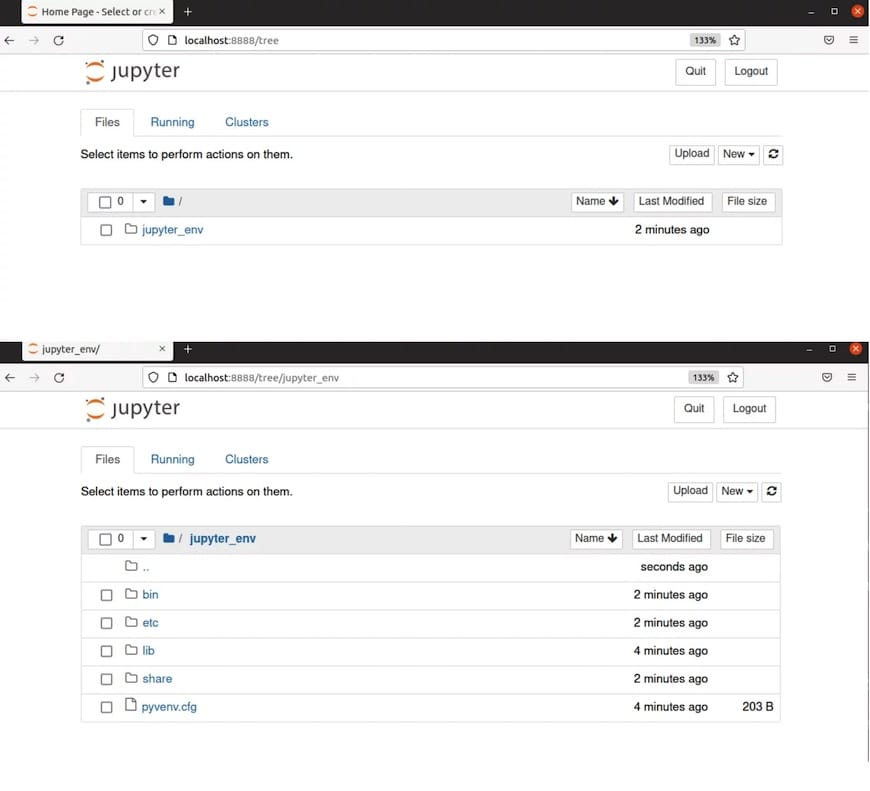
When Jupyter starts, it displays URLs for access:
http://localhost:8888/?token=abc123def456...Copy this URL into a web browser. The token provides one-time authentication. After setting a password, access uses:
http://localhost:8888The Jupyter dashboard displays the file system, allowing notebook creation, folder navigation, and file management.
Remote Access via SSH Tunneling
SSH tunneling provides secure remote access without exposing Jupyter directly to the internet. From the local machine, create an SSH tunnel:
ssh -L 8888:localhost:8888 username@almalinux-server-ipThis forwards local port 8888 to the remote server’s port 8888. Access Jupyter by opening a local browser to http://localhost:8888. The connection remains encrypted through SSH, providing security without additional configuration.
For Windows users, configure SSH tunneling in PuTTY under Connection > SSH > Tunnels. Add a forwarded port with source port 8888 and destination localhost:8888.
Setting Up Jupyter as a System Service (Optional)
Running Jupyter as a systemd service enables automatic startup, centralized management, and production-ready deployments.
Create a systemd service file:
sudo nano /etc/systemd/system/jupyter.serviceAdd the following configuration:
[Unit]
Description=Jupyter Notebook Server
After=network.target

[Service]
Type=simple
User=your-username
WorkingDirectory=/home/your-username/jupyter-project
ExecStart=/home/your-username/jupyter-project/jupyter_env/bin/jupyter notebook
Restart=on-failure

[Install]
WantedBy=multi-user.target
Replace your-username with the actual username. Adjust paths to match the virtual environment location. Reload systemd to recognize the new service:
sudo systemctl daemon-reloadEnable the service to start on boot:
sudo systemctl enable jupyterStart the service:
sudo systemctl start jupyterCheck service status:
sudo systemctl status jupyterView service logs:
sudo journalctl -u jupyter -fThis configuration ensures Jupyter runs persistently, restarts after failures, and starts automatically during system boot.
Installing Additional Kernels
Jupyter’s architecture supports multiple programming languages through kernels. While Python kernel installs by default, additional kernels enable multi-language workflows.
Installing Additional Python Versions
Create kernels for different Python versions:
conda create -n python39 python=3.9 ipykernel
conda activate python39
python -m ipykernel install --user --name python39 --display-name "Python 3.9"
This creates a kernel named “Python 3.9” available in Jupyter’s kernel selection menu.
Installing R Kernel
For R programming support:
conda install -c r r-irkernelWithin R, register the kernel:
IRkernel::installspec()Installing Julia Kernel
For Julia language support, install Julia, then within Julia:
using Pkg
Pkg.add("IJulia")
Verifying Installed Kernels
List all available kernels:
jupyter kernelspec listThis displays kernel names and their installation locations. When creating notebooks, choose the appropriate kernel from the dropdown menu.
Testing Your Installation
Verify Jupyter Notebook functions correctly by creating a test notebook. From the Jupyter dashboard, click “New” and select “Python 3”. A new notebook opens with an empty code cell.
Enter basic Python code:
print("Hello, Jupyter on AlmaLinux 10!")Press Shift+Enter to execute the cell. The output appears below the cell. Test importing common data science libraries:
import numpy as np
import pandas as pd
import matplotlib.pyplot as plt

print(f"NumPy version: {np.__version__}")
print(f"Pandas version: {pd.__version__}")
If libraries are missing, install them:
pip install numpy pandas matplotlibCreate a simple visualization:
x = np.linspace(0, 10, 100)
y = np.sin(x)

plt.plot(x, y)
plt.title('Sine Wave Test')
plt.xlabel('X axis')
plt.ylabel('Y axis')
plt.show()
Execute the cell to display the plot inline. Test markdown cells by changing the cell type to “Markdown” and entering:
# Test Markdown
This is **bold** and this is *italic*.
Execute to render formatted text. Save the notebook using File > Save and Checkpoint. The file saves with .ipynb extension in the current directory.
Common Issues and Troubleshooting
Permission Errors
Permission issues often occur when installing packages system-wide or accessing restricted directories. Solutions include using virtual environments to avoid requiring sudo, verifying file ownership with ls -la, and changing ownership if necessary:
sudo chown -R $USER:$USER ~/jupyter-projectNever run Jupyter with sudo, as this creates security vulnerabilities.
Port Already in Use
If port 8888 is occupied, Jupyter fails to start. Specify an alternative port:
jupyter notebook --port=8889Identify and terminate existing Jupyter processes:
ps aux | grep jupyter
kill <process-id>
For persistent port changes, modify the configuration file.
Module Import Errors
Import failures indicate missing packages or incorrect environment activation. Ensure the virtual environment is active before installing packages. Install missing modules:
pip install package-nameUpdate pip and reinstall if problems persist:
pip install --upgrade pip
pip install --force-reinstall jupyter
Browser Not Opening
If the browser fails to launch automatically, manually copy the URL from terminal output. Check firewall rules allow connections to the Jupyter port. Verify the server listens on the correct interface using:
netstat -tuln | grep 8888Ensure the output shows the Jupyter port in LISTEN state.
Congratulations! You have successfully installed Jupyter. Thanks for using this tutorial for installing the Jupyter Notebook on your AlmaLinux OS 10 system. For additional help or useful information, we recommend you check the official Jupyter website.
