How To Install JupyterHub on Debian 13

If you manage a data science team, run a research lab, or teach a coding class, you know the pain of setting up Jupyter notebooks for every single user on a shared server. JupyterHub solves that problem by giving each user their own isolated Jupyter environment through a single web interface — no local installs required. In this guide, you will learn exactly how to install JupyterHub on Debian 13 (Trixie) from scratch, configure it as a systemd service, and secure it behind Nginx with a free Let’s Encrypt SSL certificate.
Debian 13, codenamed Trixie, was released in August 2025 and ships with Python 3.13, Linux kernel 6.12 LTS, and systemd 257 — making it one of the most modern and stable server platforms available today. This combination makes Debian 13 an excellent foundation for a production-ready JupyterHub setup.
By the end of this tutorial, you will have a fully working multi-user JupyterHub server running on Debian 13, protected by HTTPS, and ready to serve real users.
Prerequisites
Before you start, confirm that your environment meets these requirements:
- Operating System: Debian 13 (Trixie) — fresh install recommended
- Server RAM: Minimum 2 GB for small teams; 4–16 GB for classrooms with 20+ users
- CPU: Minimum 2 vCPUs
- Access: Root or a user with
sudoprivileges - Domain Name: Required for SSL/Nginx (e.g.,
jupyter.yourdomain.com) - Open Ports: 80 (HTTP), 443 (HTTPS), 8000 (JupyterHub internal)
- Knowledge Level: Comfortable with the Linux terminal,
apt, and basic file editing
Software stack this guide installs:
- Python 3.13 +
python3.13-venv+python3-pip - Node.js + npm
configurable-http-proxy(via npm)- JupyterHub + JupyterLab (via pip inside a virtual environment)
- Nginx (reverse proxy)
- Certbot + Let’s Encrypt (SSL)
Step 1: Update and Upgrade Your Debian 13 System
Always start with a fully updated system. Outdated packages cause silent dependency conflicts that are frustrating to debug later.
Run the following command to refresh your package lists and apply all pending upgrades:
sudo apt update && sudo apt upgrade -yAfter the upgrade completes, reboot your server if the kernel was updated. This ensures the system runs the latest kernel before you install any services:
sudo rebootOnce the server is back online, reconnect via SSH and continue.
Step 2: Install Python 3.13 and Core Build Dependencies
Debian 13 ships Python 3.13 natively, which means you can pull it directly from the official apt repository without adding any third-party PPA. This is one of the biggest advantages of using Trixie over older Debian releases for a JupyterHub setup.
Install Python and all required build tools in one command:
sudo apt install -y python3.13 python3.13-venv python3-pip python3-dev build-essential libpq-devWhat each package does:
python3.13: The Python interpreter itself.python3.13-venv: Lets you create isolated virtual environments — critical for JupyterHub.python3-pip: The Python package installer needed to install JupyterHub via pip.python3-dev+build-essential: Compiler headers and tools required to build native Python extensions during JupyterHub installation.libpq-dev: PostgreSQL client library, needed by some JupyterHub authenticator plugins.
Verify that Python 3.13 installed correctly:
python3 --versionExpected output:
Python 3.13.xImportant: Never install JupyterHub directly into the system Python environment. Doing so can break system tools that depend on Python. Always use a virtual environment.
Step 3: Install Node.js and npm
JupyterHub has a hard dependency on configurable-http-proxy, which is a Node.js application. Without it, JupyterHub cannot start at all. Debian 13 packages Node.js 20.x in its default repositories.
Install Node.js and npm:
sudo apt install -y nodejs npmVerify both are installed:
node --version && npm --versionExpected output:
v20.x.x
10.x.x
If you need a more recent Node.js LTS version (22.x or 24.x), you can use the n version manager after this initial install. For most JupyterHub deployments, the version available in Debian’s repos works fine.
Step 4: Install configurable-http-proxy
configurable-http-proxy (CHP) is the front-facing component that routes browser requests from users to their individual notebook servers. JupyterHub spawns it as a child process on startup — so if it is missing, the entire hub fails to launch.
Install it globally as root so JupyterHub can find it on the system PATH:
sudo npm install -g configurable-http-proxyVerify the install:
configurable-http-proxy --versionWhy install globally with sudo? JupyterHub runs as a system service and invokes CHP directly. If it is only installed in a user-level npm directory, JupyterHub will not find it and will exit with a proxy startup error.
Step 5: Create a Python Virtual Environment for JupyterHub
Now you will set up an isolated Python environment where all JupyterHub-related packages live. This keeps your system Python clean and makes future upgrades or rollbacks much simpler.
Create the directory and virtual environment:
sudo mkdir -p /opt/jupyterhub
sudo python3 -m venv /opt/jupyterhub/venv
Activate the environment:
source /opt/jupyterhub/venv/bin/activateYour terminal prompt will change to show (venv) — this confirms you are now working inside the isolated environment.
Upgrade pip before installing anything:
pip install --upgrade pipKeep the virtual environment active for the next step. All pip install commands must run inside this environment, not the system Python.
Step 6: Install JupyterHub and JupyterLab
With the virtual environment active, install the three core packages:
pip install jupyterhub jupyterlab notebookThis command installs:
jupyterhub: The core multi-user server that handles authentication, user sessions, and notebook spawning.jupyterlab: The modern, full-featured web UI that users see when they log in.notebook: The classic Jupyter Notebook interface, included for compatibility with older workflows.
Installation takes 2–5 minutes depending on your internet connection. Once it finishes, verify JupyterHub is available:
jupyterhub --versionExpected output:
5.x.xDeactivate the virtual environment when done:
deactivateStep 7: Generate the JupyterHub Configuration File
JupyterHub uses a Python-based config file (jupyterhub_config.py) for all settings. The --generate-config flag creates a fully commented template you can edit.
Create the config directory and generate the file:
sudo mkdir -p /etc/jupyterhub
cd /etc/jupyterhub
sudo /opt/jupyterhub/venv/bin/jupyterhub --generate-config
Now open the file for editing:
sudo nano /etc/jupyterhub/jupyterhub_config.pyFind and set these key parameters:
# Bind to localhost only — Nginx will handle external traffic
c.JupyterHub.bind_url = 'http://127.0.0.1:8000'

# Set your admin users
c.Authenticator.admin_users = {'youradminusername'}

# Use the installed JupyterLab interface as default
c.Spawner.default_url = '/lab'
Save and close the file with Ctrl+O, then Enter, then Ctrl+X.
Why bind to 127.0.0.1 instead of 0.0.0.0? Binding to localhost means JupyterHub is never directly exposed to the internet. All external traffic goes through Nginx, which adds a critical layer of security.
Step 8: Create a Dedicated System User and Set Permissions
Running services under a dedicated non-root user is a standard security practice on Linux servers. It limits what an attacker can do if they ever exploit the service.
Create the system user and assign ownership:
sudo useradd --system --no-create-home jupyterhub
sudo chown -R jupyterhub:jupyterhub /opt/jupyterhub /etc/jupyterhub
Note on root vs. service user: The JupyterHub service itself still needs to run as root in the systemd unit — this is a documented, known requirement. JupyterHub uses PAM (Pluggable Authentication Modules) to authenticate Linux users and spawn their notebook servers, which requires elevated privileges. The system user created here owns the config and environment files, but the service process needs root to launch user sessions.
Step 9: Configure JupyterHub as a systemd Service
systemd is the right tool for managing JupyterHub as a long-running server process. It gives you automatic startup on boot, restart-on-failure behavior, and centralized logging via journalctl.
Create the unit file:
sudo nano /etc/systemd/system/jupyterhub.servicePaste in the following configuration:
[Unit]
Description=JupyterHub Multi-User Notebook Server
After=network-online.target
Wants=network-online.target

[Service]
User=root
ExecStart=/opt/jupyterhub/venv/bin/jupyterhub -f /etc/jupyterhub/jupyterhub_config.py
WorkingDirectory=/etc/jupyterhub
Restart=on-failure
RestartSec=10

[Install]
WantedBy=multi-user.target
Reload systemd, enable the service to start on boot, and start it now:
sudo systemctl daemon-reload
sudo systemctl enable jupyterhub
sudo systemctl start jupyterhub
Check that JupyterHub started without errors:
sudo systemctl status jupyterhubExpected output:
jupyterhub.service - JupyterHub Multi-User Notebook Server
   Loaded: loaded (/etc/systemd/system/jupyterhub.service; enabled)
   Active: active (running) since ...
Confirm JupyterHub is listening locally:
curl http://127.0.0.1:8000You should get an HTML response from the JupyterHub login page.
Step 10: Install and Configure Nginx as a Reverse Proxy
JupyterHub currently listens only on 127.0.0.1:8000. You need Nginx to expose it to the internet on ports 80 and 443, handle SSL termination, and forward WebSocket connections (which are required for live notebook interactivity).
Install Nginx:
sudo apt install -y nginxCreate a new site configuration file:
sudo nano /etc/nginx/sites-available/jupyterhubPaste this configuration (replace jupyter.yourdomain.com with your actual domain):
map $http_upgrade $connection_upgrade {
    default upgrade;
    '' close;
}

server {
    listen 80;
    server_name jupyter.yourdomain.com;
    return 301 https://$host$request_uri;
}

server {
    listen 443 ssl;
    server_name jupyter.yourdomain.com;

    ssl_certificate /etc/letsencrypt/live/jupyter.yourdomain.com/fullchain.pem;
    ssl_certificate_key /etc/letsencrypt/live/jupyter.yourdomain.com/privkey.pem;
    include /etc/letsencrypt/options-ssl-nginx.conf;
    ssl_dhparam /etc/letsencrypt/ssl-dhparams.pem;

    location / {
        proxy_pass http://127.0.0.1:8000;
        proxy_set_header Host $host;
        proxy_set_header X-Real-IP $remote_addr;
        proxy_set_header X-Forwarded-For $proxy_add_x_forwarded_for;
        proxy_set_header X-Forwarded-Proto $scheme;
    }

    location ~* /(api/kernels/[^/]+/(channels|iopub|shell|stdin)|terminals/websocket)/? {
        proxy_pass http://127.0.0.1:8000;
        proxy_set_header Host $host;
        proxy_http_version 1.1;
        proxy_set_header Upgrade $http_upgrade;
        proxy_set_header Connection $connection_upgrade;
        proxy_read_timeout 86400;
    }
}
The map block at the top handles WebSocket protocol upgrades. Without it, notebook kernels will connect but immediately disconnect, making notebooks unusable.
Enable the site, test the Nginx config for syntax errors, and reload:
sudo ln -s /etc/nginx/sites-available/jupyterhub /etc/nginx/sites-enabled/
sudo nginx -t
sudo systemctl reload nginx
Step 11: Secure JupyterHub with Let’s Encrypt SSL
This is a non-negotiable step for any production JupyterHub server. JupyterHub allows users to run arbitrary code and handles login credentials — without SSL, everything travels as plaintext over the network.
Install Certbot and the Nginx plugin:
sudo apt install -y certbot python3-certbot-nginxObtain your SSL certificate and let Certbot auto-update your Nginx config:
sudo certbot --nginx -d jupyter.yourdomain.comFollow the on-screen prompts. Certbot will:
- Verify you own the domain via an HTTP-01 challenge.
- Issue the certificate from Let’s Encrypt.
- Automatically update your Nginx config with the correct certificate paths.
Verify that the auto-renewal timer is active:
sudo systemctl status certbot.timerLet’s Encrypt certificates expire every 90 days, but certbot.timer renews them automatically before expiry.
Reload Nginx to apply the finalized config:
sudo systemctl reload nginxStep 12: Create Linux User Accounts for JupyterHub
JupyterHub uses PAM authentication by default, which means every JupyterHub user must be a real Linux system user on your server. This is straightforward to manage for small teams.
Add a new user:
sudo useradd -m -s /bin/bash datauser1
sudo passwd datauser1
To grant JupyterHub admin access to a user, open the config file and add their username:
sudo nano /etc/jupyterhub/jupyterhub_config.pyc.Authenticator.admin_users = {'youradminusername', 'datauser1'}Restart JupyterHub to apply the change:
sudo systemctl restart jupyterhubStep 13: Access and Test Your JupyterHub Server
Open a browser and go to https://jupyter.yourdomain.com. You should see the JupyterHub login screen.
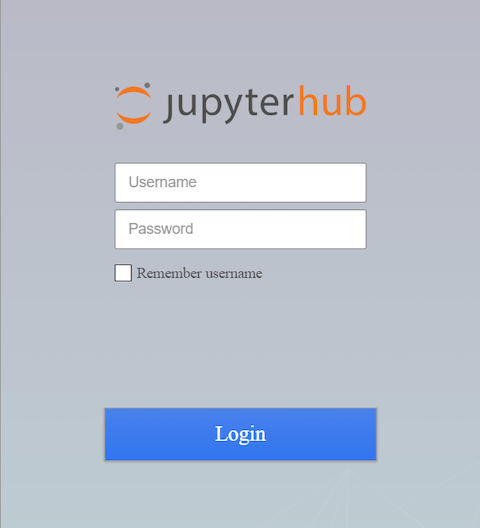
Log in with a Linux user account you created. After login, JupyterHub will spawn a personal JupyterLab instance for that user. Open a new notebook and run a quick test:
print("JupyterHub is working on Debian 13!")If the cell executes and returns output, your installation is complete and functional.
To monitor the service in real time:
sudo journalctl -u jupyterhub -fTroubleshooting Common Issues on Debian 13 JupyterHub Setup
Even with a clean setup, a few issues come up repeatedly on Debian 13. Here are the most common ones and how to fix them.
Error 1: configurable-http-proxy Not Found on Startup
Symptom: JupyterHub exits immediately with "configurable-http-proxy" not found in PATH.
Fix: The proxy binary must be available at the system level. Confirm it is installed globally:
which configurable-http-proxyIf there is no output, reinstall it:
sudo npm install -g configurable-http-proxyIf it is installed but still not found, the system PATH may not include /usr/local/bin. Add it explicitly to your systemd unit under [Service]:
Environment="PATH=/usr/local/bin:/usr/bin:/bin"Error 2: No module named jupyterhub
Symptom: After an OS upgrade from Debian 12 to Debian 13, JupyterHub fails with /opt/.../python3: No module named jupyterhub.
Fix: Debian 13 upgrades Python from 3.11 to 3.13, which breaks the old virtual environment. Rebuild it completely:
sudo rm -rf /opt/jupyterhub/venv
sudo python3 -m venv /opt/jupyterhub/venv
source /opt/jupyterhub/venv/bin/activate
pip install --upgrade pip jupyterhub jupyterlab notebook
deactivate
sudo systemctl restart jupyterhub
Error 3: Nginx Returns 502 Bad Gateway
Symptom: Visiting your domain shows a 502 error in the browser.
Fix: This means Nginx is running but JupyterHub is not. Check the service status:
sudo systemctl status jupyterhub
sudo journalctl -u jupyterhub -n 50
Look for the specific error in the logs and fix the root cause (missing proxy, bad config path, wrong Python path). Then restart:
sudo systemctl restart jupyterhubError 4: WebSocket Connection Errors in Browser
Symptom: Notebooks open but kernel connections fail. The browser console shows WebSocket errors.
Fix: Your Nginx config is missing the WebSocket headers or the map block. Confirm that the location block for /api/kernels/ includes:
proxy_http_version 1.1;
proxy_set_header Upgrade $http_upgrade;
proxy_set_header Connection $connection_upgrade;
After editing, test and reload Nginx:
sudo nginx -t && sudo systemctl reload nginxError 5: User Notebook Server Fails to Spawn
Symptom: Login works, but users get a “Server failed to start” error after authentication.
Fix: The most common causes on Debian 13 are a missing Linux user account or missing Python dependencies. Confirm the user exists:
id usernameIf the user is missing, create them with useradd. Also install the required build dependencies in case they were skipped:
sudo apt install -y python3-dev build-essential libpq-dev python3-ipythonCongratulations! You have successfully installed JupyterHub. Thanks for using this tutorial for installing JupyterHub on Debian 13 “Trixie” system. For additional help or useful information, we recommend you check the official JupyterHub website.
