How To Install Kitty Terminal on Debian 13
If you have ever maxed out a default terminal emulator while running log streams, compiling code, or watching Docker output scroll at speed, you know the frustration. The screen tears, input lags, and your CPU load spikes for something that should be lightweight. Kitty Terminal solves that problem directly. It is a GPU-accelerated terminal emulator built by Kovid Goyal that offloads all rendering to your graphics card using OpenGL, freeing your CPU for actual work. In this guide, you will learn exactly how to install Kitty Terminal on Debian 13, configure it for daily use, and troubleshoot the most common issues you may run into.
This tutorial covers three installation methods so you can pick the one that fits your setup and skill level. Debian 13, codenamed Trixie, was officially released on August 9, 2025. It ships with Linux Kernel 6.12 LTS, GNOME 48, APT 3.0 with a brand-new dependency resolver, and over 69,800 packages in the repository. That modern foundation makes Trixie an ideal base for running a terminal emulator like Kitty that depends on up-to-date Mesa graphics drivers and OpenGL support.
What Is Kitty Terminal?
Kitty is a fast, featureful, GPU-based terminal emulator available for Linux and macOS. Unlike traditional terminal emulators that use the CPU to render every character, Kitty keeps a glyph cache in video RAM and processes all rendering through OpenGL. The result is smooth scrolling, near-zero input latency, and lower CPU usage even when output is flooding the screen.
Kitty is also more than just fast. It ships with a built-in extension system called kittens — small Python programs that add functionality like displaying images in the terminal, running side-by-side diffs, and copying URLs with a single keystroke. It supports true color, Unicode, OpenType ligatures, emoji, and native image display through its own Kitty Graphics Protocol.
Key features that make Kitty stand out from GNOME Terminal, xterm, or Alacritty:
- GPU-accelerated rendering via OpenGL (requires OpenGL 3.3 or higher)
- Built-in tiling window management — no tmux required
- Native tab and window management with multiple layout modes
- True-color and 256-color support
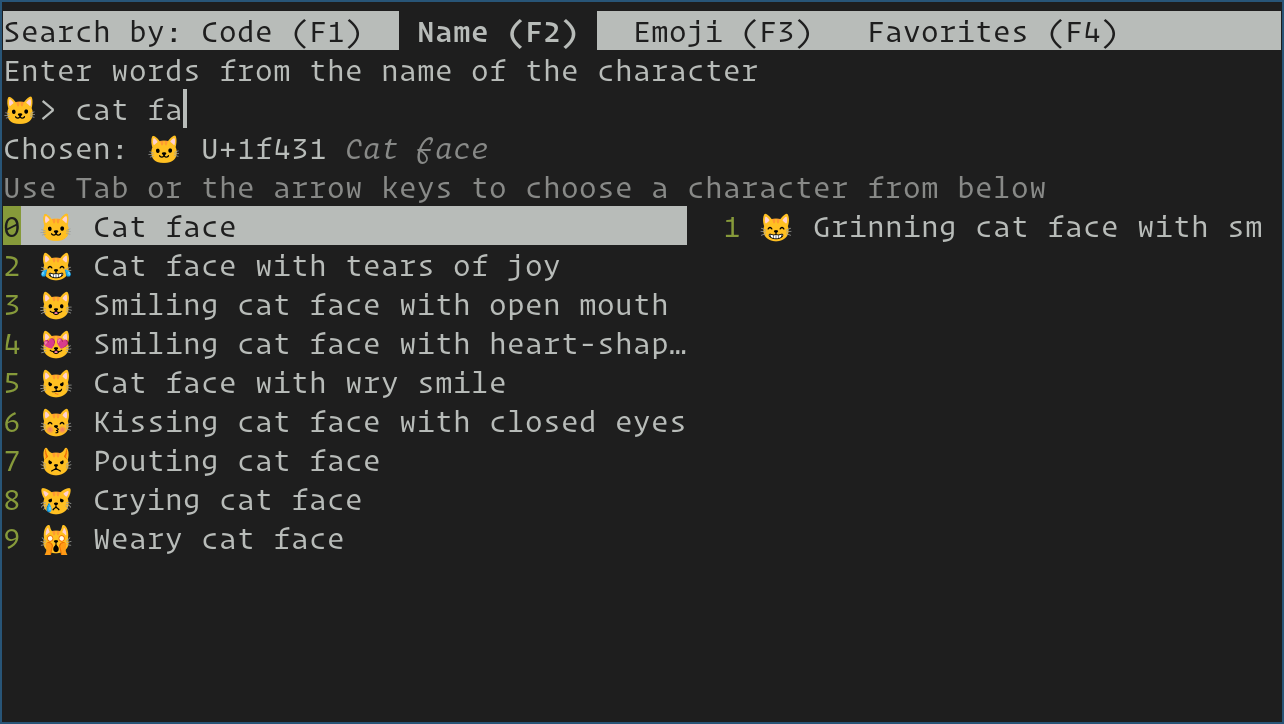
- Kitten extensions: icat, diff, hints, ssh, and unicode_input
- Fully scriptable via remote control protocol
- Configuration reloads live without restarting
- The Kitty Graphics Protocol for inline image rendering
Prerequisites
Before you run a single command, confirm your system meets these requirements:
- Operating system: Debian 13 Trixie (stable, released August 9, 2025). Verify with:
lsb_release -aYou should see
Codename: trixiein the output. - User privileges: A non-root account with
sudoaccess. - Internet connection: Active and stable — needed to download packages or the installer script.
- Disk space: At least 150 MB free for the installation and its dependencies.
- OpenGL support: Kitty requires OpenGL 3.3 or higher. Check your GPU support with:
glxinfo | grep "OpenGL version"If
glxinfois not installed, runsudo apt install mesa-utilsfirst. - An existing terminal: Any default terminal (GNOME Terminal, xterm) to run the installation commands.
Step 1: Update Your Debian 13 System
Before installing any package on Debian 13 Trixie, refresh your package index and apply pending upgrades. This step prevents dependency conflicts and ensures APT pulls from current repository mirrors.
sudo apt update && sudo apt upgrade -yWhat this does: apt update fetches the latest package lists from your configured Debian mirrors. apt upgrade -y applies all available upgrades non-interactively. The -y flag auto-confirms prompts so you do not have to watch the screen.
Expected output: APT 3.0 on Trixie gives you color-coded feedback: green lines for new packages being installed, and a summary of upgraded, newly installed, and removed packages at the end. A clean system might show:
0 upgraded, 0 newly installed, 0 to remove and 0 not upgraded.If packages are upgraded, let APT complete before moving to the next step. Rebooting after a kernel upgrade is good practice before installing new software.
Step 2: Install Kitty Terminal on Debian 13 via APT (Method 1 — Recommended)
The Debian 13 Trixie repository includes the Kitty package in its main component, confirmed by the official Debian package index. Installing via APT is the fastest path and integrates Kitty into your system’s update cycle.
Install the Package
sudo apt install kittyWhat this does: APT resolves and installs Kitty along with all required dependencies, including OpenGL libraries and Python runtime components. On Trixie, APT 3.0’s Solver3 backtracking dependency resolver handles complex dependency trees cleanly.
Expected output:
Reading package lists... Done
Building dependency tree... Done
The following NEW packages will be installed:
  kitty
0 upgraded, 1 newly installed, 0 to remove and 0 not upgraded.
Verify the Installation
kitty --versionA successful install prints the version string:
kitty 0.x.x created by Kovid GoyalLaunch Kitty
kittyOr search for “Kitty” in your GNOME application launcher on Trixie’s GNOME 48 desktop.
When to use this method: APT is best for users who want a system-managed install that stays in sync with Debian security updates. The one trade-off is that the APT version may trail slightly behind the latest upstream release.
Step 3: Install Kitty via the Official Installer Script (Method 2 — Latest Version)
If you want the newest upstream version of Kitty without waiting for Debian to package it, the official installer script from Kovid Goyal’s site is the right choice. This method installs Kitty to your home directory under ~/.local/kitty.app and does not interfere with the system package manager.
Install curl (if not already present)
sudo apt install curlRun the Official Installer
curl -L https://sw.kovidgoyal.net/kitty/installer.sh | sh /dev/stdinWhat this does: Downloads and runs the official installer script. Kitty installs to ~/.local/kitty.app — everything is contained in that single directory.
Important: Do NOT copy the kitty binary out of that folder. The binary depends on libraries inside ~/.local/kitty.app. Use symlinks instead.
Create Symbolic Links
ln -sf ~/.local/kitty.app/bin/kitty ~/.local/kitty.app/bin/kitten ~/.local/bin/What this does: Creates symlinks in ~/.local/bin so you can call kitty and kitten from any terminal. The folder ~/.local/bin must be in your PATH for both the shell and the desktop environment to find it.
Add Desktop Integration
cp ~/.local/kitty.app/share/applications/kitty.desktop ~/.local/share/applications/
cp ~/.local/kitty.app/share/applications/kitty-open.desktop ~/.local/share/applications/
Update Desktop Entry Paths
sed -i "s|Icon=kitty|Icon=$(readlink -f ~)/.local/kitty.app/share/icons/hicolor/256x256/apps/kitty.png|g" ~/.local/share/applications/kitty*.desktop

sed -i "s|Exec=kitty|Exec=$(readlink -f ~)/.local/kitty.app/bin/kitty|g" ~/.local/share/applications/kitty*.desktop
What this does: The .desktop file uses relative paths by default. These sed commands replace them with absolute paths that your desktop environment can resolve correctly.
Set Kitty as the Default Terminal (Optional)
echo 'kitty.desktop' > ~/.config/xdg-terminals.listThis tells desktop environments that support xdg-terminal-exec — including GNOME on Trixie — to open Kitty when a terminal is requested.
Install a Specific Version (Optional)
curl -L https://sw.kovidgoyal.net/kitty/installer.sh | sh /dev/stdin installer=version-0.35.2Replace 0.35.2 with whatever version you need.
Step 4: Build Kitty from Source (Method 3 — Advanced Users)
Building from source gives you the absolute latest development version and lets you apply custom patches. This method suits developers who want to contribute to Kitty or need a feature not yet in any stable release.
Install Build Dependencies
sudo apt install git make gcc python3 python3-dev \
  libgl-dev libgles-dev libxrandr-dev libxi-dev \
  libxcursor-dev libxinerama-dev libdbus-1-dev \
  libxkbcommon-x11-dev libfontconfig-dev libx11-xcb-dev \
  liblcms2-dev pkg-config
What this does: Installs the compiler toolchain and all development headers Kitty’s build system needs. Trixie’s APT 3.0 handles the dependency resolution automatically.
Clone the Repository
git clone https://github.com/kovidgoyal/kitty.git
cd kitty
Build Kitty
makeThe build process compiles the C performance layer and packages the Python UI components together. Expect this to take 1 to 3 minutes depending on your CPU.
Install System-Wide
sudo make installVerify
kitty --versionKeeping it updated: Unlike APT, a source build does not update itself. Pull and rebuild manually:
cd ~/kitty
git pull
make
sudo make install
Step 5: Configure Kitty Terminal on Debian 13
All Kitty configuration lives in one plain-text file: ~/.config/kitty/kitty.conf. If the file does not exist yet, create it:
mkdir -p ~/.config/kitty
touch ~/.config/kitty/kitty.conf
Open it with your editor of choice:
nano ~/.config/kitty/kitty.confConfigure Fonts
font_family      JetBrains Mono
bold_font        auto
italic_font      auto
font_size        13.0
Kitty reads font metadata from FontConfig on Linux, then applies these overrides on top. To see all fonts Kitty can find on your system, run:
kitty +list-fontsSet a Color Theme
background  #1E1E1E
foreground  #D4D4D4
Or use an include directive to load a full theme file:
include ./themes/Dracula.confAdjust the Scrollback Buffer
scrollback_lines 10000Configure Window Padding
window_padding_width 8Reload Config Without Restarting
Press Ctrl+Shift+F5 inside Kitty to reload the config live. You can also send a signal directly:
kill -SIGUSR1 $KITTY_PIDOpen the Config File from Inside Kitty
Press Ctrl+Shift+F2 to open kitty.conf in your default editor without leaving the terminal.
Step 6: Use Kitty’s Built-In Kittens and Window Management
Kittens are small Python programs that ship with Kitty and extend its functionality without any extra software. They are one of the features that makes Kitty genuinely different from other terminal emulators.
Display Images in the Terminal
kitty +kitten icat /path/to/image.pngThis uses the Kitty Graphics Protocol to render images directly in the terminal cell grid. No external image viewer needed.
Run a Side-by-Side Diff
kitty +kitten diff file1.py file2.pyThe diff kitten supports syntax highlighting and even shows image diffs inline.
Click on URLs and File Paths
Press Ctrl+Shift+E inside Kitty to activate the hints kitten, which scans your visible terminal output and lets you click on URLs, file paths, and line numbers.
Built-In Window and Tab Management
Kitty handles tiling and tab management natively — no tmux required. Key shortcuts:
| Action | Shortcut |
|---|---|
| Open a new window | Ctrl+Shift+Enter |
| Open a new tab | Ctrl+Shift+T |
| Rename current tab | Ctrl+Shift+Alt+T |
| Cycle layouts (tall, grid, fat) | Ctrl+Shift+L |
| Navigate between windows | Ctrl+Shift+] / [ |
| Close current window | Ctrl+Shift+W |
Troubleshooting Common Issues on Debian 13
1. kitty: command not found After Script Install
Cause: ~/.local/bin is not in your PATH.
Fix: Add it to your shell profile:
echo 'export PATH="$HOME/.local/bin:$PATH"' >> ~/.bashrc
source ~/.bashrc
Then test with which kitty. The path should return /home/youruser/.local/bin/kitty.
2. Kitty Launches a Blank or Black Screen
Cause: Kitty requires OpenGL 3.3 or higher. Hardware with older integrated GPUs or virtual machines may not meet this requirement.
Fix: First, check your OpenGL version:
glxinfo | grep "OpenGL version"If you are on older hardware or a virtual machine, use the software renderer as a workaround:
LIBGL_ALWAYS_SOFTWARE=1 kittyNote: this workaround increases CPU load significantly. For systems with adequate hardware but missing drivers, install Mesa:
sudo apt install mesa-utils libgl1-mesa-dri3. Fonts Display as Boxes or Missing Glyphs
Cause: The font specified in kitty.conf is not installed on your system.
Fix: List all available fonts Kitty can find:
kitty +list-fontsThen update your kitty.conf to use an installed font. For Nerd Font icons to work, install a patched font like JetBrains Mono Nerd Font or Fira Code from the Nerd Fonts GitHub repository.
4. Kitty Icon Does Not Appear in the Application Launcher
Cause: The .desktop file still contains relative or incorrect paths.
Fix: Re-run the sed path-update commands from Method 2, then refresh the desktop database:
update-desktop-database ~/.local/share/applications/Log out and back in if the icon still does not appear.
5. APT Version Is Too Old — New Features Not Available
Cause: Debian’s stable repository packages are intentionally conservative with version bumps.
Fix: Install via Method 2 (official script) alongside the APT version, then prioritize ~/.local/bin at the front of your PATH:
export PATH="$HOME/.local/bin:$PATH"Run kitty --version to confirm which binary loads. The script-installed version in ~/.local/bin will take precedence over the APT version in /usr/bin.
How To Update and Uninstall Kitty on Debian 13
Updating Kitty
- APT install: Kitty updates with your regular system upgrade:
sudo apt update && sudo apt upgrade - Script install: Re-run the installer — it updates in place:
curl -L https://sw.kovidgoyal.net/kitty/installer.sh | sh /dev/stdin - Source build: Pull and rebuild:
cd ~/kitty && git pull && make && sudo make install
Uninstalling Kitty
- APT:
sudo apt remove kitty && sudo apt autoremove - Script install:
rm -rf ~/.local/kitty.app rm ~/.local/bin/kitty ~/.local/bin/kitten rm ~/.local/share/applications/kitty*.desktop - Source build:
cd ~/kitty && sudo make uninstall - Remove configuration (all methods):
rm -rf ~/.config/kitty
Congratulations! You have successfully installed Kitty Terminal. Thanks for using this tutorial for installing the Kitty Terminal on your Debian 13 “Trixie” system. For additional help or useful information, we recommend you check the official Kitty Terminal website.
