How To Install Kitty Terminal on openSUSE

Modern Linux users consistently seek faster, more efficient terminal emulators that enhance productivity. The Kitty terminal emulator stands out as a GPU-accelerated powerhouse designed to deliver superior performance and rich features for developers, system administrators, and enthusiasts. This comprehensive guide explores every aspect of installing and configuring Kitty on openSUSE, from initial setup to advanced customization. Whether you’re running openSUSE Tumbleweed or Leap, you’ll find step-by-step instructions tailored to your system. By the end, you’ll have a fully functional, personalized terminal environment ready for professional work and daily computing tasks.
What Is Kitty Terminal and Why Should You Use It?
Kitty is a modern, GPU-based terminal emulator that represents a significant leap forward from traditional terminal applications. Unlike conventional emulators that rely on CPU rendering, Kitty leverages OpenGL and graphics processing units to achieve remarkable speed improvements and visual fidelity. This architecture enables Kitty to display graphics, images, and advanced Unicode characters with exceptional clarity and performance.
The terminal emulator market offers numerous options, yet Kitty distinguishes itself through several key advantages. First, it provides true color support with proper rendering of millions of colors, making your workflow visually accurate. Second, Kitty implements advanced font rendering that handles complex characters, ligatures, and emoji seamlessly. The application also supports protocols for displaying images directly in the terminal, a feature particularly valuable for developers working with visual tools or system monitoring utilities.
Performance represents another critical advantage. GPU acceleration means Kitty handles rapid text output, large files, and complex operations noticeably faster than CPU-based alternatives. When scrolling through logs, processing large datasets, or working with terminal-based applications, the performance difference becomes immediately apparent. Additionally, Kitty maintains active development with regular updates, responsive maintainers, and strong community engagement. For openSUSE users specifically, the terminal integrates seamlessly with the openSUSE ecosystem, respecting system settings while offering superior functionality compared to default terminal emulators.
Understanding System Requirements and Prerequisites
Before beginning the installation process, verify your system meets the necessary requirements. Kitty functions optimally on openSUSE Tumbleweed and openSUSE Leap 15.6 or later versions. The application requires graphics acceleration capabilities, which most modern systems possess, but older hardware may encounter limitations. Specifically, Kitty needs GPU support through Mesa drivers or proprietary graphics drivers.
Memory requirements are modest. The terminal typically consumes between 50-100MB of RAM under normal usage, though resource-intensive configurations may require more. Disk space requirements are similarly minimal, with the complete installation occupying approximately 30-40MB of storage. Internet connectivity becomes essential during installation, particularly when using package managers that download from remote repositories.
User privileges matter significantly. While launching Kitty requires only standard user permissions, the installation process demands sudo access for system-wide installations using Zypper. Local binary installations don’t require elevated privileges. Before proceeding, ensure your user account possesses sudo capabilities on your openSUSE system. Verify your current openSUSE version by executing cat /etc/os-release to determine which installation method best suits your setup.
Method 1: Installing Kitty via Zypper Package Manager
The Recommended Starting Point for Most Users
The Zypper package manager represents the simplest installation method for openSUSE users. This approach handles dependency management automatically, ensures proper system integration, and simplifies future updates. Zypper provides Kitty from official openSUSE repositories, making installation straightforward and secure.
Begin by updating your system’s package database to ensure you’re accessing the latest available packages and security patches. Open a terminal and execute the refresh command:
sudo zypper refreshThis command contacts the openSUSE repositories and updates your local package cache. You may see output indicating the repositories being checked and the number of packages available.
Once the refresh completes successfully, install Kitty using:
sudo zypper install kittyZypper displays the installation plan, showing Kitty and any required dependencies. Press ‘y’ and Enter to confirm, allowing the installation to proceed. The system downloads Kitty and installs all necessary components into standard system directories.
Verification Steps After Installation
Immediately after installation completes, verify that Kitty installed successfully. Launch the terminal emulator directly from the command line:
kittyA new Kitty window should open, displaying the default terminal interface. If successful, you’ve completed the primary installation. Close this window and verify the installation details:
kitty --versionThis command displays the installed version number, confirming the installation succeeded. Additional verification can be performed by checking the installation location:
which kittyThe output should show /usr/bin/kitty or a similar system binary directory path, indicating proper system integration through the package manager.
Troubleshooting Zypper Installation Issues
Occasional complications may arise during the Zypper installation process. If you receive a “package not found” error, the openSUSE repositories might not include Kitty or require enabling specific repository sections. Execute the following command to search for available versions:
sudo zypper se kittyThis lists all Kitty packages available in your configured repositories. If no results appear, you may need to enable the PackageHub repository, which provides additional community-maintained packages:
sudo zypper addrepo https://packagehub.suse.com/openSUSE_$(grep VERSION_ID /etc/os-release | cut -d'"' -f2)/packagehub.repo packagehub
sudo zypper refresh
sudo zypper install kitty
Dependency conflicts occasionally occur when Kitty requires specific library versions not currently installed. Zypper typically resolves these automatically, but if conflicts persist, try:
sudo zypper install --force-resolution kittyThis flag instructs Zypper to automatically resolve conflicts in favor of the requested package.
Method 2: Binary Installation from Official Sources
When and Why to Choose Binary Installation
Binary installation offers greater flexibility and ensures you obtain the latest Kitty version. This method proves particularly valuable when your distribution’s repositories contain older versions or when you prefer immediate access to cutting-edge features. The official binary installer also provides simplified management and straightforward updates.
Downloading and Installing the Official Binary
The official Kitty project maintains pre-built binaries for Linux systems. Installation occurs through a single command that downloads and installs the application into your home directory:
curl -L https://sw.kovidgoyal.net/kitty/installer.sh | sh /dev/stdinExecute this command in your terminal. The installer script downloads the latest Kitty binary tailored for your Linux system, extracts it to ~/.local/kitty.app, and makes the executable files available in that directory. The installation completes silently once successful, and Kitty launches automatically, displaying your new terminal window.
The installer handles all aspects of extraction and organization internally. No manual configuration is required at this stage. The ~/.local/kitty.app directory now contains the complete Kitty installation, including binaries, libraries, configuration templates, and application resources.
Making Kitty Accessible System-Wide
The binary installation places Kitty in your home directory, requiring manual configuration to access it from anywhere on your system. Create symbolic links that point to the Kitty executable from a directory included in your system PATH:
ln -sf ~/.local/kitty.app/bin/kitty ~/.local/bin/
ln -sf ~/.local/kitty.app/bin/kitten ~/.local/bin/
These commands create symbolic links for both the Kitty terminal and the Kitten utility tool. Before executing them, ensure the ~/.local/bin directory exists:
mkdir -p ~/.local/binVerify that ~/.local/bin is in your system PATH by executing:
echo $PATHIf ~/.local/bin appears in the output, your PATH configuration is correct. If not, add it to your shell configuration file (~/.bashrc or ~/.zshrc):
export PATH="$HOME/.local/bin:$PATH"After adding this line, reload your shell configuration by either opening a new terminal window or executing:
source ~/.bashrcDesktop Environment Integration
To make Kitty appear in application menus and launch from your desktop environment, copy the desktop integration files:
mkdir -p ~/.local/share/applications
cp ~/.local/kitty.app/share/applications/kitty.desktop ~/.local/share/applications/
cp ~/.local/kitty.app/share/applications/kitty-open.desktop ~/.local/share/applications/
These desktop files enable Kitty to appear in application menus and be selectable as your default terminal. Update the file paths to match your installation by executing:
sed -i "s|Icon=kitty|Icon=$(readlink -f ~)/.local/kitty.app/share/icons/hicolor/256x256/apps/kitty.png|g" ~/.local/share/applications/kitty*.desktop
sed -i "s|Exec=kitty|Exec=$(readlink -f ~)/.local/kitty.app/bin/kitty|g" ~/.local/share/applications/kitty*.desktop
These commands ensure the desktop files point to your specific Kitty installation location with absolute paths. Update the desktop database so your system recognizes the new application:
update-desktop-database ~/.local/share/applications/Installing Specific Kitty Versions
You can customize the binary installation to obtain specific versions. Install a particular release with:
curl -L https://sw.kovidgoyal.net/kitty/installer.sh | sh /dev/stdin installer=version-0.42.2Replace “0.42.2” with your desired version number. Alternatively, install the nightly development build:
curl -L https://sw.kovidgoyal.net/kitty/installer.sh | sh /dev/stdin installer=nightlyThese customization options allow you to experiment with different versions or maintain multiple Kitty installations simultaneously.
Essential Initial Configuration and Setup
First Launch and Interface Familiarization
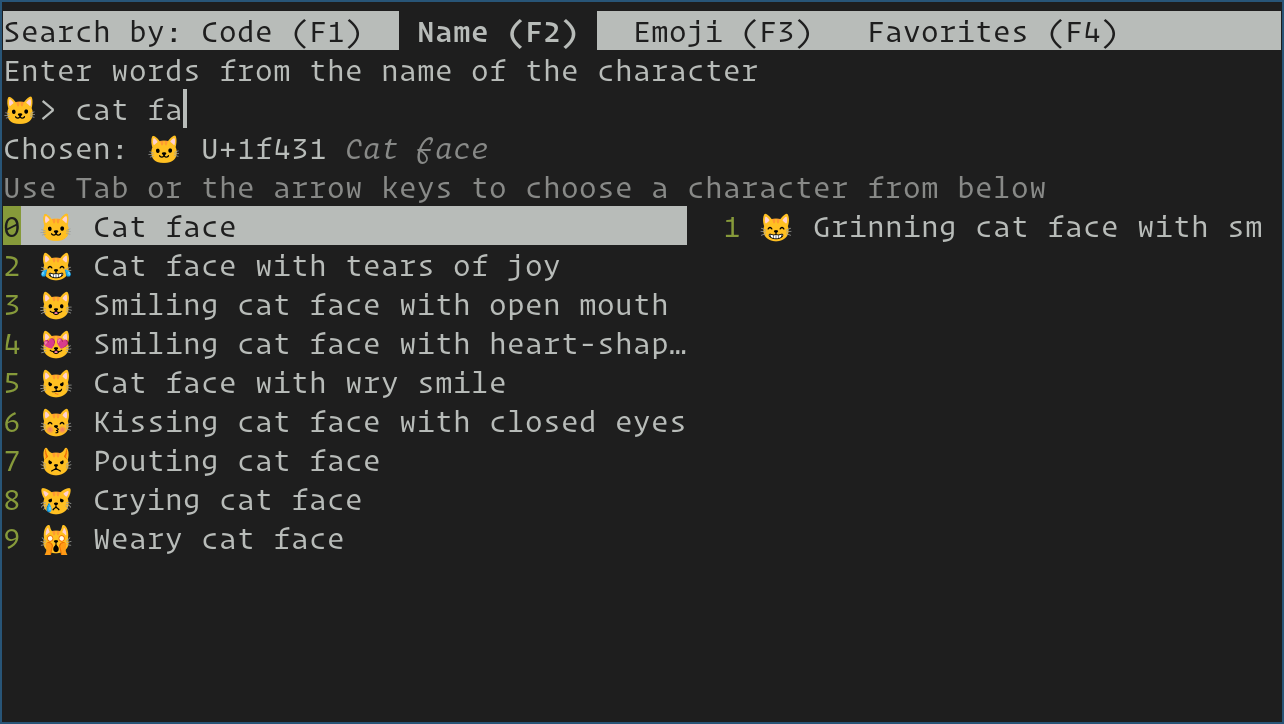
When Kitty launches for the first time, you encounter the default configuration state. The terminal displays a standard black background with white text. This moment represents the beginning of your customization journey. Explore the interface by opening tabs (Ctrl+Shift+T), creating new windows (Ctrl+Shift+N), and testing basic terminal operations. The initial experience demonstrates Kitty’s responsiveness and rendering quality.
Locating and Understanding Configuration Files
Kitty stores configuration files in the ~/.config/kitty/ directory. This location follows Linux standards for user-specific application configuration. The primary configuration file is kitty.conf, a plain-text file containing all customization options. If this directory doesn’t exist, create it:
mkdir -p ~/.config/kittyBefore making modifications, examine the default configuration template to understand available options:
cp ~/.local/kitty.app/share/doc/kitty/kitty.conf ~/.config/kitty/This command copies the comprehensive default configuration file into your user configuration directory, providing a complete reference with commented explanations for every option.
Basic Configuration Adjustments
Open the configuration file in your preferred text editor:
nano ~/.config/kitty/kitty.confScroll through the file to locate commonly modified settings. Font size significantly impacts user experience, especially on high-resolution displays. Find the font_size line and adjust the value:
font_size 12.0Typical values range from 10 to 16 points, depending on your monitor’s resolution and personal preference. Window opacity (transparency) adds visual appeal while maintaining functionality. Locate the background_opacity setting:
background_opacity 1.0Values range from 0.0 (fully transparent) to 1.0 (fully opaque). Try 0.95 for subtle transparency effects. Color schemes define the visual appearance of text and background. Find the color scheme line:
color_scheme DefaultSave your changes with Ctrl+O and exit with Ctrl+X in nano. Restart Kitty to apply the modifications, or use the keyboard shortcut Ctrl+Shift+F5 to reload the configuration without restarting.
Verifying Proper Installation and GPU Acceleration
Confirm that GPU acceleration is functioning correctly by executing:
kitty --debug-configThe output displays comprehensive installation and configuration information. Search for references to GPU acceleration, OpenGL version, and rendering status. Verify that your graphics driver is properly detected and functional. Additionally, test Kitty’s advanced features by displaying an image within the terminal:
kitty +kitten icat /usr/share/pixmaps/logo.pngThe kitten utility provides specialized functionality for image display, file operations, and other advanced features. If the image displays correctly, GPU acceleration and image rendering are functioning properly.
Advanced Installation Scenarios and Special Cases
Installing on Different openSUSE Versions
OpenSUSE Tumbleweed and Leap present slightly different considerations. Tumbleweed, as a rolling-release distribution, receives the latest Kitty versions through repositories within days of release. Leap, the stable release, may contain older versions but emphasizes stability and compatibility. The installation process remains identical regardless of version, but available package versions may differ.
For Leap users seeking newer Kitty versions, binary installation provides a straightforward path to current releases. Tumbleweed users benefit from both package manager and binary installation options, with the package manager often providing the latest versions.
System-Wide Installation for Multi-User Systems
On systems shared by multiple users, you might prefer installing Kitty to system directories rather than individual home directories. Create a system-wide installation using Zypper:
sudo zypper install kittyThis approach makes Kitty available to all users without requiring individual installation. Alternatively, perform binary installation to a system directory:
curl -L https://sw.kovidgoyal.net/kitty/installer.sh | sh /dev/stdin dest=/opt/kitty
sudo ln -s /opt/kitty/bin/kitty /usr/local/bin/
This installs Kitty to /opt/kitty with symlinks in the system PATH, making it available system-wide.
Building Kitty from Source Code
Advanced users may choose to build Kitty from source for maximum control or to incorporate custom modifications. This approach requires development tools and libraries. Install build dependencies:
sudo zypper install gcc git make libxcb-devel libffi-devel fontconfig-devel freetype-devel libpng-devel python3 python3-develClone the Kitty repository:
git clone https://github.com/kovidgoyal/kitty.git
cd kitty
Build and install:
make
sudo make install
Source compilation provides maximum flexibility but requires troubleshooting technical issues if dependencies prove problematic.
Comprehensive Troubleshooting for Installation Problems
Resolving Common Installation Errors
Installation occasionally encounters errors despite proper system configuration. The “package not found” error indicates that Kitty is unavailable in your currently enabled repositories. Enable the PackageHub repository, which contains additional packages:
sudo zypper addrepo https://packagehub.suse.com/openSUSE_$(grep VERSION_ID /etc/os-release | cut -d'"' -f2)/packagehub.repo packagehub
sudo zypper refresh
sudo zypper install kitty
Dependency resolution errors occur when required libraries are missing or incompatible. Force Zypper to resolve dependencies automatically:
sudo zypper install --force-resolution kittyRepository lock errors indicate that another package manager operation is running. Wait for the other process to complete and try again. Check for running processes:
ps aux | grep zypperFixing Runtime Launch Issues
If Kitty fails to launch after installation, several potential causes exist. First, verify the installation is accessible:
which kittyIf this returns nothing, update your PATH or reinstall Kitty. GPU-related issues prevent launch on systems with problematic graphics drivers. Test GPU capabilities:
glxinfo | grep "OpenGL version"If this shows no output or errors, your graphics drivers may need updating. Install updated drivers:
sudo zypper install xorg-x11-drivers-videoCorrupted configuration files can prevent launch. Temporarily rename your configuration directory:
mv ~/.config/kitty ~/.config/kitty.bakAttempt launching Kitty. If successful, the issue involves configuration. If failure persists, graphics or installation problems are responsible.
Resolving Permission and Access Problems
Permission errors prevent installation or desktop integration. Verify sudo access with:
sudo -vIf prompted for a password and authentication succeeds, your sudo configuration is correct. Create symbolic links with appropriate permissions:
sudo ln -sf ~/.local/kitty.app/bin/kitty /usr/local/bin/Desktop file permissions sometimes prevent execution. Ensure desktop files are readable:
chmod 644 ~/.local/share/applications/kitty*.desktopAddressing Display and Rendering Issues
Some systems experience color, font, or rendering issues. Test basic rendering functionality:
kitty --version && echo "Installation successful"Font rendering problems suggest missing or improperly configured fonts. Install common monospace fonts:
sudo zypper install liberation-fonts inconsolata-fonts dejavu-fontsColor display issues may stem from terminal color settings or shell configuration. Reset to default colors by temporarily removing your shell configuration’s color settings and testing in Kitty’s default state.
Post-Installation Customization and Enhancement
Selecting and Applying Color Themes
Kitty includes numerous built-in color schemes accessible through configuration. View available themes:
kitty @ list-colorsApply a specific theme by editing kitty.conf:
color_scheme DraculaOther popular options include Solarized, Nord, and Monokai. Explore different schemes to find your preference. Advanced users can create custom color schemes by defining specific RGB color values in the configuration file.
Performance Optimization Settings
Customize Kitty’s performance characteristics through configuration adjustments. Memory usage optimization involves adjusting scrollback buffer:
scrollback_lines 2000Higher values consume more memory but preserve more history. Reduce resource consumption by limiting background graphics:
background_image_layout tiled
background_image_opacity 0.1
Customizing Keyboard Shortcuts
Default keyboard bindings handle common operations, but customization enables personal workflow optimization. Add custom shortcuts to kitty.conf:
map ctrl+alt+1 new_window
map ctrl+alt+2 new_tab
map ctrl+shift+l next_window
These examples create custom shortcuts for window and tab management. Extensive keyboard customization possibilities exist for advanced users seeking complete workflow control.
Shell Integration and Advanced Features
Integrate Kitty seamlessly with Bash, Zsh, or Fish shells by sourcing shell integration scripts. For Zsh, add to ~/.zshrc:
eval "$(kitten icat --version >/dev/null 2>&1 && echo 'export KITTY_SHELL_INTEGRATION=enabled')"Shell integration enables advanced features like automatic command prompt tracking and image display capabilities that enhance productivity in supported shells.
Verifying Full Functionality and Feature Testing
Comprehensive Feature Verification
Test all Kitty features to ensure proper installation and functionality. Verify Unicode support by displaying various character sets:
echo "Unicode test: 你好 Привет مرحبا"Proper character rendering confirms Unicode support. Test graphics rendering with:
kitty +kitten icat /usr/share/pixmaps/logo.pngImage display in the terminal demonstrates graphics capability. Evaluate true color support by displaying a color gradient:
for i in {0..255}; do echo -e "\e[38;5;${i}m█\c"; doneAll 256 colors should display smoothly without color banding.
Integration Testing with Common Applications
Test Kitty with popular terminal applications and tools. Launch tmux:
tmux new-session -s testVerify tmux functions correctly within Kitty, testing window splitting and navigation. Test VIM or Neovim:
nvimConfirm syntax highlighting and rendering display properly. SSH into remote systems:
ssh user@remote-system.comVerify SSH sessions work correctly with proper terminal type detection. These integration tests confirm Kitty works seamlessly with your common workflow tools.
Maintaining and Updating Your Kitty Installation
Checking Your Current Version
Determine your installed Kitty version:
kitty --versionThis displays the current version number, helping you assess whether updates are available. Check for the latest version by visiting the official website or repository.
Updating Kitty Through Zypper
If you installed Kitty via Zypper, updating is straightforward. Check for available updates:
sudo zypper list-updates | grep kittyIf updates exist, apply them:
sudo zypper update kittyZypper handles dependency changes and system integration automatically.
Updating Binary Installations
Binary installations update by re-running the installer:
curl -L https://sw.kovidgoyal.net/kitty/installer.sh | sh /dev/stdinThe installer detects your existing installation and updates it in place. Configuration files remain unaffected, preserving your customizations.
Backup Practices and Version Management
Before major updates, backup your configuration:
cp -r ~/.config/kitty ~/.config/kitty.backupThis protection allows quick restoration if an update introduces unexpected changes. Review release notes for significant changes before updating. Conservative users might delay updates until several stable releases confirm reliability.
Rollback Procedures if Necessary
If an update causes problems, restore from backup:
rm -rf ~/.config/kitty
mv ~/.config/kitty.backup ~/.config/kitty
For Zypper installations, downgrade to the previous version:
sudo zypper install 'kitty<current-version'For binary installations, download and install the previous version using the version parameter.
Congratulations! You have successfully installed Kitty Terminal. Thanks for using this tutorial for installing the Kitty Terminal on your openSUSE Linux system. For additional help or useful information, we recommend you check the official Kitty Terminal website.
