How To Install Kodi on Fedora 43

Transforming your Fedora 43 system into a powerful entertainment hub is entirely achievable with Kodi, a free and open-source media center application. Whether you’re building a home theater PC, establishing a centralized media server, or simply seeking a robust media player for your Linux system, Kodi delivers professional-grade capabilities without the enterprise price tag.
Kodi empowers users to organize and stream videos, music, podcasts, and photos from multiple sources—both local storage and the internet. Its versatile architecture supports numerous streaming platforms, live television functionality, and extensive customization through add-ons. The software’s cross-platform compatibility means your entertainment experience remains consistent whether you’re on Linux, Windows, macOS, or mobile devices.
However, installing Kodi on Fedora 43 requires a specific approach. Unlike some distributions, Fedora doesn’t include Kodi in its official repositories due to licensing restrictions. This comprehensive guide walks you through each installation step, from system preparation through advanced configuration and troubleshooting. By following this tutorial, you’ll have a fully functional Kodi media center operational in under thirty minutes.
Understanding Kodi and Its Advantages for Fedora 43 Users
What Is Kodi Media Center?
Kodi represents the evolution of XBMC (Xbox Media Center), which originated as a media application for the original Xbox gaming console. Today, it stands as an entirely independent, community-driven platform offering comprehensive multimedia capabilities. The open-source media center application prioritizes user freedom and extensibility through its plugin architecture.
As a lightweight yet feature-rich application, Kodi operates efficiently on diverse hardware configurations. From low-power ARM processors in single-board computers to high-performance desktop systems, Kodi adapts to various computational resources. This flexibility makes it particularly suitable for Fedora 43 installations across different hardware platforms.
Key Features That Make Kodi Exceptional
Kodi’s functionality extends far beyond basic video playback. The application manages digital media libraries comprehensively, supporting movies, television series, music collections, and photo galleries. Its intelligent metadata scraping automatically retrieves artwork, plot summaries, and cast information from online databases, creating a professionally organized media experience.
The streaming capabilities prove particularly valuable for modern users. Kodi provides native integration with popular streaming services through add-ons, including Netflix, YouTube, Hulu, Amazon Prime Video, and countless others. Live television support includes EPG (Electronic Program Guide) functionality and PVR/DVR frontend capabilities, effectively replacing traditional cable boxes.
Network-based media sharing through DLNA/UPnP and SMB protocols enables seamless integration within home environments. Multiple users can manage different profiles, maintaining separate watch histories and preferences. Remote control functionality, available through both web interfaces and mobile applications, provides flexibility in managing your entertainment system from anywhere in your home.
Why Choose Fedora 43 for Kodi?
Fedora Linux represents a cutting-edge distribution emphasizing latest technologies, security hardening, and stability. Running Fedora 43 provides access to contemporary kernel versions, updated drivers, and enhanced security features—all crucial for multimedia applications like Kodi.
The distribution’s commitment to free and open-source software aligns perfectly with Kodi’s philosophy. Fedora’s default inclusion of SELinux security framework adds an additional protection layer for your system. Regular update cycles ensure vulnerability patches reach systems promptly, maintaining security integrity throughout your media center’s operational lifetime.
Prerequisites and System Requirements for Installation
Hardware Requirements for Optimal Performance
Before beginning your Kodi installation on Fedora 43, ensure your system meets minimum hardware specifications. Kodi operates on modest hardware but benefits from additional resources depending on your usage scenarios. The base requirements include a dual-core processor (Intel, AMD, or ARM-based) and at least two gigabytes of system memory. However, four gigabytes proves more practical for handling multiple simultaneous streams or HD content processing.
Storage considerations extend beyond the Kodi installation footprint. While Kodi itself requires approximately 250-500 megabytes of disk space, your media library will demand significantly more storage. Plan for adequate capacity based on your content collection—expect 2-4 gigabytes per high-definition movie and 15-20 gigabytes per television season.
For network streaming and media center operations, stable power supply and proper cooling become essential. Systems running continuously as media servers benefit from efficient thermal management. Consider passive or low-noise cooling solutions if your Kodi system will operate in entertainment areas.
Network and Connectivity Specifications
Reliable internet connectivity proves essential for streaming functionality. Ethernet connections provide superior stability for demanding tasks, particularly when streaming 4K content or serving media to multiple simultaneous users. If utilizing wireless connectivity, 802.11ac (WiFi 5) or newer standards ensure adequate bandwidth for high-quality media playback.
Network configuration often benefits from assigning a static IP address to your Kodi system. This approach simplifies connection establishment for other devices and ensures consistent access through your home network. Static addresses prove particularly valuable when configuring remote access or integrating Kodi with other smart home systems.
DNS configuration requires attention, particularly when relying on add-on streaming services. Consider implementing Cloudflare DNS (1.1.1.1) or Google DNS (8.8.8.8) if default network DNS proves unreliable. Proper DNS setup prevents “unable to connect” errors when accessing online media sources.
Software and Access Prerequisites
Your Fedora 43 system must be fully installed and updated before proceeding with Kodi installation. Terminal access with sudo privileges becomes necessary for executing installation commands and system configuration. Familiarity with basic terminal operations—navigating directories, editing configuration files, and executing commands—proves helpful though not absolutely mandatory.
User account permissions require careful consideration in multi-user environments. Root access for installation is necessary, but running Kodi as a regular user provides better system security compared to launching Kodi with elevated privileges.
Step 1: Updating Your Fedora 43 System Before Installation
Why System Updates Matter
Before introducing new applications, updating your Fedora 43 system establishes a stable foundation. Updates address security vulnerabilities, patch kernel issues, and ensure dependency compatibility with newly installed software. Installing Kodi on an outdated system risks encountering unresolved dependencies or version conflicts.
System updates also optimize your installation experience. Recent package versions often include performance improvements and bug fixes that directly benefit newly installed applications. Additionally, updated systems receive better security patches, crucial for media centers frequently connected to networks.
Executing the System Update Process
Open a terminal window and execute the comprehensive system update command. The DNF package manager handles dependencies automatically, ensuring all necessary packages receive updates simultaneously.
sudo dnf update -yThe -y flag automatically confirms all prompts, streamlining the update process without requiring manual intervention. Depending on your system state and available updates, this process might require 5-15 minutes. Network speed significantly impacts download times, particularly for systems with numerous outdated packages.
Verifying Successful Updates
After the update completes, you can verify successful installation of all updates by checking the package manager status. Execute the following verification command to confirm no pending updates remain:
sudo dnf check-updateA blank output indicates all available updates are installed. Your Fedora 43 system is now properly prepared for Kodi installation. Some administrators recommend system reboot after major updates, though this proves optional unless security patches require kernel reloads.
Step 2: Enabling RPM Fusion Repository for Kodi Access
Understanding RPM Fusion and Its Purpose
RPM Fusion represents a community-maintained software repository providing packages excluded from official Fedora repositories. The Fedora Project maintains strict policies regarding software licensing, patents, and philosophical alignment with free software principles. Kodi and related multimedia packages don’t meet these stringent criteria, necessitating their distribution through third-party repositories.
RPM Fusion operates two distinct repositories: Free and Nonfree. The Free repository contains open-source software with proper licensing compliance. The Nonfree repository includes software with proprietary limitations or patent encumbrances. Installing both repositories provides access to Kodi and supporting multimedia libraries without compatibility issues.
Installing RPM Fusion Free Repository
Begin by adding the RPM Fusion Free repository to your Fedora 43 system. This repository contains the majority of multimedia packages, including Kodi’s core components. The repository installation command automatically detects your Fedora version through the $(rpm -E %fedora) variable, ensuring compatibility across different Fedora releases.
Execute this command to install the Free repository:
sudo dnf install -y https://mirrors.rpmfusion.org/free/fedora/rpmfusion-free-release-$(rpm -E %fedora).noarch.rpmThis command downloads approximately 30-50 kilobytes and installs in seconds. The system prompts you to accept the RPM Fusion GPG key on first installation. Accepting this key ensures all subsequently installed packages from RPM Fusion pass cryptographic verification.
Installing RPM Fusion Nonfree Repository
Many multimedia applications benefit from packages in the Nonfree repository, particularly codecs and proprietary multimedia support. While Kodi functions adequately with only the Free repository, installing Nonfree ensures access to extended functionality and optimal compatibility with various media formats.
Add the Nonfree repository using this command:
sudo dnf install -y https://mirrors.rpmfusion.org/nonfree/fedora/rpmfusion-nonfree-release-$(rpm -E %fedora).noarch.rpmSimilar to the Free repository installation, this command completes quickly and may prompt GPG key acceptance.
Combined Repository Installation Method
As an alternative, experienced users can install both repositories simultaneously through a single command:
sudo dnf install -y https://mirrors.rpmfusion.org/free/fedora/rpmfusion-free-release-$(rpm -E %fedora).noarch.rpm https://mirrors.rpmfusion.org/nonfree/fedora/rpmfusion-nonfree-release-$(rpm -E %fedora).noarch.rpmThis approach reduces overall installation time by combining operations.
Verifying Successful Repository Installation
Confirm that both repositories are properly enabled before proceeding. Execute this verification command:
sudo dnf repolistYour output should display both rpmfusion-free and rpmfusion-nonfree repositories in the enabled list. This verification ensures subsequent Kodi installation commands access the correct package sources.
Step 3: Installing Kodi on Your Fedora 43 System
Executing the Kodi Installation Command
With RPM Fusion repositories configured, installing Kodi becomes straightforward. The DNF package manager handles dependency resolution automatically, downloading and installing all necessary supporting libraries and applications.
Install Kodi using this single command:
sudo dnf install kodi -yThe installation process typically requires 3-5 minutes depending on internet speed and system performance. DNF displays progress information, showing downloaded packages and current installation status. The system downloads approximately 250-400 megabytes of software.
Understanding the Dependency Resolution Process
During installation, DNF resolves numerous dependencies. Kodi requires various multimedia libraries, Python bindings, and system utilities. Common dependencies include libpng, libjpeg-turbo, libass, and numerous codec support libraries. These dependencies install automatically—you need not manually specify them.
The installation process ensures compatibility between Kodi and your Fedora system. Version mismatches in dependencies could cause runtime failures; DNF prevents these issues through automatic resolution.
Verifying Successful Kodi Installation
After installation completes, verify successful package installation using the RPM query command:
rpm -qi kodiThis command displays detailed information about the installed Kodi package, including version number, installation size, and repository source. Successful output confirms Kodi is properly installed on your Fedora 43 system.
You can also check the Kodi executable location:
which kodiStandard output /usr/bin/kodi indicates proper installation in system directories.
Step 4: Configuring FirewallD for Network Access and Security
Assessing FirewallD Status and Configuration
Fedora 43 includes FirewallD as the default firewall management tool. This powerful system protection mechanism controls network traffic through defined rules. Since Kodi utilizes multiple network ports for various services, firewall configuration becomes necessary for remote access functionality.
Check your current FirewallD status:
sudo systemctl status firewalldThe output displays whether FirewallD is running and enabled on system startup. If FirewallD isn’t installed, install it through:
sudo dnf install -y firewalldEnable and start the service using:
sudo systemctl enable --now firewalldUnderstanding Kodi Network Ports and Functions
Kodi communicates through several distinct network ports, each serving specific purposes:
- HTTP Web Interface: Port 8080 (TCP) provides remote access to Kodi’s web interface
- UPnP/DLNA Discovery: Port 1900 (UDP) enables media discovery by networked devices
- EventServer: Port 9777 (UDP) handles remote control communication
- JSON-RPC API: Port 9090 (TCP) provides programmatic interface access
- AirPlay Support: Port 36666 (TCP) enables Apple AirPlay streaming compatibility
Selective port opening improves security while maintaining necessary functionality.
Creating Custom FirewallD Service for Kodi HTTP
For persistent, manageable firewall rules, create a custom FirewallD service file. This approach proves superior to opening individual ports because it centralizes Kodi network configuration.
Create the Kodi HTTP service file:
sudo nano /etc/firewalld/services/kodi-http.xmlInsert the following XML configuration:
<?xml version="1.0" encoding="utf-8"?>
<service>
<short>Kodi HTTP</short>
<description>Allow access to Kodi via HTTP</description>
<port protocol="tcp" port="8080"/>
</service>
Save the file (Ctrl+O, Enter, Ctrl+X in nano).
Reloading Firewall Configuration and Adding Services
After creating the service file, reload FirewallD and activate the new service:
sudo firewall-cmd --reloadAdd the Kodi HTTP service to your active firewall zone:
sudo firewall-cmd --add-service=kodi-http --permanentThe --permanent flag ensures the rule persists across system reboots. Reload firewall configuration to activate:
sudo firewall-cmd --reloadVerifying Firewall Configuration
Confirm your firewall configuration by listing all active rules:
sudo firewall-cmd --list-allThe output should display kodi-http in the services section, confirming proper configuration.
Security Considerations for Network Exposure
While opening firewall ports enables remote access convenience, security implications warrant careful consideration. Exposing Kodi directly to the internet creates potential attack vectors. Best practice recommends restricting access to local networks only.
For remote access beyond your home network, consider implementing VPN connections instead of direct internet exposure. VPN connections encrypt all traffic and provide authentication layers, significantly enhancing security compared to direct port exposure.
Step 5: Launching and Configuring Kodi on Fedora 43
Starting Kodi for the First Time
Kodi launches through multiple methods depending on your preference. Terminal users can start Kodi directly through the command line:
kodiGUI users can access Kodi through the Applications menu. Click “Activities” (typically top-left), search for “Kodi,” and select the application icon from search results.
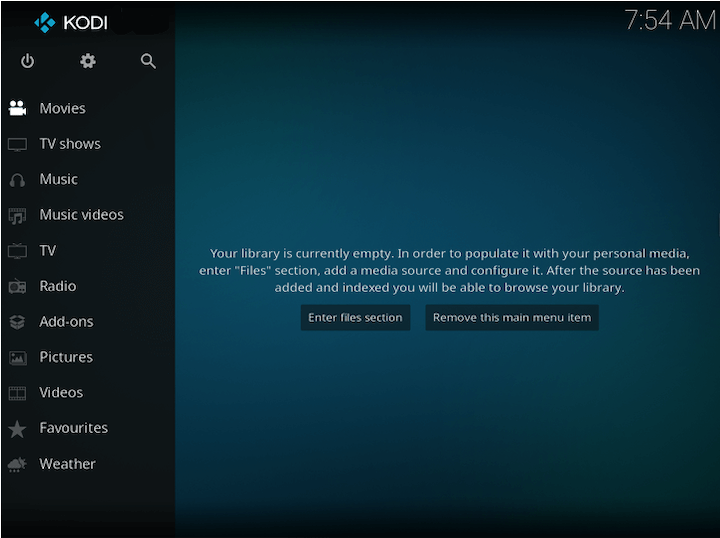
Initial startup requires 15-30 seconds as Kodi initializes libraries and loads default configurations. A splash screen displays during startup, followed by the main Kodi interface.
Navigating the First-Launch Wizard
Upon initial launch, Kodi presents an optional setup wizard guiding new users through basic configuration. This wizard simplifies initial setup significantly. The wizard guides you through:
Language selection enables multilingual support. Choose your preferred language from the comprehensive list.
Display settings configuration allows resolution and refresh rate selection appropriate for your display hardware. Default settings usually prove suitable for most systems, though adjustment becomes necessary for high-refresh-rate displays or unusual resolutions.
Audio output configuration presents options including ALSA, PulseAudio, and PipeWire depending on your Fedora audio system configuration. Modern Fedora systems typically default to PipeWire, which provides excellent compatibility and audio quality.
Network configuration allows setting device name and enabling web server access. The device name appears on your home network, facilitating identification among multiple Kodi systems.
Understanding the Main Interface Layout
The Kodi home screen presents several main menu sections. The “Videos” section manages movie and television libraries. The “Music” section handles audio content organization. “Pictures” section organizes photo galleries. “Programs” section provides application launcher functionality. “Settings” section manages all configuration options.
Navigation through these sections uses arrow keys or remote control navigation. Selection occurs through Enter or OK button press. The interface supports keyboard and mouse input alongside dedicated remote controls.
Essential Initial Configuration
Configure several settings before populating your media library. Navigate to Settings > System > Audio Output and select your preferred audio configuration. Verify video output settings in Settings > Display > Screen Resolution correspond to your display capabilities.
System settings include storage location options for Kodi database and cache files. Default settings typically place these in the home directory (~/.kodi/), which proves adequate for most users.
Enable the web server for remote access: Settings > Services > Web Server. Enable the service and note the port number (default 8080).
Installing and Managing Kodi Add-ons: Expanding Functionality
Understanding Add-ons and Repository Systems
Kodi’s power derives largely from its extensive add-on ecosystem. Add-ons extend functionality through video plugins, audio plugins, program utilities, skins, and system utilities. Official add-ons, distributed through Kodi’s repository, undergo basic quality review.
Third-party repositories provide additional add-ons, though with reduced oversight. Understanding add-on sources helps balance functionality expansion with security concerns.
Enabling Unknown Sources for Third-Party Access
By default, Kodi restricts installations to official repositories for security purposes. Enabling unknown sources allows installation from third-party repositories. Navigate to Settings > System > Add-ons > Unknown Sources and toggle the setting.
The system displays a security warning explaining potential risks. Proceed cautiously when installing from unverified sources, as malicious add-ons could compromise system security or privacy.
Discovering and Installing Official Add-ons
Access the Add-ons browser through the main menu. Browse categories including Video, Music, Pictures, and Programs. Popular official add-ons include YouTube, Twitch, SoundCloud, and weather services.
Select desired add-ons and choose “Install.” Kodi handles dependency resolution automatically. Installation typically completes within 30 seconds. Installed add-ons appear in their respective categories after installation.
Configuring Third-Party Repositories
Advanced users can add third-party repositories for expanded add-on selections. This requires entering repository URLs through File Manager. Navigate to Add-ons > File Manager > Add Source and enter the repository URL.
After adding repository sources, navigate to Add-ons > Install from Repository, select your newly added repository, and browse available add-ons. Installation proceeds identically to official add-ons.
Managing and Updating Add-ons
Periodically review your add-ons through Add-ons > My Add-ons. Enable automatic updates to keep add-ons current: Settings > System > Add-ons > Auto Update Add-ons.
Remove problematic add-ons by selecting them in My Add-ons and choosing “Uninstall.” Clear add-on cache periodically: Settings > System > Add-ons > Clear Add-ons Data. This action removes cached data while preserving configuration.
Optimizing Kodi Performance on Fedora 43
Implementing Hardware Video Acceleration
Video acceleration leverages GPU resources, dramatically reducing CPU load during playback. Fedora 43 supports VAAPI (Video Acceleration API) for both AMD and Intel graphics processors. Enable VAAPI in Settings > System > Display > Video Output > Acceleration.
Select appropriate profiles based on your GPU. Intel systems use Intel VAAPI profiles. AMD systems require properly installed graphics drivers for VAAPI support.
Fine-Tuning Audio Configuration
PipeWire provides excellent audio quality on modern Fedora systems. Configure audio in Settings > System > Audio Output. Select appropriate audio device and configure passthrough settings if using surround sound receivers.
Audio delay adjustment prevents lip-sync issues: Settings > Video > Audio Delay. Small adjustments (-200 to +200 milliseconds) usually resolve synchronization problems.
Network Performance Optimization
Media streaming performance depends on proper buffer configuration. Settings > Player > Videos > Buffer Size adjustment accommodates different network speeds. Higher buffering helps unstable connections but increases playback delays.
For networked media shares, optimize SMB configuration in Settings > Service Settings > Samba Client. Disable SMB multichannel if experiencing connection instability.
Troubleshooting Common Kodi Issues on Fedora 43
Resolving Startup and Crash Problems
If Kodi fails to start, check the debug log for error information. Logs locate in ~/.kodi/temp/kodi.log. Review recent entries for specific error messages.
Run Kodi with debug output for detailed diagnostics:
kodi --debugThis command produces verbose output useful for identifying problems. Common startup issues include missing Python libraries, permission issues, or corrupted configuration files.
Permission problems often involve ~/.kodi/ directory ownership. Correct permissions using:
chmod -R 755 ~/.kodi/
chown -R $USER:$USER ~/.kodi/
Fixing Video and Audio Problems
Video playback failures often indicate codec issues. Install additional multimedia support from RPM Fusion:
sudo dnf install ffmpegAudio output failures suggest incorrect output device selection or driver issues. Verify PipeWire operation:
pactl list sinksThis command displays available audio outputs. Select appropriate output in Kodi settings.
Resolving Add-on Installation Failures
“Could not connect to repository” errors indicate network issues or repository URL changes. Verify internet connectivity and repository availability. Remove problematic repositories and reinstall official ones if necessary.
Dependency conflicts occasionally prevent add-on installation. Clear add-on cache and retry installation. Update all add-ons and Kodi itself to latest versions.
Addressing Network and Firewall Issues
Remote access failures indicate firewall misconfiguration or network issues. Verify firewall rules are properly configured:
sudo firewall-cmd --list-allTest web interface connectivity:
curl http://localhost:8080This command verifies the web interface responds locally. If successful, firewall rules prevent external access.
Advanced Configuration and Integration
Setting Up Remote Control Access
Download the official Kodi Remote application from your device’s app store (Android, iOS). The application automatically discovers Kodi on your network when enabled.
Alternatively, access the web interface at http://KODI-IP:8080 from any web browser. The web interface provides full control functionality without requiring dedicated applications.
Third-party remotes like Kore offer enhanced functionality including voice control on certain devices.
Creating Custom Kodi Skins
Kodi’s appearance customization extends far beyond themes. Alternative skins completely transform the interface. Popular skins include Aeon Nox, Arctic Zephyr, and Confluence. Install skins through Add-ons > Skins, then select in Settings > Interface > Skin.
Customize skin behavior through skin settings, adjusting widgets, animations, and layout options for personalized interfaces.
Organizing Media Libraries Effectively
Proper file naming conventions enable Kodi’s scraper system to identify content automatically. For movies, use format: Movie Title (Year).ext. For TV shows, use: Show Name/Season XX/Show Name - sXXeXX.ext.
NFO files provide explicit metadata when automatic scraping fails. Create simple XML files containing title, plot, cast, and other details.
Security and Privacy Considerations for Media Centers
Keeping Kodi Secure and Updated
Regular updates maintain security integrity. Enable automatic updates:
sudo dnf upgrade --refresh kodiThis command updates Kodi and all dependencies to latest versions.
Managing Add-on Security
Avoid add-ons from untrusted sources, particularly piracy-related add-ons. These pose significant security risks and legal concerns. Stick to official repositories and well-established community sources.
Network Security Best Practices
Implement network segmentation when possible. Place media center systems on isolated networks if supporting older devices or untrusted add-ons. Use strong passwords on any web interface authentication.
Consider implementing SSL/TLS encryption for web interface connections when accessing from public networks. This requires additional configuration but significantly enhances security.
SELinux Considerations on Fedora
Fedora’s mandatory access control (SELinux) may restrict certain Kodi operations. Monitor SELinux denials using:
sudo journalctl -xe | grep deniedPermissive mode allows operation while logging violations. Switch to permissive if encountering inexplicable failures:
sudo semanage permissive -a kodi_tCongratulations! You have successfully installed Kodi. Thanks for using this tutorial for installing the Kodi free media player on your Fedora 43 Linux system. For additional or useful information, we recommend you check the official Kodi website.
