How To Install Krita on Fedora 43

Krita stands as one of the most powerful free and open-source digital painting applications available for Linux users today. This professional-grade software has earned its reputation among digital artists, illustrators, and concept designers who demand robust tools without the premium price tag. Whether you’re creating detailed concept art, animating frame-by-frame sequences, or painting digital masterpieces, Krita delivers comprehensive functionality that rivals commercial alternatives.
Fedora 43 users have multiple installation pathways to get Krita running on their systems. Each method offers distinct advantages depending on your specific needs and preferences. This comprehensive guide walks you through four proven installation methods: DNF package manager, Flatpak, Snap, and AppImage. You’ll discover step-by-step instructions, troubleshooting solutions, and post-installation configuration tips that ensure a smooth setup experience.
By the end of this tutorial, you’ll have Krita fully operational on your Fedora 43 workstation, ready to unleash your creative potential. Let’s dive into the installation process.
What is Krita?
Krita is a feature-rich digital painting application developed and maintained by the KDE community. Unlike general-purpose image editors, Krita focuses specifically on digital painting, illustration, and animation workflows. The software caters to concept artists, texture and matte painters, illustrators, and comic book creators who need specialized tools for their craft.
The application ships with over 100 professionally designed brushes right out of the box. These brushes utilize multiple brush engines that simulate real-world painting techniques with remarkable accuracy. Artists can customize every aspect of their brushes or create entirely new ones from scratch.
Krita’s advanced layer system supports non-destructive editing through layer masks, filter layers, and grouping capabilities. The software handles various color spaces including RGB and CMYK at multiple bit depths, making it suitable for both digital and print workflows. Animation features include timeline editing, onion-skinning, and frame-by-frame tools that bring illustrations to life.
Graphics tablet support remains a core strength, with Krita recognizing pressure sensitivity, tilt, and rotation from most major tablet manufacturers. The interface adapts to your workflow with customizable dockers, toolbars, and keyboard shortcuts.
System Requirements for Krita on Fedora 43
Before installing Krita, verify that your Fedora 43 system meets the necessary specifications. The application requires a dual-core processor at minimum, though quad-core or better processors deliver significantly improved performance during intensive painting sessions. RAM requirements start at 4GB, but 8GB or more ensures smooth operation when working with large canvases or multiple layers.
Allocate at least 500MB of free disk space for the base installation. Additional space accommodates custom brushes, resources, and project files. A graphics card with OpenGL 3.2 support or newer enables hardware acceleration features that enhance canvas rendering and brush responsiveness.
Fedora 43 compatibility extends across all official editions including Workstation, KDE Plasma Spin, and other variants. Ensure your system stays current with the latest updates before proceeding with installation. Graphics tablets and pen displays from Wacom, Huion, XP-Pen, and other manufacturers work seamlessly once properly configured.
Prerequisites Before Installation
Preparation ensures a trouble-free installation process. Open your terminal and update all system packages with the following command:
sudo dnf upgrade --refreshThis command refreshes repository metadata and updates installed packages to their latest versions. The process may take several minutes depending on pending updates. Complete any kernel updates and reboot if prompted.
Verify you have sudo privileges by running any simple sudo command. Check available disk space using the df -h command to confirm adequate room for your chosen installation method. Different package formats consume varying amounts of storage due to how they handle dependencies and libraries.
Familiarize yourself with basic terminal navigation if you’re using command-line installation methods. While graphical software centers offer alternative installation paths, terminal commands provide greater control and troubleshooting visibility.
Method 1: Installing Krita Using DNF Package Manager
Why Choose DNF Method
The DNF approach represents the most native installation method for Fedora systems. This package manager integrates directly with Fedora’s repositories, ensuring compatibility with your system’s existing libraries and frameworks. Security patches and application updates arrive automatically through your standard system update routine.
DNF installations maintain smaller disk footprints by leveraging shared system libraries rather than bundling everything independently. Fedora maintainers test and validate these packages against the specific Fedora release, reducing potential conflicts. However, repository versions sometimes lag behind the absolute latest upstream releases.
Step-by-Step DNF Installation
Launch your terminal application from the applications menu or press Ctrl+Alt+T. Begin by refreshing your package cache:
sudo dnf updateSearch for Krita in the repositories to confirm availability:
sudo dnf search kritaInstall Krita with the following command:
sudo dnf install kritaThe package manager displays all required dependencies and requests confirmation before proceeding. Type y and press Enter to continue. DNF downloads and installs Krita along with any necessary libraries. The process typically completes within 5-10 minutes depending on your internet connection speed.
After installation finishes, check the installed version:
dnf info kritaThis command displays detailed package information including version number, repository source, and installation date.
Verifying DNF Installation
Navigate to your applications menu and locate Krita under Graphics or All Applications. The distinctive purple icon with a white stylized “K” makes it easily identifiable. Click to launch the application.
Alternatively, verify installation from the terminal:
which kritaThis returns the executable path, typically /usr/bin/krita. Query package details using RPM:
rpm -qi kritaIf Krita doesn’t appear in your menu, log out and back in to refresh the desktop environment’s application cache.
Method 2: Installing Krita Using Flatpak
Understanding Flatpak on Fedora 43
Flatpak delivers applications in a universal package format that runs consistently across different Linux distributions. These packages operate in sandboxed environments that isolate them from core system components, enhancing security. The Krita team maintains their official Flatpak on Flathub, ensuring users receive updates directly from the developers.
This approach guarantees access to the latest Krita features and fixes shortly after release. The trade-off involves larger download sizes since Flatpaks bundle dependencies rather than sharing system libraries. Modern Fedora installations include excellent Flatpak integration with native desktop environment support.
Enabling Flatpak Support
Fedora 43 Workstation includes Flatpak support by default. Verify installation status:
flatpak --versionIf Flatpak isn’t installed, add it with:
sudo dnf install flatpakAdd the Flathub repository, the primary source for Flatpak applications:
flatpak remote-add --if-not-exists flathub https://flathub.org/repo/flathub.flatpakrepoThis command safely adds Flathub without creating duplicates if it already exists. Restart your system or log out and back in to complete the integration.
Confirm Flathub appears in your remote repositories:
flatpak remotesYou should see “flathub” listed with its configuration details.
Installing Krita via Flatpak
Search for Krita on Flathub to confirm availability and view package information:
flatpak search kritaInstall Krita using its unique Flatpak identifier:
flatpak install flathub org.kde.kritaFlatpak prompts you to confirm the installation and any required runtime dependencies. These runtimes provide shared libraries that multiple Flatpak applications can utilize. The total download typically ranges from 300-500MB depending on whether you already have KDE runtimes installed.
The installation process creates desktop integration automatically, adding Krita to your applications menu with the appropriate icon and metadata.
Launching and Managing Flatpak Krita
Access Krita through your applications menu like any native application. Alternatively, launch it from the terminal:
flatpak run org.kde.kritaThis explicit command helps troubleshoot launch issues by displaying any error messages.
Keep your Flatpak Krita current with regular updates:
flatpak update org.kde.kritaOr update all Flatpak applications simultaneously:
flatpak updateShould you need to remove Krita later:
flatpak uninstall org.kde.kritaMethod 3: Installing Krita Using Snap
What is Snap and When to Use It
Snap represents Canonical’s universal packaging system that works across numerous Linux distributions. Like Flatpak, Snap packages applications with their dependencies in self-contained bundles. The Snap daemon handles automatic background updates, keeping applications current without user intervention.
Snap excels at providing consistent application behavior regardless of the underlying distribution. However, some users report occasional issues with file system access and peripheral device detection due to Snap’s strict confinement model. Evaluate whether these potential limitations affect your workflow with graphics tablets.
Setting Up Snapd on Fedora 43
Install the Snap daemon package:
sudo dnf install snapdEnable the Snapd system socket to start automatically at boot:
sudo systemctl enable --now snapd.socketCreate a symbolic link for classic snap support:
sudo ln -s /var/lib/snapd/snap /snapThis link enables snaps that require classic confinement mode. Log out and back in, or restart your system to complete the setup process.
Verify Snapd installation and check its version:
snap versionThe output displays the snap tool version, snapd daemon version, and series information.
Installing Krita via Snap
Search the Snap Store to locate Krita:
snap find kritaInstall Krita with a simple command:
sudo snap install kritaSnap downloads the application package and installs it automatically. Installation sizes typically range from 200-400MB. The first installation of any snap may take longer as it sets up the necessary infrastructure.
Running Snap Version of Krita
Launch Krita from your applications menu or execute it from the terminal:
kritaThe first launch might take longer than subsequent starts as Snap initializes the application environment. Automatic updates occur in the background, though you can manually refresh if needed:
sudo snap refresh kritaMethod 4: Installing Krita Using AppImage
AppImage Advantages
AppImage offers the most portable application format available for Linux systems. These self-contained packages require no installation process or administrator privileges. Simply download, make executable, and run. This approach proves ideal for testing software, running applications from USB drives, or maintaining multiple versions simultaneously.
AppImages bundle all necessary libraries within a single file. No dependencies pollute your system, and removal involves simply deleting the AppImage file. Perfect for users who prefer minimal system integration or frequently switch between different software versions.
Downloading Krita AppImage
Visit the official Krita website and navigate to the download section. Select the Linux AppImage option and choose the appropriate architecture. Most modern systems use x86_64 (64-bit).
Download using your browser or wget from the terminal:
cd ~/Downloads
wget [Krita-AppImage-URL]
Replace the bracketed portion with the actual download URL from Krita’s website. Verify the download completed successfully by checking the file size matches the website’s specification.
Making AppImage Executable and Running
Install the FUSE library if not already present:
sudo dnf install fuse fuse-libsNavigate to your download directory:
cd ~/DownloadsMake the AppImage file executable:
chmod a+x krita-*.appimageThe asterisk wildcard matches any version number in the filename. Run Krita directly:
./krita-*.appimageFor easier access, move the AppImage to a dedicated applications folder and create a desktop shortcut. Consider installing AppImage managers like Gearlever for enhanced integration:
flatpak install it.mijorus.gearleverGearlever provides graphical management for your AppImages including automatic desktop integration.
Post-Installation Configuration
Launch Krita for the first time through your applications menu. The initial startup wizard helps configure basic preferences. Set your preferred interface language and color theme.
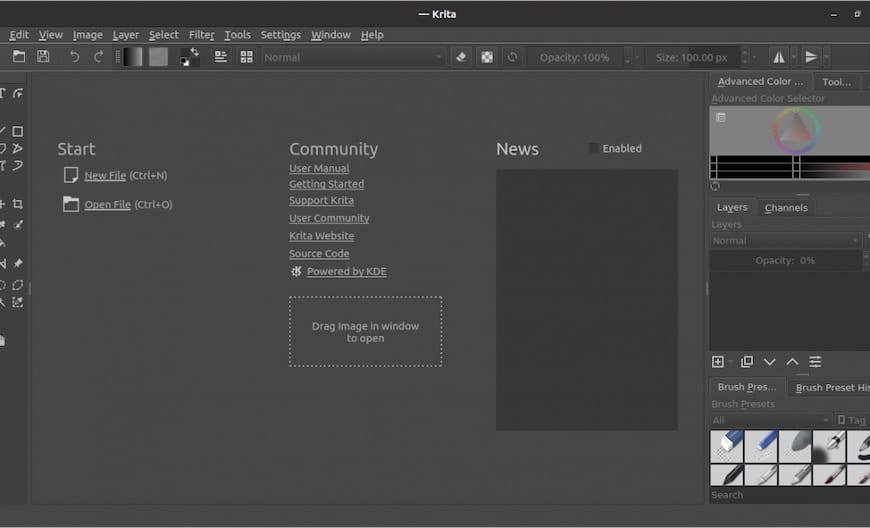
Configure display and color management in Settings → Configure Krita → Display. Enable OpenGL if your graphics card supports it for enhanced performance. Adjust canvas graphics acceleration settings based on your hardware capabilities.
Graphics tablet configuration resides under Settings → Configure Krita → Tablet Settings. Krita typically auto-detects connected tablets. Test pressure sensitivity by drawing on the canvas. The brush size should vary with pen pressure. Map tablet buttons to frequently used functions for efficient workflows.
Customize workspace layouts by dragging dockers to preferred positions. Create and save multiple workspace configurations for different tasks like painting, animation, or photo editing. Access workspace options through Settings → Dockers to show or hide specific panels.
Install additional brushes and resources through Settings → Manage Resources. Krita’s built-in resource manager connects to community repositories offering thousands of free brush packs, patterns, and gradients. Download and import resources that match your artistic style.
Performance optimization becomes crucial for large canvas work. Navigate to Settings → Configure Krita → Performance to adjust memory allocation. Increase RAM limits if you frequently work with high-resolution images. Configure undo history depth and auto-save intervals based on available system resources.
Troubleshooting Common Installation Issues
DNF installation failures often stem from repository metadata problems. Clear the cache and refresh:
sudo dnf clean all
sudo dnf upgrade --refresh
Dependency conflicts require investigation. Review the error messages carefully and search Fedora forums for specific package conflict resolutions.
Flatpak permission issues may prevent Krita from accessing certain directories. Grant additional permissions using Flatseal, a graphical permission manager available from Flathub. Adjust file system access policies to allow Krita to reach your project folders.
Snap confinement restrictions sometimes block tablet access. Check connection status:
snap connections kritaGrant necessary interface permissions manually if automatic detection fails.
AppImage execution errors despite correct permissions often indicate missing FUSE libraries:
sudo dnf install fuse-libsGraphics driver issues manifest as OpenGL errors or rendering glitches. Update your graphics drivers through Fedora’s standard update process. For NVIDIA users, consider installing proprietary drivers from RPM Fusion repositories for better OpenGL support.
Tablet detection problems require checking device permissions and driver status. Verify the tablet appears in system settings and test with other applications to isolate whether the issue affects only Krita or the entire system.
Consult Krita’s official documentation at docs.krita.org for software-specific issues. The Fedora discussion forums provide community support for system-level problems. The KDE community maintains active channels for Krita development questions and bug reports.
Updating Krita on Fedora 43
Keeping Krita current ensures access to the latest features, performance improvements, and security patches. DNF installations update alongside your regular system updates:
sudo dnf update kritaOr include Krita in your standard system-wide update routine:
sudo dnf upgradeFlatpak users update through the Flatpak command:
flatpak update org.kde.kritaSnap installations update automatically in the background. Force an immediate update with:
sudo snap refresh kritaAppImage updates require downloading the newest version from Krita’s website and replacing your existing file. Check your current version through Help → About Krita in the application menu. Compare against the latest release on krita.org to determine if updates are available.
Major version updates may introduce interface changes or new features. Review release notes before updating to understand what’s changed. Back up custom brushes, resources, and preferences before major version upgrades as a precautionary measure.
Uninstalling Krita (If Needed)
Remove DNF installations with:
sudo dnf remove kritaFlatpak uninstallation uses:
flatpak uninstall org.kde.kritaRemove Snap packages through:
sudo snap remove kritaAppImage removal simply involves deleting the application file. Configuration files persist in your home directory after uninstallation. Remove Krita’s configuration and custom resources:
rm -rf ~/.config/krita*
rm -rf ~/.local/share/krita
Exercise caution with these deletion commands as they permanently remove your custom brushes, presets, and settings. Back up these directories first if you might reinstall Krita later and want to preserve your customizations.
Unused dependencies from DNF installations can be cleaned with:
sudo dnf autoremoveThis command removes packages that were installed as dependencies but are no longer required by any installed application.
Congratulations! You have successfully installed Krita. Thanks for using this tutorial for installing the Krita graphics editor on your Fedora 43 Linux system. For additional help or useful information, we recommend you check the official Krita website.
