How To Install KTorrent on Debian 13

If you need a reliable, full-featured BitTorrent client on Debian 13 Trixie, KTorrent is one of the strongest choices available. It sits natively inside the KDE ecosystem, supports plugin extensions, handles encrypted connections, and stays remarkably light on system resources compared to other GUI clients. Whether you are managing a home server, downloading large open-source ISOs, or running a KDE Plasma desktop, knowing how to install KTorrent on Debian 13 is a practical skill worth having.
This guide walks you through three installation methods: APT (the recommended route for most users), Flatpak via Flathub, and Snap. Beyond the install itself, you will also learn how to configure KTorrent on Debian 13 for better performance, enable plugins, troubleshoot common errors, and cleanly remove the application when needed.
What Is KTorrent and Why Use It on Debian 13?
KTorrent is an open-source BitTorrent client developed by the KDE project. It is written in C++, licensed under the GNU GPL v2.0, and originally created by Joris Guisson and Ivan Vasic. Debian officially packages it in its stable Trixie repository under the package name ktorrent, alongside a companion package ktorrent-data that holds architecture-independent files.
What sets KTorrent apart from simpler clients is its plugin architecture. By default, only core plugins are active, which keeps the application fast. You selectively enable extras like IP filtering, RSS automation, bandwidth scheduling, and scripting only when you actually need them.
KTorrent supports DHT (Distributed Hash Table), protocol encryption compatible with Azureus/Vuze, UPnP automatic port forwarding, UDP trackers, uTorrent peer exchange, and private tracker torrents. For a KDE Plasma desktop on Debian 13, it integrates cleanly into the system tray and respects your desktop theme without pulling in unrelated dependencies.
Key Features at a Glance
- Global and per-torrent upload/download speed limits
- Multi-torrent queue management with file prioritization
- Protocol encryption (Azureus-compatible)
- DHT and UDP tracker support
- UPnP automatic port forwarding
- IP filter plugin with PeerGuardian blocklist support
- RSS plugin for automated torrent downloads
- Bandwidth scheduler for time-based speed rules
- Torrent grouping and per-file prioritization
- System tray integration and media preview support
Prerequisites
Before you begin, confirm that your environment meets these requirements:
- OS: Debian 13 “Trixie” (stable or testing branch), any desktop environment
- Permissions: A user account with
sudoprivileges, or direct root access - Internet connection: Required to download packages from official repositories
- Terminal: GNOME Terminal, Konsole, or any terminal emulator
- APT sources configured: Your
/etc/apt/sources.listshould point todeb.debian.org/debian trixie. If you installed from a DVD, comment out or remove the DVD line in sources to avoid package conflicts. - Optional: KDE Plasma desktop for the best native integration, though KTorrent works on GNOME, XFCE, and other desktops too
Step 1: Update Your Debian 13 System
Before installing any new software, always refresh your package index and apply pending upgrades. This prevents dependency conflicts and ensures APT resolves the correct package versions.
sudo apt update && sudo apt upgrade -yWhat this does: apt update fetches the latest package metadata from your configured repositories. apt upgrade -y applies all available upgrades without prompting for confirmation on each one.
Expected output: You will see a list of packages being upgraded, ending with a summary like:
Reading package lists... Done
Building dependency tree... Done
Reading state information... Done
X upgraded, 0 newly installed, 0 to remove and 0 not upgraded.
If you see errors about missing GPG keys or failed repository fetches, verify your /etc/apt/sources.list file before proceeding.
Step 2: Install KTorrent on Debian 13 via APT (Recommended Method)
The APT method pulls KTorrent directly from Debian’s official Trixie repository. This is the most stable, distro-tested route and the one most sysadmins use by default.
Install the Package
sudo apt install ktorrent -yWhat this does: APT resolves and downloads ktorrent along with its companion package ktorrent-data and any required KDE/Qt libraries. The -y flag skips the manual confirmation prompt.
Important: The package name is strictly lowercase. Typing KTorrent or Ktorrent will return a “Package not found” error. Use ktorrent exactly as shown.
Expected output during install:
Reading package lists... Done
Building dependency tree... Done
The following additional packages will be installed:
  ktorrent-data libktorrent6
Suggested packages:
  kde-standard
The following NEW packages will be installed:
  ktorrent ktorrent-data libktorrent6
0 upgraded, 3 newly installed, 0 to remove and 0 not upgraded.
Install time is typically one to two minutes depending on your connection speed and whether KDE libraries are already present on your system.
Verify the Installation
After the install completes, confirm it worked:
apt-cache policy ktorrentYou should see output similar to this:
ktorrent:
  Installed: 22.12.3-1
  Candidate: 22.12.3-1
  Version table:
 *** 22.12.3-1 500
        500 http://deb.debian.org/debian trixie/main amd64 Packages
The Installed: line confirms version 22.12.3-1 is active on your system. This version number is what Debian Trixie packages from its stable branch.
Launch KTorrent
From the terminal:
ktorrentOr find it in your application menu under Internet > KTorrent on KDE Plasma. On GNOME or XFCE, search for “KTorrent” in your application launcher.
Step 3: Install KTorrent via Flatpak for the Latest Version
If you want the most recent upstream release of KTorrent with application sandboxing, the Flatpak method via Flathub is the right pick. This is also useful if your Debian installation is running an older snapshot where the APT package lags behind the latest KDE release.
Install Flatpak on Debian 13
Flatpak is available in Debian’s repository but is not pre-installed by default.
sudo apt install flatpak -yNext, add the Flathub repository as a remote source:
sudo flatpak remote-add --if-not-exists flathub https://flathub.org/repo/flathub.flatpakrepoWhat the --if-not-exists flag does: It prevents the command from throwing an error if you have already added Flathub in a previous session. Safe to run every time.
Reboot to make sure Flatpak integrates fully with your desktop environment’s app launcher:
sudo rebootInstall KTorrent from Flathub
flatpak install flathub org.kde.ktorrent -yWhat this does: Flatpak downloads the KTorrent application bundle along with the KDE runtime it depends on from Flathub. The KDE runtime is large (several hundred MB) if this is your first KDE Flatpak app, so allow a few extra minutes.
Verify the Flatpak Installation
flatpak info org.kde.ktorrentExpected output:
          ID: org.kde.ktorrent
         Ref: app/org.kde.ktorrent/x86_64/stable
        Arch: x86_64
      Branch: stable
      Origin: flathub
Launch KTorrent via Flatpak
From the terminal:
flatpak run org.kde.ktorrentOr find it in your application menu after rebooting. The app will appear under the same “KTorrent” name regardless of installation method.
Update KTorrent via Flatpak
flatpak updateThis updates all installed Flatpak apps, including KTorrent, to their latest available versions on Flathub.
Step 4: Install KTorrent via Snap (Alternative Method)
Snap is a third option if you prefer self-contained packages that auto-update in the background. Snap is not installed on Debian 13 by default, so you need to enable it first.
Enable Snap on Debian 13
sudo apt install snapd -y
sudo systemctl enable --now snapd.socket
Create the required symlink for classic snap support:
sudo ln -s /var/lib/snapd/snap /snapLog out and back in (or reboot) before proceeding.
Install KTorrent via Snap
sudo snap install ktorrentWhat this does: Snap downloads and installs a fully self-contained KTorrent package. The Snap daemon handles updates automatically in the background without any manual action required.
Launch KTorrent from Snap
After installation, the ktorrent command is available directly in your PATH:
ktorrent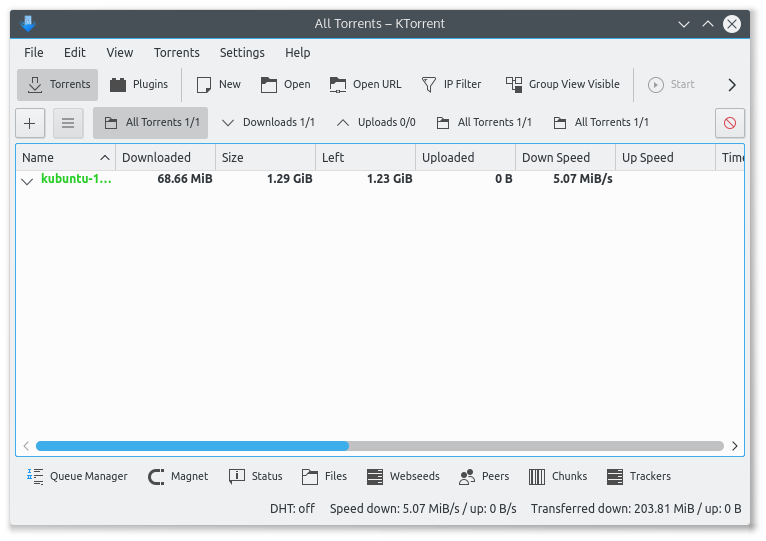
Choosing the Right Method: A Quick Comparison
| Method | KTorrent Version | Auto-Updates | Sandboxed | Best For |
|---|---|---|---|---|
| APT | Distro-stable (22.12.3) | Via apt upgrade |
No | Most users, stability-focused |
| Flatpak | Latest stable | Via flatpak update |
Yes | Users wanting newest features |
| Snap | Latest stable | Automatic | Yes | Cross-distro consistency |
Step 5: Configure KTorrent on Debian 13
Installing KTorrent is only half the job. A few minutes of configuration will get you noticeably better performance, privacy, and stability.
Set Your Download Directory
Go to Settings > Configure KTorrent > General and set a dedicated download folder. Keeping torrents out of your home directory root prevents cluttered file management over time.
Configure Speed Limits
Navigate to Settings > Configure KTorrent > Speed Limits.
Set a global upload speed cap. Leaving upload speed uncapped can saturate your connection and affect browsing, video calls, or SSH sessions running in parallel. A safe starting point is 70-80% of your actual upload capacity.
Enable UPnP for Port Forwarding
Go to Settings > Configure KTorrent > Network and check the Enable UPnP box.
UPnP tells your router to automatically open the required port for incoming BitTorrent connections. This improves download speeds significantly, especially for torrents with fewer seeders.
If your router does not support UPnP or you have disabled it for security reasons, manually forward the port shown in this settings panel from your router’s admin interface.
Enable Protocol Encryption
Navigate to Settings > Configure KTorrent > Privacy and turn on protocol encryption.
This encrypts your BitTorrent traffic at the protocol level using an encryption scheme compatible with Azureus/Vuze clients. It does not hide your activity from determined ISP monitoring, but it does prevent basic deep-packet inspection throttling on many home networks.
Configure a Firewall Exception (if using ufw)
If you have ufw active on your Debian 13 system, allow the incoming BitTorrent port:
sudo ufw allow 6881/tcp
sudo ufw allow 6881/udp
Replace 6881 with whatever port you set inside KTorrent’s Network settings.
Step 6: Enable and Use KTorrent Plugins
KTorrent’s plugin system is what separates it from basic torrent clients. Access the Plugin Manager under Settings > Plugins.
IP Filter Plugin
Enable IP Filter from the Plugin Manager, then go to Settings > IP Filter.
Click Download and Convert to import a PeerGuardian-compatible blocklist. This automatically blocks connections from known malicious peers, monitoring addresses, and ad networks. Update the list periodically for best results.
RSS Plugin
The RSS plugin lets you automate downloads from any RSS-enabled torrent feed. Enable it in the Plugin Manager and an RSS tab will appear in the main window. Add feed URLs from Linux distribution mirrors, content providers, or any tracker that publishes RSS torrent feeds.
This is particularly useful for sysadmins who need to keep offline mirrors of software updated automatically without manual intervention.
Bandwidth Scheduler Plugin
Enable Scheduler from the Plugin Manager. This plugin lets you define different speed limits for different times of day. For example, you can set full-speed downloads from midnight to 6 AM and apply conservative limits during business hours.
Step 7: Update and Remove KTorrent on Debian 13
Updating KTorrent
APT:
sudo apt update && sudo apt upgrade -yFlatpak:
flatpak updateSnap:
sudo snap refresh ktorrentSnap handles updates automatically, but the manual command above forces an immediate refresh if you need the latest version right away.
Removing KTorrent
APT (keep configuration files):
sudo apt remove ktorrentAPT (remove configuration files too):
sudo apt purge ktorrent && sudo apt autoremoveThe autoremove step cleans up KDE dependency packages that nothing else on your system needs.
Flatpak:
flatpak uninstall org.kde.ktorrent
flatpak uninstall --unused
Snap:
sudo snap remove ktorrentTroubleshooting Common KTorrent Issues on Debian 13
Error: “Package ‘KTorrent’ has no installation candidate”
Cause: Package names on Debian are case-sensitive. Typing KTorrent or Ktorrent will fail.
Fix: Use the exact lowercase name:
sudo apt install ktorrentAlso verify your APT sources are correctly configured for Trixie by checking /etc/apt/sources.list and ensuring it includes:
deb http://deb.debian.org/debian trixie mainKTorrent Does Not Appear in the Application Menu After Install
Cause: The desktop database has not refreshed yet, which is common after a fresh package install on non-KDE desktops.
Fix: Run this command to rebuild the desktop menu database, then log out and back in:
update-desktop-database ~/.local/share/applicationsDownload Speeds Are Much Slower Than Expected
Cause: The most common reason is a closed or misconfigured BitTorrent port blocking incoming peer connections.
Fix steps:
- Enable UPnP in Settings > Configure KTorrent > Network
- If
ufwis active, allow the port KTorrent uses:sudo ufw allow 6881/tcp && sudo ufw allow 6881/udp - Check the torrent’s seed count. A torrent with 2 seeders will be slow regardless of configuration.
Flatpak KTorrent Does Not Appear in the Application Menu
Cause: Flatpak applications require a desktop session restart to register in the app menu after the initial install.
Fix: Reboot or log out and back in. The KTorrent icon will appear in your application launcher on the next session start.
Plugin Window Is Empty After Enabling a Plugin
Cause: KDE caches system configuration, and a stale cache sometimes prevents new plugin UI elements from loading.
Fix: Log out and back in. On session start, KDE rebuilds its kbuildsycoca system cache automatically, which registers the newly enabled plugin interfaces.
Congratulations! You have successfully installed KTorrent. Thanks for using this tutorial for installing the KTorrent BitTorrent client on Debian 13 “Trixie” system. For additional help or useful information, we recommend you check the official KTorrent website.
