How To Install KubeSphere on Linux Mint 22
Container orchestration has become essential for modern application deployment and management. KubeSphere simplifies the complexity of Kubernetes by providing an intuitive, enterprise-grade platform that makes container management accessible to developers and system administrators alike. This comprehensive guide walks you through installing KubeSphere on Linux Mint 22, transforming your system into a powerful container orchestration platform.
Linux Mint 22, built on Ubuntu 22.04 LTS, offers excellent compatibility with KubeSphere installation tools. Whether you’re setting up a development environment, testing cluster configurations, or building a small-scale production system, this tutorial provides everything you need for a successful deployment. You’ll learn how to prepare your system, install both Kubernetes and KubeSphere using KubeKey, access the management console, and configure essential post-installation settings.
By the end of this guide, you’ll have a fully functional KubeSphere installation with a beautiful web interface for managing containerized applications, monitoring cluster resources, and implementing DevOps workflows. Let’s begin your journey into modern container orchestration.
What is KubeSphere?
KubeSphere is a distributed operating system built on top of Kubernetes, designed to manage cloud-native applications across hybrid and multi-cloud environments. It provides a comprehensive solution for container management without requiring deep Kubernetes expertise.
The platform offers powerful features including multi-tenancy management, DevOps automation, application lifecycle management, service mesh capabilities, and comprehensive observability tools. Unlike working with plain Kubernetes through command-line interfaces, KubeSphere delivers an elegant visual dashboard that dramatically reduces the learning curve for teams new to container orchestration.
KubeSphere excels in various use cases. Development teams use it for local Kubernetes environments that mirror production configurations. Organizations deploy it for testing clusters where applications undergo rigorous validation before release. Its modular architecture allows enabling only the components you need, keeping resource usage optimized.
The platform supports multiple installation methods. You can deploy it on existing Kubernetes clusters, perform fresh installations on Linux systems, or even set it up in air-gapped environments without internet connectivity. KubeSphere’s architecture consists of a control plane managing cluster operations and worker nodes executing containerized workloads.
Current versions support Kubernetes 1.20 through 1.28, ensuring compatibility with modern cluster deployments. The platform’s extensibility through pluggable components means you start with core functionality and add advanced features as your requirements grow.
Prerequisites and System Requirements
Proper system preparation ensures smooth KubeSphere installation and optimal cluster performance.
Hardware Requirements
All-in-one installations require minimum specifications of 2 CPU cores, 4GB RAM, and 40GB available disk space. However, these minimal resources suit only basic testing and experimentation.
For realistic testing environments, allocate 4 CPU cores, 8GB RAM, and 100GB disk space. Production deployments demand more robust resources: 8 CPU cores, 16GB RAM, and 200GB disk storage ensure smooth operations under load.
Resource specifications directly impact cluster performance. Insufficient memory causes pods to fail or restart repeatedly. Limited CPU resources slow down container startup times and application responsiveness. Adequate disk space prevents storage-related failures during image downloads and log accumulation.
Software Requirements
Linux Mint 22 (Wilma edition), based on Ubuntu 22.04 LTS, provides excellent compatibility with KubeSphere installation procedures. You need root access or sudo privileges to execute installation commands.
A stable internet connection is essential for downloading packages, container images, and Kubernetes components. Starting with a clean operating system installation avoids conflicts with existing software that might interfere with cluster components.
Network Requirements
Configure a static IP address or ensure your system maintains a stable network connection. Kubernetes and KubeSphere require specific ports for inter-component communication. Port 30880 serves the KubeSphere web console, while various other ports handle API server connections, etcd communication, and container networking.
Firewall configurations may need adjustment. For testing environments, temporarily disabling firewalls simplifies initial setup. Production systems require carefully configured firewall rules allowing necessary traffic while maintaining security.
Knowledge Prerequisites
Basic Linux command-line familiarity helps you navigate the installation process confidently. Understanding sudo commands and their implications ensures you execute administrative tasks safely. While networking knowledge proves helpful, it’s not mandatory for following this guide.
Step 1: Preparing Your Linux Mint 22 System
System preparation creates a stable foundation for your Kubernetes cluster.
Update System Packages
Begin by refreshing package repositories. Open your terminal and execute:
sudo apt updateThis command downloads the latest package information from configured repositories. Wait for the process to complete, typically taking 30 seconds to 2 minutes depending on your internet speed.
Next, upgrade existing packages to their latest versions:
sudo apt upgrade -yThe -y flag automatically confirms the upgrade without prompting. This process may take 5-15 minutes depending on how many packages require updates. Starting with current software versions prevents compatibility issues during KubeSphere installation.
Install Required Dependencies
KubeSphere requires several system packages for proper functionality. Install them with a single command:
sudo apt install -y curl socat conntrack ebtables ipsetEach package serves specific purposes. The curl utility downloads files and makes HTTP requests during installation. socat handles socket operations essential for container networking. conntrack manages connection tracking for network communication between pods and services. ebtables administers Ethernet bridge frame tables for network filtering. ipset manages IP sets used by firewall rules and network policies.
Verify successful installation by checking each package version:
curl --version
socat -V
conntrack --version
Disable Swap (Critical Step)
Kubernetes refuses to operate with swap enabled. Swap interferes with memory management and pod resource limits, causing unpredictable cluster behavior.
Check current swap status:
swapon --showIf output appears, swap is active. Disable it temporarily:
sudo swapoff -aMake this change permanent by editing the filesystem table:
sudo nano /etc/fstabLocate any line containing “swap” and comment it out by adding # at the beginning. Save the file and exit. This ensures swap remains disabled after system reboots.
Verify the configuration persists by restarting your system:
sudo rebootAfter reboot, confirm swap remains disabled:
swapon --showEmpty output confirms success.
Configure Firewall (Optional)
Testing environments benefit from temporarily disabled firewalls, simplifying initial configuration. Check your firewall status:
sudo ufw statusFor learning purposes, disable it:
sudo ufw disableProduction environments require firewall rules allowing Kubernetes and KubeSphere traffic. Configure specific ports instead of disabling protection entirely.
Step 2: Downloading and Setting Up KubeKey
KubeKey streamlines Kubernetes and KubeSphere installation through intelligent automation.
What is KubeKey?
KubeKey is the official installation tool developed by the KubeSphere team. It automates the complex process of deploying Kubernetes clusters and installing KubeSphere on top.
The tool offers significant advantages over manual installation methods. It handles dependency resolution automatically, supports various deployment scenarios from single-node to multi-node clusters, and manages version compatibility between Kubernetes and KubeSphere. KubeKey reduces installation time from hours to minutes while minimizing configuration errors.
Download KubeKey
Execute the official download command:
curl -sfL https://get-kk.kubesphere.io | VERSION=v3.0.13 sh -This command downloads the latest stable KubeKey release. The -s flag operates silently without showing progress. The -f flag fails silently on server errors. The -L flag follows redirects to the actual download location.
Alternatively, download directly from GitHub releases if you prefer manual downloads or need specific versions. The file downloads to your current directory, typically under 50MB in size.
Make KubeKey Executable
Downloaded files lack executable permissions by default. Grant execution rights:
chmod +x kkThis command modifies file permissions, allowing the system to execute KubeKey as a program. The +x flag adds execute permission for all users.
Understanding file permissions prevents common Linux administration mistakes. Files need executable permissions before the system treats them as runnable programs rather than text documents.
Verify KubeKey Installation
Confirm KubeKey works correctly:
./kk versionThis displays the installed KubeKey version. Expect output showing version numbers and build information.
Explore available commands:
./kk helpThe help output lists all KubeKey commands including cluster creation, addition of nodes, deletion operations, and upgrade procedures. Familiarizing yourself with these options helps troubleshoot issues and perform advanced operations later.
Step 3: Installing Kubernetes and KubeSphere
The actual installation process combines multiple complex operations into a single automated workflow.
Understanding the Installation Command
KubeKey uses a straightforward syntax for creating clusters:
sudo ./kk create cluster --with-kubernetes [version] --with-kubesphere [version]The --with-kubernetes flag specifies which Kubernetes version to install. The --with-kubesphere flag determines the KubeSphere version.
Kubernetes 1.24 and newer versions require specifying the container runtime since Docker support was deprecated. Use the containerd flag for modern installations.
Execute the Installation
Run the complete installation command:
sudo ./kk create cluster --with-kubernetes v1.24.2 --with-kubesphere v3.3.2 --container-manager containerdThis command initiates the full deployment process. KubeKey begins by analyzing your system configuration and downloading necessary components.
Pre-Installation System Check
KubeKey performs automatic environment verification before proceeding. A table displays in your terminal showing system requirement checks. Green checkmarks indicate passed requirements. Yellow warnings suggest non-critical issues. Red errors must be resolved before continuing.
Common check items include CPU cores, available memory, disk space, required ports, swap status, and operating system compatibility. Review this information carefully.
KubeKey prompts for confirmation before proceeding:
Continue with these configurations? [yes/no]:Type yes and press Enter to begin installation.
Installation Process Stages
The installation progresses through distinct stages. Stage 1 installs the container runtime, either containerd or Docker depending on your specifications. You’ll see download progress bars and installation messages.
Stage 2 downloads and installs Kubernetes components including kubelet, kubectl, and kubeadm. These binaries enable cluster creation and management. Container images for core Kubernetes services download during this phase.
Stage 3 initializes your Kubernetes cluster. KubeKey configures the control plane, sets up networking plugins, and prepares the cluster to accept workloads. Certificate generation and key distribution occur automatically.
Stage 4 installs KubeSphere core components. These include the console, API server, and essential management services. Additional container images download during this stage.
Stage 5 deploys the KubeSphere console and default extensions. The web interface becomes available after this stage completes successfully.
Progress indicators and detailed logs stream to your terminal throughout the process. Don’t interrupt the installation even if it appears to pause briefly.
Installation Duration
Complete installation typically requires 15-25 minutes. Actual time varies based on internet connection speed, system performance, and resource availability. Downloading container images constitutes the most time-consuming portion.
During installation, KubeKey downloads several gigabytes of container images, configures complex networking between components, generates security certificates, and validates each component’s health before proceeding. Patience during this phase rewards you with a fully functional cluster.
Normal waiting periods include lengthy image downloads, initialization wait times, and health check delays. Concern is warranted if the process exceeds 45 minutes without progress or displays repeated error messages.
Successful Installation Indicators
Successful installation concludes with a completion message displaying in your terminal. KubeKey outputs the default administrator credentials and console access URL.
Look for output similar to:
###########################################################
###                  Welcome to KubeSphere!             ###
###########################################################
Console: http://192.168.1.100:30880
Account: admin
Password: P@ssw0rd
###########################################################
Note your specific IP address and credentials. The console URL uses port 30880 by default. Save this information securely.
KubeKey also creates a kubeconfig file at /root/.kube/config for command-line cluster management. This file contains authentication credentials and cluster connection information.
Step 4: Accessing the KubeSphere Console
The web console provides intuitive visual management for your Kubernetes cluster.
Obtaining Access Information
Default credentials use the username admin. The password appears in the installation completion message. If you missed it during installation, retrieve it using kubectl commands.
The console URL follows this format: http://<your-server-ip>:30880. Replace <your-server-ip> with your Linux Mint system’s IP address.
Find your IP address using:
ip addr showLook for the inet entry under your primary network interface, typically eth0 or enp0s3.
First Login
Open your web browser and navigate to the console URL. Modern browsers like Firefox, Chrome, or Edge work best with KubeSphere’s interface.
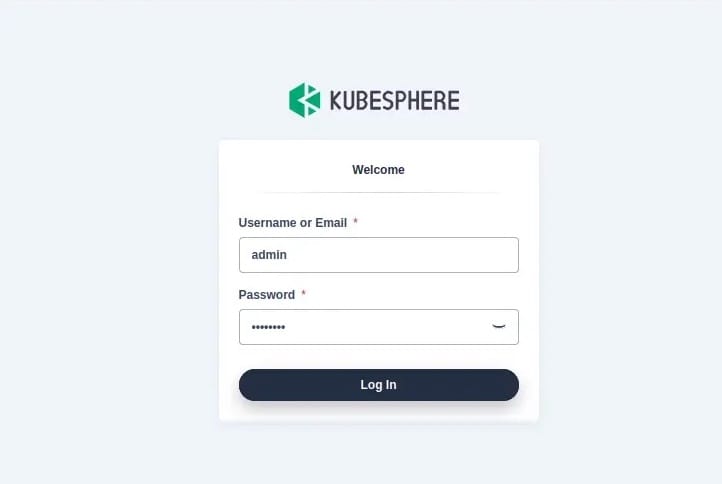
The login screen presents fields for username and password. Enter the default credentials from your installation output. Click the login button to proceed.
KubeSphere enforces security by requiring an immediate password change on first login. Create a strong password meeting the displayed requirements: minimum length, mixed case letters, numbers, and special characters. Strong passwords protect your cluster from unauthorized access.
Console Overview
The dashboard loads after password reset, displaying your cluster’s status at a glance. The main sections include cluster resource usage graphs showing CPU, memory, and network utilization.
Navigation menus on the left provide access to workloads, projects, cluster settings, and platform management features. The clean, modern interface organizes complex Kubernetes operations into logical categories.
Resource monitoring displays real-time metrics for your cluster nodes, deployed applications, and system components. Color-coded status indicators quickly communicate component health: green for healthy, yellow for warnings, and red for critical issues.
Verifying Installation Success
Navigate to Cluster Management from the top menu, then select Nodes. Your single node should appear with a “Ready” status, indicating successful cluster initialization.
Check system components by visiting Platform → System Components. All components should show green status indicators, confirming they’re running correctly. Essential components include ks-apiserver, ks-controller-manager, and ks-console.
Review installed extensions under Platform → Extensions. The base installation includes core components. Additional features like DevOps, Service Mesh, and Logging remain available for installation when needed.
Fresh installations typically consume 2-3GB of memory and maintain modest CPU usage. These baseline metrics help you understand normal resource consumption patterns.
Step 5: Post-Installation Configuration
Proper configuration optimizes your KubeSphere environment for your specific needs.
kubectl Configuration
kubectl is the command-line tool for Kubernetes cluster management. While KubeSphere’s web interface handles most tasks, kubectl provides powerful scripting capabilities and advanced operations.
The kubeconfig file resides at /root/.kube/config after installation. This location works fine for root user access but creates permission issues for regular users.
Configure kubectl for your regular user account:
mkdir -p $HOME/.kube
sudo cp /root/.kube/config $HOME/.kube/config
sudo chown $(id -u):$(id -g) $HOME/.kube/config
These commands create the configuration directory, copy the kubeconfig file, and set proper ownership permissions.
Test kubectl functionality:
kubectl get nodesThis displays your cluster nodes with their status, roles, and uptime. Successful output confirms proper kubectl configuration.
Enable Additional Components (Optional)
KubeSphere’s pluggable architecture allows enabling advanced features on demand. This modular approach keeps resource usage minimal until you need specific capabilities.
Commonly desired extensions include the DevOps system for CI/CD pipelines, Service Mesh for advanced traffic management, Logging for centralized log collection, and enhanced Monitoring for detailed metrics.
Enable components through the web console. Navigate to Cluster Management → CRDs (Custom Resource Definitions). Search for “ClusterConfiguration” and edit the ks-installer configuration. Set desired components from false to true in the YAML configuration.
Consider resource requirements before enabling components. DevOps adds approximately 2GB memory overhead. Service Mesh (Istio) requires an additional 3-4GB. Plan your resource allocation accordingly.
Component installation takes 5-15 minutes per feature. KubeSphere downloads necessary container images and configures the components automatically.
Basic Security Hardening
You already changed the default admin password during first login, addressing the most critical security concern. Additional hardening further protects your cluster.
Create separate user accounts for team members rather than sharing admin credentials. Navigate to Access Control → Accounts to add new users. Assign appropriate roles based on each user’s responsibilities.
Role-based access control (RBAC) limits user actions based on assigned roles. KubeSphere provides predefined roles like cluster-admin, workspace-admin, and cluster-viewer. Custom roles offer fine-grained permission control for specific requirements.
Organize resources using workspaces and projects. Workspaces provide logical isolation for different teams or departments. Projects (Kubernetes namespaces) contain related applications and resources. This hierarchy simplifies access control and resource management.
Network policies control traffic between pods and namespaces. While not essential for single-user learning environments, production deployments benefit from explicit network segmentation policies.
Resource Monitoring Setup
Access monitoring dashboards through the Platform → Monitoring menu. Built-in dashboards display CPU usage trends, memory consumption patterns, network traffic, and storage utilization across your cluster.
Understanding these metrics helps identify performance bottlenecks before they impact applications. CPU spikes indicate high computational load. Memory pressure suggests insufficient RAM allocation. Network saturation points to connectivity issues.
Alert configuration (optional for beginners) notifies administrators when metrics exceed defined thresholds. Configure alerts under Platform → Alerting for production environments requiring proactive monitoring.
Log collection provides centralized access to container logs and system events. Enable the Logging component for comprehensive log management capabilities.
Common Issues and Troubleshooting
Even carefully followed procedures occasionally encounter issues. These solutions address frequent problems.
Installation Failures
Swap not disabled error: Installation fails with swap-related messages. Verify swap status with swapon --show. If output appears, swap remains active. Disable swap permanently by editing /etc/fstab and commenting swap entries. Reboot and retry installation.
Insufficient resources warning: KubeKey warns about inadequate CPU, memory, or disk space. Check system specifications meet minimum requirements of 2 cores, 4GB RAM, and 40GB disk. Virtual machine users should increase allocated resources through their hypervisor settings.
Network timeout during downloads: Container image downloads fail with timeout errors. Verify internet connectivity using ping 8.8.8.8. Unstable connections cause repeated failures. Consider configuring a mirror registry for faster, more reliable downloads in regions with poor connectivity to Docker Hub.
Port conflicts: Installation fails reporting port 6443, 2379, or other ports already in use. Identify processes using conflicting ports with sudo lsof -i :<port-number>. Stop conflicting services or choose a different system for installation.
Console Access Problems
Cannot access web console: Browser fails to load http://<ip>:30880. Check firewall rules allow port 30880 traffic. Verify the port is listening:
sudo netstat -tlnp | grep 30880or
sudo ss -tlnp | grep 30880Output should show the port in LISTEN state. If not, KubeSphere console may not have started correctly. Check pod status:
kubectl get pods -n kubesphere-systemForgot admin password: Reset procedures exist but require kubectl access. Execute password reset commands documented in KubeSphere’s official documentation. Prevention proves easier than cure—store passwords securely using password managers.
Browser compatibility issues: Older browsers may display interface incorrectly. KubeSphere recommends current versions of Chrome, Firefox, Edge, or Safari. Update your browser if experiencing visual glitches or functionality problems.
Cluster Health Issues
Check all pods are running correctly:
kubectl get pods --all-namespacesThis lists every pod across all namespaces with their status. “Running” indicates healthy pods. “Pending” suggests resource allocation issues. “CrashLoopBackOff” means the pod repeatedly fails and restarts.
View specific pod logs when troubleshooting:
kubectl logs <pod-name> -n <namespace>Replace <pod-name> and <namespace> with actual values from the get pods output. Logs reveal application errors, configuration problems, or resource constraints.
Restart problematic components by deleting their pods. Kubernetes automatically recreates them:
kubectl delete pod <pod-name> -n <namespace>Use this cautiously—understand the pod’s purpose before deleting.
Performance Issues
Identify resource bottlenecks through the KubeSphere monitoring interface or kubectl commands:
kubectl top nodes
kubectl top pods --all-namespaces
These commands display current CPU and memory consumption.
Insufficient resources manifest as slow console response, failed pod deployments, or unresponsive applications. Virtual machine users can increase allocated vCPUs and memory. Bare metal installations may require hardware upgrades.
Adjust Kubernetes and KubeSphere resource limits by editing deployment configurations. This advanced operation requires understanding Kubernetes resource management.
All-in-one installations have inherent limitations. Performance problems may indicate it’s time for multi-node deployment with dedicated resources for control plane and worker nodes.
Congratulations! You have successfully installed KubeSphere. Thanks for using this tutorial for installing the KubeSphere open-source container platform on Linux Mint 22 system. For additional help or useful information, we recommend you check the official KubeSphere website.
