Laravel stands as one of the most elegant and powerful PHP frameworks for modern web application development. Its expressive syntax, robust features, and comprehensive ecosystem make it the go-to choice for developers worldwide. If you’re running Fedora 43, you’re already using a cutting-edge Linux distribution known for its stability and innovation. Combining Laravel with Fedora 43 creates an exceptional development environment that leverages enterprise-ready tools with modern PHP capabilities. This comprehensive guide walks you through every step of installing Laravel on Fedora 43, from initial system preparation to security optimization, ensuring you build a production-ready foundation for your web applications.
Prerequisites and System Requirements
Before diving into the installation process, understanding the system requirements ensures smooth deployment and optimal performance.
Hardware Requirements
Your Fedora 43 system should have at least 2GB of RAM for development purposes, though 4GB or more is recommended for production environments. Storage requirements vary based on your project scope, but allocating at least 20GB ensures adequate space for the Laravel framework, dependencies, and application data. A modern dual-core processor handles most Laravel applications efficiently, while multi-core processors significantly improve performance for resource-intensive operations.
Software Requirements
Laravel 11 and 12 require PHP 8.2 or higher to function properly. You’ll also need Composer 2.2 or later for managing PHP dependencies. A database system is essential—MariaDB, MySQL, PostgreSQL, or SQLite all work seamlessly with Laravel. Your web server choice typically falls between Apache and Nginx, with this guide focusing on Nginx for its superior performance characteristics.
Critical PHP extensions include OpenSSL for secure connections, PDO for database abstraction, Mbstring for multibyte string handling, Tokenizer for parsing PHP code, XML for processing XML documents, Ctype for character type checking, JSON for data interchange, BCMath for arbitrary precision mathematics, and Fileinfo for detecting file types. These extensions enable Laravel’s core functionality and must be installed alongside PHP.
User Permissions
Administrative access through sudo privileges is mandatory for installing system packages and configuring services. While development work doesn’t require root access, the initial setup and server configuration demand elevated permissions to modify system files and manage services.
Step 1: Update System Packages
Keeping your Fedora 43 system current prevents compatibility issues and ensures security patches are applied. Open your terminal and execute:
sudo dnf upgrade --refreshThis command refreshes repository metadata and upgrades all installed packages to their latest versions. The process typically takes 5-10 minutes depending on your internet connection and the number of pending updates. Package updates establish a solid foundation, resolving potential dependency conflicts before Laravel installation begins.
If the upgrade includes kernel updates, restart your system to activate the new kernel. System updates also ensure you’re running the latest security patches, protecting your development environment from known vulnerabilities.
Step 2: Install PHP 8.4 and Required Extensions
Fedora 43 provides PHP 8.4 in its default repositories, offering excellent Laravel 12 compatibility.
Installing PHP from Default Repository
Install PHP and its command-line interface with:
sudo dnf install php php-cliThis installs the core PHP interpreter and CLI tools necessary for running Laravel’s Artisan commands.
Installing Required PHP Extensions
Laravel’s functionality depends on numerous PHP extensions. Install them all at once:
sudo dnf install php-common php-fpm php-pdo php-mbstring php-xml php-zip php-curl php-gd php-mysqli php-json php-bcmath php-soap php-tokenizer php-ctype php-fileinfoEach extension serves a specific purpose. PDO provides database connectivity abstraction, Mbstring handles UTF-8 strings correctly, XML processes configuration files, Zip manages compressed archives, Curl facilitates HTTP requests, GD manipulates images, and BCMath handles precise mathematical calculations.
Verifying PHP Installation
Confirm your PHP installation by checking the version:
php -vYou should see output indicating PHP 8.4.x. Additionally, verify installed extensions:
php -mThis command lists all active PHP modules, allowing you to confirm the required extensions are present.
Configuring PHP Settings
Edit the PHP configuration file for optimal Laravel performance:
sudo nano /etc/php.iniLocate and modify these directives:
date.timezone = UTC
cgi.fix_pathinfo = 0
memory_limit = 256M
upload_max_filesize = 64M
post_max_size = 64M
max_execution_time = 300
Setting the timezone prevents date/time inconsistencies. The cgi.fix_pathinfo directive enhances security by preventing PHP from executing files with similar names. Memory limits and upload sizes accommodate larger file handling requirements. Save the file and exit.
Step 3: Install and Configure Composer
Composer serves as PHP’s dependency manager, essential for installing and updating Laravel packages.
Method 1: Using DNF Package Manager
The simplest approach installs Composer through Fedora’s repositories:
sudo dnf install composerThis method automatically handles dependencies and places Composer in your system PATH.
Method 2: Manual Installation
For the latest Composer version, download and install manually:
cd ~
wget https://getcomposer.org/installer -O composer-installer.php
sudo php composer-installer.php --filename=composer --install-dir=/usr/local/bin
Set executable permissions:
sudo chmod +x /usr/local/bin/composerVerify installation:
composer -VYou should see the Composer version displayed. Composer manages Laravel’s extensive package ecosystem, downloading dependencies, handling version constraints, and maintaining your project’s vendor directory. Without Composer, Laravel installation and package management become virtually impossible.
Step 4: Install and Configure Database Server
Laravel supports multiple database systems, with MariaDB being an excellent choice for Fedora 43.
Installing MariaDB
Execute the installation command:
sudo dnf install mariadb-serverStart and enable the MariaDB service:
sudo systemctl start mariadb
sudo systemctl enable mariadb
The enable command ensures MariaDB starts automatically on system boot.
Securing MariaDB Installation
Run the security script:
sudo mysql_secure_installationFollow the prompts to set a strong root password, remove anonymous users, disable remote root login, and delete the test database. These steps harden your database server against unauthorized access.
Creating Laravel Database and User
Access the MySQL prompt:
sudo mysql -u root -pEnter your root password. Create a dedicated database and user for Laravel:
CREATE DATABASE laravel_db;
CREATE USER 'laravel_user'@'localhost' IDENTIFIED BY 'your_secure_password';
GRANT ALL PRIVILEGES ON laravel_db.* TO 'laravel_user'@'localhost';
FLUSH PRIVILEGES;
EXIT;
Replace your_secure_password with a strong, unique password. Using dedicated database credentials follows security best practices, limiting potential damage if credentials become compromised.
Step 5: Install and Configure Web Server (Nginx)
Nginx delivers exceptional performance for PHP applications, making it ideal for Laravel deployments.
Installing Nginx
Install Nginx from Fedora repositories:
sudo dnf install nginxStarting and Enabling Nginx
Activate the web server:
sudo systemctl start nginx
sudo systemctl enable nginx
Installing and Configuring PHP-FPM
PHP-FPM (FastCGI Process Manager) handles PHP script execution efficiently. Start the service:
sudo systemctl start php-fpm
sudo systemctl enable php-fpm
Edit PHP-FPM’s pool configuration:
sudo nano /etc/php-fpm.d/www.confLocate and modify these lines to match Nginx:
listen.owner = nginx
listen.group = nginx
listen.mode = 0660
These settings ensure PHP-FPM and Nginx communicate properly. Restart PHP-FPM to apply changes:
sudo systemctl restart php-fpmConfiguring Firewall
Open HTTP and HTTPS ports through Fedora’s firewall:
sudo firewall-cmd --permanent --add-service=http
sudo firewall-cmd --permanent --add-service=https
sudo firewall-cmd --reload
These commands allow web traffic to reach your server while maintaining security for other ports.
Step 6: Install Laravel Framework
With prerequisites configured, install Laravel itself.
Creating Laravel Project Directory
Navigate to the web server’s document root:
cd /var/www/htmlInstalling Laravel via Composer
Create a new Laravel project using Composer:
sudo composer create-project --prefer-dist laravel/laravel laravelappThis command downloads Laravel and all dependencies, creating a complete project structure. The process takes 5-10 minutes depending on your internet connection speed. Composer fetches packages from Packagist, resolves dependencies, and generates autoload files automatically.
Understanding Laravel Directory Structure
Your new Laravel installation contains several key directories. The app directory houses your application code including models and controllers. The config directory stores configuration files. The database directory contains migrations and seeders. The public directory serves as the web root containing index.php and assets. The resources directory holds views and raw assets. The routes directory defines application routes. The storage directory contains logs, cached files, and uploaded files.
Generating Application Key
Laravel requires a unique application key for encrypting user sessions and other sensitive data:
cd /var/www/html/laravelapp
sudo php artisan key:generate
This command creates a random 32-character string and stores it in your .env file. The application key is crucial for security, so never share it publicly or commit it to version control without encryption.
Step 7: Configure Laravel Environment
Laravel’s .env file controls application settings, database connections, and environment-specific configurations.
Setting Up .env File
If the .env file doesn’t exist, copy the example:
sudo cp .env.example .envEdit the environment file:
sudo nano .envDatabase Configuration
Update database credentials to match your MariaDB setup:
DB_CONNECTION=mysql
DB_HOST=127.0.0.1
DB_PORT=3306
DB_DATABASE=laravel_db
DB_USERNAME=laravel_user
DB_PASSWORD=your_secure_password
Application Configuration
Set application-specific variables:
APP_NAME="My Laravel App"
APP_ENV=local
APP_DEBUG=true
APP_URL=http://yourdomain.com
For production environments, change APP_ENV to production and set APP_DEBUG to false. Debug mode exposes sensitive information about your application structure, making it suitable only for development.
Security Considerations for .env
The .env file contains sensitive credentials and should never be committed to version control repositories. Laravel’s .gitignore file excludes it by default. Set restrictive permissions:
sudo chmod 600 .envThis ensures only the file owner can read or modify the environment configuration.
Step 8: Set Directory Permissions
Proper permissions are critical for Laravel’s operation, particularly for writing logs and caching files.
Setting Ownership
Transfer ownership to the Nginx user:
sudo chown -R nginx:nginx /var/www/html/laravelappNginx requires ownership to serve files and execute PHP scripts properly.
Setting Directory Permissions
Grant write permissions to storage and cache directories:
sudo chmod -R 775 /var/www/html/laravelapp/storage
sudo chmod -R 775 /var/www/html/laravelapp/bootstrap/cache
The storage directory holds logs, framework files, and application cache. The bootstrap cache directory contains optimized framework files. Both require write access for Laravel to function correctly.
Configuring SELinux (Fedora-specific)
Fedora’s SELinux security module requires additional context configuration:
sudo semanage fcontext -a -t httpd_sys_rw_content_t "/var/www/html/laravelapp/storage(/.*)?"
sudo semanage fcontext -a -t httpd_sys_rw_content_t "/var/www/html/laravelapp/bootstrap/cache(/.*)?"
sudo restorecon -Rv /var/www/html/laravelapp
These commands allow the web server to write to necessary directories while maintaining SELinux protection.
Step 9: Configure Nginx Virtual Host
Virtual host configuration directs Nginx to serve your Laravel application correctly.
Creating Virtual Host Configuration
Create a new configuration file:
sudo nano /etc/nginx/conf.d/laravelapp.confVirtual Host Configuration
Add this comprehensive configuration:
server {
    listen 80;
    server_name yourdomain.com www.yourdomain.com;
    root /var/www/html/laravelapp/public;

    add_header X-Frame-Options "SAMEORIGIN";
    add_header X-Content-Type-Options "nosniff";
    add_header X-XSS-Protection "1; mode=block";

    index index.php index.html index.htm;
    charset utf-8;

    location / {
        try_files $uri $uri/ /index.php?$query_string;
    }

    location = /favicon.ico { access_log off; log_not_found off; }
    location = /robots.txt  { access_log off; log_not_found off; }

    error_page 404 /index.php;

    location ~ \.php$ {
        fastcgi_pass unix:/run/php-fpm/www.sock;
        fastcgi_param SCRIPT_FILENAME $realpath_root$fastcgi_script_name;
        include fastcgi_params;
        fastcgi_hide_header X-Powered-By;
    }

    location ~ /\.(?!well-known).* {
        deny all;
    }
}
Replace yourdomain.com with your actual domain or server IP address.
Configuration Explanation
The root directive points to Laravel’s public directory, which contains the application entry point. Security headers protect against clickjacking (X-Frame-Options), MIME type sniffing (X-Content-Type-Options), and cross-site scripting. The try_files directive enables Laravel’s routing system by redirecting all requests through index.php. The PHP location block configures FastCGI communication with PHP-FPM. The final location block prevents access to hidden files, protecting sensitive configuration data.
Editing Main Nginx Configuration
Open the main configuration:
sudo nano /etc/nginx/nginx.confAdd this line in the http block if not present:
server_names_hash_bucket_size 64;This prevents errors when using long server names.
Testing and Applying Configuration
Test configuration syntax:
sudo nginx -tIf successful, restart services:
sudo systemctl restart nginx
sudo systemctl restart php-fpm
Step 10: Test Laravel Installation
Verification ensures your installation works correctly.
Running Laravel Development Server (Alternative Method)
For quick testing, use Laravel’s built-in server:
php artisan serve --host=0.0.0.0 --port=8000This starts a development server accessible on port 8000. While convenient for development, always use Nginx for production deployments.
Accessing Laravel Application
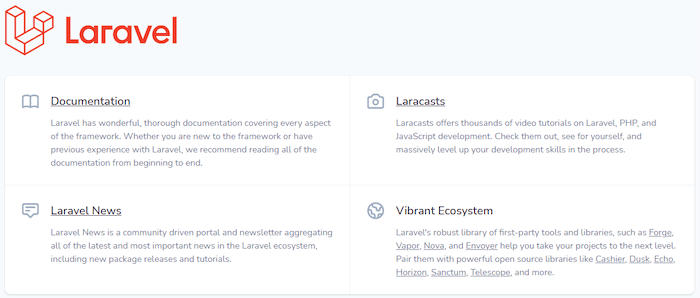
Open your web browser and navigate to your configured domain or server IP address. You should see Laravel’s welcome page featuring its logo and links to documentation. The page confirms successful installation and proper server configuration.
Verifying Installation Success
Test database connectivity by running migrations:
php artisan migrateThis creates Laravel’s default tables and confirms database configuration is correct. Check the Laravel version:
php artisan --versionStep 11: Implement Security Best Practices
Security hardening protects your application from common vulnerabilities.
Laravel Security Features
Laravel includes built-in protection against CSRF (Cross-Site Request Forgery) attacks through token verification. Always include @csrf directives in forms. SQL injection protection comes automatically through Eloquent ORM and query builder parameterization. XSS (Cross-Site Scripting) prevention is handled by Blade templating’s {{ }} syntax, which escapes output automatically.
Force HTTPS in Production
Edit app/Providers/AppServiceProvider.php and add to the boot method:
if (config('app.env') === 'production') {
    \URL::forceScheme('https');
}
This ensures all URLs generate HTTPS links in production environments.
Environment Configuration
Disable debug mode in production by setting APP_DEBUG=false in your .env file. Debug mode exposes stack traces, database queries, and application structure—information attackers could exploit. Keep your .env file secure with chmod 600 permissions and never commit it to repositories.
Input Validation and Sanitization
Always validate user input using Laravel’s validation features. Create form request classes or use inline validation in controllers. Laravel’s validation system prevents malicious data from entering your application.
Regular Updates
Keep Laravel and its dependencies current:
composer updateMonitor Laravel’s security advisories and apply patches promptly. Outdated packages often contain known vulnerabilities that attackers actively exploit.
Additional Security Headers
Enhance your Nginx configuration with additional security headers:
add_header Strict-Transport-Security "max-age=31536000; includeSubDomains" always;
add_header Content-Security-Policy "default-src 'self'; script-src 'self' 'unsafe-inline' 'unsafe-eval'; style-src 'self' 'unsafe-inline';" always;
HSTS (Strict-Transport-Security) forces browsers to use HTTPS connections. Content-Security-Policy headers prevent unauthorized script execution and resource loading.
Troubleshooting Common Issues
Even careful installation occasionally encounters problems. Here’s how to resolve common issues.
Permission Denied Errors
If you see permission errors, verify storage and cache directory permissions are set to 775. Check ownership is assigned to the nginx user. SELinux contexts might also cause permission issues—review the SELinux configuration section and reapply contexts if necessary.
500 Internal Server Error
Check Laravel’s log files located in storage/logs/laravel.log for detailed error messages. Review Nginx error logs at /var/log/nginx/error.log for server-level issues. PHP-FPM logs located at /var/log/php-fpm/www-error.log reveal PHP execution problems. Common causes include missing PHP extensions, incorrect permissions, or misconfigured environment variables.
Database Connection Errors
Verify database credentials in your .env file match your MariaDB configuration. Test database connectivity:
sudo mysql -u laravel_user -p laravel_dbCheck MariaDB is running:
sudo systemctl status mariadbEnsure the database user has proper privileges by reviewing your GRANT statements.
Composer Memory Limit Issues
If Composer runs out of memory during installation, temporarily increase the limit:
COMPOSER_MEMORY_LIMIT=-1 composer create-project --prefer-dist laravel/laravel laravelappThe -1 value removes the memory limit entirely.
PHP Extensions Missing
List installed extensions:
php -mCompare against Laravel’s requirements. Install missing extensions using sudo dnf install php-extension_name.
Nginx Configuration Errors
Test configuration syntax:
sudo nginx -tThis identifies syntax errors and file location issues. Common mistakes include missing semicolons, incorrect file paths, and mismatched brackets.
Optimizing Laravel on Fedora 43
Performance optimization ensures your application runs efficiently.
Caching Configuration
Cache routes for faster resolution:
php artisan route:cacheCache configuration files:
php artisan config:cacheCache compiled views:
php artisan view:cacheThese commands significantly improve application response times by eliminating runtime parsing and compilation.
OpCache Configuration
Enable PHP OpCache for dramatic performance gains. Edit /etc/php.d/10-opcache.ini:
opcache.enable=1
opcache.memory_consumption=256
opcache.interned_strings_buffer=16
opcache.max_accelerated_files=10000
opcache.revalidate_freq=60
OpCache stores precompiled PHP bytecode in memory, eliminating repeated script parsing.
Queue Workers
Set up queue workers for asynchronous job processing. Create a systemd service at /etc/systemd/system/laravel-worker.service:
[Unit]
Description=Laravel Queue Worker
After=network.target

[Service]
User=nginx
Group=nginx
Restart=always
ExecStart=/usr/bin/php /var/www/html/laravelapp/artisan queue:work

[Install]
WantedBy=multi-user.target
Enable and start the service:
sudo systemctl enable laravel-worker
sudo systemctl start laravel-worker
Queue workers handle time-consuming tasks asynchronously, improving user experience.
Database Optimization
Add indexes to frequently queried columns. Use database profiling to identify slow queries. Implement eager loading to prevent N+1 query problems. Consider Redis for session storage and caching to reduce database load.
Congratulations! You have successfully installed Laravel. Thanks for using this tutorial for installing Laravel on Fedora 43 Linux system. For additional help or useful information, we recommend you check the official Laravel website.


