How To Install LibreCAD on Linux Mint 22

If you’ve been searching for a powerful, free alternative to AutoCAD on Linux, LibreCAD deserves your attention. Whether you’re drafting floor plans, designing mechanical components, or sketching precision schematics, LibreCAD delivers a clean, professional workspace without a single licensing fee. And on Linux Mint 22, getting it installed is entirely approachable — once you know which method suits your setup.
This guide walks you through four tested installation methods for LibreCAD on Linux Mint 22: APT from the default repository (recommended for most users), a third-party PPA for a newer stable build, Flatpak via Flathub for the absolute latest release, and compiling directly from source for developers. You’ll also find step-by-step launch instructions, a first-look at the interface, update and removal commands, troubleshooting fixes, and a concise FAQ. Every command has been verified against a Linux Mint 22 Cinnamon environment, which is built on Ubuntu 24.04 (Noble Numbat) — making Ubuntu-based methods fully applicable here.
What Is LibreCAD?
LibreCAD is a free, open-source 2D CAD (Computer-Aided Design) application built for Linux, Windows, and macOS. It is purpose-built for creating precise technical drawings — not artistic illustration, not 3D parametric modeling, but accurate, dimension-driven 2D drafting.
The software reads and writes DXF files natively, keeping your work compatible with AutoCAD and other industry-standard workflows. It handles everything from architectural layouts and engineering schematics to PCB outlines and woodworking plans. Unlike FreeCAD, which focuses on 3D design, LibreCAD stays dedicated to 2D — and that focus is exactly what makes it faster and more intuitive for technical drawing tasks.
The project is actively maintained on GitHub with a global open-source community continuously improving it.
Why Use LibreCAD on Linux Mint 22?
Linux Mint 22 is one of the most user-friendly Linux distributions available, and LibreCAD slots naturally into its APT-based ecosystem. Here’s what makes it a strong choice for this platform:
- Completely free — no subscriptions, no licensing tiers, no hidden costs
- Lightweight — runs on as little as a Pentium 4 CPU and 1 GB of RAM, making it accessible on older hardware
- DXF-native compatibility — share technical drawings directly with colleagues using AutoCAD or other professional CAD tools
- Flexible installation — APT, Flatpak, PPA, and source builds all work cleanly on Linux Mint 22
- Active development — regular updates through GitHub and community-maintained documentation at docs.librecad.org
For students, freelance designers, engineers, and professionals transitioning from Windows CAD environments, LibreCAD on Linux Mint is a genuinely capable and cost-effective solution.
Prerequisites Before Installing LibreCAD
Minimum System Requirements
Before proceeding, confirm your system meets these baselines:
- OS: Linux Mint 22 (Ubuntu 24.04 base)
- CPU: Pentium 4 / AMD Athlon 64 or better
- RAM: 1 GB minimum; 2–4 GB recommended for complex drawings
- Disk space: Approximately 150 MB for LibreCAD and its dependencies
- Display: Any GPU with basic OpenGL support
Pre-Installation Checklist
Make sure these are in place before you begin:
- An active internet connection
- A user account with
sudoprivileges - Terminal access — press
Ctrl + Alt + Tin Linux Mint Cinnamon
Update your system first. This prevents dependency conflicts and ensures your package metadata is current:
sudo apt update && sudo apt upgradeWait for the process to complete, then move on to your preferred installation method.
Method 1: Install LibreCAD via APT (Recommended)
The APT method installs LibreCAD directly from Ubuntu’s universe repository. It’s the simplest approach, requires no extra configuration, and keeps LibreCAD updated automatically whenever you run a full system upgrade. This is the recommended starting point for most Linux Mint 22 users.
Step 1 — Refresh the Package Index
sudo apt updateAlways refresh before installing. It syncs your local index with the upstream repositories and avoids “candidate not found” errors.
Step 2 — Install LibreCAD
sudo apt install librecadAPT resolves and installs all required dependencies automatically. Press Y and hit Enter when prompted to confirm.
Step 3 — Verify the Installation
apt-cache policy librecadOn Linux Mint 22, the output should look like this:
librecad:
  Installed: 2.2.0.2-1build3
  Candidate: 2.2.0.2-1build3
  Version table:
 *** 2.2.0.2-1build3 500
        500 http://archive.ubuntu.com/ubuntu noble/universe amd64 Packages
That confirms LibreCAD 2.2.0.2 is installed and active.
Pro Tip: If you see “Unable to locate package librecad”, run sudo apt install software-properties-common and then enable the universe repository with sudo add-apt-repository universe, followed by sudo apt update.
Method 2: Install LibreCAD via PPA (Newer Stable Build)
If you need a more recent build than what Ubuntu’s repository ships, a third-party PPA maintained by Alexander Pozdnyakov provides an updated stable version. Keep in mind that this PPA currently provides packages for Ubuntu 22.04 (Jammy) only — on Linux Mint 22 (Ubuntu 24.04 base), use the APT method above or the Flatpak method below for a newer release.
The PPA has two channels: stable and daily (development). Don’t add both. If both PPAs are present simultaneously, APT selects whichever version number is higher — which will be the unstable daily build.
Step 1 — Add the LibreCAD Stable PPA
sudo add-apt-repository ppa:alex-p/librecad -yTo track the development build instead (only for testing environments):
sudo add-apt-repository ppa:alex-p/librecad-daily -yStep 2 — Update and Install
sudo apt update
sudo apt install librecad
Step 3 — Verify the PPA Version
apt-cache policy librecadLook for ppa.launchpadcontent.net/alex-p/librecad in the output. If it appears as the installed version’s source, the PPA build is live and active.
Method 3: Install LibreCAD via Flatpak (Latest Release)
Flatpak is the best choice when you want the most current LibreCAD release on any version of Linux Mint 22. It installs LibreCAD from Flathub in a sandboxed environment, isolated from system libraries, so it coexists cleanly with any existing APT installation.
Skip Snap. An official LibreCAD Snap package does exist, but as of early 2026, the stable channel had not received updates since January 2025. Flatpak from Flathub is more actively maintained and delivers a significantly newer release.
Step 1 — Install Flatpak
If Flatpak isn’t already on your system:
sudo apt install flatpakAfter installing, log out and log back in to ensure your session environment is refreshed.
Step 2 — Add the Flathub Repository
sudo flatpak remote-add --if-not-exists flathub https://flathub.org/repo/flathub.flatpakrepoStep 3 — Install LibreCAD from Flathub
flatpak install flathub org.librecad.librecad -yStep 4 — Confirm the Installed Version
flatpak info org.librecad.librecadExpected output:
ID:         org.librecad.librecad
Version:    2.2.1.3
Branch:     stable
Origin:     flathub
That is LibreCAD 2.2.1.3 — the latest stable release as of early 2026.
Method 4: Compile LibreCAD from Source (Advanced)
This method is designed for developers and advanced users who want to build LibreCAD directly from the GitHub repository. The result mirrors the same latest release available on Flathub, but installs into /usr/local without any sandbox layer.
Step 1 — Install Build Dependencies
sudo apt install build-essential cmake curl git pkg-config \
  qtbase5-dev libqt5svg5-dev qttools5-dev qttools5-dev-tools \
  libboost-dev libfreetype-dev
Step 2 — Clone the Repository and Configure
LIBRECAD_VER=$(curl -s https://api.github.com/repos/LibreCAD/LibreCAD/tags \
  | grep -oP '"name": "\K[^"]+' | grep -v alpha | grep -v beta | grep -v rc | head -1)
git clone --depth 1 --branch "$LIBRECAD_VER" \
  https://github.com/LibreCAD/LibreCAD.git "$HOME/librecad-src"
mkdir "$HOME/librecad-src/build"
cd "$HOME/librecad-src/build"
cmake .. -DCMAKE_INSTALL_PREFIX=/usr/local -DCMAKE_BUILD_TYPE=Release
CMake confirms success with: -- Build files have been written to: /home/user/librecad-src/build
Step 3 — Build and Install
make -j$(nproc)
sudo cmake --install .
The -j$(nproc) flag uses all available CPU cores, significantly speeding up compilation. On success:
-- Installing: /usr/local/bin/librecad
-- Installing: /usr/local/bin/ttf2lff
Step 4 — Save the Version and Create an Update Script
Record the installed version for future reference:
echo "$LIBRECAD_VER" | sudo tee /usr/local/share/librecad-versionCreate a self-contained update script so you can upgrade the source build in the future with a single command:
sudo bash /usr/local/bin/update-librecad.shThe script checks the latest GitHub release tag against your currently installed version and only rebuilds when a newer release exists.
How to Launch LibreCAD on Linux Mint 22
Launch via Terminal
For APT, PPA, or source installations:
librecadFor the Flatpak installation:
flatpak run org.librecad.librecadLaunch via the Application Menu
- Click the Start Menu in the Linux Mint Cinnamon taskbar
- Type
LibreCADin the search bar - Click the LibreCAD icon to open the application
On first launch, a quick-start wizard prompts you to choose your preferred unit system (millimeters, inches, etc.) and default drawing template. Spend a minute here — these settings shape every new drawing you create.
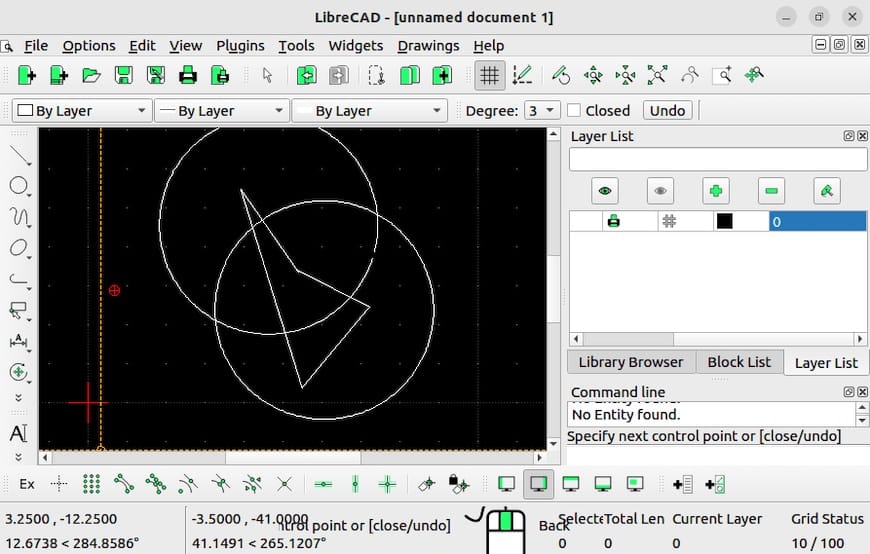
First Look: The LibreCAD Interface
The LibreCAD workspace is cleanly divided. The drawing canvas occupies the center. A toolbar strip runs along the top and sides with drawing and editing tools. A tool options bar below the main toolbar shows context-sensitive parameters for whatever tool is currently active. At the bottom sits the command line panel — your most precise input method for coordinates, angles, and distances.
A few key navigation tips to get you started quickly:
- Zoom and pan: Scroll the mouse wheel to zoom; hold the middle mouse button and drag to pan
- Command line input: Type relative coordinates (e.g.,
@10,0) and angles directly for precision work without relying on the mouse - Snap settings: Use the Snap toolbar or the
Snapmenu to enable snapping to endpoints, midpoints, and intersections - Layer management: Organize drawing elements on separate layers via
Layer > Add Layer; layers can be toggled visible or locked independently - Export formats: Export finished drawings to DXF, SVG, or PDF via
File > Export
The official LibreCAD User Manual at docs.librecad.org covers drawing setup, editing tools, and advanced command-line workflows in depth.
How to Update LibreCAD on Linux Mint 22
Keeping LibreCAD updated ensures you have the latest DXF compatibility improvements, bug fixes, and performance enhancements.
APT or PPA installation:
sudo apt install --only-upgrade librecadFlatpak installation:
flatpak update org.librecad.librecadSource build:
sudo bash /usr/local/bin/update-librecad.shThe APT version also updates automatically when you run sudo apt upgrade during a regular system update.
How to Uninstall LibreCAD from Linux Mint 22
APT — remove the package while keeping config files:
sudo apt remove librecadAPT — full purge (removes package and all configuration data):
sudo apt remove --purge librecad
sudo apt autoremove
Remove an added PPA:
sudo add-apt-repository --remove ppa:alex-p/librecad -yFlatpak — remove with all app data:
flatpak uninstall --delete-data org.librecad.librecadSource build — remove installed binaries and build files:
sudo rm -f /usr/local/bin/librecad /usr/local/bin/ttf2lff \
  /usr/local/bin/update-librecad.sh /usr/local/share/librecad-version
rm -rf "$HOME/librecad-src"
Troubleshooting LibreCAD Installation on Linux Mint 22
| Problem | Solution |
|---|---|
Unable to locate package librecad |
Run sudo apt update; enable the universe repo with sudo add-apt-repository universe |
| LibreCAD crashes immediately on launch | Try the Flatpak version — its sandboxed dependencies prevent library conflicts |
| Old version installed even after adding PPA | Always run sudo apt update after adding the PPA, then reinstall |
flatpak: command not found after install |
Log out and back in to refresh the terminal session environment |
add-apt-repository: command not found |
Run sudo apt install software-properties-common first |
| DXF files not opening or displaying incorrectly | DWG support is limited to pre-2000 files — convert to DXF format before importing |
Congratulations! You have successfully installed LibreCAD. Thanks for using this tutorial for installing LibreCAD on Linux Mint 22 system. For additional help or useful information, we recommend you check the official LibreCAD website.
