How To Install LibreOffice on Fedora 43

LibreOffice stands as the world’s leading free and open-source office suite, offering powerful tools for document creation, spreadsheet management, presentations, and more. For Fedora 43 users, installing this robust productivity software provides an excellent alternative to proprietary office suites without compromising on features or compatibility. This comprehensive guide walks you through three distinct installation methods, each suited to different user needs and technical preferences. Whether you prefer the simplicity of package managers, the security of containerized applications, or the control of manual installation, you’ll find step-by-step instructions tailored to your requirements. By the end of this tutorial, you’ll have a fully functional LibreOffice installation on your Fedora 43 system, ready to handle all your office productivity tasks.
Prerequisites and System Requirements
Before beginning the installation process, verify that your system meets the necessary requirements for running LibreOffice smoothly.
System Requirements for LibreOffice
LibreOffice operates efficiently on modest hardware configurations. Your Fedora 43 system needs a minimum of 256MB RAM, though 512MB is recommended for optimal performance. The software requires up to 1.55 GB of available hard disk space, depending on which components you choose to install. Your display should support at least 1280×800 resolution with 256 colors. LibreOffice is compatible with major desktop environments including GNOME 3.18 and later, KDE, and other popular Linux desktop interfaces. The Linux kernel version should be 4.18 or higher, which Fedora 43 satisfies by shipping with kernel 6.17.
Fedora 43 Requirements
Ensure your Fedora 43 installation is up to date and functioning properly. You’ll need sudo or root access to install system packages. An active internet connection is required for downloading LibreOffice packages and dependencies. Familiarize yourself with Fedora’s package management systems: DNF (the default package manager), Flatpak (for containerized applications), and RPM (for manual package installation). Understanding these tools helps you make informed decisions about which installation method best suits your workflow.
Method 1: Installing LibreOffice via DNF (Default Repository)
The DNF method represents the most straightforward approach for most Fedora users.
Understanding the DNF Method
DNF (Dandified Yum) serves as Fedora’s primary package management tool, providing seamless integration with the operating system. Using the official Fedora repository ensures you receive well-tested, stable packages that integrate perfectly with your system. This method automatically handles all dependencies, making it ideal for users who prioritize simplicity and reliability. Updates arrive through your regular system update process, eliminating the need for separate maintenance.
Step 1: Update Your System
Open your terminal application and begin by refreshing your system packages. Execute the following command:
sudo dnf upgrade --refreshThis command updates all installed packages to their latest versions while refreshing repository metadata. The refresh flag ensures you’re working with the most current package information. Depending on how recently you updated your system, this process might take several minutes. Keeping your system updated before installing new software prevents potential conflicts and ensures optimal security.
Step 2: Install LibreOffice
With your system updated, proceed to install LibreOffice using this simple command:
sudo dnf install libreofficeDNF automatically resolves dependencies and downloads all necessary components. The installation typically includes the core LibreOffice suite along with commonly used applications like Writer, Calc, Impress, and Draw. When prompted, type ‘y’ to confirm the installation. The download and installation process usually completes within 5-10 minutes, depending on your internet connection speed.
To view all available LibreOffice packages before installation, use:
dnf list libreoffice\*This command displays optional components such as language packs, extensions, and additional dictionaries.
Step 3: Verify Installation
After installation completes, verify that LibreOffice installed correctly:
dnf list installed | grep libreofficeThis command displays all installed LibreOffice packages. You should see approximately 20 or more packages listed, each marked with @fedora or @updates to indicate their source. The package list confirms successful installation and helps troubleshoot if any components are missing.
Step 4: Launch LibreOffice
You can launch LibreOffice through two methods. For graphical interface users, click the Activities button in the top-left corner and search for “LibreOffice”. The application appears in your search results, ready to launch.
Command-line users can start LibreOffice by typing:
libreofficeThe first launch may take slightly longer as LibreOffice initializes its configuration files. You’ll be greeted by the LibreOffice Start Center, from which you can create new documents or open existing files.
Method 2: Installing LibreOffice via Flatpak
Flatpak offers a modern, containerized approach to application distribution.
Understanding Flatpak
Flatpak packages applications with all their dependencies in an isolated environment, providing enhanced security through sandboxing. Red Hat, Fedora’s parent organization, recommends Flatpak as the preferred distribution method for LibreOffice, signaling a strategic shift in application packaging. While Flatpak packages consume more disk space than traditional RPMs, they offer better isolation from system libraries and reduced conflicts. This makes Flatpak particularly attractive for users who prioritize security and application independence.
Step 1: Enable Flathub Repository
Fedora includes Flatpak support by default, but you need to add the Flathub repository to access LibreOffice. Execute this command:
sudo flatpak remote-add --if-not-exists flathub https://flathub.org/repo/flathub.flatpakrepoThe --if-not-exists flag prevents errors if Flathub is already configured. Flathub serves as the primary repository for Flatpak applications, hosting thousands of verified packages. Verify the addition by listing configured remotes:
flatpak remotesYou should see Flathub listed among available repositories.
Step 2: Install LibreOffice via Flatpak
Now install LibreOffice from Flathub:
flatpak install flathub org.libreoffice.LibreOfficeFlatpak displays information about the package size and required permissions. The download is larger than the RPM version because it includes bundled dependencies. Confirm the installation when prompted. The process takes 10-15 minutes depending on your connection speed. Unlike the DNF method, Flatpak installations are user-specific unless you add the --system flag.
Step 3: Launch Flatpak LibreOffice
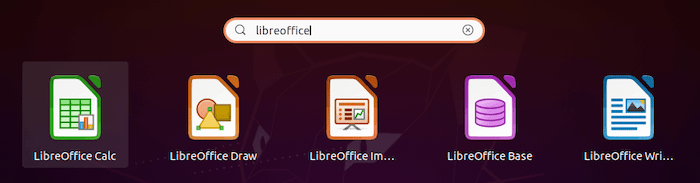
Access your Flatpak LibreOffice installation through the Activities menu by searching for “LibreOffice”. The system automatically distinguishes between different installation sources.
From the terminal, launch Flatpak LibreOffice using:
flatpak run org.libreoffice.LibreOfficeThe Flatpak version behaves identically to the native installation from a user perspective, though it runs in a sandboxed environment. File access may require granting additional permissions through Flatpak’s portal system.
Step 4: Snap Alternative (Optional)
Snap represents another universal package format worth mentioning. Install the Snap daemon if not already present, then install LibreOffice from the Snap Store. Snap offers similar benefits to Flatpak but uses different technology. Most users should choose either Flatpak or Snap based on their distribution’s default support—Fedora favors Flatpak.
Method 3: Manual Installation via Direct Download
Manual installation provides maximum control and access to the latest releases.
When to Use Manual Installation
Choose manual installation when you need cutting-edge features not yet available in Fedora repositories. Development versions, beta releases, and specific older versions require manual installation. This method also suits users who prefer managing updates independently or need custom build configurations. Advanced users appreciate the transparency and control manual installation provides.
Step 1: Download LibreOffice RPM Package
Visit the official LibreOffice website at libreoffice.org and navigate to the download section. Select “Linux x86-64 (rpm)” as your package type. Download the main installation package, which arrives as a compressed tar.gz archive. For command-line enthusiasts, use wget to download directly:
wget https://download.documentfoundation.org/libreoffice/stable/[version]/rpm/x86_64/LibreOffice_[version]_Linux_x86-64_rpm.tar.gzReplace [version] with the desired release number. Verify the download’s integrity by checking the provided checksums on the download page.
Step 2: Extract the Archive
Navigate to your download directory and extract the archive:
tar xvf LibreOffice_*_Linux_x86-64_rpm.tar.gzThe extraction creates a directory containing all installation files. Inside, you’ll find a RPMS subdirectory housing the individual package files. This structure organizes components logically, making selective installation possible.
Step 3: Remove Existing LibreOffice (If Applicable)
If you previously installed LibreOffice through DNF or another method, remove it to prevent conflicts:
sudo dnf remove libreoffice*This command removes all LibreOffice packages installed via DNF. Verify complete removal by checking:
dnf list installed | grep libreofficeThe output should be empty, confirming no DNF-installed LibreOffice packages remain. This step is crucial because mixing installation methods can cause application malfunctions.
Step 4: Install Downloaded RPMs
Change to the RPMS directory within the extracted folder:
cd LibreOffice_*/RPMS/Install all RPM packages at once:
sudo dnf install *.rpmUsing DNF to install local RPM files automatically resolves dependencies from configured repositories. Alternatively, use the rpm command directly:
sudo rpm -i *.rpmHowever, the DNF method is preferred because it handles dependencies more gracefully. The installation process completes within a few minutes.
Post-Installation Configuration
Optimize your LibreOffice installation with these configuration steps.
Setting Up Language Packs
LibreOffice installs with English as the default interface language. To use a different language, download the appropriate language pack from the LibreOffice website. Language packs follow the same naming convention as the main package but include a language code. Extract and install language packs using the same procedure as the main installation.
After installing language packs, configure LibreOffice by navigating to Tools > Options > Language Settings > Languages. Select your preferred User Interface language, Locale setting, and default currency. Changes take effect after restarting LibreOffice. Multiple language packs can coexist, allowing you to switch interfaces as needed.
Installing Help Pack (Offline Documentation)
The help pack provides comprehensive offline documentation. Download it from the same location as your main installation package. Extract and install using identical commands. With the help pack installed, press F1 within any LibreOffice application to access context-sensitive documentation. Offline help proves invaluable when working without internet connectivity.
Desktop Integration
LibreOffice automatically creates menu entries and file associations during installation. Verify that LibreOffice applications appear in your application menu. To set LibreOffice as your default office suite, right-click an office document, select “Properties,” navigate to the “Open With” tab, and choose the corresponding LibreOffice application. Set it as default to automatically open files with LibreOffice.
Troubleshooting Common Issues
Even straightforward installations occasionally encounter problems.
LibreOffice Won’t Launch
If LibreOffice fails to start, try alternative launch commands. Some systems use soffice instead of libreoffice:
sofficeCheck for broken symbolic links:
ls -ld $(which soffice)This command displays the link structure. If links are broken, reinstalling LibreOffice typically resolves the issue. Version-specific commands like libreoffice7.6 might work when the generic command fails.
Performance Issues
Users occasionally report sluggish performance, particularly with large documents. Adjust memory allocation by navigating to Tools > Options > LibreOffice > Memory. Increase the cache for graphics and the number of undo steps if you have sufficient RAM. Disable graphics acceleration if you experience rendering problems: Tools > Options > LibreOffice > View, then uncheck “Use OpenGL for all rendering”. Different installation methods may exhibit varying performance characteristics—experiment to find what works best.
Package Conflicts
Multiple LibreOffice installations from different sources can conflict. List all installed versions:
dnf list installed | grep libreoffice
flatpak list | grep libreoffice
The @commandline, @fedora, and @updates tags indicate package sources. Remove unwanted versions before reinstalling. Choose a single installation method and stick with it for consistency.
Missing Components
If specific LibreOffice applications or features are absent, list available components:
dnf list libreoffice\*Install missing packages individually:
sudo dnf install libreoffice-writer libreoffice-calc libreoffice-impressThis granular approach lets you install only needed components, conserving disk space.
Updating and Managing LibreOffice
Regular updates ensure security and access to new features.
Updating DNF-Installed LibreOffice
System-wide updates include LibreOffice:
sudo dnf upgradeThis command updates all outdated packages, including LibreOffice. For LibreOffice-specific updates:
sudo dnf upgrade libreoffice\*GNOME Software provides a graphical update interface for users who prefer avoiding the terminal. Enable automatic updates in GNOME Software settings for effortless maintenance.
Updating Flatpak LibreOffice
Update Flatpak LibreOffice separately from system packages:
flatpak update org.libreoffice.LibreOfficeOr update all Flatpak applications simultaneously:
flatpak updateFlatpak checks for updates independently of system package managers. Consider scheduling regular Flatpak update checks.
Uninstalling LibreOffice
Remove DNF-installed LibreOffice with:
sudo dnf remove libreoffice*The asterisk ensures removal of all related packages. For Flatpak installations:
flatpak uninstall org.libreoffice.LibreOfficeAdd the --delete-data flag to remove user configuration files:
flatpak uninstall --delete-data org.libreoffice.LibreOfficeManually installed LibreOffice may require running an uninstall script located in the installation directory.
Congratulations! You have successfully installed LibreOffice. Thanks for using this tutorial for installing LibreOffice on your Fedora 43 Linux system. For additional Apache or useful information, we recommend you check the official LibreOffice website.
