How To Install LibreWolf Browser on Linux Mint 22

Privacy matters more than ever in today’s digital landscape. LibreWolf stands out as a powerful, privacy-focused alternative to mainstream browsers, offering users complete control over their online footprint without sacrificing performance or usability. This Firefox-based browser removes all telemetry, blocks trackers by default, and implements advanced fingerprinting protection—all while maintaining compatibility with your favorite Firefox extensions. Whether you’re a privacy advocate, security professional, or simply someone who values online anonymity, installing LibreWolf on Linux Mint 22 is a straightforward process that can dramatically improve your browsing privacy.
This comprehensive guide walks you through three different installation methods, from the recommended APT repository approach to portable AppImage options, ensuring you can choose the method that best suits your needs and technical comfort level.
What is LibreWolf Browser?
LibreWolf represents a community-driven fork of Mozilla Firefox, built from the ground up with privacy and security as core principles rather than afterthoughts. Unlike commercial browsers that collect user data for monetization, LibreWolf operates independently with zero telemetry and no connections to corporate servers by default.
The browser comes pre-configured with aggressive privacy settings that would take hours to manually configure in standard Firefox. These include uBlock Origin for comprehensive ad and tracker blocking, enhanced tracking protection in strict mode, and total cookie protection that isolates cookies to prevent cross-site tracking. LibreWolf also enables fingerprinting resistance across multiple vectors including canvas, font enumeration, and WebGL, making it significantly harder for websites to create unique identifiers for your browser.
Key differences from Firefox include the complete removal of Pocket integration, disabled Firefox Sync (to prevent data leakage to Mozilla servers), DuckDuckGo as the default search engine, and WebRTC disabled by default to prevent IP address leaks. The interface feels cleaner without promotional content or sponsored shortcuts.
System Requirements and Prerequisites
Before beginning the installation process, verify that your system meets these requirements:
- Linux Mint 22 (Wilma or Xia edition)
- Minimum 2GB RAM (4GB recommended for optimal performance)
- At least 500MB free disk space
- Active internet connection
- Terminal access with sudo privileges
Linux Mint 22 works seamlessly with LibreWolf across all desktop environments—Cinnamon, MATE, and Xfce. The installation process remains identical regardless of which edition you’re running.
Pre-Installation Preparation
Proper preparation ensures a smooth installation experience. Start by opening your terminal using the keyboard shortcut Ctrl+Alt+T or by navigating through the application menu to the Terminal application.
Update System Packages
Always update your system packages before installing new software to avoid compatibility issues and ensure you have the latest security patches:
sudo apt update && sudo apt upgrade -yThis command refreshes the package database and upgrades all installed packages. The -y flag automatically confirms the upgrade without prompting. Depending on how recently you updated, this process may take anywhere from a few seconds to several minutes.
Method 1: Install LibreWolf via Official APT Repository (Recommended)
The APT repository method provides the most seamless Linux experience with automatic updates, native system integration, and optimal performance. This approach allows the Software Updater to manage LibreWolf updates alongside your other system packages.
Step 1: Install Required Packages
First, ensure you have the necessary tools to securely add the LibreWolf repository:
sudo apt install wget gpg -yThe wget utility downloads files from the web, while gpg handles cryptographic key management for repository authentication.
Step 2: Download and Install the GPG Key
Repository GPG keys verify that packages come from legitimate sources, protecting against malicious software injection. Add LibreWolf’s official signing key:
wget -qO- https://deb.librewolf.net/keyring.gpg | sudo gpg --dearmor -o /etc/apt/keyrings/librewolf.gpgBreaking down this command: wget -qO- downloads the key quietly and outputs to stdout, the pipe | passes that output to gpg --dearmor which converts it to the proper format, and finally it’s saved to /etc/apt/keyrings/librewolf.gpg.
Step 3: Add LibreWolf Repository to Sources
Create the repository source file with the correct configuration:
echo "deb [signed-by=/etc/apt/keyrings/librewolf.gpg] https://deb.librewolf.net $(lsb_release -sc) main" | sudo tee /etc/apt/sources.list.d/librewolf.listThis command constructs the repository entry using your specific Linux Mint codename (detected automatically by lsb_release -sc) and writes it to a dedicated list file. The signed-by directive tells APT to verify packages using the GPG key you just installed.
Step 4: Update Package Index
Refresh the package database to include the newly added LibreWolf repository:
sudo apt updateYou should see the LibreWolf repository being accessed during this update. If you encounter errors here, double-check the previous steps.
Step 5: Install LibreWolf
Now install LibreWolf with a single command:
sudo apt install librewolf -yThe package manager downloads LibreWolf and handles all dependencies automatically. The download size typically ranges from 60-80MB depending on the version. Installation usually completes within 2-3 minutes on a standard broadband connection.
Step 6: Verify Installation
Confirm that LibreWolf installed correctly by checking its version:
librewolf --versionYou should see output displaying the LibreWolf version number, confirming successful installation.
Method 2: Install LibreWolf via Flatpak
Flatpak offers containerized applications that run in isolated sandboxes, providing an additional security layer. This method works across different Linux distributions without modification, making it ideal if you frequently distro-hop or prefer application isolation.
Enable Flathub Repository
Linux Mint 22 typically includes Flatpak support by default. Verify Flathub is configured:
flatpak remote-add --if-not-exists flathub https://flathub.org/repo/flathub.flatpakrepoThe --if-not-exists flag prevents errors if Flathub is already configured.
Install LibreWolf from Flathub
Execute the installation command:
flatpak install flathub io.gitlab.librewolf-community -yFlatpak downloads the LibreWolf application along with any required runtime dependencies. The initial download may be larger (100-150MB) because Flatpak includes all necessary libraries within the package, ensuring consistency across systems.
Launch Flatpak Version
Run LibreWolf using:
flatpak run io.gitlab.librewolf-communityAlternatively, LibreWolf appears in your application menu after installation with proper desktop integration.
Verify Flatpak Installation
List installed Flatpak applications to confirm:
flatpak list | grep -i librewolfThis displays LibreWolf in your installed applications list with its full application ID.
Method 3: Install LibreWolf via AppImage (Portable Option)
AppImages provide truly portable applications requiring zero installation. Download once, make executable, and run anywhere. This method suits testing scenarios or users who prefer not modifying system packages.
Download LibreWolf AppImage
Visit the official LibreWolf website and download the latest AppImage, or use wget:
cd ~/Downloads
wget https://gitlab.com/api/v4/projects/24386000/packages/generic/librewolf/latest/LibreWolf.x86_64.AppImage
Replace the URL with the current download link from librewolf.net if necessary.
Make AppImage Executable
Linux requires explicit permission to execute downloaded files. Grant execution permission:
chmod +x LibreWolf*.AppImageAlternatively, right-click the AppImage file, select Properties, navigate to the Permissions tab, and check “Allow executing file as program”.
Install Required Dependencies
Linux Mint 22, based on Ubuntu 22.04, requires libfuse2 for AppImage compatibility:
sudo apt install libfuse2 -yWithout this library, AppImages fail to launch with cryptographic error messages.
Run the AppImage
Double-click the AppImage file or execute from terminal:
./LibreWolf*.AppImageLibreWolf launches immediately without installation. Consider moving the AppImage to a dedicated folder like ~/Applications for better organization.
Post-Installation Setup and Configuration
After successfully installing LibreWolf through your chosen method, take a few moments to configure it for optimal use.
Launching LibreWolf
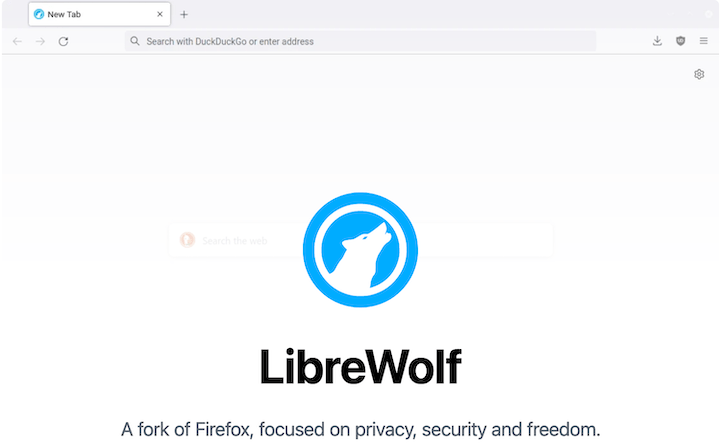
Find LibreWolf in your application menu under Internet or Browsers. For keyboard enthusiasts, launch from terminal by simply typing librewolf and pressing Enter.
Initial Configuration
On first launch, LibreWolf presents a welcome screen. You can import bookmarks, passwords, and history from existing browsers including Firefox, Chrome, or Edge. The import wizard makes migration seamless.
Consider setting LibreWolf as your default browser if you plan to use it as your primary web browser. Navigate to Settings → General → Default Browser and click “Make Default.”
Exploring Privacy Settings
LibreWolf’s privacy features activate immediately, but understanding them enhances your browsing experience. Access LibreWolf-specific settings by typing about:preferences#librewolf in the address bar. Here you control canvas fingerprinting resistance, WebRTC behavior, and tracking protection strictness.
The Enhanced Tracking Protection section shows what LibreWolf blocks on each website. Click the shield icon in the address bar to view blocked trackers and adjust site-specific settings.
Installing Extensions
LibreWolf supports all Firefox extensions from Mozilla Add-ons. Navigate to about:addons or visit addons.mozilla.org to browse available extensions. Popular privacy-focused additions include Privacy Badger, Decentraleyes, and ClearURLs. Remember that uBlock Origin comes pre-installed.
Updating LibreWolf
Keeping your browser updated ensures you receive the latest security patches and privacy enhancements.
APT Repository Updates
The system package manager handles updates automatically. Software Updater includes LibreWolf in regular system updates. Manually check for updates:
sudo apt update && sudo apt upgradeLibreWolf receives frequent updates aligned with Firefox’s rapid release schedule.
Flatpak Updates
Update all Flatpak applications including LibreWolf:
flatpak updateOr specifically update LibreWolf:
flatpak update io.gitlab.librewolf-communityAppImage Updates
AppImages require manual updates. Download the new version, replace the old AppImage file, and update any desktop shortcuts you created.
Troubleshooting Common Issues
Even straightforward installations occasionally encounter hiccups. Here are solutions to common problems.
Repository Key Authentication Errors
If you receive GPG key errors during installation or updates, reinstall the signing key:
sudo rm /etc/apt/keyrings/librewolf.gpg
wget -qO- https://deb.librewolf.net/keyring.gpg | sudo gpg --dearmor -o /etc/apt/keyrings/librewolf.gpg
sudo apt update
Package Not Found Errors
When APT cannot locate the LibreWolf package, verify the repository configuration:
apt-cache policy librewolfThis displays available versions and configured repositories. If empty, revisit Step 3 of the APT installation method.
LibreWolf Won’t Launch
Launch issues often stem from corrupted profiles. Start the profile manager:
librewolf -PCreate a fresh profile and test if LibreWolf launches successfully. Profile corruption can occur during updates or system crashes.
Graphics driver conflicts, particularly with NVIDIA proprietary drivers, sometimes prevent browser launches. Try launching from terminal to view error messages that pinpoint the issue.
Website Compatibility Problems
LibreWolf’s aggressive privacy settings occasionally break website functionality. Canvas fingerprinting blocks appear frequently. When websites request canvas access, LibreWolf prompts for permission. Grant access temporarily or permanently depending on your trust level.
If a critical website fails, click the shield icon and select “Turn off Enhanced Tracking Protection for This Site.” This should remain a last resort for truly essential sites.
Repository Connection Timeouts
Network issues preventing repository access require basic troubleshooting. Test connectivity:
ping repo.librewolf.netIf the server responds, check firewall settings. Persistent issues may require temporarily switching to an alternative installation method like Flatpak.
AppImage Execution Failures
Ensure libfuse2 is installed:
sudo apt install libfuse2Verify file permissions allow execution:
ls -l LibreWolf*.AppImageThe output should show -rwxr-xr-x with the x indicating executable permission.
Uninstalling LibreWolf
Should you need to remove LibreWolf, the process varies by installation method.
Remove APT Installation
Uninstall the package:
sudo apt remove librewolfFor complete removal including configuration files:
sudo apt purge librewolf
sudo rm /etc/apt/sources.list.d/librewolf.list
sudo rm /etc/apt/keyrings/librewolf.gpg
sudo apt update
Remove Flatpak Installation
Uninstall via Flatpak:
flatpak uninstall io.gitlab.librewolf-communityRemove unused dependencies:
flatpak uninstall --unusedRemove AppImage
Simply delete the AppImage file and any shortcuts you created. No system cleanup required.
Congratulations! You have successfully installed LibreWolf. Thanks for using this tutorial for installing the latest version of LibreWolf Browser on the Linux Mint 22 system. For additional help or useful information, we recommend you check the official LibreWolf website.
