How To Install LocalSend on Debian 13

Transferring files between devices on the same network shouldn’t require cloud services, email attachments, or USB drives. LocalSend offers a free, open-source solution that enables secure file sharing across devices without internet connectivity. This comprehensive guide demonstrates multiple methods to install LocalSend on Debian 13, helping you establish efficient local network file transfers within minutes.
What Is LocalSend?
LocalSend is a cross-platform file sharing application designed for seamless transfers between nearby devices. Unlike cloud-based solutions that route data through external servers, LocalSend operates entirely on your local network, ensuring privacy and faster transfer speeds.
The application supports Linux, Windows, macOS, Android, and iOS, making it an excellent alternative to platform-specific solutions like Apple’s AirDrop or Google’s Quick Share. Using REST API architecture combined with HTTPS encryption, LocalSend secures all data transfers while maintaining simplicity for end users.
Key capabilities include sending individual files, multiple files, complete folders, clipboard content, and text messages between devices. The auto-discovery feature automatically detects compatible devices on the network, eliminating complex configuration steps. Whether you need to transfer documents between computers, send photos from your phone to your desktop, or share files across office networks, LocalSend handles these tasks efficiently.
System Requirements for Debian 13
Before installing LocalSend, verify your system meets the necessary specifications. Debian 13 installations require minimum 1GB RAM, though 2GB is recommended for desktop environments running graphical applications. Storage requirements include at least 10GB hard drive space for complete desktop systems.
Processor requirements are modest—any Pentium 4 1GHz or equivalent processor handles LocalSend comfortably. An active network connection via LAN or WiFi is essential for file transfers, though internet access is only needed during the initial download and installation process.
Your Debian 13 system should be updated to the latest package versions. Terminal access with sudo privileges is necessary for all installation methods except AppImage. LocalSend supports both x86-64 and ARM64 architectures, covering most modern hardware configurations.
Pre-Installation Preparation
Proper preparation ensures smooth installation and prevents common dependency issues. Start by updating your system’s package repository and installed packages:
sudo apt update
sudo apt upgrade -y
This process synchronizes package indexes and upgrades existing software to current versions. The upgrade step may take several minutes depending on pending updates.
Next, install the critical dependency that prevents system tray icon issues:
sudo apt install libayatana-appindicator3-1 -yThe libayatana-appindicator3-1 package provides system tray functionality for LocalSend’s notification icon. Many installation problems stem from missing this dependency, so installing it proactively eliminates future troubleshooting.
Check whether LocalSend is already installed by running:
which localsendIf this command returns a path, an existing installation is present. Remove it before proceeding to avoid conflicts.
Create a Downloads directory if it doesn’t exist:
mkdir -p ~/DownloadsUnderstanding your installation method options helps make informed decisions. DEB packages offer native Debian integration, Snap provides automatic updates with containerization, Flatpak delivers better desktop integration than Snap, and AppImage requires no installation at all.
Method 1: Installing LocalSend via DEB Package (Recommended)
The DEB package method provides the best performance and integration for Debian systems. This approach installs LocalSend as a native application with minimal overhead.
Step 1: Download the DEB Package
Navigate to your Downloads directory:
cd ~/DownloadsDownload the latest LocalSend DEB package from the official GitHub releases:
wget https://github.com/localsend/localsend/releases/latest/download/LocalSend-1.16.1-linux-x86-64.debReplace the version number with the current release if needed. The wget command retrieves the file directly to your current directory. You can also download through your web browser by visiting the LocalSend download page and selecting the Linux DEB option.
Verify the download completed successfully:
ls -lh LocalSend-*.debThis command displays file details, confirming the package downloaded correctly.
Step 2: Install Dependencies
Ensure the system tray dependency is installed:
sudo apt install libayatana-appindicator3-1 -yIf you completed the pre-installation preparation, this package is already installed. Running the command again confirms its presence without causing issues.
Step 3: Install LocalSend DEB Package
Install the downloaded package using apt instead of dpkg:
sudo apt install ./LocalSend-*.debThe apt install command automatically resolves and installs dependencies, whereas dpkg -i would fail if dependencies are missing. The ./ prefix tells apt to install from a local file rather than searching repositories.
The installation process displays progress information and completes within seconds. Watch for any error messages, though properly prepared systems encounter no issues.
Step 4: Clean Up Installation Files
Remove the downloaded DEB file to conserve disk space:
rm -f ~/Downloads/LocalSend-*.debThe installation copied necessary files to system directories, making the original package unnecessary.
Step 5: Reload Application Menu
Refresh your desktop environment’s application menu to display LocalSend. Methods vary by desktop environment:
- GNOME: Press Alt+F2, type
r, and press Enter - KDE Plasma: Logout and login, or run
kbuildsycoca5 - XFCE: Run
xfce4-panel --restart
Alternatively, logging out and back in refreshes all desktop components.
Method 2: Installing LocalSend via Snap
Snap packages offer containerized applications with automatic updates. This method suits users preferring maintenance-free installations.
Step 1: Install Snapd on Debian 13
Check if snapd is already installed:
snap --versionIf the command returns version information, skip to Step 2. Otherwise, install snapd:
sudo apt update
sudo apt install snapd -y
After installing the snapd package, install the core snap:
sudo snap install coreLog out and back in, or reboot to ensure snap paths are properly configured.
Step 2: Install LocalSend Snap Package
Install LocalSend with a single command:
sudo snap install localsendSnapd downloads the package, installs it in an isolated environment, and configures necessary permissions. First-time installations may take longer than subsequent updates.
Snap Installation Considerations
Snap packages provide automatic background updates, ensuring you always run current versions. The containerized architecture enhances security by isolating applications from system files.
However, snaps have drawbacks. Initial launch times are slower than native packages. Snap applications create multiple loop mount points visible in df output, which some users find cluttering. Desktop theme integration can be inconsistent, causing appearance mismatches.
Choose Snap when automatic updates outweigh performance considerations and when you prefer sandboxed application environments.
Method 3: Installing LocalSend via Flatpak
Flatpak provides distribution-agnostic application packaging with better desktop integration than Snap.
Step 1: Install Flatpak on Debian 13
Verify Flatpak installation status:
flatpak --versionInstall Flatpak if needed:
sudo apt install flatpak -yAdd the Flathub repository, which hosts most Flatpak applications:
flatpak remote-add --if-not-exists flathub https://flathub.org/repo/flathub.flatpakrepoThe --if-not-exists flag prevents errors if Flathub is already configured. Restart your system after initial Flatpak setup for complete integration.
Step 2: Install LocalSend via Flatpak
Install LocalSend from Flathub:
flatpak install flathub org.localsend.localsend_appConfirm the installation when prompted. Flatpak displays size requirements and asks for permission to proceed.
Step 3: Run LocalSend from Flatpak
Launch LocalSend through your application menu or via command:
flatpak run org.localsend.localsend_appDesktop environments typically add menu entries automatically after Flatpak installations.
Flatpak Installation Considerations
Flatpak excels at desktop application distribution with superior theme support compared to Snap. Applications integrate better with system fonts, icons, and color schemes.
The trade-off involves larger disk usage since Flatpak bundles runtime dependencies. Each application also runs in a sandboxed environment, which enhances security but may complicate file access.
Flatpak represents the best choice for desktop-focused users who value application isolation and better visual integration over minimal disk footprint.
Method 4: Installing LocalSend via AppImage
AppImage delivers truly portable applications requiring no installation or administrative privileges.
Step 1: Download AppImage File
Visit the LocalSend download page and select the AppImage option for Linux. Save the file to a preferred location—many users create an ~/Applications directory for AppImages:
mkdir -p ~/Applications
cd ~/Applications
wget https://github.com/localsend/localsend/releases/latest/download/LocalSend-1.16.1-linux-x86-64.AppImage
Step 2: Make AppImage Executable
Set executable permissions:
chmod +x LocalSend-*.AppImageThis command allows the AppImage to run as a program. Alternatively, right-click the file in your file manager, select Properties, navigate to Permissions, and enable “Allow executing file as program.”
Step 3: Run LocalSend AppImage
Execute the AppImage by double-clicking it in your file manager or running from terminal:
./LocalSend-*.AppImageThe application launches immediately without installation steps.
AppImage Considerations
AppImages shine for testing software without committing to full installations. They run from any location, work without root access, and leave minimal system footprint.
Disadvantages include manual update checking and no automatic desktop integration. Users must manually create menu entries if desired. AppImages suit temporary usage, testing scenarios, or situations where installation privileges are unavailable.
Post-Installation Configuration
After installation, configure LocalSend for optimal performance and convenience.
Launch LocalSend for the First Time
Open LocalSend from your application menu by searching for “LocalSend” or run:
localsendThe application window appears with the Receive tab active by default. LocalSend assigns a random device name like “Clean Tomato” or “Blue Elephant.”
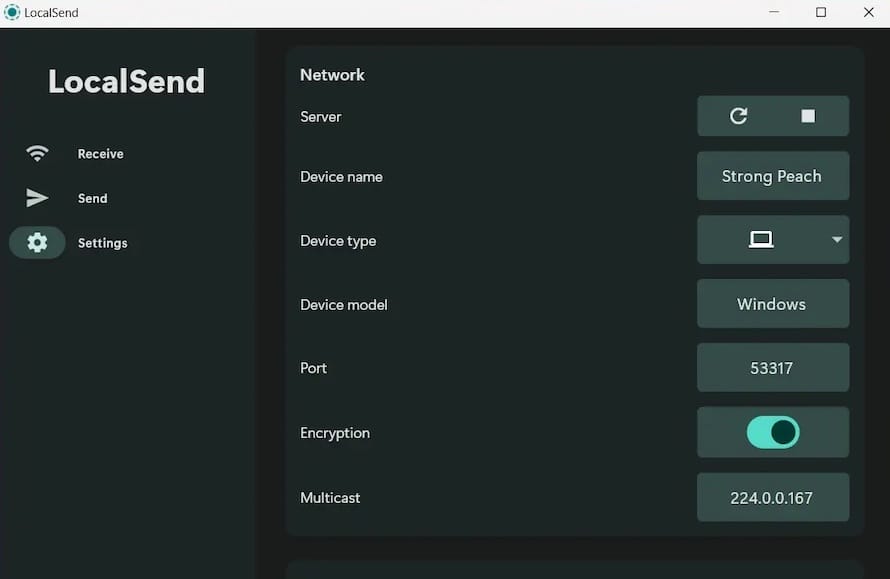
Initial Setup and Settings
Access Settings through the menu icon (typically three horizontal lines or a gear icon). Configure these important options:
Device Name: Change from the random default to something identifiable like “YourName-Debian” or “Desktop-Office.” This helps recipients identify your device during transfers.
Quick Save: This setting controls automatic file acceptance:
- Off: Prompts for confirmation before saving received files
- Favorites: Automatically accepts from designated devices
- On: Accepts all incoming transfers without prompting
Choose “Off” for security on shared networks. “On” works well for private home networks between your own devices.
Destination Folder: Specify where received files are saved. The default is typically your Downloads folder, but you can select any directory with write permissions.
Auto Finish: When enabled, this option automatically closes completed transfers. Disable it if you prefer to review transfer results.
Network Settings: Verify the LocalSend server status shows “Running.” The default port 53317 rarely requires changes unless conflicts exist.
Desktop Integration
Pin LocalSend to your taskbar or favorites for quick access. Create a desktop shortcut by right-clicking the desktop, selecting “Create Launcher,” and pointing to the localsend executable.
For autostart functionality, create a desktop entry:
mkdir -p ~/.config/autostart
cp /usr/share/applications/localsend_app.desktop ~/.config/autostart/
This configuration launches LocalSend automatically when you log in.
Verifying LocalSend Installation
Confirm proper installation through several verification steps.
Check the installed version:
localsend --versionSome installations display version information in the application’s About section instead of supporting command-line flags.
Verify the application launches without errors. Watch terminal output if launching from command line—error messages indicate configuration problems.
Test basic functionality by installing LocalSend on a second device (smartphone or another computer). Both devices should be connected to the same WiFi network or LAN. Open LocalSend on both devices and verify they discover each other in the Send tab’s device list.
Send a test file from one device to another. Select the recipient, choose a small file, and initiate transfer. Successful completion confirms proper installation and network configuration.
Check that the system tray icon appears if using a desktop environment. The icon should be visible in the notification area when LocalSend is running.
Basic Usage Guide
Understanding LocalSend’s interface enables efficient file transfers.
Receiving Files
LocalSend operates in receive mode by default. The spinning LocalSend logo indicates readiness to accept incoming transfers. When another device sends files to you, a notification appears showing the sender and file details.
Accept individual transfers by clicking the notification, or enable Quick Save to automatically accept files without confirmation.
Sending Files
Click the Send tab to display nearby devices. LocalSend automatically discovers compatible devices on your network—no manual IP address entry required.
Select your intended recipient from the device list. Multiple sending options appear:
- Files: Click the file icon to browse and select individual files or multiple files using Ctrl+click
- Folders: Select entire directories with contents
- Text: Send text messages directly without creating files
- Clipboard: Transfer copied content from your clipboard
After selecting content, click the Send button. A progress bar displays transfer status. Large files show percentage completion and estimated time remaining.
Key Features to Use
Quick Save eliminates confirmation dialogs, ideal for frequent transfers between trusted devices. Enable it for convenience on private networks.
Custom destination folders organize received files automatically. Configure different destinations for different file types if desired.
Device renaming improves identification when multiple devices are present. Meaningful names like “John-Laptop” or “Office-Desktop” clarify sender and recipient identities.
Server controls allow stopping and starting the LocalSend server. Stop it when not transferring files to reduce resource usage.
Troubleshooting Common Issues
Address these frequent problems to maintain smooth operation.
Issue 1: Missing System Tray Icon
The most common complaint involves missing system tray icons. LocalSend installs successfully but no notification area icon appears.
This problem stems from missing the libayatana-appindicator3-1 dependency. Install it:
sudo apt install libayatana-appindicator3-1 -yRestart LocalSend after installation. The tray icon should now appear.
Issue 2: DEB Installation Fails with Dependency Errors
Using dpkg -i to install DEB packages often triggers dependency errors. The dpkg tool installs packages but doesn’t resolve dependencies automatically.
Fix this by using apt install instead:
sudo apt install ./LocalSend-*.debIf you already attempted installation with dpkg and encountered errors, repair the system:
sudo apt --fix-broken installThis command resolves dependency conflicts and completes interrupted installations.
Issue 3: LocalSend Doesn’t Launch
Application installation succeeds but LocalSend won’t open. Several factors cause launch failures.
Verify installation location:
which localsendThis command returns the executable path if LocalSend is properly installed. No output indicates installation problems.
Launch from terminal to view error messages:
localsendError output reveals missing libraries or configuration issues. Common problems include missing graphical libraries on minimal installations or permission errors.
Reinstalling using a different method often resolves persistent launch failures. AppImage works as a fallback since it bundles all dependencies.
Issue 4: Devices Cannot Discover Each Other
LocalSend runs on multiple devices but they don’t detect each other. Several network conditions cause discovery failures.
First, confirm both devices connect to the same network. Devices on different WiFi networks or subnets cannot discover each other. Check WiFi SSID on mobile devices and verify computer network connections.
Firewall settings may block LocalSend communication. The application uses port 53317 for transfers. Configure your firewall to allow traffic on this port:
sudo ufw allow 53317/tcp
sudo ufw allow 53317/udp
Restart LocalSend’s server through Settings. Sometimes the server stops unexpectedly, preventing discovery.
VPN connections can interfere with local network discovery. Temporarily disable VPNs during troubleshooting to eliminate them as factors.
Guest networks often isolate devices for security. Connect to regular WiFi networks instead of guest networks.
Issue 5: Slow Transfer Speeds
File transfers complete but take longer than expected. Several factors affect transfer performance.
Check WiFi signal strength. Weak signals reduce bandwidth significantly. Move closer to your WiFi router or eliminate physical obstacles.
Close bandwidth-intensive applications like video streaming, downloads, or uploads. Background processes consume network capacity, slowing LocalSend transfers.
Use 5GHz WiFi bands if available. These frequencies offer higher speeds than 2.4GHz networks, though with shorter range.
Consider wired ethernet connections for large file transfers. Gigabit ethernet significantly outperforms WiFi for speed and reliability.
Comparison of Installation Methods
Each installation method offers distinct advantages for different scenarios.
DEB packages provide native Debian integration with smallest file sizes and best performance. Updates require manual downloads and installations. This method suits users comfortable with occasional manual updates who prioritize efficiency and system integration.
Snap installations deliver automatic updates and containerized security. Drawbacks include slower initial launches, mount point clutter in system tools, and occasional theme compatibility issues. Choose Snap when automated maintenance outweighs performance considerations.
Flatpak balances containerization with better desktop integration than Snap. Superior theme support and font rendering improve user experience. Larger disk requirements and GUI-only focus may deter minimalist users. Flatpak excels for desktop environments where visual integration matters.
AppImage requires no installation or administrative access. Perfect portability comes at the cost of manual updates and no automatic desktop integration. Use AppImage for testing, portable usage, or systems without installation privileges.
Recommendation: Install via DEB package on Debian 13 for optimal native integration. Flatpak serves as an excellent alternative for users preferring sandboxed applications with good desktop integration.
Security and Privacy Considerations
LocalSend prioritizes privacy through its architecture and implementation. All file transfers use HTTPS encryption, protecting data from network eavesdropping.
The open-source nature allows independent security audits. Anyone can review the source code on GitHub, increasing transparency and community verification.
Unlike cloud-based alternatives, LocalSend sends no data to external servers. Files travel directly between devices on your local network. This architecture eliminates third-party access, data collection, and telemetry.
Complete offline functionality means LocalSend operates without internet connectivity. Your data never leaves your local network, providing inherent privacy protection.
Best practices enhance security further. Use LocalSend only on trusted networks—public WiFi increases interception risks. Keep the application updated to receive security patches. Disable Quick Save on untrusted networks to maintain transfer control. Always verify recipients before sending sensitive files.
Updating LocalSend
Maintain current versions for security and features.
DEB installations require manual updates. Visit the GitHub releases page periodically to check for new versions. Download and install updated DEB packages using the same installation procedure.
Snap installations update automatically through the snapd system. Force immediate updates:
sudo snap refresh localsendFlatpak installations update via command:
flatpak update org.localsend.localsend_appAppImage files require downloading new versions and replacing old files. No automatic update mechanism exists.
Check your current version by launching LocalSend and accessing About or Settings. Compare against the latest release on GitHub. Checking monthly ensures reasonable currency without excessive effort.
Uninstalling LocalSend
Remove LocalSend cleanly when no longer needed.
DEB package removal:
sudo apt remove localsend
sudo apt autoremove
The autoremove command eliminates dependencies installed solely for LocalSend.
Snap removal:
sudo snap remove localsendFlatpak removal:
flatpak uninstall org.localsend.localsend_appAppImage removal requires only deleting the file:
rm ~/Applications/LocalSend-*.AppImageRemove configuration files and user data:
rm -rf ~/.local/share/localsend_app
rm -rf ~/.config/localsend_app
These directories store settings, favorites, and application state. Removing them ensures complete uninstallation.
Verify removal:
which localsendThis command should return no output after successful uninstallation.
Congratulations! You have successfully installed LocalSend. Thanks for using this tutorial for installing LocalSend open source cross platform file sharing tool on Debian 13 “Trixie” system. For additional help or useful information, we recommend you check the official LocalSend website.
