Securing your Linux server requires proactive monitoring and continuous assessment of system vulnerabilities. Lynis stands as one of the most respected open-source security auditing tools designed specifically for Unix-based systems, including Fedora distributions. This comprehensive guide walks you through installing Lynis on Fedora 43, conducting your first security audit, and implementing hardening recommendations to strengthen your system’s security posture.
Whether you’re a system administrator managing multiple servers, a security professional conducting compliance audits, or a DevOps engineer integrating security into your CI/CD pipeline, Lynis provides actionable insights into your system’s security configuration. By the end of this tutorial, you’ll understand multiple installation methods, know how to interpret audit results, and have a clear roadmap for improving your Fedora 43 system security.
What is Lynis?
Lynis is a powerful host-based security auditing application that performs comprehensive assessments of Linux and Unix-based systems. Developed by CISOfy, this GPL-licensed tool has become the industry standard for security professionals seeking to identify vulnerabilities, misconfigurations, and compliance gaps in their infrastructure.
The tool performs over 250 individual security tests covering critical system components including boot processes, kernel configurations, memory management, authentication mechanisms, networking settings, file systems, and installed software packages. What makes Lynis particularly valuable is its modular and opportunistic scanning approach—it adapts its testing based on what’s actually installed on your system rather than running generic tests that may not apply to your configuration.
Unlike vulnerability scanners that require extensive databases or constant updates, Lynis operates independently without installing additional dependencies. It’s incredibly lightweight, typically completing full system audits within minutes while consuming minimal resources. This efficiency makes it ideal for production environments where performance impact must be minimized.
Security teams use Lynis for multiple purposes: detecting vulnerabilities before attackers can exploit them, ensuring compliance with security frameworks like CIS benchmarks and HIPAA requirements, generating detailed hardening recommendations, and establishing baselines for security monitoring. The tool integrates seamlessly with Fedora and other RHEL-based distributions, leveraging native package managers and system utilities for comprehensive assessments.
Prerequisites for Installing Lynis on Fedora 43
Before installing Lynis, ensure your Fedora 43 system meets these requirements. You’ll need a properly configured Fedora 43 installation, whether freshly deployed or an existing production system. Root access or sudo privileges are essential since security audits require reading privileged system files and accessing protected configuration directories.
An active internet connection allows you to download packages from Fedora repositories or GitHub, depending on your chosen installation method. Basic command-line proficiency helps you navigate terminal commands and understand audit output. While not strictly required, keeping your system updated before installation prevents compatibility issues and ensures you’re working with the latest security patches.
Access to a terminal emulator—whether through SSH for remote servers or a local terminal application—completes your preparation. Having these prerequisites in place streamlines the installation process and prevents common troubleshooting issues.
Method 1: Installing Lynis via DNF Package Manager (Official Repository)
The DNF package manager provides the most straightforward installation method for Fedora 43 users. This approach leverages Fedora’s official repositories, ensuring package integrity through GPG signature verification and seamless integration with your system’s package management infrastructure.
Step 1: Update System Packages
Start by refreshing your system’s package database and installing available updates. Open your terminal and execute:
sudo dnf update -yThis command synchronizes package metadata with Fedora’s repositories and upgrades any outdated packages. The -y flag automatically confirms installation prompts, streamlining the process. Depending on how recently you’ve updated your system, this might take several minutes as DNF downloads and installs security patches, bug fixes, and feature updates.
Maintaining updated packages before installing new software prevents dependency conflicts and ensures compatibility with the latest system libraries. Wait for the update process to complete fully before proceeding.
Step 2: Install Lynis from Fedora Repository
Once your system is current, install Lynis with a single command:
sudo dnf install lynisDNF automatically resolves dependencies, downloads the Lynis package from Fedora’s repositories, and installs it in the appropriate system directories. You’ll see output showing the download progress, package size, and installation location. Since Lynis is remarkably lightweight with minimal dependencies, installation typically completes within seconds.
When prompted to confirm the transaction, type y and press Enter. DNF handles all configuration automatically, placing the Lynis executable in /usr/bin/ where it’s accessible system-wide.
Step 3: Verify Installation
Confirm Lynis installed correctly by checking its version:
lynis --versionThis displays the installed Lynis version number along with licensing information. You should see output similar to Lynis 3.0.x. Alternatively, verify the installation path:
which lynisThis command returns /usr/bin/lynis, confirming the executable is in your system PATH. You can now run Lynis from any directory without specifying the full path.
Step 4: View Help and Available Commands
Familiarize yourself with Lynis capabilities by displaying the help screen:
lynis show helpThis comprehensive help menu outlines all available options, arguments, and command structures. To see a complete list of Lynis commands:
lynis show commandsThis displays commands for auditing, showing system information, managing updates, and accessing various features. Understanding these commands helps you leverage Lynis’s full potential for security assessments.
Method 2: Installing Lynis via Git (Latest Development Version)
For users who need cutting-edge features or want to contribute to Lynis development, installing from the official GitHub repository provides access to the latest updates before they reach official distribution repositories.
Why Choose Git Installation
Git-based installations offer several advantages for specific use cases. You gain immediate access to newly implemented features, bug fixes, and security test updates as developers commit them. This proves particularly valuable in testing environments where evaluating new functionality before production deployment is critical.
Development teams benefit from the ability to switch between different versions, test specific commits, and even contribute improvements back to the project. Updates arrive more frequently than package repository releases, keeping your security testing capabilities current with emerging threats. The flexibility to customize installation locations and maintain multiple versions simultaneously supports complex testing scenarios.
Step 1: Install Git on Fedora 43
If Git isn’t already installed on your system, add it via DNF:
sudo dnf install git -yAfter installation completes, verify Git functionality:
git --versionThis confirms Git is properly installed and displays its version number.
Step 2: Clone Lynis Repository
Navigate to your preferred installation directory. The /usr/local directory is recommended for locally installed software that isn’t managed by package managers:
cd /usr/localClone the official Lynis repository:
sudo git clone https://github.com/CISOfy/lynisGit downloads the complete Lynis source code, creating a lynis directory containing all program files, documentation, and test modules. The cloning process typically completes within seconds given Lynis’s compact codebase.
Navigate into the newly created directory:
cd lynisStep 3: Run Lynis from Local Directory
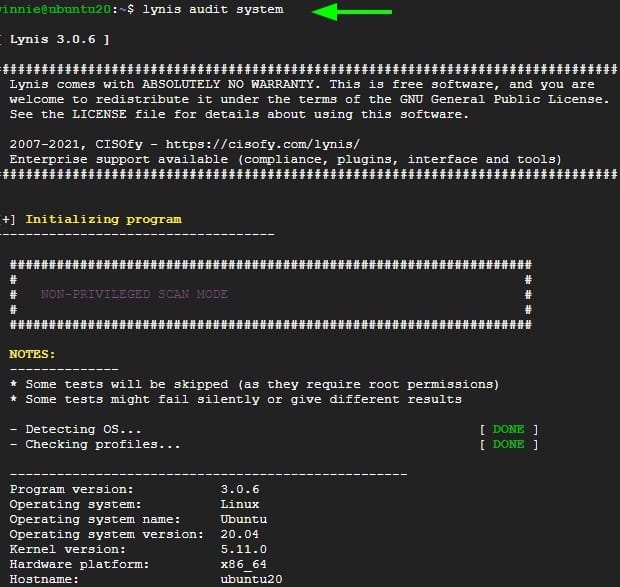
Unlike package-managed installations, Git-cloned Lynis requires specifying the executable path. Run your first audit with:
sudo ./lynis audit systemThe ./ prefix tells your shell to execute the Lynis binary from the current directory. For easier access without path specifications, you can add the Lynis directory to your system PATH by editing your shell configuration file, though this step is optional.
Step 4: Updating Git-based Installation
Keeping your Git installation current is straightforward. Navigate to the Lynis directory:
cd /usr/local/lynisPull the latest changes from the repository:
sudo git pullThis downloads and applies all commits made since your last update. Check for available updates before pulling:
./lynis update infoThis command queries the repository for new versions without modifying your installation.
Method 3: Installing Lynis via Direct Download (Tarball)
Tarball installations suit air-gapped environments, systems without Git access, or scenarios requiring specific version control.
When to Use This Method
Direct downloads become necessary when managing systems isolated from external networks for security reasons. Some regulated environments prohibit version control tools like Git, making tarballs the only viable option. This method also supports maintaining exact version consistency across multiple systems by distributing identical archive files.
Step 1: Create Installation Directory
Establish a dedicated directory for your Lynis installation:
sudo mkdir -p /usr/local/lynisThe -p flag creates parent directories if they don’t exist. Navigate to the working directory:
cd /usr/localStep 2: Download Lynis Tarball
Visit the official Lynis download page at cisofy.com to identify the current stable version. Download the tarball using wget:
sudo wget https://cisofy.com/files/lynis-3.0.9.tar.gzReplace the version number with the latest available release. Systems without wget can use curl instead:
sudo curl -O https://cisofy.com/files/lynis-3.0.9.tar.gzStep 3: Extract and Install
Extract the downloaded archive:
sudo tar xfvz lynis-3.0.9.tar.gzThis creates a directory named lynis containing all program files. Navigate into the extracted directory:
cd lynisRun Lynis to begin auditing:
sudo ./lynis audit systemRunning Your First Security Audit with Lynis
With Lynis successfully installed, you’re ready to conduct comprehensive security assessments of your Fedora 43 system.
Basic Audit Command
Execute a standard system audit with:
sudo lynis audit systemRoot privileges are mandatory because security audits require accessing protected system files, reading authentication databases, examining kernel parameters, and inspecting network configurations that normal users cannot view. Lynis displays real-time progress as it works through various test categories, showing which components it’s examining and whether tests pass or raise concerns.
A complete audit typically runs between one and two minutes, depending on your system’s complexity and installed software. The scan remains non-intrusive, never modifying configurations or requiring system reboots.
Quick Mode (No Pauses)
For automated environments or when you prefer uninterrupted scanning, enable quick mode:
sudo lynis audit system --quickThis suppresses interactive prompts and pauses, allowing Lynis to run continuously without user intervention. Quick mode proves essential when scheduling automated scans via cron jobs or integrating Lynis into CI/CD pipelines.
Assigning an Auditor Name
Track who performed specific audits by adding an auditor identifier:
sudo lynis audit system --auditor "John Doe"This metadata appears in log files and reports, proving valuable in multi-administrator environments where accountability and audit trails matter. Organizations with compliance requirements often mandate auditor tracking for regulatory documentation.
Understanding Scan Categories
Lynis organizes its tests into logical categories reflecting different system layers. Boot and startup tests examine bootloader configurations, init systems, and boot services. Kernel tests analyze loaded modules, kernel parameters via sysctl, and security features. Memory and process tests review running services, startup scripts, and resource allocations.
Authentication and authorization tests scrutinize PAM configurations, password policies, sudo settings, and user account security. Networking tests evaluate firewall rules, open ports, active connections, and network services. File system tests check permissions, mount options, and encryption status. The modular design means Lynis only runs tests relevant to your system’s actual configuration.
Understanding Lynis Output and Results
Interpreting Lynis output correctly transforms raw test results into actionable security improvements.
Screen Output Interpretation
Lynis uses color-coded output to communicate test results visually. Green indicators signal proper configurations that passed security checks. Yellow warnings highlight potential issues requiring review—these aren’t necessarily vulnerabilities but represent areas deserving attention. Red alerts indicate unsafe configurations or critical security gaps demanding immediate remediation.
Common result types include “OK” for passed tests, “WARNING” for configurations potentially weakening security, “FOUND” when Lynis discovers specific components or services, “NOT FOUND” when expected security tools are missing, “WEAK” for inadequate security settings, “NONE” when no items match the test criteria, and “DONE” confirming test completion. Understanding these indicators helps prioritize remediation efforts.
Log Files Location and Content
Lynis writes detailed findings to /var/log/lynis.log. This comprehensive log includes timestamps for every test, detailed failure explanations, specific suggestions for improvement, and threat scores quantifying risk levels. Log files provide much more detail than screen output, including technical context for understanding why certain configurations raise concerns.
Important: Lynis overwrites this log file with each scan. Preserve historical audit records by copying log files before running subsequent scans. Many administrators implement log rotation scripts that automatically archive previous audit results with date stamps for trend analysis.
Report Data Files
Machine-readable report data resides in /var/log/lynis-report.dat. This structured format contains system information, test results, configuration details, and security metrics suitable for parsing by automation tools or SIEM systems. Report files enable programmatic comparison between scans, tracking security posture improvements over time.
Organizations integrating Lynis into their security monitoring infrastructure parse these reports to populate dashboards, trigger alerts for specific findings, and generate compliance documentation.
Lynis Hardening Index
The hardening index provides a numerical assessment of your system’s security configuration. Scores typically range from 0 to 100, with higher values indicating stronger security implementations. Fresh Fedora 43 installations usually score between 70 and 85, reflecting the distribution’s security-conscious defaults.
This index quantifies how many recommended security measures you’ve implemented compared to Lynis’s complete test catalog. Achieving scores above 80 represents a realistic goal for production systems balancing security and functionality. Remember that maximizing this score shouldn’t compromise system usability—some recommendations may not apply to your specific use case.
Analyzing Lynis Suggestions and Warnings
Lynis concludes each audit with a summary of findings and actionable recommendations.
Viewing Detailed Suggestions
The audit summary displays the total count of suggestions requiring attention. For detailed information about specific findings, use:
sudo lynis show details TEST-IDReplace TEST-ID with the actual identifier from your audit output, for example:
sudo lynis show details SSH-7408This reveals comprehensive explanations of why the test failed, security implications, and specific remediation steps. Understanding suggestion context prevents blindly implementing changes that might disrupt legitimate system functions.
Common Security Issues Found
Typical Lynis audits reveal several recurring configuration weaknesses. Weak password policies often top the list—default settings may allow short passwords, disable complexity requirements, or permit unlimited authentication attempts. Firewall configurations frequently raise concerns when firewalld isn’t enabled or rules are too permissive, exposing unnecessary services to network access.
Outdated packages represent ongoing security risks since unpatched software contains known vulnerabilities actively exploited by attackers. SSH configurations commonly require hardening—defaults may allow root login, permit password authentication when keys are more secure, or use outdated encryption algorithms.
Missing security frameworks like SELinux in enforcing mode reduce your defense-in-depth capabilities. File permission issues, particularly world-writable files or overly permissive directory access, create potential privilege escalation vectors.
Prioritizing Remediation
Not all suggestions carry equal weight. Focus first on high-impact warnings directly affecting your attack surface—exposed services, weak authentication, and missing security updates. Consider your system’s specific role when evaluating recommendations. Web servers require different hardening than database servers or workstations.
Balance security improvements with operational requirements. Some suggestions, while technically correct, may conflict with application compatibility or business processes. Document reasons for not implementing specific recommendations to justify decisions during compliance audits.
Advanced Lynis Usage on Fedora 43
Beyond basic system audits, Lynis offers targeted testing capabilities for specific security domains.
Running Specific Tests
List all available tests with:
lynis show testsThis displays hundreds of individual test identifiers organized by category. Run specific tests by providing their IDs:
sudo lynis --tests "BOOT-5202 KRNL-5820"This executes only the bootloader check (BOOT-5202) and kernel module verification (KRNL-5820), ignoring all other tests. Targeted testing proves useful when verifying fixes for specific issues without running complete audits.
Running Tests by Category
Focus on entire test categories efficiently:
sudo lynis --tests-from-category "firewalls"Available categories include firewalls, kernel, networking, authentication, file systems, storage, and more. Category-based testing suits scenarios where you’ve made changes to specific system components and want to verify their security impact without full scans.
Pentest Mode (Non-Privileged Scanning)
Penetration testing environments sometimes require running Lynis without root privileges:
sudo lynis audit system --pentestPentest mode attempts auditing with whatever access level is available. Tests requiring privileged access are automatically skipped, and Lynis clearly indicates which tests couldn’t run due to permission limitations. This mode helps security assessors evaluate systems where they don’t have administrative credentials.
Custom Output Options
Tailor Lynis output to your environment’s specific needs. Disable color coding for log file redirection or terminals without color support:
lynis --no-colorsReverse color schemes for light-background terminals:
lynis --reverse-colorsEnable verbose mode for additional debugging information:
lynis audit system --verboseSuppress non-essential output with quiet mode:
lynis audit system --quietAutomating Lynis Scans on Fedora 43
Regular automated security audits ensure continuous monitoring without manual intervention.
Setting Up Lynis as a Cronjob
Automation transforms Lynis from a one-time assessment tool into an ongoing security monitoring solution. Create a dedicated directory for audit scripts and logs:
sudo mkdir -p /opt/lynis-automation/logsCreate an automation script at /opt/lynis-automation/lynis-audit.sh:
#!/bin/bash
LOGFILE="/opt/lynis-automation/logs/lynis-$(date +%Y%m%d-%H%M%S).log"
/usr/bin/lynis audit system --cronjob --auditor "AUTOMATED" > $LOGFILE 2>&1
Make the script executable:
sudo chmod +x /opt/lynis-automation/lynis-audit.shThe --cronjob flag suppresses interactive elements and ensures Lynis runs non-interactively. Log files include timestamps for historical tracking and trend analysis.
Scheduling with Crontab
Edit the root crontab:
sudo crontab -eSchedule monthly audits on the first day of each month at 2 AM:
0 2 1 * * /opt/lynis-automation/lynis-audit.shFor weekly audits every Sunday at 3 AM:
0 3 * * 0 /opt/lynis-automation/lynis-audit.shDaily audits at midnight:
0 0 * * * /opt/lynis-automation/lynis-audit.shVerify your scheduled jobs:
sudo crontab -lIntegration with CI/CD Pipelines
Modern DevSecOps practices incorporate security testing directly into development workflows. Lynis integrates seamlessly with Jenkins pipelines by adding audit stages to Jenkinsfiles. GitLab CI configurations can execute Lynis during deployment processes, failing builds when security scores drop below acceptable thresholds.
Ansible playbooks automate both Lynis execution and remediation implementation. This “security as code” approach ensures consistent hardening across entire infrastructure fleets. Continuous security monitoring becomes integral to development lifecycles rather than occasional manual checks.
System Hardening Based on Lynis Recommendations
Transform audit findings into concrete security improvements through systematic hardening.
Kernel Hardening
Linux kernel parameters significantly impact system security. Edit /etc/sysctl.conf to implement kernel-level protections:
sudo nano /etc/sysctl.confAdd these security-focused parameters:
# IP Forwarding
net.ipv4.ip_forward = 0

# SYN Cookies
net.ipv4.tcp_syncookies = 1

# Ignore ICMP redirects
net.ipv4.conf.all.accept_redirects = 0
net.ipv6.conf.all.accept_redirects = 0

# Disable source packet routing
net.ipv4.conf.all.accept_source_route = 0
net.ipv6.conf.all.accept_source_route = 0
Apply changes immediately:
sudo sysctl -pTest that parameters applied correctly:
sudo sysctl net.ipv4.tcp_syncookiesFirewall Configuration
Enable and configure firewalld for network security:
sudo systemctl enable firewalld
sudo systemctl start firewalld
Verify firewall status:
sudo firewall-cmd --stateAllow only required services. For SSH access:
sudo firewall-cmd --permanent --add-service=ssh
sudo firewall-cmd --reload
SSH Hardening
Secure your SSH daemon by editing /etc/ssh/sshd_config:
sudo nano /etc/ssh/sshd_configImplement these security improvements:
PermitRootLogin no
PasswordAuthentication no
PubkeyAuthentication yes
MaxAuthTries 3
Protocol 2
Restart SSH to apply changes:
sudo systemctl restart sshdAdditional Security Measures
Verify SELinux is enforcing:
sudo getenforceIf not enforcing, enable it in /etc/selinux/config. Install fail2ban for intrusion prevention:
sudo dnf install fail2ban
sudo systemctl enable fail2ban
sudo systemctl start fail2ban
Maintain regular package updates:
sudo dnf updateConsider implementing file integrity monitoring with AIDE or Tripwire.
Troubleshooting Common Issues
Address frequent installation and operational challenges.
Lynis Not Found After Installation
Verify package installation:
rpm -qa | grep lynisIf installed but not found, check your PATH variable:
echo $PATHReinstall if necessary:
sudo dnf reinstall lynisPermission Denied Errors
Always run system audits with sudo:
sudo lynis audit systemFor Git installations, verify executable permissions:
chmod +x /usr/local/lynis/lynisOutdated Version Issues
Update DNF-managed installations:
sudo dnf update lynisFor Git versions, pull latest changes:
cd /usr/local/lynis
sudo git pull
Check your current version:
lynis update infoHigh Number of Warnings
Receiving numerous warnings during initial audits is completely normal. Systems rarely achieve perfect security scores without deliberate hardening efforts. Implement changes gradually, testing each modification in non-production environments first.
Remember that not every suggestion applies to every system. Evaluate recommendations based on your specific use case, threat model, and operational requirements.
Congratulations! You have successfully installed Lynis. Thanks for using this tutorial for installing the Lynis security audit tool on your Fedora 42 Linux system. For additional help or useful information, we recommend you check the official Lynis website.


