How To Install MAAS on Ubuntu 24.04 LTS

Managing physical servers doesn’t have to be complicated. MAAS (Metal as a Service) transforms bare metal infrastructure into cloud-like resources that you can provision, deploy, and manage with just a few clicks. This comprehensive guide walks you through installing MAAS on Ubuntu 24.04 LTS, from initial setup to your first successful configuration. Whether you’re building a home lab or managing enterprise infrastructure, you’ll find everything needed to get MAAS running smoothly.
MAAS brings automation to physical server management. It handles machine discovery, operating system deployment, and lifecycle management through an intuitive interface. By the end of this tutorial, you’ll have a fully functional MAAS installation ready to manage your bare metal fleet.
Understanding MAAS and Why You Need It
MAAS is Canonical’s open-source solution for treating physical servers like virtual machines. Instead of manually installing operating systems on each machine, MAAS automates the entire process. It discovers hardware, inventories components, and deploys operating systems across your infrastructure.
The platform supports multiple operating systems including Ubuntu, CentOS, RHEL, and Windows Server. This flexibility makes MAAS valuable for diverse environments where different workloads require different platforms.
Core Benefits of MAAS
MAAS delivers significant advantages for infrastructure management. First, it eliminates manual server provisioning, saving hours of repetitive work. The zero-touch deployment capability means machines boot from the network, get configured automatically, and become production-ready without human intervention.
Second, MAAS provides multiple management interfaces. You can use the web UI for visual management, the command-line interface for scripting, or the REST API for custom integrations. This versatility accommodates different workflows and skill sets.
Third, MAAS tracks your entire hardware inventory automatically. It catalogs CPU models, memory configurations, storage devices, and network interfaces. This visibility helps with capacity planning and troubleshooting.
The platform also supports multiple architectures including x64, x86, and ARM processors. Organizations with heterogeneous hardware environments benefit from this unified management approach.
Prerequisites and System Requirements
Before installing MAAS on Ubuntu 24.04 LTS, verify your system meets the necessary requirements. Planning ahead prevents issues during installation and configuration.
Hardware Requirements
Your MAAS server needs adequate resources to manage your infrastructure. For test environments, 4GB RAM and 2 CPU cores work fine. Production deployments should have at least 8GB RAM and 4 cores. Storage depends on how many OS images you’ll maintain, but 40GB provides a comfortable starting point.
The server requires at least one network interface. More complex setups benefit from multiple interfaces to separate management traffic from provisioning networks.
Software Prerequisites
Start with a clean Ubuntu 24.04 LTS installation. The system should be updated with the latest packages. You’ll need administrative privileges through sudo access.
For production environments, plan to use PostgreSQL version 14 or newer as the database backend. Test installations can use the built-in database.
Network services require planning. MAAS manages DHCP for machine provisioning and needs a DNS forwarder for name resolution. Decide whether MAAS will control these services or integrate with existing infrastructure.
Network Planning Considerations
Map out your network before installation. Choose a subnet for MAAS to manage, such as 10.0.0.0/24. Define IP ranges for different purposes: static assignments for infrastructure, dynamic ranges for provisioning, and reserved blocks for future expansion.
The MAAS server itself needs a static IP address. This ensures consistent access to the management interface and API endpoints.
Installing MAAS on Ubuntu 24.04 LTS
MAAS installation on Ubuntu 24.04 offers two primary methods. Each has specific advantages depending on your requirements.
Update Your System First
Begin by updating Ubuntu to ensure all packages are current. Open a terminal and run these commands:
sudo apt update
sudo apt upgrade -y
This process updates the package database and installs any available system updates. The upgrades include security patches and bug fixes that improve stability.
After updates complete, reboot if the kernel was updated. This ensures the system runs the latest code.
Method 1: Snap Installation (Recommended)
Snap provides the most straightforward MAAS installation path. Canonical recommends this method because snaps are self-contained, automatically updated, and isolated from system dependencies.
Install MAAS using the snap command:
sudo snap install --channel=3.6/stable maasReplace “3.6” with your desired MAAS version. The stable channel provides tested, production-ready releases. Installation takes a few minutes as snap downloads and configures all necessary components.
Verify the installation succeeded:
snap list maasThis displays the installed MAAS version and confirms the snap is active.
Snaps handle updates automatically. The system checks for new releases and applies them during maintenance windows. This keeps your MAAS installation current without manual intervention.
Method 2: Debian Package Installation
Some environments prefer traditional package management. The Debian package method integrates with Ubuntu’s native package system.
First, add the MAAS package repository:
sudo apt-add-repository ppa:maas/3.6
sudo apt update
This adds Canonical’s MAAS Personal Package Archive. The version number in the PPA name determines which MAAS release you’ll install.
Install MAAS with all dependencies:
sudo apt install maas -yThe package manager resolves dependencies and installs required libraries automatically. This includes PostgreSQL, Python packages, and system utilities.
Debian packages require manual updates. When new MAAS versions release, run apt update and apt upgrade to install them.
Verify MAAS Services
After installation, check that MAAS services are running properly:
sudo systemctl status maas-rackd
sudo systemctl status maas-regiond
Both services should show “active (running)” status. The rack controller (maas-rackd) manages individual machine provisioning. The region controller (maas-regiond) handles the API, web interface, and database.
Initial MAAS Configuration
With MAAS installed, configure the essential settings to make it operational.
Create the Administrator Account
MAAS requires at least one administrative user. Create this account using the createadmin command:
sudo maas createadminThe interactive prompt asks for several details:
- Username: Choose your admin username
- Password: Set a strong password
- Email: Provide an email address for notifications
- SSH Key: You can import keys now or skip and add them later
For SSH keys, the prompt offers to import from Launchpad or GitHub. Alternatively, press Enter to skip and configure keys through the web interface later.
This administrator account has full MAAS access. Additional users can be created through the web interface with granular permissions.
Initialize the Database
Snap installations use an embedded database suitable for testing and small deployments. No additional configuration is needed for basic setups.
Production environments should use an external PostgreSQL server. This improves performance and enables high-availability configurations. Database setup involves creating a PostgreSQL user and database, then configuring MAAS with the connection string.
Access the MAAS Web Interface
Open a web browser and navigate to the MAAS interface. The URL format is:
http://<YOUR_SERVER_IP>:5240/MAASReplace <YOUR_SERVER_IP> with your MAAS server’s IP address. For example, if your server is at 10.0.0.10, use http://10.0.0.10:5240/MAAS.
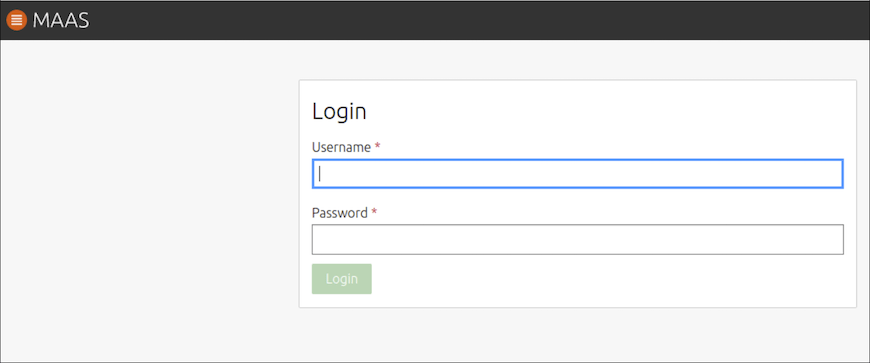
Log in with the administrator credentials created earlier. The first login presents a welcome wizard that guides through essential configuration.
Essential Web UI Configuration
The MAAS web interface provides comprehensive configuration options. Several settings are critical for basic operation.
DNS Configuration
DNS enables machines to resolve hostnames during and after deployment. Navigate to the DNS settings in the web interface.
Configure a DNS forwarder that MAAS will use for upstream queries. Common choices include:
- Google DNS: 8.8.8.8 and 8.8.4.4
- Cloudflare DNS: 1.1.1.1 and 1.0.0.1
- Your organization’s internal DNS servers
MAAS uses this forwarder for queries it cannot answer directly. It also provides DNS services to deployed machines.
Set your DNS domain name. This domain applies to all machines managed by MAAS. Choose something like “maas.local” for lab environments or match your organization’s domain for production.
SSH Key Configuration
SSH keys enable secure, password-less access to deployed machines. MAAS injects your public keys during deployment, allowing immediate login.
To add SSH keys, navigate to your user profile in the MAAS interface. You have several options:
Import from Launchpad or GitHub: Enter your username on either platform. MAAS retrieves your public keys automatically.
Upload from file: If you have a local key at ~/.ssh/id_rsa.pub, paste its contents into the provided field.
Generate new keys: Create keys on your workstation using ssh-keygen if you don’t have existing ones.
SSH keys are essential for MAAS automation. Without them, you cannot access deployed machines without manually setting passwords.
Network Configuration
Network setup is MAAS’s most complex aspect. The interface organizes networks into fabrics, VLANs, and subnets.
Fabrics represent physical network segments. Most simple setups have one fabric corresponding to the LAN.
VLANs divide fabrics logically. Even untagged networks appear as VLAN 0 in MAAS.
Subnets define IP ranges within VLANs. Configure your subnet (like 10.0.0.0/24) with appropriate gateway and DNS settings.
Enable DHCP on the subnet where you’ll provision machines. MAAS-managed DHCP assigns IP addresses during network boot and deployment. Define a dynamic range for these temporary addresses, such as 10.0.0.200-10.0.0.250.
Reserve IP ranges for static assignments outside the DHCP scope. This prevents MAAS from assigning addresses already in use by other infrastructure.
Downloading and Configuring Ubuntu Images
MAAS requires OS images to deploy to machines. Without images, MAAS can discover and inventory hardware but cannot complete deployments.
Selecting Images
Navigate to the Images section in the MAAS web interface. You’ll see available operating systems and architectures.
Focus on Ubuntu LTS releases for maximum compatibility and support. Ubuntu 22.04 LTS and 24.04 LTS are excellent choices. Select the architecture matching your hardware—amd64 for Intel/AMD processors, arm64 for ARM-based servers.
Non-Ubuntu distributions require custom image configuration. MAAS supports CentOS, RHEL, Windows Server, and others, but these need additional setup beyond basic installation.
Download Process
Select your desired images and click the sync button. MAAS downloads images from Canonical’s servers, which may take several minutes depending on your connection speed.
Each image consumes several gigabytes of storage. Plan storage capacity based on the number of OS versions and architectures you need.
Images update regularly with security patches and bug fixes. Configure MAAS to check for updates daily or weekly. This ensures deployed machines receive current software.
Verify Image Availability
After downloading, verify images appear as available in the Images section. The status should show “Synced” rather than “Downloading” or “Failed.”
Only images marked as synced can be used for machine deployment. If downloads fail, check network connectivity and retry.
Post-Installation Configuration
Several additional settings optimize MAAS for your environment.
Connectivity Services
Configure package archives to specify where deployed machines download software. Ubuntu systems default to http://archive.ubuntu.com, which works globally but may be slow.
Organizations with local mirrors improve deployment speed by pointing to internal repositories. This also reduces external bandwidth consumption.
Proxy configuration helps in restricted network environments. If your network requires a proxy for internet access, configure it in MAAS. Deployed machines will inherit this setting.
Network Time Protocol (NTP) keeps clocks synchronized. MAAS can provide NTP services to managed machines or point them to external NTP servers.
DHCP and DNS Services
Review DHCP settings to ensure they match your network design. The dynamic range should be large enough for simultaneous deployments but not overlap with static allocations.
MAAS manages DNS zones automatically. Each machine gets a hostname and DNS record. This enables name-based communication between deployed systems.
BMC Configuration
Baseboard Management Controllers (BMCs) provide out-of-band hardware control. IPMI, HP iLO, and Dell iDRAC are common BMC implementations.
Configure BMC credentials in MAAS to enable power management. MAAS can then turn machines on, off, and perform hard reboots during provisioning.
BMC access is optional for testing but essential for production. Without power control, you must manually power-cycle machines during deployment.
Verification and Testing
Test your MAAS installation before deploying production workloads.
Verify MAAS Services
Check that all MAAS components are running correctly:
sudo systemctl status maas-rackd
sudo systemctl status maas-regiond
Both services should report healthy status. Errors here indicate configuration problems that need resolution.
Test API accessibility using curl:
curl http://localhost:5240/MAAS/api/2.0/version/This returns MAAS version information if the API is responding properly.
Add a Test Machine
The ultimate verification is enlisting and commissioning a machine. This proves MAAS can discover hardware, inventory components, and prepare systems for deployment.
Network boot a physical machine or virtual machine on the MAAS-managed subnet. The machine should appear in the MAAS interface as “New.” Commission it to run hardware tests and mark it ready for deployment.
Successfully commissioning a test machine confirms your MAAS installation is fully functional.
Common Troubleshooting Issues
Even careful installations encounter problems. These solutions address frequent issues.
Installation Failures
Snap installation errors: Check internet connectivity and retry. Snap requires access to Canonical’s servers. Firewall rules might block snap traffic.
Package dependency errors: Debian package installation may fail if system packages are outdated. Run sudo apt update and sudo apt upgrade before installing MAAS.
Permission problems: Most MAAS commands require sudo privileges. Ensure your user account has appropriate permissions.
Configuration Issues
DHCP conflicts: Multiple DHCP servers on one network cause unpredictable behavior. Disable other DHCP servers or configure MAAS to use existing DHCP infrastructure instead of managing it.
DNS resolution problems: Machines may fail to resolve names if the DNS forwarder is unreachable. Test the configured forwarder with dig @8.8.8.8 google.com to verify connectivity.
Network interface errors: MAAS requires proper network configuration. Use ip addr to verify interface settings. Apply changes with:
sudo netplan apply
sudo systemctl restart systemd-networkd
Database connection issues: External PostgreSQL problems often stem from incorrect connection strings or authentication failures. Verify database credentials and network access.
Resolution Steps
MAAS logs provide detailed troubleshooting information. Check logs when problems occur:
sudo journalctl -u maas-rackd -n 100
sudo journalctl -u maas-regiond -n 100
These commands show the last 100 log entries for each service. Error messages usually indicate the root cause.
Restart services after configuration changes:
sudo systemctl restart maas-rackd
sudo systemctl restart maas-regiond
Many issues resolve with service restarts that reload updated configurations.
Congratulations! You have successfully installed MAAS. Thanks for using this tutorial for installing MAAS (Metal as a Service) on Ubuntu 24.04 LTS Focal Fossa system. For additional help or useful information, we recommend you check the official MAAS website.
