
Magento stands as one of the most powerful open-source eCommerce platforms available today, powering thousands of online stores worldwide. If you’re planning to build a robust online retail presence, installing Magento on Debian 13 offers an excellent foundation combining stability, security, and performance. This comprehensive guide walks you through every step of deploying Magento 2.4.x on Debian 13, from initial system preparation to post-installation optimization.
Debian 13 (codenamed Trixie) provides long-term support and enterprise-grade stability, making it an ideal choice for hosting mission-critical eCommerce applications. Throughout this tutorial, you’ll configure Apache, PHP 8.2, MySQL, Elasticsearch, and all necessary components to create a production-ready Magento installation. Whether you’re a system administrator, web developer, or business owner taking control of your hosting infrastructure, this guide provides the detailed instructions you need.
What is Magento and Why Choose Debian 13?
Magento 2 represents a feature-rich eCommerce solution that handles everything from product catalog management to payment processing and order fulfillment. Acquired by Adobe, Magento offers both Community Edition (free and open-source) and Commerce Edition (enterprise-level features). The platform supports multi-store configurations, extensive customization through modules and themes, and integrates with numerous payment gateways and shipping providers.
Debian 13 excels as a server operating system due to its legendary stability and security track record. The distribution receives regular security updates and benefits from a massive repository of tested software packages. For eCommerce platforms handling sensitive customer data and financial transactions, Debian’s security-first approach provides peace of mind. The operating system’s efficient resource utilization also ensures your Magento store performs optimally even under heavy traffic loads.
System Requirements for Magento on Debian 13
Before beginning the installation process, verify your server meets Magento’s technical requirements. Your Debian 13 system needs at least 2GB of RAM, though 4GB or more is recommended for better performance, especially during compilation and deployment tasks. Allocate minimum 2GB of free disk space for Magento core files, with additional space for your product catalog, media files, and database growth.
The software stack requires Apache 2.4 or Nginx 1.18+ as your web server. You’ll need PHP 8.2 or 8.3 with specific extensions including bcmath, intl, soap, zip, curl, mbstring, mysql, gd, xml, and xsl. Database requirements specify MySQL 8.0 or MariaDB 10.6 or higher. Composer 2.2+ handles dependency management, while Elasticsearch 8.x provides catalog search functionality (this is mandatory—Magento no longer supports MySQL-based search). Redis is optional but strongly recommended for session storage and cache management to significantly improve performance.
Prerequisites Before Installation
Ensure you have root or sudo privileges on your Debian 13 server. A fully qualified domain name (FQDN) should be configured and pointing to your server’s IP address. You’ll also need a Magento Marketplace account to generate authentication keys required for downloading Magento packages. Basic command-line proficiency helps you navigate this tutorial smoothly. Having SSH access ready ensures you can execute commands remotely if needed.
Step 1: Update Debian 13 System
Start by updating your package repositories and upgrading existing packages. Open your terminal and execute:
sudo apt update && sudo apt upgrade -yThis command refreshes the package index and installs available updates. Next, install essential utilities that you’ll use throughout the installation:
sudo apt install wget curl nano ufw software-properties-common apt-transport-https gnupg2 ca-certificates -yThese tools enable secure package downloads, text editing, firewall management, and repository authentication. If kernel updates were applied, reboot your system to ensure changes take effect:
sudo rebootKeeping your system updated patches security vulnerabilities and ensures compatibility with newer software versions.
Step 2: Configure Firewall Security
Protecting your eCommerce platform starts with proper firewall configuration. Debian 13 uses UFW (Uncomplicated Firewall) for straightforward rule management. First, check if UFW is active:
sudo ufw statusAllow SSH connections to prevent locking yourself out:
sudo ufw allow OpenSSHOpen HTTP and HTTPS ports for web traffic:
sudo ufw allow 80/tcp
sudo ufw allow 443/tcp
Enable the firewall:
sudo ufw enableVerify your rules:
sudo ufw status verboseThis security layer blocks unauthorized access while permitting legitimate traffic. For eCommerce sites handling payment information, firewall protection forms a critical defense component.
Step 3: Install and Configure Apache Web Server
Apache remains a popular choice for hosting Magento due to its stability and .htaccess support. Install Apache with:
sudo apt install apache2 -yStart the Apache service:
sudo systemctl start apache2Configure Apache to launch automatically on system boot:
sudo systemctl enable apache2Verify Apache is running correctly:
sudo systemctl status apache2Enable essential Apache modules that Magento requires:
sudo a2enmod rewrite
sudo a2enmod headers
sudo a2enmod ssl
The rewrite module enables SEO-friendly URLs, headers allows HTTP header manipulation for caching, and ssl provides secure HTTPS connections. Restart Apache to load these modules:
sudo systemctl restart apache2Test your web server by navigating to your server’s IP address in a browser—you should see the Apache default page.
Step 4: Install PHP 8.2 and Required Extensions
Magento 2.4.x requires PHP 8.2 or 8.3. Since Debian 13 may not include the latest PHP versions by default, add the Sury PHP repository:
wget -qO - https://packages.sury.org/php/apt.gpg | sudo gpg --dearmor -o /etc/apt/trusted.gpg.d/php-sury.gpg
echo "deb https://packages.sury.org/php/ $(lsb_release -sc) main" | sudo tee /etc/apt/sources.list.d/php.list
Update your package index:
sudo apt updateInstall PHP 8.2 with all Magento-required extensions:
sudo apt install php8.2 libapache2-mod-php php8.2-dev php8.2-bcmath php8.2-intl php8.2-soap php8.2-zip php8.2-curl php8.2-mbstring php8.2-mysql php8.2-gd php8.2-xml php8.2-xsl php8.2-common php8.2-cli -yEach extension serves specific purposes: bcmath handles arbitrary precision mathematics for pricing calculations, intl provides internationalization support, soap enables web service integrations, zip manages archive operations, curl facilitates HTTP requests, mbstring processes multibyte strings for different languages, mysql connects to databases, gd manipulates images, and xml/xsl parse structured data.
Verify PHP installation:
php -vYou should see PHP 8.2.x displayed.
Step 5: Configure PHP Settings for Magento
Magento requires specific PHP configuration adjustments for optimal operation. Edit the PHP configuration file:
sudo nano /etc/php/8.2/apache2/php.iniLocate and modify these directives (use Ctrl+W to search):
memory_limit = 1024M
upload_max_filesize = 128M
max_execution_time = 3600
post_max_size = 128M
max_input_vars = 10000
zlib.output_compression = On
The memory limit ensures PHP can handle Magento’s resource-intensive operations like compilation and deployment. Extended execution time prevents timeouts during lengthy processes. Increased upload limits accommodate product images and import files. Save changes with Ctrl+O, then exit with Ctrl+X.
Restart Apache to apply the new configuration:
sudo systemctl restart apache2These adjustments prevent common installation failures and performance bottlenecks.
Step 6: Install and Configure MySQL 8.0
Magento stores all catalog data, customer information, and orders in a relational database. Download the MySQL APT repository configuration package:
wget https://dev.mysql.com/get/mysql-apt-config_0.8.28-1_all.debInstall the repository package:
sudo apt install ./mysql-apt-config_0.8.28-1_all.debDuring installation, select MySQL 8.0 when prompted. Update your package index:
sudo apt updateInstall MySQL server:
sudo apt install mysql-server -ySecure your MySQL installation:
sudo mysql_secure_installationFollow the prompts to set a root password, remove anonymous users, disallow root login remotely, remove test databases, and reload privilege tables. These steps harden database security.
Start and enable MySQL:
sudo systemctl start mysql
sudo systemctl enable mysql
Verify the service is active:
sudo systemctl status mysqlStep 7: Create Magento Database and User
Log into MySQL as root:
sudo mysql -u root -pEnter your root password when prompted. Create a dedicated database for Magento:
CREATE DATABASE magento_db;Create a database user with a strong password:
CREATE USER 'magento_user'@'localhost' IDENTIFIED BY 'YourStrongPassword123!';Replace “YourStrongPassword123!” with a secure password containing uppercase, lowercase, numbers, and special characters. Grant all privileges on the Magento database to this user:
GRANT ALL ON magento_db.* TO 'magento_user'@'localhost';Flush privileges to ensure changes take effect:
FLUSH PRIVILEGES;Exit MySQL:
EXIT;Using a dedicated database user follows the principle of least privilege, limiting potential damage if credentials are compromised.
Step 8: Install Composer Dependency Manager
Composer manages PHP dependencies and facilitates Magento installation. Download the Composer installer:
curl -sS https://getcomposer.org/installer | phpMove Composer to a system-wide location:
sudo mv composer.phar /usr/local/bin/composerMake it executable:
sudo chmod +x /usr/local/bin/composerVerify installation:
composer --versionYou should see Composer version 2.2 or higher. Composer streamlines package management and ensures all dependencies maintain version compatibility.
Step 9: Install Elasticsearch 8.x
Elasticsearch powers Magento’s catalog search functionality. Import the Elasticsearch GPG key:
wget -qO - https://artifacts.elastic.co/GPG-KEY-elasticsearch | sudo gpg --dearmor -o /etc/apt/trusted.gpg.d/elasticsearch.gpgAdd the Elasticsearch 8.x repository:
echo "deb https://artifacts.elastic.co/packages/8.x/apt stable main" | sudo tee /etc/apt/sources.list.d/elastic-8.x.listUpdate package index:
sudo apt updateInstall Elasticsearch:
sudo apt install elasticsearch -yConfigure memory allocation for Elasticsearch. Create a memory configuration file:
sudo nano /etc/elasticsearch/jvm.options.d/memory.optionsAdd these lines (adjust based on available RAM):
-Xms512m
-Xmx512m
For production environments with more resources, increase these values to 1g or 2g. Save and exit.
Start and enable Elasticsearch:
sudo systemctl start elasticsearch
sudo systemctl enable elasticsearch
Test Elasticsearch is responding:
curl -X GET "localhost:9200/"You should receive a JSON response with cluster information. Elasticsearch is mandatory—Magento removed MySQL search support in recent versions.
Step 10: Install Redis for Cache Management
Redis significantly improves Magento performance by caching frequently accessed data. Install Redis:
sudo apt install redis-server -yStart and enable Redis:
sudo systemctl start redis-server
sudo systemctl enable redis-server
Verify Redis is running:
redis-cli pingYou should see “PONG” as the response. Configure Redis with authentication for security:
sudo nano /etc/redis/redis.confFind the line # requirepass foobared and uncomment it, replacing “foobared” with a strong password:
requirepass YourRedisPassword123!Restart Redis:
sudo systemctl restart redis-serverTest authentication:
redis-cli
AUTH YourRedisPassword123!
ping
You should see “OK” then “PONG”. Type exit to quit. Redis dramatically reduces database queries by storing session data and cache in memory.
Step 11: Obtain Magento Authentication Keys
Visit the Magento Marketplace at marketplace.magento.com and log in with your Adobe ID (or create a free account). Navigate to your profile by clicking your username, then select “Access Keys” under the Marketplace tab. Click “Create A New Access Key” and provide a descriptive name.
Copy both the Public Key (serves as your username) and Private Key (serves as your password). Store these securely—you’ll need them in the next step. These keys authenticate your server to download Magento packages from the official repository.
Step 12: Download Magento 2.4.x
Create a directory for Magento:
sudo mkdir -p /var/www/magentoChange ownership to your current user:
sudo chown $USER:$USER /var/www/magento/ -RNavigate to the directory:
cd /var/www/magentoConfigure Composer authentication. Create the auth.json file:
mkdir -p ~/.config/composer
nano ~/.config/composer/auth.json
Add your Magento keys:
{
    "http-basic": {
        "repo.magento.com": {
            "username": "your_public_key",
            "password": "your_private_key"
        }
    }
}
Replace the placeholders with your actual keys. Save and exit.
Download Magento using Composer:
composer create-project --repository-url=https://repo.magento.com/ magento/project-community-edition=2.4.8 /var/www/magentoThis process downloads Magento and all dependencies. It takes several minutes depending on your connection speed. Watch for any errors during installation.
Step 13: Set Proper File Permissions
Magento requires specific file permissions for security and functionality. Set permissions for writable directories:
cd /var/www/magento
find var generated vendor pub/static pub/media app/etc -type f -exec chmod g+w {} +
find var generated vendor pub/static pub/media app/etc -type d -exec chmod g+ws {} +
Change ownership to the web server user:
sudo chown -R www-data:www-data /var/www/magentoSet base directory permissions:
sudo chmod -R 755 /var/www/magentoMake the Magento CLI executable:
chmod u+x /var/www/magento/bin/magentoIncorrect permissions cause common installation problems and security vulnerabilities. These commands ensure Apache can write to necessary directories while maintaining security.
Step 14: Install Magento via Command Line
Navigate to your Magento directory:
cd /var/www/magentoRun the Magento installation command (replace placeholders with your actual values):
sudo -u www-data php bin/magento setup:install \
--base-url=https://yourdomain.com/ \
--base-url-secure=https://yourdomain.com/ \
--db-host=localhost \
--db-name=magento_db \
--db-user=magento_user \
--db-password=YourStrongPassword123! \
--admin-firstname=Admin \
--admin-lastname=User \
--admin-email=admin@yourdomain.com \
--admin-user=admin \
--admin-password=Admin123! \
--language=en_US \
--currency=USD \
--timezone=America/Chicago \
--use-rewrites=1 \
--search-engine=elasticsearch8 \
--elasticsearch-host=localhost \
--elasticsearch-port=9200
If you configured Redis, add these parameters:
--session-save=redis \
--session-save-redis-host=127.0.0.1 \
--session-save-redis-port=6379 \
--session-save-redis-password=YourRedisPassword123! \
--session-save-redis-db=0 \
--cache-backend=redis \
--cache-backend-redis-server=127.0.0.1 \
--cache-backend-redis-port=6379 \
--cache-backend-redis-password=YourRedisPassword123! \
--cache-backend-redis-db=1
Installation takes 5-15 minutes. Upon completion, you’ll see a success message displaying your Admin URI—save this, as it’s randomly generated for security.
Step 15: Configure Apache Virtual Host
Create a virtual host configuration for Magento:
sudo nano /etc/apache2/sites-available/magento.confAdd this configuration:
<VirtualHost *:80>
    ServerName yourdomain.com
    ServerAlias www.yourdomain.com
    DocumentRoot /var/www/magento/pub

    <Directory /var/www/magento/pub>
        Options Indexes FollowSymLinks
        AllowOverride All
        Require all granted
    </Directory>

    ErrorLog ${APACHE_LOG_DIR}/magento_error.log
    CustomLog ${APACHE_LOG_DIR}/magento_access.log combined
</VirtualHost>
Replace “yourdomain.com” with your actual domain. Save and exit.
Enable the Magento site:
sudo a2ensite magento.confDisable the default site:
sudo a2dissite 000-default.confTest Apache configuration:
sudo apache2ctl configtestYou should see “Syntax OK”. Restart Apache:
sudo systemctl restart apache2Step 16: Secure Your Site with SSL Certificate
Install Certbot for Let’s Encrypt SSL certificates:
sudo apt install certbot python3-certbot-apache -yObtain and install an SSL certificate:
sudo certbot --apache -d yourdomain.com -d www.yourdomain.comFollow the prompts, providing an email address and agreeing to terms of service. Certbot automatically configures Apache for HTTPS and sets up certificate renewal.
Verify auto-renewal works:
sudo certbot renew --dry-runGenerate strong Diffie-Hellman parameters:
sudo openssl dhparam -out /etc/ssl/certs/dhparam.pem 4096This process takes several minutes but significantly enhances encryption strength. HTTPS is mandatory for eCommerce sites—browsers warn users about non-secure checkout pages, and search engines penalize non-HTTPS sites.
Step 17: Deploy Static Content and Optimize
Deploy Magento’s static content:
cd /var/www/magento
sudo -u www-data php bin/magento setup:static-content:deploy -f
This compiles CSS, JavaScript, and images. The process takes several minutes.
Reindex all data:
sudo -u www-data php bin/magento indexer:reindexClear all caches:
sudo -u www-data php bin/magento cache:clean
sudo -u www-data php bin/magento cache:flush
For production environments, switch from developer mode to production mode:
sudo -u www-data php bin/magento deploy:mode:set productionProduction mode compiles code for better performance but requires redeployment after code changes.
Step 18: Configure Cron Jobs
Magento requires scheduled tasks for indexing, email notifications, and system maintenance. Install Magento cron jobs:
cd /var/www/magento
sudo -u www-data php bin/magento cron:install
Verify cron installation:
sudo crontab -u www-data -lYou should see three Magento cron entries. These automated tasks keep your store running smoothly—they update search indexes, send abandoned cart emails, clean old cache entries, and perform system maintenance.
Step 19: Access Your Magento Store
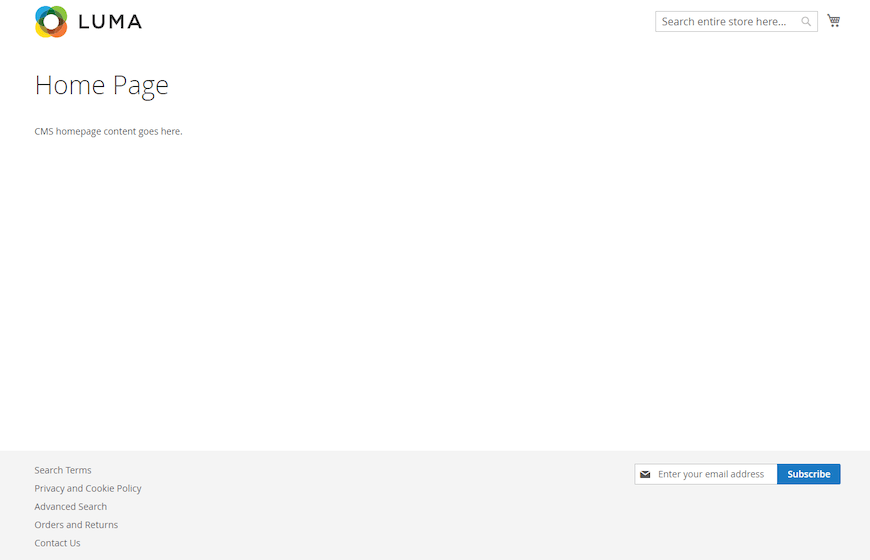
Open your web browser and navigate to your domain. You should see the default Luma theme storefront. Access your admin panel using the Admin URI provided during installation:
https://yourdomain.com/admin_xxxxxxLog in with the admin credentials you set during installation. The dashboard provides access to catalog management, order processing, customer data, marketing tools, and system configuration. Take time to explore the interface and configure essential settings like store information, payment methods, and shipping options.
Post-Installation Security Hardening
Change your default admin URL to something less predictable:
sudo -u www-data php bin/magento config:set admin/url/custom_path myadminpanelEnable two-factor authentication (2FA) for admin accounts. Navigate to Stores > Configuration > Security > 2FA in your admin panel. Configure either Google Authenticator or Authy for additional login security.
Set up regular automated backups of both your database and files. Create a backup script and schedule it with cron. Monitor error logs regularly:
tail -f /var/www/magento/var/log/system.log
tail -f /var/www/magento/var/log/exception.log
Keep all components updated—Magento releases security patches regularly. Subscribe to security bulletins from Magento and apply patches promptly.
Performance Optimization Tips
Enable flat catalog to reduce database queries. In admin, go to Stores > Configuration > Catalog > Catalog > Storefront, and set “Use Flat Catalog Category” and “Use Flat Catalog Product” to Yes. Reindex after enabling.
Configure Varnish cache for dramatically improved performance. Varnish acts as an HTTP accelerator, caching full pages to reduce server load.
Optimize product images—large images slow page load times. Use WebP format where supported for smaller file sizes without quality loss. Enable image lazy loading.
Merge and minify CSS and JavaScript files under Stores > Configuration > Advanced > Developer. This reduces HTTP requests and bandwidth usage.
Consider implementing a Content Delivery Network (CDN) to serve static assets from geographically distributed servers, reducing latency for international customers.
Troubleshooting Common Issues
PHP extensions missing: If installation fails with extension errors, verify all required extensions are installed:
php -m | grep extension_nameInstall missing extensions with sudo apt install php8.2-extension_name.
Elasticsearch connection failed: Check if Elasticsearch is running:
sudo systemctl status elasticsearchVerify the port is accessible:
curl localhost:9200CSS and JavaScript not loading: Deploy static content and clear cache:
sudo -u www-data php bin/magento setup:static-content:deploy -f
sudo -u www-data php bin/magento cache:flush
Permission errors: Reset all permissions:
cd /var/www/magento
sudo find var generated vendor pub/static pub/media app/etc -type f -exec chmod g+w {} +
sudo find var generated vendor pub/static pub/media app/etc -type d -exec chmod g+ws {} +
sudo chown -R www-data:www-data /var/www/magento
2FA blocking admin access: If locked out, disable 2FA temporarily:
sudo -u www-data php bin/magento module:disable Magento_TwoFactorAuthCheck logs in /var/www/magento/var/log/ for detailed error messages. Enable developer mode temporarily for verbose debugging information.
Essential Magento Maintenance Commands
Clear specific caches:
sudo -u www-data php bin/magento cache:clean config layout block_htmlReindex specific indexes:
sudo -u www-data php bin/magento indexer:reindex catalog_product_priceEnable or disable modules:
sudo -u www-data php bin/magento module:enable Module_Name
sudo -u www-data php bin/magento module:disable Module_Name
Run setup upgrade after installing extensions:
sudo -u www-data php bin/magento setup:upgradeCompile dependency injection code:
sudo -u www-data php bin/magento setup:di:compileCheck Magento version:
sudo -u www-data php bin/magento --versionThese commands form the foundation of ongoing Magento administration.
Congratulations! You have successfully installed Magento. Thanks for using this tutorial for installing the latest version of the Magento eCommerce platforms on Debian 13 “Trixie”. For additional help or useful information, we recommend you check the official Magento website.

