How To Install Mattermost on AlmaLinux 10

If your team is tired of paying monthly SaaS bills just to keep conversations private, you already know the pain. Cloud-based tools like Slack hand your data to a third-party vendor — and that is a risk many DevOps teams, healthcare organizations, and regulated businesses simply cannot accept. The solution is to install Mattermost on AlmaLinux 10: a fully self-hosted, open-source team messaging platform running on one of the most stable enterprise Linux distributions available today.
Mattermost is a battle-tested open-source platform written in Go and React that gives you Slack-style channels, direct messaging, file sharing, and deep integrations with tools like Jira, GitHub, and Zapier — all on your own infrastructure. AlmaLinux 10, a certified RHEL 10-compatible distribution, is a production-grade choice for this deployment. It ships with SELinux enforcing by default, modern dnf package management, and long-term enterprise support — exactly what you want under a mission-critical communication server.
In this Linux server tutorial, you will configure Mattermost on AlmaLinux 10 with:
- PostgreSQL 17 as the recommended database backend
- Nginx as a high-performance reverse proxy
- Let’s Encrypt SSL for end-to-end HTTPS encryption
- SELinux configurations specific to AlmaLinux 10 / RHEL-based systems
- A fully managed systemd service with auto-restart
By the end, you will have a production-ready Mattermost server that your team can access securely from any browser or mobile device — completely under your control.
What Is Mattermost and Why Run It on AlmaLinux 10?
Mattermost is more than just a chat app. It is a developer-focused collaboration platform built for security-conscious teams who need full data ownership. Organizations in finance, defense, healthcare, and open-source development choose it specifically because no third-party ever touches their messages.
AlmaLinux 10 makes an ideal host for this workload. As a 1:1 binary-compatible replacement for RHEL 10, it receives enterprise-grade security patches, supports SELinux enforcing mode out of the box, and has a long community support lifecycle. Mattermost’s official documentation explicitly supports RHEL-compatible Linux distributions for production deployments.
| Feature | Mattermost (Self-Hosted) | Slack (Cloud) |
|---|---|---|
| Data Ownership | ✅ Full control | ❌ Vendor holds data |
| Cost at scale | ✅ Free (Team Edition) | ❌ Per-user monthly fee |
| Custom integrations | ✅ Full API access | ⚠️ Limited |
| Compliance (HIPAA, etc.) | ✅ On your terms | ⚠️ Requires Enterprise plan |
| SELinux compatible | ✅ With proper config | N/A |
Prerequisites
Before you start, make sure the following are in place. Skipping any of these is the number one reason installations fail halfway through.
- ✅ A fresh AlmaLinux 10 server or KVM VPS (minimum 2 GB RAM, 2 vCPU, 20 GB disk)
- ✅ A registered domain name with a DNS A record pointing to your server’s public IP (e.g.,
chat.example.com) - ✅ Root or sudo access to the server
- ✅ Ports 80 and 443 open in your hosting firewall panel and not blocked by your ISP
- ✅ A valid email address for Let’s Encrypt SSL certificate registration
- ✅ Basic comfort with Linux terminal commands (beginner-friendly steps are included throughout)
- ✅ Internet access on the server for downloading packages
Note: This guide uses chat.example.com as a placeholder domain. Replace it with your actual domain at every step.
Step 1: Update the System and Install Dependencies
Every reliable server deployment starts with a clean, fully updated system. Running updates before anything else ensures you are working with the latest security patches and that dependency resolution does not hit conflicts caused by outdated package metadata.
Update All Packages
sudo dnf -y update
sudo reboot
The reboot is not just a formality — a kernel update will not take effect until you restart. After the server comes back online, SSH back in and install the required utilities:
sudo dnf -y install wget tar nano policycoreutils-python-utils firewalldHere is what each package does and why you need it:
wget— downloads the Mattermost binary tarball from releases.mattermost.comtar— extracts the downloaded.tar.gzarchivenano— a beginner-friendly text editor for modifying config filespolicycoreutils-python-utils— provides thesemanagecommand, which is mandatory for configuring SELinux contexts on AlmaLinux 10firewalld— manages persistent firewall rules using zones and services
Step 2: Configure the Firewall
AlmaLinux 10 ships with firewalld available but not always active. You need to enable it and open the ports that Mattermost’s web traffic will travel through.
Enable Firewalld and Open HTTP/HTTPS
sudo systemctl enable --now firewalld
sudo firewall-cmd --permanent --add-service=http
sudo firewall-cmd --permanent --add-service=https
sudo firewall-cmd --reload
The --permanent flag makes these rules survive a reboot. Without it, your rules vanish the moment the server restarts. Notice that you do not open port 8065 (Mattermost’s internal listening port) to the public — Nginx will proxy traffic to it from the inside, which is the correct security posture for a production server.
Verify that the rules applied correctly:
sudo firewall-cmd --list-allYou should see http and https listed under services in the output.
Step 3: Install PostgreSQL 17 and Create the Mattermost Database
Mattermost officially recommends PostgreSQL over MySQL/MariaDB for all production deployments. PostgreSQL delivers better performance under concurrent load, supports full-text search across message history, and handles Mattermost’s migration scripts more reliably. The minimum required version is PostgreSQL 14; this guide uses PostgreSQL 17 for maximum longevity.
Install PostgreSQL 17 from the Official PGDG Repository
AlmaLinux 10’s default repos may not include the latest PostgreSQL version, so pull it directly from the official PostgreSQL Global Development Group (PGDG) repo:
sudo dnf install -y https://download.postgresql.org/pub/repos/yum/reporpms/EL-10-x86_64/pgdg-redhat-repo-latest.noarch.rpm
sudo dnf -y install postgresql17-server
Initialize the database cluster and enable the service:
sudo /usr/pgsql-17/bin/postgresql-17-setup initdb
sudo systemctl enable --now postgresql-17
Verify PostgreSQL is running before proceeding:
sudo systemctl status postgresql-17You should see active (running) in green.
Create the Mattermost Database and User
Switch to the PostgreSQL superuser account and open the interactive shell:
sudo -u postgres psqlRun the following SQL commands to create a dedicated database and a locked-down user for Mattermost. Replace StrongPasswordHere with a unique, complex password:
CREATE DATABASE mattermost
  WITH ENCODING 'UTF8'
  LC_COLLATE='en_US.UTF-8'
  LC_CTYPE='en_US.UTF-8'
  TEMPLATE=template0;

CREATE USER mmuser WITH PASSWORD 'StrongPasswordHere';
ALTER DATABASE mattermost OWNER TO mmuser;
GRANT ALL PRIVILEGES ON DATABASE mattermost TO mmuser;
\q
Now fix schema-level ownership so Mattermost can create tables during its first run:
sudo -u postgres psql mattermostALTER SCHEMA public OWNER TO mmuser;
REVOKE ALL ON SCHEMA public FROM PUBLIC;
GRANT ALL ON SCHEMA public TO mmuser;
ALTER DEFAULT PRIVILEGES IN SCHEMA public GRANT ALL ON TABLES TO mmuser;
ALTER DEFAULT PRIVILEGES IN SCHEMA public GRANT ALL ON SEQUENCES TO mmuser;
ALTER DEFAULT PRIVILEGES IN SCHEMA public GRANT ALL ON FUNCTIONS TO mmuser;
\qSecurity tip: Never use the PostgreSQL postgres superuser as Mattermost’s database account. Using a dedicated mmuser limits the blast radius if the application is ever compromised.
Step 4: Download and Install Mattermost on AlmaLinux 10
This is the core of the entire Mattermost on AlmaLinux 10 setup. You will download the binary tarball, place it in the correct system path, and configure proper ownership.
Download the Latest Mattermost Release
Always check the official Mattermost download page for the current stable version. This guide uses v11.2.1 as an example:
cd /tmp
wget https://releases.mattermost.com/11.2.1/mattermost-11.2.1-linux-amd64.tar.gz
Extract the archive and move it into place:
tar -xzf mattermost-11.2.1-linux-amd64.tar.gz
sudo mv mattermost /opt/mattermost
Set Up Directories, User, and Permissions
Create the data directory that Mattermost uses for file uploads:
sudo mkdir -p /opt/mattermost/data /opt/mattermost/client/pluginsCreate a dedicated system user and group for Mattermost. This user will run the process with no login shell and no home directory — exactly what you want for a service account:
sudo useradd --system --user-group mattermost
sudo chown -R mattermost:mattermost /opt/mattermost
sudo chmod +x /opt/mattermost/bin/mattermost
Running Mattermost as a non-root dedicated user is the principle of least privilege in practice. If an attacker ever exploits the application, they land in a jailed account with no escalation path.
Step 5: Configure Mattermost
Before you start Mattermost for the first time, you need to tell it where the database is and what URL it will be reached at. Open the main configuration file:
sudo nano /opt/mattermost/config/config.jsonBack up the default config first — a good habit before modifying any production config file:
sudo cp /opt/mattermost/config/config.json /opt/mattermost/config/config.defaults.jsonEdit ServiceSettings
Find the ServiceSettings block and update these two values:
"ServiceSettings": {
  "SiteURL": "https://chat.example.com",
  "ListenAddress": "127.0.0.1:8065"
}
Setting ListenAddress to 127.0.0.1:8065 is intentional — it means Mattermost will only accept connections from localhost. Nginx will handle all public traffic and proxy it inward. This prevents anyone from bypassing Nginx and hitting Mattermost directly on port 8065.
Edit SqlSettings
Find the SqlSettings block and configure the PostgreSQL connection:
"SqlSettings": {
  "DriverName": "postgres",
  "DataSource": "postgres://mmuser:StrongPasswordHere@127.0.0.1:5432/mattermost?sslmode=disable&connect_timeout=10"
}
Replace StrongPasswordHere with the password you set in Step 3. Save and close the file with Ctrl+X, then Y, then Enter.
Step 6: Apply SELinux Configuration (AlmaLinux 10 Specific)
This step is the one that separates a working AlmaLinux 10 installation from a broken one. AlmaLinux 10 enforces SELinux policies by default, and without these commands, Mattermost will fail to start with a cryptic 203/EXEC error in the systemd journal.
Label the Mattermost Binary as Executable
sudo semanage fcontext -a -t bin_t "/opt/mattermost/bin(/.*)?"`
sudo restorecon -Rv /opt/mattermost
The semanage fcontext command tells SELinux that the binaries inside /opt/mattermost/bin/ are trusted executables. The restorecon command applies that label to the files on disk.
Allow Nginx to Proxy to Backend Applications
sudo setsebool -P httpd_can_network_connect onWithout this boolean, SELinux will silently block Nginx from forwarding connections to Mattermost on port 8065, and you will get a 502 Bad Gateway error that is notoriously difficult to diagnose without SELinux knowledge. The -P flag makes this setting persistent across reboots.
If you need to diagnose any remaining SELinux denials, run:
sudo ausearch -m avc -ts recentStep 7: Create a systemd Service for Mattermost
A systemd unit file turns Mattermost into a proper managed service — one that starts automatically at boot, restarts after crashes, and integrates with journalctl for log viewing.
Create the Unit File
sudo nano /usr/lib/systemd/system/mattermost.servicePaste in the following configuration:
[Unit]
Description=Mattermost
After=network.target postgresql-17.service
BindsTo=postgresql-17.service

[Service]
Type=simple
User=mattermost
Group=mattermost
WorkingDirectory=/opt/mattermost
ExecStart=/opt/mattermost/bin/mattermost
Restart=always
RestartSec=10
LimitNOFILE=49152

[Install]
WantedBy=multi-user.target
Key directives worth understanding:
After=postgresql-17.service— ensures the database is fully up before Mattermost tries to connectBindsTo=postgresql-17.service— if PostgreSQL stops, Mattermost stops too, preventing zombie statesLimitNOFILE=49152— raises the open file descriptor limit to handle many simultaneous WebSocket connectionsRestart=always— the service automatically recovers from crashes
Enable and Start the Service
sudo systemctl daemon-reexec
sudo systemctl daemon-reload
sudo systemctl enable --now mattermost
Confirm it is running:
sudo systemctl status mattermost --no-pagerYou should see active (running). Verify that Mattermost is responding locally:
curl http://localhost:8065If you get back a block of HTML, Mattermost is alive and listening. If not, check the logs:
sudo journalctl -u mattermost -n 50 --no-pagerStep 8: Install and Configure Nginx as a Reverse Proxy
Nginx serves three critical functions here: it terminates HTTPS/TLS so Mattermost does not have to deal with certificates directly, it handles WebSocket upgrades for real-time messaging, and it presents a clean public URL to the world.
Install Nginx
sudo dnf -y install nginx
sudo systemctl enable --now nginx
Create the Mattermost Virtual Host
sudo nano /etc/nginx/conf.d/mattermost.confAdd the following configuration — replace chat.example.com with your actual domain:
upstream mattermost_backend {
    server 127.0.0.1:8065;
    keepalive 32;
}

server {
    listen 80;
    server_name chat.example.com;

    location / {
        proxy_set_header Host $host;
        proxy_set_header X-Real-IP $remote_addr;
        proxy_set_header X-Forwarded-For $proxy_add_x_forwarded_for;
        proxy_set_header X-Forwarded-Proto $scheme;
        proxy_set_header Upgrade $http_upgrade;
        proxy_set_header Connection "upgrade";
        proxy_http_version 1.1;
        proxy_read_timeout 86400s;
        proxy_pass http://mattermost_backend;
    }
}
The Upgrade and Connection "upgrade" headers are not optional. They are required for WebSocket support, which powers Mattermost’s real-time message delivery. Without them, users will see messages only after manually refreshing the page.
Test and reload Nginx:
sudo nginx -t
sudo systemctl reload nginx
A successful test outputs: syntax is ok and test is successful.
Step 9: Secure Mattermost with Let’s Encrypt SSL
Running Mattermost over plain HTTP in production is never acceptable. Let’s Encrypt provides free, trusted SSL certificates, and Certbot automates the entire process including renewal.
Install Certbot with the Nginx Plugin
sudo dnf -y install epel-release certbot python3-certbot-nginxObtain and Configure the SSL Certificate
sudo certbot --nginx -d chat.example.com -m admin@example.com --agree-tos --redirectCertbot will automatically:
- Verify domain ownership via an HTTP-01 challenge (this is why port 80 must be open)
- Issue a certificate from Let’s Encrypt’s certificate authority
- Modify your Nginx config to add an HTTPS listener on port 443
- Set up an HTTP → HTTPS redirect so all traffic is encrypted
Let’s Encrypt certificates expire every 90 days. Certbot installs a systemd timer to handle renewal automatically. Verify it is active:
sudo systemctl status certbot-renew.timerStep 10: Access Mattermost and Complete Initial Setup
Open a browser and navigate to:
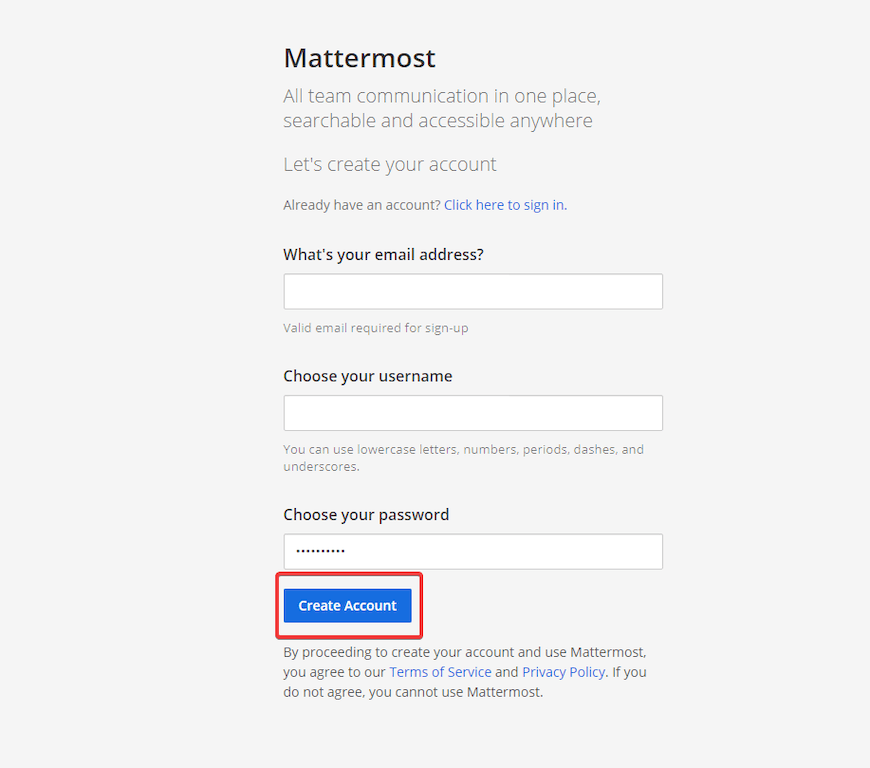
https://chat.example.comYou should see the Mattermost setup wizard. Follow these steps to finalize your deployment:
- Create the admin account — enter your email, a username, and a strong password. This account will have full System Console access.
- Name your team/workspace — this is the first team on your server; you can create more later.
- Invite team members — skip for now or add email addresses to send invitations immediately.
- Verify the Site URL — navigate to System Console → Environment → Web Server and confirm the Site URL matches
https://chat.example.com. - Configure SMTP — go to System Console → Environment → SMTP and enter your mail server credentials. Without SMTP, users cannot receive password reset emails or notification digests.
Post-Installation Best Practices
A working installation is just the beginning. These hardening and maintenance steps separate a test server from a production one:
- 🔒 Harden SSH access: Disable root login in
/etc/ssh/sshd_config(PermitRootLogin no) and switch to key-based authentication - 🔄 Automate security updates: Install
dnf-automaticand configure it to apply security patches nightly - 📦 Schedule regular backups: Back up
/opt/mattermost/datafor uploaded files and runpg_dump mattermost > backup.sqlnightly for the database - 📊 Monitor resource usage: Mattermost can consume 500 MB–1 GB of RAM with active users; monitor with
htopor integrate with Prometheus + Grafana for dashboards - ⬆️ Plan the upgrade path: To upgrade Mattermost, stop the service, replace the binary in
/opt/mattermost/bin/, run database migrations, and restart — always back upconfig.jsonanddata/first - 📬 Enable push notifications: Configure the Mattermost Push Notification Service (MPNS) or use the Mattermost-hosted gateway for iOS and Android push alerts
Troubleshooting Common Issues
Even with a perfect setup, RHEL-based environments can surface specific errors. Here are the most common ones and exactly how to fix them:
| Error / Symptom | Root Cause | Fix |
|---|---|---|
systemd: mattermost.service: Failed at step EXEC (203/EXEC) |
SELinux blocking binary execution | Run semanage fcontext and restorecon from Step 6 |
502 Bad Gateway from Nginx |
Mattermost not running or SELinux blocking Nginx → backend | Check systemctl status mattermost; run setsebool -P httpd_can_network_connect on |
| Certbot fails: “Could not bind to IPv4” | Port 80 not open in firewall | Run sudo firewall-cmd --permanent --add-service=http && sudo firewall-cmd --reload |
| WebSocket disconnects / messages delayed | Missing Upgrade headers in Nginx |
Verify proxy_set_header Upgrade $http_upgrade is present in Nginx config (Step 8) |
FATAL: password authentication failed for user "mmuser" |
Wrong password in config.json DataSource |
Re-check and correct the password in SqlSettings.DataSource in /opt/mattermost/config/config.json |
| Mattermost starts but shows blank page | SiteURL mismatch |
Go to System Console → Web Server and confirm SiteURL matches your actual domain with https:// |
For deeper diagnostics, always check:
sudo journalctl -u mattermost -n 100 --no-pager
sudo cat /opt/mattermost/logs/mattermost.log | tail -50
sudo ausearch -m avc -ts recent
Congratulations! You have successfully installed Mattermost. Thanks for using this tutorial for installing Mattermost on your AlmaLinux OS 10 system. For additional help or useful information, we recommend you check the official Mattermost website.
