How To Install Micro Text Editor on Debian 13

The terminal-based text editor landscape has evolved significantly over the years, bringing modern solutions that combine simplicity with powerful functionality. Micro text editor stands out as a contemporary alternative to traditional editors like Vim, Emacs, and Nano, offering an intuitive interface that feels familiar to users accustomed to graphical text editors. Unlike its predecessors that require memorizing complex key combinations, Micro embraces universal keyboard shortcuts that work across multiple platforms and applications.
Debian 13 users seeking a lightweight yet feature-rich editing experience will find Micro particularly appealing. This guide provides comprehensive instructions for installing Micro text editor on Debian 13 through multiple methods. Whether you prefer using package managers, installation scripts, or manual binary installation, this tutorial covers everything needed to get started. Additionally, you’ll discover post-installation configuration tips, customization options, and troubleshooting solutions to maximize your editing workflow.
What is Micro Text Editor?
Definition and Purpose
Micro is a modern, terminal-based text editor designed to bring contemporary editing conventions to the command line interface. Created by developer zyedidia, the project has matured into a robust editing solution that bridges the gap between simplicity and functionality. The editor runs entirely within the terminal while providing features typically associated with graphical applications. Its primary goal is eliminating the steep learning curve associated with Vim and Emacs while maintaining powerful editing capabilities.
Key Features
Micro incorporates an impressive array of features that enhance productivity without overwhelming users. The editor supports universal keyboard shortcuts including Ctrl-S for saving, Ctrl-C for copying, Ctrl-V for pasting, and Ctrl-Z for undo operations. These familiar combinations eliminate the need to learn entirely new command sets.
Syntax highlighting for over 130 programming languages comes built-in, automatically detecting file types and applying appropriate color schemes. Multiple cursor support, similar to Sublime Text, enables simultaneous editing across different file sections. The plugin system allows extending functionality through community-developed additions, with an official plugin channel maintaining quality extensions.
True color support provides beautiful visual presentation across terminals that support 16, 256, or truecolor modes. Search and replace functionality streamlines text manipulation tasks. Auto-completion capabilities speed up coding by suggesting context-appropriate completions. Mouse support within the terminal environment adds another layer of convenience, allowing point-and-click operations alongside keyboard commands.
Prerequisites and System Requirements
Debian 13 System Requirements
Before installing Micro text editor, ensure your Debian 13 system meets basic requirements. The minimum specifications include a 1 GHz processor, 2 GB of RAM, and 25 GB of available storage space. However, recommended specifications provide better performance: a dual-core 2 GHz processor, 8 GB of RAM, and 50 GB of SSD storage.
Micro itself has minimal resource requirements, making it suitable even for systems meeting only the minimum Debian specifications. The editor’s lightweight nature ensures smooth operation without consuming significant system resources.
Required Permissions and Tools
Several prerequisites must be in place before proceeding with installation. Root access or sudo privileges are essential for system-level package installation and binary placement in system directories. Terminal access allows executing installation commands and testing the editor after setup.
An active internet connection enables downloading packages, scripts, or binaries from official repositories. Basic familiarity with Linux command-line operations helps navigate the installation process smoothly. Updated package repositories ensure access to the latest available packages through APT, which can be achieved by running system updates before installation.
Method 1: Installing Micro Using the Official Installation Script
Understanding the Installation Script
The getmic.ro installation script provides the simplest method for obtaining the latest Micro version. This automated approach downloads the appropriate binary for your system architecture and places it in the correct directory. The script handles platform detection, version selection, and installation automatically.
Security-conscious users should note that piping scripts directly to bash requires trust in the source. The getmic.ro domain is officially maintained by the Micro project, making it a reliable installation method. However, examining the script contents before execution adds an extra security layer for those preferring cautious approaches.
Step-by-Step Installation Process
Open your terminal application on Debian 13. The installation requires a single command that downloads and executes the installation script:
curl https://getmic.ro | bashThis command uses curl to fetch the script and pipes it directly to bash for execution. The script automatically detects your system architecture and downloads the corresponding Micro binary.
Once the download completes, move the binary to your system path for global access:
sudo mv micro /usr/bin/This command places the Micro executable in a standard system directory, making it accessible from any location in your terminal. Setting appropriate permissions ensures the binary executes correctly:
sudo chmod +x /usr/bin/microVerifying Installation
Confirm successful installation by checking the Micro version:
micro -versionThis command displays the installed version number, verifying that the binary is correctly placed and executable. Launch the editor to test basic functionality:
microThe editor should open, displaying a blank buffer ready for input. Press Ctrl-Q to quit and return to your terminal prompt.
Method 2: Installing Micro via APT Package Manager
Updating Package Repositories
The APT package manager provides a traditional installation approach familiar to Debian users. Begin by refreshing your package repository information:
sudo apt updateThis command synchronizes your local package index with remote repositories, ensuring access to the latest package versions. The update process typically completes within seconds, displaying the number of packages that can be upgraded.
Installing Micro Package
Install Micro using the APT package manager:
sudo apt install microThe system retrieves package information, calculates dependencies, and presents a confirmation prompt. Review the packages to be installed and confirm by typing ‘Y’ when prompted. APT automatically handles all dependencies, ensuring a complete installation without manual intervention.
The installation process downloads the package, extracts files, and configures the editor for system-wide use. Progress indicators show download speed and estimated completion time.
Version Comparison
The APT repository version may lag behind the latest release available through the official installation script. Package maintainers prioritize stability, thoroughly testing versions before including them in official repositories. This approach ensures reliability but sometimes means missing the newest features.
Choose the official script method when cutting-edge features are priorities. Select APT installation for maximum stability and integration with Debian’s package management system. The script method provides the latest updates immediately after release, while APT balances innovation with proven stability.
Method 3: Installing from Pre-built Binary
Downloading the Binary
Manual binary installation offers maximum control over version selection and installation location. Navigate to the official Micro GitHub releases page to view available versions. Identify the latest release suitable for your system architecture—typically linux64 for standard Debian installations.
Download the binary using wget:
wget https://github.com/zyedidia/micro/releases/download/v2.0.13/micro-2.0.13-linux64.tar.gzReplace the version number with the current release available on the GitHub page. Alternatively, use curl for downloading:
curl -LO https://github.com/zyedidia/micro/releases/download/v2.0.13/micro-2.0.13-linux64.tar.gzExtracting and Installing
Extract the downloaded archive using tar:
tar -xzf micro-2.0.13-linux64.tar.gzThis command unpacks the compressed archive, creating a directory containing the Micro binary. Navigate into the extracted directory:
cd micro-2.0.13Copy the binary to your system path:
sudo cp micro /usr/local/bin/This location keeps manually installed binaries separate from package manager installations. Set executable permissions:
sudo chmod +x /usr/local/bin/microAdvantages of This Method
Manual binary installation provides precise version control, allowing installation of specific releases for compatibility testing or feature requirements. No additional dependencies beyond the binary itself are necessary, simplifying deployments on minimal systems. This method proves particularly useful for offline installations where internet connectivity is limited or unavailable after initial download.
Method 4: Installing via Snap (Alternative)
Snap packages offer another installation avenue for Debian 13 users. First, ensure snapd is installed on your system:
sudo apt install snapdInstall Micro through the Snap store:
sudo snap install micro --classicThe –classic flag grants the snap necessary system access for full functionality. Snap installations provide automatic updates and consistent experiences across different Linux distributions. However, snaps introduce additional overhead and may start slightly slower than native binaries. Consider this method when you prefer automated updates or manage multiple systems using Snap-based workflows.
Post-Installation Configuration
First Launch and Basic Usage
Launch Micro by typing its name in the terminal:
micro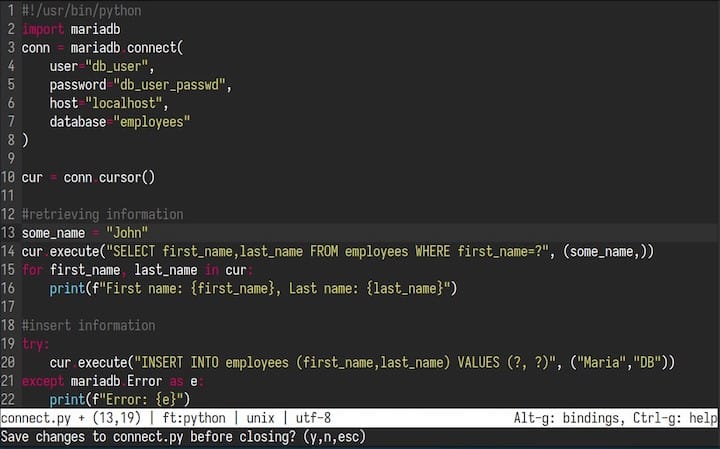
The editor opens with a clean interface, ready for immediate use. Create or open specific files by providing a filename argument:
micro filename.txtIf the file exists, Micro opens it for editing. New filenames create empty buffers that save to the specified path. The interface displays the current file at the top, with content in the main area and a status bar showing line number, column position, and file type.
Access the comprehensive help system by pressing Ctrl-G. This brings up documentation covering all features, keybindings, and commands. Navigate through help topics using arrow keys or page up/down.
Essential Keyboard Shortcuts
Mastering basic keyboard shortcuts accelerates your editing workflow significantly. Save your work by pressing Ctrl-S, which writes changes to disk without exiting the editor. Exit Micro using Ctrl-Q, prompting you to save if unsaved changes exist.
Copy selected text with Ctrl-C and paste clipboard contents using Ctrl-V. These familiar shortcuts eliminate learning curves for users transitioning from graphical editors. Undo recent changes with Ctrl-Z and redo undone actions with Ctrl-Y. Search through files using Ctrl-F, which opens a search prompt at the bottom of the screen.
Create multiple cursors by pressing Alt-N after selecting text. This powerful feature allows simultaneous editing of multiple locations, dramatically speeding up repetitive changes. Move between multiple open files using Ctrl-E to access the command mode, then type the desired filename.
Accessing Settings
Micro stores configuration in a JSON file located at ~/.config/micro/settings.json. Edit this file directly or use the built-in settings commands for modifications. Change settings temporarily for the current session using the set command:
> set tabsize 4Make permanent changes by adding the setlocal command to your configuration file. Common settings include tab width, line numbering, soft wrapping, and auto-save intervals. The settings file supports extensive customization, allowing you to tailor Micro’s behavior to your preferences.
Customization and Advanced Features
Changing Color Schemes
Micro includes seven built-in color schemes that enhance visual appeal and readability. View available themes by entering command mode (Ctrl-E) and typing:
> set colorschemePress Tab to cycle through available options: monokai, solarized, zenburn, and others. Apply a theme by completing the command:
> set colorscheme monokaiInstall custom themes by downloading colorscheme files to ~/.config/micro/colorschemes/. Community-created themes expand visual options, allowing personalization matching your aesthetic preferences or specific use cases like presentations or reduced eye strain.
Installing Plugins
Micro’s plugin system extends functionality through community contributions. The built-in plugin manager simplifies installation and updates. View available plugins by entering:
> plugin availableInstall plugins using the plugin command:
> plugin install filemanagerPopular plugins include quickfix for compiler error navigation, jump for quick file navigation, and filemanager for directory browsing. The official plugin channel maintains quality standards, ensuring compatibility and security. Update all installed plugins periodically:
> plugin updateRemove unwanted plugins with:
> plugin remove pluginnameSyntax Highlighting Configuration
Micro automatically detects file types and applies appropriate syntax highlighting for over 75 programming languages. Language detection relies on file extensions and, when ambiguous, examines file contents. Manually set syntax highlighting when automatic detection fails:
> set filetype pythonCreate custom syntax highlighting rules by adding definition files to ~/.config/micro/syntax/. These YAML files specify patterns, keywords, and color assignments for languages not included by default.
Troubleshooting Common Issues
Installation Failures
Network connectivity problems occasionally interrupt installation attempts. Verify internet access by pinging external servers before retrying installation. Permission denied errors typically indicate insufficient privileges—ensure sudo access for system-level installations.
Repository not found errors suggest outdated package lists. Run sudo apt update before attempting package manager installations. Certificate verification failures when using curl or wget may require updating system SSL certificates:
sudo apt install ca-certificatesRuntime Problems
Terminal compatibility issues affect color display and special character rendering. Ensure your terminal emulator supports 256 colors or truecolor. Set the TERM environment variable appropriately:
export TERM=xterm-256colorColor display problems often stem from terminal limitations rather than Micro configuration. Test your terminal’s capabilities using built-in color tests or switching themes.
Plugin conflicts occasionally cause unexpected behavior or crashes. Disable recently installed plugins to identify problematic additions. Check plugin documentation for known compatibility issues or required dependencies.
Getting Help
The official Micro documentation provides comprehensive coverage of features and troubleshooting. GitHub issues page hosts community discussions, bug reports, and feature requests. Search existing issues before creating new reports to avoid duplicates.
Community forums and Reddit discussions offer peer support from experienced Micro users. The developer actively maintains the project, regularly releasing updates addressing reported issues and adding requested features.
Comparing Micro with Other Text Editors
Micro vs Nano
Nano offers simplicity with basic editing features suitable for quick file modifications. Micro provides significantly richer functionality including multiple cursors, extensive plugin support, and advanced search capabilities. Both editors use intuitive keyboard shortcuts, but Micro’s additional features better serve developers and power users.
Choose Nano for minimal systems or simple editing tasks. Select Micro when advanced features enhance productivity without sacrificing accessibility.
Micro vs Vim
Vim’s modal editing and extensive customization appeal to experienced users willing to invest time learning its paradigm. Micro eliminates the learning curve by using familiar keyboard shortcuts and standard editing modes. Vim’s maturity provides unmatched extensibility through VimScript and decades of plugin development.
Beginners find Micro immediately productive, while Vim requires significant initial investment. Advanced users may still prefer Vim’s efficiency after mastering its unique approach. Micro serves users wanting modern features without modal complexity.
Micro vs Emacs
Emacs represents the ultimate extensible editor, essentially functioning as a Lisp interpreter with text editing capabilities. This power comes with complexity and resource consumption exceeding Micro’s lightweight footprint. Emacs users often spend considerable time customizing their environment to achieve desired workflows.
Micro provides excellent out-of-box experience requiring minimal configuration. Choose Emacs for maximum customization potential and integrated development environment features. Select Micro for straightforward editing without configuration overhead.
Best Practices and Tips
Create custom keyboard shortcuts by adding keybinding definitions to ~/.config/micro/bindings.json. This allows mapping frequently used commands to convenient key combinations matching your workflow preferences.
Organize configuration files systematically, commenting changes to remember their purposes. Version control your Micro configuration directory using Git, enabling synchronization across multiple systems and rollback capabilities when experiments fail.
Back up settings regularly, especially before major updates or extensive customization sessions. Export plugin lists to documentation files, simplifying restoration after system reinstalls or when setting up new machines.
Regular updates maintain security and access to latest features. Check for new Micro releases monthly, reviewing changelogs for relevant improvements. Update plugins simultaneously to ensure compatibility with new editor versions.
Use Micro in shell scripts for automated text processing tasks. The -clean flag prevents loading configurations, ensuring consistent behavior across environments. Integration with version control systems like Git provides syntax highlighting and convenient file access within repositories.
Congratulations! You have successfully installed Micro Editor. Thanks for using this tutorial to install the latest version of the Micro Text Editor on Debian 13 “Trixie”. For additional help or useful information, we recommend you check the official Micro Editor website.
