How To Install Micro Text Editor on Linux Mint 22

Finding the perfect text editor for Linux can feel overwhelming. Between Vim’s steep learning curve and Nano’s limited features, many users struggle to find a comfortable middle ground. Enter Micro—a modern, terminal-based text editor that combines the simplicity of Nano with powerful features you’d expect from contemporary editing tools. This comprehensive guide walks you through multiple installation methods for Micro on Linux Mint 22, ensuring you can start editing files efficiently within minutes.
Whether you’re a system administrator managing configuration files, a developer writing code, or a Linux beginner exploring terminal-based tools, Micro offers an intuitive interface with familiar keyboard shortcuts. No modal editing confusion. No memorizing cryptic commands. Just straightforward text editing that works.
What is Micro Text Editor?
Micro is a modern terminal-based text editor built with Go language, designed specifically for users who want power without complexity. Unlike traditional command-line editors that require extensive documentation study, Micro embraces intuitive design principles that feel natural to anyone who has used desktop applications.
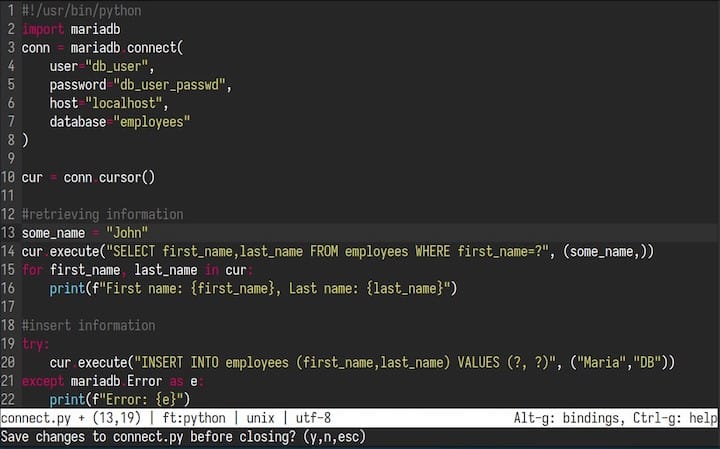
The editor bridges the gap between beginner-friendly tools and professional-grade text editors. It provides syntax highlighting for over 130 programming languages, mouse support directly in your terminal, and standard keyboard shortcuts that match what you already know. Copy with Ctrl+C, paste with Ctrl+V, save with Ctrl+S—no learning required.
What makes Micro special is its commitment to sensible defaults. The moment you launch it, everything just works. Syntax highlighting activates automatically based on file extensions. The mouse cursor responds to clicks. Multiple buffers and split panes allow complex editing workflows. Yet despite these advanced capabilities, the interface remains clean and uncluttered.
The editor also supports a robust plugin ecosystem, allowing you to extend functionality as your needs grow. From linters to code formatters, Micro adapts to your workflow rather than forcing you to adapt to it.
Why Choose Micro Over Other Text Editors?
Micro vs Nano
Both Micro and Nano target users who want straightforward terminal editing, but Micro takes the concept further. While Nano provides basic editing functions with helpful on-screen shortcuts, Micro offers superior syntax highlighting that makes reading code significantly easier. The color-coded formatting updates in real-time, helping you spot errors before they become problems.
Micro’s customization options surpass Nano’s capabilities considerably. You can modify keybindings, install plugins, adjust color schemes, and configure dozens of settings without editing complex configuration files. The plugin support alone opens possibilities that Nano simply cannot match, allowing you to add features like file trees, advanced linters, and Git integration.
Micro vs Vim
Vim remains a powerful editor with decades of development, but its modal editing approach creates a notorious learning curve. New users often find themselves trapped in insert mode, unsure how to save or exit. Micro eliminates this confusion entirely by using a single editing mode with familiar keyboard shortcuts.
Mouse support works immediately in Micro without additional configuration. Click to position your cursor, drag to select text, scroll with your mouse wheel—natural interactions that Vim users must configure or forego entirely. This accessibility means you achieve productivity on day one, not after weeks of practice.
For users transitioning from GUI text editors or IDEs, Micro feels comfortable from the first keystroke. There’s no mental model shift required, no command memorization phase, and no frustration period.
Best For
Micro excels for beginners making their first steps into terminal-based editing. The familiar interface reduces intimidation while building confidence with command-line tools. Developers appreciate the syntax highlighting and multiple language support, making quick edits across different codebases effortless. System administrators find it perfect for editing configuration files, as the intuitive controls minimize mistakes when modifying critical system settings. Anyone wanting fast terminal editing without reference documentation will appreciate Micro’s thoughtful design.
Prerequisites and System Requirements
Linux Mint 22 System Requirements
Before installing Micro, verify that your system meets Linux Mint 22 “Wilma” specifications. You’ll need a 64-bit processor, which covers virtually all computers manufactured in the last decade. The operating system requires minimum 2GB RAM, though 4GB provides smoother performance, especially when running multiple applications.
Allocate at least 20GB of disk space for Linux Mint 22 itself. Your display should support 1024×768 resolution or higher for optimal visibility. Linux Mint 22 was released on July 25, 2024, bringing enhanced stability and updated packages that work seamlessly with modern applications like Micro.
Software Requirements
The installation process demands an active internet connection for downloading packages. You’ll need terminal access, which comes standard with every Linux Mint installation—press Ctrl+Alt+T to open a terminal window. Administrative privileges through sudo are essential for system-level installations.
Most methods require the curl package for downloading files from the internet. If it’s not already installed, we’ll cover that in the installation steps. Basic command-line familiarity helps, though detailed instructions below guide you through each step. Finally, ensure you have approximately 10-15 MB of free disk space for the Micro editor itself.
Method 1: Install Micro Using APT Package Manager
The APT package manager provides the simplest installation path for most Linux Mint users. This method handles dependencies automatically and integrates Micro with your system’s software management.
Step 1: Update System Packages
Open your terminal and refresh the package database to ensure you’re installing the latest available version. Type the following command:
sudo apt update && sudo apt upgradeThis command performs two actions. First, apt update refreshes your system’s package list from repositories. Second, apt upgrade installs any pending updates for your existing software. Enter your password when prompted.
The update process typically takes 1-3 minutes depending on your internet speed and how recently you’ve updated. You’ll see lines of text indicating packages being downloaded and upgraded. This step prevents compatibility issues and ensures security patches are current.
Step 2: Install Micro from Repository
Once your system is updated, install Micro with a single command:
sudo apt install microAPT automatically resolves dependencies, including xclip for clipboard functionality. The system will display the package size and ask for confirmation. Press Y and Enter to proceed.
The installation downloads approximately 10MB of data and completes within 1-2 minutes. You’ll see progress indicators showing package extraction and configuration. When the terminal prompt returns, installation is complete.
Step 3: Verify Installation
Confirm that Micro installed correctly by checking its version:
micro --versionThe output displays the installed version number, confirming successful installation. Alternatively, use which micro to see the executable location, typically /usr/bin/micro.
Try launching Micro for the first time by simply typing micro and pressing Enter. The editor opens in an empty buffer, ready for text input. Press Ctrl+Q to quit and return to your terminal.
Method 2: Install Micro Using Official Installation Script
The official installation script offers a straightforward alternative that works across different Linux distributions. This method downloads the latest version directly from Micro’s developers.
Step 1: Install curl Package
First, check whether curl is already installed:
curl --versionIf you see version information, curl is ready. If not, install it with:
sudo apt install curlCurl is a command-line tool for transferring data from URLs. The installation script uses it to download Micro’s binary files. This takes just a few seconds and requires less than 1MB of disk space.
Step 2: Download and Run Installation Script
Execute the official installation command:
curl https://getmic.ro | bashThis one-liner downloads and executes Micro’s installation script. The script automatically detects your system architecture and downloads the appropriate binary version. You’ll see download progress followed by extraction messages.
The script is maintained by Micro’s developers and hosted on their official domain, ensuring security and reliability. The download size is approximately 8-10MB, completing in under a minute on most connections. The script saves the micro executable in your current directory.
Step 3: Move Binary to System Path
To run Micro from any location, move it to a system directory:
sudo mv micro /usr/local/bin/The /usr/local/bin/ directory is specifically designed for user-installed programs. It’s included in your system’s PATH variable, meaning you can run Micro by typing micro from any directory. Alternatively, use /usr/bin/ for system-wide installations.
This distinction matters for multi-user systems. Programs in /usr/local/bin/ are typically managed by local administrators, while /usr/bin/ contains distribution-managed software.
Step 4: Set Executable Permissions
Ensure the binary has proper execution permissions:
sudo chmod +x /usr/local/bin/microThe chmod +x command makes the file executable. Without this step, your system treats Micro as a regular file rather than a program. Verify permissions with ls -l /usr/local/bin/micro—you should see rwxr-xr-x indicating executable status.
Method 3: Download Pre-Built Binary
For offline installations or specific version requirements, downloading pre-built binaries gives you complete control. Visit Micro’s official GitHub releases page to browse available versions.
Download the archive matching your system architecture—likely micro-linux64.tar.gz for most users. Save it to your Downloads folder, then extract it:
cd ~/Downloads
tar -xvf micro-*.tar.gz
The extraction creates a directory containing the Micro executable. Move it to your system path:
sudo mv micro-*/micro /usr/local/bin/
sudo chmod +x /usr/local/bin/micro
This method proves valuable when working on systems without internet access or when you need to test specific versions. The tradeoff is manual update management—you’ll need to repeat this process for new releases.
Launching and Using Micro Text Editor
Opening Micro
Launch Micro in various ways depending on your needs. For a blank editing buffer, simply type:
microTo open an existing file, specify the filename:
micro filename.txtEdit system files requiring elevated privileges using sudo:
sudo micro /etc/hostsCreate a new file by providing a path that doesn’t exist yet:
micro ~/Documents/newfile.txtMicro creates the file upon saving if it doesn’t already exist.
Essential Keyboard Shortcuts
Micro uses familiar keyboard shortcuts that feel natural if you’ve used any modern text editor.
Save your work with Ctrl+S—probably the most important shortcut to remember. Exit the editor using Ctrl+Q, which prompts you to save if you have unsaved changes. Standard text operations work as expected: Ctrl+C copies, Ctrl+V pastes, and Ctrl+X cuts selected text.
Undo mistakes with Ctrl+Z and redo with Ctrl+Y. Search through your document using Ctrl+F, which opens a search bar at the bottom of the screen. Access the help menu anytime by pressing Ctrl+G.
Power users will appreciate Ctrl+E for command mode, where you can execute advanced operations. Split your screen horizontally with the hsplit command or vertically with vsplit, enabling simultaneous viewing of different file sections.
Configuring Micro Text Editor
Access Micro’s configuration by pressing Ctrl+E to enter command mode. Type set followed by options to customize behavior. For example, enable line numbers with:
set ruler trueCommon configuration options include color schemes for visual preference, tab size adjustment for different coding standards, auto-save intervals for work protection, and cursor behavior modifications. The settings persist across sessions, saved in ~/.config/micro/settings.json.
Edit this JSON file directly for bulk configuration changes. The structure is straightforward, with key-value pairs controlling every aspect of Micro’s behavior. Syntax highlighting settings let you adjust colors for specific programming languages, making code more readable based on your visual preferences.
Create custom keybindings by editing ~/.config/micro/bindings.json. This advanced feature allows remapping any shortcut to match your workflow or accommodate keyboard layouts.
Working with Plugins
Micro’s plugin system extends functionality far beyond the default installation. View available plugins with:
micro -plugin availableThis command displays a list of community-created plugins covering various needs. Install any plugin using:
micro -plugin install [PLUGIN]Popular plugins include linters for real-time code error detection, formatters that automatically style your code, file managers for easier navigation within Micro, and language servers for enhanced programming support. Remove unwanted plugins with:
micro -plugin remove [PLUGIN]Plugins install to ~/.config/micro/plug/, where you can manually inspect or modify them. The plugin ecosystem continues growing as the community develops new tools, making Micro increasingly powerful without bloating the core editor.
Troubleshooting Common Issues
Command Not Found Error
If typing micro returns “command not found,” your system can’t locate the executable. First, verify installation by checking /usr/local/bin/ and /usr/bin/ directories. If the file exists but isn’t recognized, your PATH variable may not include that directory.
Temporarily use the absolute path like /usr/local/bin/micro while investigating. Re-running installation steps often resolves this issue, ensuring proper file placement and permissions.
Permission Denied Errors
Attempting to edit system files without privileges triggers permission errors. Always use sudo micro /path/to/file for files owned by root. Check file ownership with ls -l filename if you’re unsure why access is denied.
For files you should own but don’t, use sudo chown $USER:$USER filename to reclaim ownership. Verify your user permissions are correct before modifying critical system files.
Clipboard Not Working
If copy-paste operations fail, you likely need the xclip package:
sudo apt install xclipXclip bridges terminal applications with your system clipboard. After installation, restart Micro for clipboard functionality to activate. Wayland display server users may need additional configuration compared to X11 users.
Display or Rendering Issues
Strange characters or broken colors indicate terminal compatibility problems. Try different color schemes within Micro using command mode: set colorscheme simple. Update your terminal emulator to the latest version, as newer releases improve rendering support. Some terminals handle Unicode and extended colors better than others—experiment with alternatives like Tilix or Terminator if issues persist.
Updating and Uninstalling Micro
Updating Micro
Keep Micro current with regular updates. For APT installations, update through your package manager:
sudo apt update && sudo apt upgrade microIf you installed via script, simply re-run the original installation command—it automatically downloads the newest version. Manual binary installations require downloading fresh releases from GitHub and replacing the old file.
Check your current version anytime with micro --version to determine whether updates are available.
Uninstalling Micro
Remove Micro through APT if that’s how you installed it:
sudo apt remove microFor manual installations, delete the executable directly:
sudo rm /usr/local/bin/microCompletely clean your system by removing configuration files:
rm -rf ~/.config/microThis removes all settings, plugins, and customizations. Back up your configuration directory first if you might want to restore your setup later.
Congratulations! You have successfully installed Micro Editor. Thanks for using this tutorial to install the latest version of the Micro Text Editor on Linux Mint 22 system. For additional help or useful information, we recommend you check the official Micro Editor website.
