How To Install Microsoft Fonts on Debian 13

If you’ve recently switched to Debian 13 or work across Windows and Linux platforms, you’ve likely encountered font compatibility issues. Opening a Microsoft Word document in LibreOffice only to find Arial replaced with Liberation Sans can disrupt your workflow and formatting. The solution is straightforward: installing Microsoft Core Fonts on your Debian system ensures seamless cross-platform document compatibility, maintains professional presentation standards, and eliminates frustrating font substitution warnings.
Microsoft TrueType Core Fonts include essential typefaces like Arial, Times New Roman, Verdana, and Courier New—fonts that have become universal standards in digital communication, web design, and business documentation. Whether you’re a web developer ensuring accurate font rendering, a graphic designer maintaining typography consistency, or a business professional collaborating with Windows users, having these fonts installed on Debian 13 is practically essential.
This comprehensive guide walks you through every step of installing Microsoft fonts on Debian 13 (Trixie), from enabling the necessary repositories to verifying successful installation. We’ll cover troubleshooting common issues, alternative installation methods, and best practices for maintaining font compatibility across your system.
Understanding Microsoft Core Fonts
Microsoft TrueType Core Fonts are a collection of fonts that Microsoft made freely available for download in the late 1990s to ensure consistent web typography across different platforms. This package includes ten widely-used typefaces: Arial, Times New Roman, Verdana, Courier New, Comic Sans MS, Georgia, Impact, Trebuchet MS, Andale Mono, and Webdings.
These fonts don’t come pre-installed on Debian for important philosophical reasons. Debian’s commitment to free and open-source software means proprietary fonts are excluded from the default installation. The operating system organizes packages into distinct repositories: “main” contains fully free software, “contrib” houses free software that depends on non-free components, and “non-free” includes proprietary software.
The ttf-mscorefonts-installer package resides in the contrib repository because while the installer itself is free software, it downloads proprietary Microsoft fonts. Installing these fonts requires accepting Microsoft’s End User License Agreement, which permits free redistribution for desktop use but imposes certain restrictions.
The benefits of installing Microsoft fonts extend beyond simple compatibility. Professional documents retain their intended appearance, web pages render exactly as designers intended, and cross-platform collaboration becomes friction-free. Your LibreOffice presentations will look identical whether opened on Linux or Windows, eliminating the awkward formatting shifts that come with font substitution.
Prerequisites Before Installation
Before beginning the installation process, ensure your Debian 13 system meets several basic requirements. You’ll need root or sudo privileges to install system-wide packages and modify repository configurations. An active internet connection is essential because the installer downloads fonts from online mirrors during the installation process.
Basic familiarity with terminal commands will make this process smoother, though every command is explained in detail throughout this guide. The entire installation typically takes just one to two minutes on modern broadband connections. While not mandatory, creating a system backup or restore point before modifying repositories represents sound practice for cautious users.
Having a text editor preference ready helps if you choose manual repository configuration. Debian includes nano by default, but vim, gedit, or kate work equally well depending on your desktop environment.
Step 1: Update Your Debian System
The first critical step involves refreshing your system’s package index. This ensures you’re working with the latest repository information and prevents potential dependency conflicts during installation. Open your terminal application and execute the following command:
sudo apt updateThis command contacts all enabled repositories in your sources.list configuration and downloads updated package metadata. You’ll see lines indicating which repositories are being scanned and whether updates are available. The process typically completes within seconds, depending on your internet speed and the number of enabled repositories.
While updating the package index is mandatory, performing a full system upgrade is highly recommended before installing new software. Execute either of these commands to upgrade existing packages:
sudo apt upgradeOr for a more comprehensive upgrade that handles changing dependencies:
sudo apt full-upgradeKeeping your system current prevents version mismatches, reduces security vulnerabilities, and ensures the latest software versions work harmoniously together. If the update command fails, verify your internet connection and check that your /etc/apt/sources.list file contains valid repository URLs.
Step 2: Enable Contrib and Non-Free Repositories
The ttf-mscorefonts-installer package isn’t available in Debian’s default “main” repository, requiring you to enable “contrib” before proceeding. Debian offers several methods for enabling these repositories, each with distinct advantages.
Method 1: Using apt-add-repository Command
The quickest approach uses the apt-add-repository command, which automatically modifies your repository configuration:
sudo apt-add-repository contrib non-free -yThis method is automated, minimizes user error, and immediately enables both contrib and non-free components across all your existing repositories. The -y flag automatically confirms the operation without requiring additional input.
Method 2: Using sed Command for Automated Editing
For users comfortable with command-line text manipulation, the sed command offers precise control:
sudo sed -i '/^deb http.*deb\.debian\.org.*main/s/ main$/ main contrib non-free/' /etc/apt/sources.listThis command searches your sources.list file for lines beginning with “deb http” that reference debian.org and end with “main,” then appends “contrib non-free” to those lines. The -i flag edits the file in-place, creating a seamless modification.
Method 3: Manual Editing of sources.list
Manual editing provides complete visibility into repository changes. Open the sources.list file with your preferred text editor:
sudo nano /etc/apt/sources.listLocate lines resembling:
deb http://deb.debian.org/debian/ trixie main
deb-src http://deb.debian.org/debian/ trixie main
Modify them to include contrib and non-free:
deb http://deb.debian.org/debian/ trixie main contrib non-free
deb-src http://deb.debian.org/debian/ trixie main contrib non-free
Apply the same changes to your security and updates repositories. Save the file by pressing Ctrl+O, then exit nano with Ctrl+X.
Regardless of which method you choose, update your package index immediately after modifying repositories:
sudo apt updateYou can verify successful repository enabling by searching for the package:
apt search ttf-mscorefonts-installerStep 3: Install the ttf-mscorefonts-installer Package
With contrib repositories enabled, installing Microsoft fonts becomes straightforward. Execute this command in your terminal:
sudo apt install ttf-mscorefonts-installerThe package manager automatically resolves dependencies, including cabextract—a utility that extracts files from Microsoft Cabinet (.cab) archives. The installer doesn’t bundle font files directly; instead, it downloads them from SourceForge mirrors maintained by the open-source community.
During installation, you’ll encounter a blue debconf screen displaying Microsoft’s End User License Agreement. This interactive prompt requires manual acceptance before proceeding. Use the Tab key to navigate between the license text and the “OK” button, then press Enter to accept the agreement.
The EULA covers usage terms, redistribution rights, and limitations of liability. Microsoft permits free download and use of these fonts on desktop systems but restricts embedding them in certain commercial products. Reading through the agreement, while time-consuming, ensures legal compliance.
After accepting the license, the installer downloads approximately 66.5 KB of font installers and related files. You’ll see progress indicators showing download status, file extraction, and font registration. The entire process typically completes within one to two minutes, depending on mirror speed and network bandwidth.
If installation stalls or encounters download errors, network connectivity issues or temporary mirror unavailability may be responsible. Wait a moment and retry the installation, or consult the troubleshooting section later in this guide.
Step 4: Install and Configure Fontconfig
Fontconfig is Linux’s font configuration and customization library, responsible for managing font discovery, matching, and rendering across applications. Most Debian desktop installations include fontconfig by default, but installing it explicitly ensures proper configuration:
sudo apt install fontconfigAfter installing fonts, rebuild the font cache to make them immediately available system-wide. Execute this command:
fc-cache -v -rThe -v flag enables verbose output, displaying detailed information about cache rebuilding, while -r recursively processes all font directories. You’ll see lines listing each font directory being scanned and cached, confirming that fontconfig discovered the newly installed Microsoft fonts.
Fontconfig maintains cache files in /var/cache/fontconfig for system-wide fonts and ~/.cache/fontconfig for user-specific installations. This caching mechanism accelerates font loading in applications, eliminating the need to scan font directories repeatedly.
One significant advantage of Linux font management is immediacy—no system restart is required. Applications launched after cache rebuilding automatically detect and display the new fonts. Running applications may require restarting to refresh their font lists, but the operating system itself recognizes fonts instantly.
Step 5: Verify Microsoft Fonts Installation
Confirming successful installation prevents future frustration when fonts unexpectedly don’t appear in applications. Terminal verification provides the most reliable confirmation method.
Terminal Verification
List all installed Microsoft fonts using this command:
fc-list | grep -i "Arial\|Times\|Verdana\|Courier"This command pipes the complete font list through grep, filtering for common Microsoft font names. The output displays file paths, font names, and style variants:
/usr/share/fonts/truetype/msttcorefonts/Arial.ttf: Arial:style=Regular
/usr/share/fonts/truetype/msttcorefonts/Arial_Bold.ttf: Arial:style=Bold
/usr/share/fonts/truetype/msttcorefonts/Arial_Bold_Italic.ttf: Arial:style=Bold Italic
Verify the presence of multiple font families and their variants. Complete installation includes Arial (Regular, Bold, Italic, Bold Italic), Times New Roman (Regular, Bold, Italic, Bold Italic), Verdana, Courier New, Comic Sans MS, Georgia, Impact, Trebuchet MS, Andale Mono, and Webdings.
Microsoft fonts install to /usr/share/fonts/truetype/msttcorefonts/ by default. You can browse this directory directly:
ls /usr/share/fonts/truetype/msttcorefonts/Graphical Verification Using GNOME Fonts Application
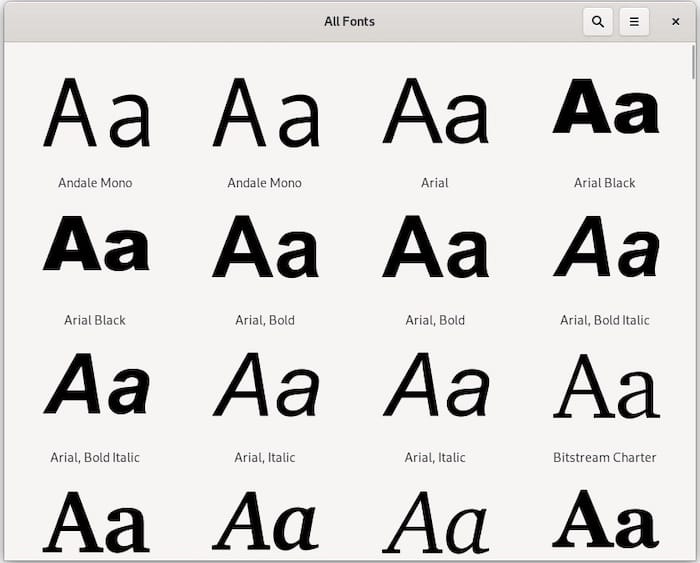
Desktop environments with GNOME include a user-friendly Fonts application for browsing installed fonts. Launch it from your application menu and scroll through the font list, confirming that Microsoft fonts appear alongside system defaults.
Click any font to see a preview with sample text in various sizes and weights. This visual confirmation ensures fonts render correctly before using them in important documents.
Testing Fonts in Applications
The ultimate verification involves testing fonts in real applications. Open LibreOffice Writer and access the font dropdown menu—Microsoft fonts should appear alphabetically alongside Liberation fonts. Create a test document using Arial, Times New Roman, and Verdana to confirm proper rendering.
Firefox and other web browsers automatically detect installed fonts, improving rendering consistency for websites that specify Microsoft typefaces. Visit web design portfolios or typography showcase sites to see the difference.
GIMP users can access Microsoft fonts through the text tool, enabling precise typography matching for cross-platform graphic design projects. Applications running through Wine—the Windows compatibility layer—also automatically detect and utilize the newly installed fonts.
Using Microsoft Fonts in Applications
Successfully installing fonts is just the beginning. Understanding how different applications access and utilize these fonts maximizes their value.
LibreOffice Integration
LibreOffice Writer, Calc, and Impress immediately recognize Microsoft fonts after installation. Open any document, click the font dropdown menu, and scroll to find Arial, Times New Roman, or other Microsoft typefaces. Creating new documents with these fonts ensures perfect compatibility when sharing files with Windows users.
Opening .docx files from Microsoft Word colleagues no longer triggers font substitution warnings. Your Linux system renders documents exactly as intended, maintaining pagination, line breaks, and visual design precisely.
Firefox and Web Browsers
Websites often specify Microsoft fonts in their CSS stylesheets, assuming Windows dominance among users. Without these fonts installed, browsers substitute similar alternatives, potentially breaking carefully crafted designs.
With Microsoft fonts installed, your browser renders web pages exactly as designers intended, improving visual consistency across platforms. Test this by visiting design-heavy websites or online document viewers.
GIMP and Graphics Applications
Graphic designers working across Linux and Windows platforms need consistent typography. GIMP’s text tool displays all installed system fonts, including newly added Microsoft typefaces. Select fonts from the text tool options dialog, ensuring your graphics match Windows-created assets perfectly.
This compatibility extends to other graphics applications like Inkscape, Krita, and Scribus, all of which utilize fontconfig for font discovery.
Wine and Windows Applications
Wine provides remarkable Windows application compatibility on Linux, but font availability significantly affects usability. Microsoft fonts installed at the system level automatically become available to Wine applications, improving rendering quality for Windows software running on Linux.
Configure Wine’s font settings to prioritize system fonts, ensuring seamless integration between native Linux and Windows applications.
Alternative Method: Manual Font Installation
While the ttf-mscorefonts-installer package provides the easiest installation path, manual font installation offers flexibility for specific use cases. This approach works for additional Microsoft fonts not included in the core package, custom fonts, or fonts from other sources.
System-Wide Manual Installation
Create a dedicated directory for manually installed TrueType fonts:
sudo mkdir -p /usr/share/fonts/truetype/custom-fontsCopy downloaded font files to this location:
sudo cp *.ttf /usr/share/fonts/truetype/custom-fonts/Set appropriate permissions ensuring all users can access fonts:
sudo chmod 644 /usr/share/fonts/truetype/custom-fonts/*.ttfUser-Specific Manual Installation
Installing fonts to your home directory requires no administrative privileges and only affects your user account. Create the user font directory:
mkdir -p ~/.local/share/fontsOr use the traditional location:
mkdir -p ~/.fontsCopy font files directly to this directory. No permission changes are necessary since you own the files.
Rebuilding Font Cache After Manual Installation
Regardless of installation location, rebuild the font cache to register new fonts:
fc-cache -fvThe -f flag forces cache rebuilding even if fonts haven’t changed, while -v provides verbose output. Verify successful installation using fc-list as described earlier.
Troubleshooting Common Issues
Even following instructions precisely, occasional installation problems arise. These solutions address the most common issues encountered when installing Microsoft fonts on Debian 13.
Package Not Found Error
If apt cannot locate ttf-mscorefonts-installer, your contrib repository isn’t properly enabled. Double-check your /etc/apt/sources.list file, ensuring “contrib” appears on repository lines. Run sudo apt update after making changes, then retry installation.
EULA Screen Doesn’t Appear
The debconf interface sometimes skips the EULA prompt during installation. Manually trigger license acceptance using:
sudo dpkg-reconfigure ttf-mscorefonts-installerThis command reruns the package configuration, displaying the EULA screen for acceptance.
Download Failures or Stalled Installation
SourceForge mirrors occasionally experience downtime or connectivity issues. Wait several minutes and retry installation:
sudo apt install --reinstall ttf-mscorefonts-installerThe --reinstall flag forces apt to download and install the package again, potentially connecting to different mirrors.
Fonts Not Appearing in Applications
If fonts don’t appear after installation, rebuild the font cache with force options:
sudo fc-cache -f -vRestart any running applications to refresh their font lists. Verify fontconfig is properly installed and configured. Check that fonts actually exist in /usr/share/fonts/truetype/msttcorefonts/.
License Acceptance Issues
Automated installation scripts sometimes struggle with interactive EULA prompts. For scripted installations, use debconf-set-selections to pre-accept the license, though this approach requires careful consideration of licensing implications.
Permission Errors During Installation
Permission denied errors indicate insufficient privileges. Ensure you’re using sudo with installation commands. Verify adequate disk space in /usr/share/fonts/ using:
df -h /usr/share/fonts/Fonts Appear Corrupted or Incorrect
Corrupted downloads occasionally cause rendering problems. Remove and reinstall fonts:
sudo apt remove --purge ttf-mscorefonts-installer
sudo apt install ttf-mscorefonts-installer
Clear your user font cache:
rm -rf ~/.cache/fontconfigThen rebuild the system-wide cache:
sudo fc-cache -f -vPost-Installation: Reverting Repository Changes (Optional)
Some users prefer minimizing non-free repository access after installing desired packages. Microsoft fonts remain fully functional even after disabling contrib repositories.
Revert repository changes using sed:
sudo sed -i '/^deb http.*deb\.debian\.org.*main contrib non-free/s/ contrib non-free//' /etc/apt/sources.listOr manually edit /etc/apt/sources.list, removing “contrib non-free” from repository lines. Update your package index after changes:
sudo apt updateKeep in mind that disabling contrib prevents receiving updates for the ttf-mscorefonts-installer package. If Microsoft releases updated fonts or the package requires security patches, you’ll need to re-enable contrib temporarily. For users installing multiple contrib or non-free packages, leaving repositories enabled simplifies future installations and updates.
Congratulations! You have successfully installed Microsoft Fonts. Thanks for using this tutorial for installing the latest version of Microsoft Fonts on Debian 13 “Trixie” system. For additional help or useful information, we recommend you check the official Microsoft website.
