How To Install Microsoft Teams on Fedora 43

Collaboration tools have become indispensable for remote work, hybrid teams, and digital communication. Microsoft Teams stands out as one of the most popular platforms, connecting millions of users worldwide through chat, video calls, file sharing, and project management features. If you’re a Fedora 43 user looking to harness the power of Teams on your Linux system, you’ve come to the right place.
Installing Microsoft Teams on Fedora 43 might seem challenging at first, especially since Microsoft discontinued the official Linux desktop client. However, several robust alternatives exist that deliver excellent functionality. This comprehensive guide walks you through multiple installation methods, from the official Progressive Web App (PWA) to community-maintained solutions, ensuring you can collaborate seamlessly regardless of your preference.
Whether you’re a system administrator deploying Teams across multiple workstations, a developer needing quick access to team communications, or a remote worker connecting with colleagues, this tutorial provides everything you need to get Microsoft Teams running smoothly on Fedora 43.
Understanding Microsoft Teams on Linux
What Happened to the Official Teams Linux Client
Microsoft made a significant shift in its Linux support strategy. The company discontinued the native Linux desktop application in favor of a Progressive Web App approach. This transition occurred in late 2022 when Microsoft announced that the Teams PWA would become the primary method for Linux users to access the platform.
The decision wasn’t arbitrary. PWAs offer faster feature rollouts, better security through browser sandboxing, and reduced maintenance overhead. While some users initially resisted the change, the PWA has matured into a capable solution that rivals traditional desktop applications in functionality.
Available Installation Methods for Fedora 43
Fedora 43 users have four primary options for accessing Microsoft Teams:
- Progressive Web App (PWA) – Microsoft’s official solution that runs through Edge or Chrome browsers. This method provides automatic updates, native notifications, and desktop integration.
- teams-for-linux – An unofficial open-source client maintained by the community. It offers additional customization options and features not available in the PWA.
- Snap Package – A containerized version of teams-for-linux that simplifies dependency management and provides automatic updates.
- Web Browser Access – The simplest approach requiring zero installation. Just navigate to teams.microsoft.com and sign in.
Each method has trade-offs. The PWA delivers official support but depends on your browser. The teams-for-linux client provides more control at the cost of community-based maintenance. We’ll explore each option thoroughly so you can make an informed decision.
System Requirements and Prerequisites
Minimum Hardware Requirements
Before installing Microsoft Teams, verify your system meets these specifications:
- Processor: Dual-core CPU running at 1.1 GHz or faster
- RAM: Minimum 4.0 GB, though 8.0 GB recommended for smooth video calls
- Storage: At least 3.0 GB of available disk space
- Display: Screen resolution of 1200 x 800 or higher
- Internet: Broadband connection with minimum 1.5 Mbps for video calls
These requirements ensure Teams runs without performance issues during video conferences or screen sharing sessions.
Fedora 43 Specific Prerequisites
First, confirm you’re running Fedora 43. Open a terminal and execute:
cat /etc/fedora-releaseThe output should display “Fedora release 43”. Next, update your system to ensure all packages are current:
sudo dnf update -yThis command refreshes your package database and installs any available updates. You’ll need sudo privileges for most installation procedures, so verify you have administrative access.
If you’re behind a corporate firewall, you may need to configure proxy settings. Additionally, check whether you’re running Wayland or X11, as this affects screen sharing functionality:
echo $XDG_SESSION_TYPEWayland users may need to switch to an X11 session for optimal screen sharing performance.
Software Dependencies
The PWA method requires either Microsoft Edge or Google Chrome installed on your system. These Chromium-based browsers provide the best Teams experience with full feature support.
For the teams-for-linux approach, DNF will handle dependencies automatically. Understanding DNF basics helps troubleshoot potential issues. DNF (Dandified YUM) is Fedora’s package manager, evolved from the older YUM system.
Method 1: Installing Microsoft Teams PWA (Recommended)
Why PWA is the Recommended Method
The Progressive Web App represents Microsoft’s official Linux solution. It receives the same feature updates as Windows and macOS clients, often before the legacy desktop apps. The PWA leverages your browser’s security model, providing robust protection against vulnerabilities.
PWAs integrate seamlessly with your desktop environment. They appear in your application menu, support desktop notifications, and operate in standalone windows without browser chrome. Performance is excellent, with efficient resource usage compared to traditional Electron-based applications.
Microsoft actively maintains and improves the Teams PWA. You’re guaranteed compatibility and support, unlike third-party alternatives that depend on community developers.
Installing Microsoft Edge on Fedora 43
Microsoft Edge offers the most integrated Teams experience. Here’s how to install it:
Step 1: Import Microsoft’s GPG key for package verification:
sudo rpm --import https://packages.microsoft.com/keys/microsoft.ascThis cryptographic key ensures downloaded packages haven’t been tampered with.
Step 2: Add the Microsoft Edge repository to your system:
sudo dnf config-manager --add-repo https://packages.microsoft.com/yumrepos/edgeStep 3: Install Microsoft Edge stable version:
sudo dnf install microsoft-edge-stable -yDNF downloads and installs Edge along with required dependencies. The process typically takes 2-3 minutes depending on your connection speed.
Step 4: Verify the installation:
microsoft-edge --versionYou should see the installed Edge version number displayed.
Alternative: Installing Google Chrome
If you prefer Google Chrome, the installation process differs slightly. Visit google.com/chrome and download the RPM package for 64-bit Fedora/openSUSE. Navigate to your Downloads folder and install:
cd ~/Downloads
sudo dnf install ./google-chrome-stable_current_x86_64.rpm -y
DNF automatically resolves dependencies and completes the installation.
Installing Teams as PWA
With your browser installed, you’re ready to set up Teams:
Step 1: Launch Microsoft Edge or Chrome from your application menu.
Step 2: Navigate to https://teams.microsoft.com in the address bar.
Step 3: Sign in using your Microsoft account credentials. Organizations often use single sign-on, so you might be redirected to your company’s login portal.
Step 4: Look for the install icon in the address bar. In Edge, it appears as a small icon with a plus sign. Click it.
Step 5: A dialog appears asking to install Teams. Click “Install” to confirm.
Step 6: Teams opens in a standalone window and adds itself to your application menu. You can now launch it like any native application.
The PWA creates shortcuts in ~/.local/share/applications/ and registers itself with your desktop environment.
Configuring PWA Settings
After installation, optimize your Teams experience:
- Startup behavior: Open Teams settings, navigate to General, and enable “Auto-start application” if you want Teams launching at login.
- Notifications: Grant notification permissions when prompted. These enable desktop alerts for messages and calls.
- Hardware acceleration: In browser settings, ensure hardware acceleration is enabled for smoother video performance.
Right-click the Teams icon in your application menu and select “Add to favorites” for quick access.
Method 2: Installing teams-for-linux (Community Alternative)
About teams-for-linux
The teams-for-linux project provides an unofficial Microsoft Teams client built specifically for Linux. Maintained by an active community on GitHub, it wraps the Teams web interface with additional features absent from the standard PWA.
Key advantages include better system tray integration, custom CSS themes, enhanced notification control, and various tweaks that improve the Linux experience. The project is open-source, allowing security-conscious users to audit the code.
Installation via Official Repository (Recommended)
The teams-for-linux maintainers provide official repositories for major distributions, including Fedora:
Step 1: Import the teams-for-linux GPG key:
curl -1sLf https://repo.teamsforlinux.de/teams-for-linux.asc | sudo tee /tmp/teams-for-linux.asc
sudo rpm --import /tmp/teams-for-linux.asc
Step 2: Add the repository to your system:
sudo curl -1sLf -o /etc/yum.repos.d/teams-for-linux.repo https://repo.teamsforlinux.de/rpm/teams-for-linux.repoThis creates a repository configuration file that DNF reads during package operations.
Step 3: Install teams-for-linux:
sudo dnf install teams-for-linux -yDNF fetches the package and handles all dependencies automatically.
Step 4: Verify successful installation:
teams-for-linux --versionThe command outputs the installed version number, confirming everything works correctly.
Alternative: Installing via Snap
Snap packages offer universal Linux compatibility with simplified dependency management. First, install snapd on Fedora:
sudo dnf install snapd -yEnable classic snap support by creating a symbolic link:
sudo ln -s /var/lib/snapd/snap /snapYou may need to log out and back in for the path changes to take effect. Then install teams-for-linux:
sudo snap install teams-for-linuxSnap handles updates automatically, keeping your installation current.
Launching teams-for-linux
Find teams-for-linux in your application menu under Internet or Communications. Alternatively, launch it from terminal:
teams-for-linuxFirst-time launch presents the Teams login screen. Sign in with your credentials just as you would with the official client.
Configuration Options
Access settings through the application menu or preferences. Notable options include:
- Custom themes: Apply CSS modifications to change Teams’ appearance
- System tray: Enable background operation with system tray icon
- Notification settings: Fine-tune which events trigger desktop notifications
- Proxy configuration: Essential for corporate environments with network restrictions
The settings file resides in ~/.config/teams-for-linux/, allowing manual editing if needed.
Method 3: Using Microsoft Teams via Web Browser
Accessing Teams Without Installation
Sometimes you need quick access without full installation. Open any modern browser and visit https://teams.microsoft.com. Microsoft Teams works with Firefox, Chrome, Edge, and other browsers.
Sign in with your account, and you’re immediately connected to your teams, chats, and meetings. The web interface mirrors the desktop experience with most features intact.
Limitations of Browser-Only Access
While convenient, browser access has drawbacks:
- Desktop notifications may not integrate as smoothly with your system
- No offline access to messages or files
- Screen sharing capabilities vary by browser and can be limited
- Performance might lag compared to dedicated applications
- No persistent window in your application launcher
These limitations make browser access best suited for temporary use rather than daily workflows.
When to Use Browser Access
Consider browser access for:
- Testing Teams before committing to installation
- Accessing Teams on a shared or public computer
- Troubleshooting issues with installed applications
- Minimal resource usage scenarios where every megabyte counts
It’s perfect for occasional users who don’t need full desktop integration.
Launching and Initial Setup of Microsoft Teams
First Launch Experience
When you first open Teams, regardless of installation method, you encounter the login screen. Enter your email address associated with your Microsoft account. Organizations using Azure Active Directory redirect you to their authentication portal.
Two-factor authentication adds an extra security layer. You’ll receive a code via SMS, authenticator app, or email. Enter it to complete login. Teams remembers your device, so subsequent logins are faster.
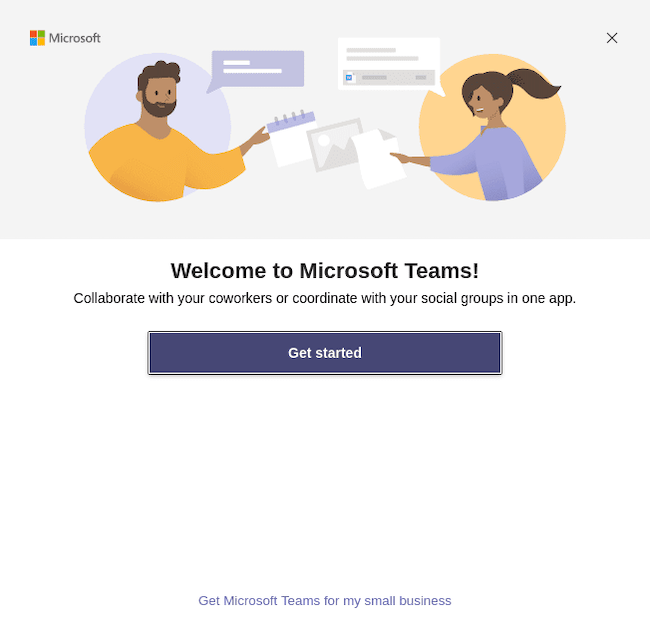
Initial Configuration
Teams guides you through essential setup steps:
Profile Setup: Upload a profile picture, set your display name, and write a status message. These help colleagues identify you in chats and meetings.
Device Selection: Choose your microphone, speakers, and camera from detected hardware. Teams shows a preview to verify everything works correctly.
Audio Test: Make a test call to ensure your microphone and speakers function properly. You hear your own voice played back after a brief recording.
Notification Preferences: Decide which events trigger notifications. Balance staying informed with avoiding notification overload.
Exploring the Interface
Teams organizes features in a left sidebar:
- Activity: Shows notifications, mentions, and recent updates
- Chat: Personal and group conversations
- Teams: Organized workspaces with channels for different projects
- Calendar: Meeting schedule integrated with Outlook
- Calls: Voice and video calling features
- Files: Access shared documents and files
Take time exploring each section. Understanding the layout improves productivity and helps you find features quickly.
Configuring Teams for Optimal Performance on Fedora 43
Audio and Video Settings
Click your profile picture and select Settings. Under Devices, verify Teams detects your hardware correctly. If you have multiple microphones or cameras, choose the appropriate one.
Enable Noise suppression to filter background sounds during calls. Set Camera background effects to blur your background or use a virtual backdrop. These features use system resources, so disable them on older hardware if performance suffers.
Test your setup using the “Make a test call” option. This ensures everything works before important meetings.
Screen Sharing Configuration
Screen sharing behaves differently on X11 versus Wayland. Wayland users may experience limitations or need to grant additional permissions. Check your session type:
echo $XDG_SESSION_TYPEIf running Wayland and encountering screen sharing issues, consider switching to X11. Log out, select X11 session from your login screen, and log back in.
Grant screen recording permissions when Teams prompts. On Fedora with GNOME, this involves approving access through Settings > Privacy > Screen Recording.
Notification Management
Control notification frequency through Settings > Notifications. Options include:
- Banner and audio alerts for all activity
- Only mentions and replies
- Custom rules for specific teams or channels
- Do Not Disturb schedule for focused work time
Configure sounds under Settings > General. Choose between different notification tones or disable audio entirely.
Performance Optimization
If Teams feels sluggish:
- Enable hardware acceleration in your browser settings (for PWA users)
- Close unnecessary applications to free RAM
- Clear Teams cache periodically: Settings > Privacy > Clear cache
- Disable video backgrounds and effects during calls
- Update your graphics drivers for better GPU utilization
Monitor system resource usage with:
htopThis shows CPU, memory, and process information, helping identify bottlenecks.
Common Issues and Troubleshooting
Installation Problems
“Package Not Found” Errors
If DNF can’t find the package, your repository configuration might be incorrect. Verify the repo file exists:
ls /etc/yum.repos.d/Look for edge.repo or teams-for-linux.repo. If missing, repeat the repository addition steps. Clean DNF cache and rebuild:
sudo dnf clean all
sudo dnf makecache
This refreshes package databases and often resolves package not found errors.
Dependency Conflicts
DNF usually resolves dependencies automatically. Occasionally, conflicts arise from incompatible package versions. The error message indicates which packages conflict. Try:
sudo dnf update --best --allowerasingThis allows DNF to remove conflicting packages while updating. Use cautiously and review changes before confirming.
GLIBCXX version errors indicate outdated system libraries. Update your entire system:
sudo dnf upgrade --refreshRuntime Issues
Application Won’t Launch
If Teams fails to start, check for error messages. Launch from terminal to see output:
teams-for-linuxError messages guide troubleshooting. Common issues include missing libraries or permission problems.
For PWA installations, try clearing browser cache or reinstalling the PWA. Right-click the PWA, select “Uninstall,” then reinstall from teams.microsoft.com.
Snap confinement can cause startup issues. Check snap logs:
snap logs teams-for-linuxAudio/Video Not Working
First, verify devices work in other applications. Test your microphone:
arecord -f cd -d 5 test.wav && aplay test.wavThis records 5 seconds of audio and plays it back. If this fails, the issue is system-wide, not Teams-specific.
Fedora uses PipeWire for audio. Ensure it’s running:
systemctl --user status pipewireIf stopped, start it:
systemctl --user start pipewireCheck Teams device settings and reselect your audio devices. Sometimes re-selection resolves detection issues.
Screen Sharing Not Functioning
Screen sharing issues often relate to display server choice. Wayland has security restrictions that limit screen capture. Switch to X11:
- Log out of your session
- At the login screen, click the gear icon
- Select “GNOME on Xorg” or “X11”
- Log in and test screen sharing
Grant necessary permissions through Settings > Privacy > Screen Recording. Remove and re-grant permissions if problems persist.
Network and Connectivity Issues
Corporate firewalls sometimes block Teams traffic. Ensure these ports are open:
- TCP 443 (HTTPS)
- UDP 3478-3481 (Media)
- TCP 80 (HTTP redirect)
Configure proxy settings if your network requires them. For teams-for-linux, set proxy in the application settings. For PWA, configure proxy in browser settings.
DNS issues can prevent connection. Try switching to Google DNS:
sudo nano /etc/resolv.confAdd:
nameserver 8.8.8.8
nameserver 8.8.4.4
VPN connections sometimes interfere with Teams. Try disconnecting VPN temporarily to diagnose whether it’s causing issues.
Keeping Microsoft Teams Updated
PWA Updates
The PWA updates automatically through your browser. When Edge or Chrome updates, Teams receives improvements simultaneously. Force-refresh the PWA by pressing Ctrl+Shift+R in the Teams window.
Keep your browser current:
sudo dnf update microsoft-edge-stableOr for Chrome:
sudo dnf update google-chrome-stableteams-for-linux Updates
DNF manages updates for repository-installed applications. Update teams-for-linux specifically:
sudo dnf update teams-for-linuxOr update all packages:
sudo dnf upgradeCheck the GitHub releases page periodically for major updates and new features. The maintainers provide detailed changelog information for each release.
Snap Updates
Snap packages update automatically by default. Force an immediate update:
sudo snap refresh teams-for-linuxView update history:
snap changesIf an update causes problems, revert to the previous version:
sudo snap revert teams-for-linuxUninstalling Microsoft Teams from Fedora 43
Removing PWA Installation
Uninstalling the PWA is straightforward. Open Microsoft Edge or Chrome, navigate to teams.microsoft.com, and click the PWA icon in the address bar. Select “Uninstall Teams” from the menu.
Alternatively, right-click the Teams icon in your application menu and choose “Uninstall” or “Remove from system.”
Clear residual data by removing the PWA cache directory:
rm -rf ~/.config/microsoft-edge/Default/Web\ Applications/Uninstalling teams-for-linux
Remove the application using DNF:
sudo dnf remove teams-for-linux -yDelete configuration files if you won’t reinstall:
rm -rf ~/.config/teams-for-linuxRemove the repository if desired:
sudo rm /etc/yum.repos.d/teams-for-linux.repoRemoving Snap Installation
Uninstall the snap package:
sudo snap remove teams-for-linuxIf you no longer need snapd:
sudo dnf remove snapdThis reclaims disk space if you’re not using other snap packages.
Congratulations! You have successfully installed Microsoft Teams. Thanks for using this tutorial for installing Microsoft Teams on your Fedora 43 Linux system. For additional help or useful information, we recommend you check the official Microsoft website.
