How To Install Monitorix on Fedora 43

Managing a Linux server without a monitoring tool is like driving blind. You need to know when your CPU is spiking, when your disks are filling up, and when network traffic looks suspicious. Monitorix solves all of that with a lightweight, open-source daemon and a clean browser-based interface. This guide walks you through the complete process to install Monitorix on Fedora 43, from system preparation to securing the web dashboard.
By the end, you will have a fully functional Monitorix instance running on Fedora 43, collecting metrics and rendering historical graphs without touching Apache or Nginx.
What Is Monitorix and Why Use It on Fedora 43?
Monitorix is a free, open-source system and network monitoring tool written in Perl. It runs as a background daemon and stores collected data in RRD (Round Robin Database) files managed by RRDtool.
Since version 3.0, Monitorix ships with its own built-in HTTP server. You do not need to set up a separate web server just to view graphs. That architectural decision keeps the footprint small, making it ideal for both production servers and personal workstations.
Monitorix monitors a broad range of system resources out of the box:
- CPU usage, load average, and per-core metrics
- RAM and swap utilization
- Disk I/O and filesystem usage with configurable thresholds
- Network interface traffic and packet statistics
- System temperatures via
lm_sensors - Active processes and user login activity
- Network services and open port activity
On Fedora 43 specifically, Monitorix is available directly in the official Fedora repositories, so you do not need EPEL or any third-party repo. That makes installation clean, repeatable, and fully supported by Fedora’s packaging team.
Prerequisites
Before you start the installation process, make sure your environment meets these requirements:
- OS: Fedora 43 (fresh install or existing system)
- User privileges: A non-root user account with
sudoaccess - Network access: DNF must be able to reach Fedora’s mirrors
- Firewall:
firewalldis active (default on Fedora 43) - SELinux: Active in Enforcing mode by default — this guide covers it
- Perl: Version 5.10 or higher (included in base Fedora install)
- Port 8080: Free and available for Monitorix’s built-in HTTP server
- Disk space: At least 500 MB free for installation and RRD database growth
Step 1: Update Your Fedora 43 System
Always update your system before installing new software. This prevents dependency mismatches and ensures you have the latest security patches applied.
sudo dnf check-update
sudo dnf upgrade --refresh
The --refresh flag forces DNF to sync the latest metadata from all enabled repositories. If a kernel update is included, reboot before continuing:
sudo systemctl rebootAfter reboot, log back in and confirm your Fedora version:
cat /etc/fedora-releaseExpected output:
Fedora release 43 (Forty Three)Verify Sudo Access
Confirm your account has active sudo privileges before proceeding:
sudo whoamiThis should return root. If it does not, add your user to the wheel group:
sudo usermod -aG wheel your_usernameCheck for Port Conflicts
Monitorix defaults to port 8080. Confirm that port is free:
sudo ss -tulpn | grep :8080If another service is using port 8080, note this. You will change the port in Monitorix’s configuration file later. If the command returns no output, the port is available.
Check SELinux Status
getenforceThe output will be Enforcing, Permissive, or Disabled. On a standard Fedora 43 install, you will see Enforcing. Keep that in mind because SELinux can block Monitorix from reading RRD files after installation. This guide covers the fix in the troubleshooting section.
Step 2: Open the Firewall for Monitorix
Configure the firewall before installation so port 8080 is ready when Monitorix starts.
sudo firewall-cmd --permanent --add-port=8080/tcp
sudo firewall-cmd --reload
The --permanent flag ensures the rule survives reboots. The --reload flag activates it immediately without restarting firewalld.
Verify the rule was added:
sudo firewall-cmd --list-portsExpected output:
8080/tcpStep 3: Install Monitorix on Fedora 43
This is the core step. Monitorix is available in Fedora 43’s official repositories, so a single DNF command handles the installation.
sudo dnf install monitorixDNF will display the package list along with its dependencies. Type y and press Enter to confirm. The package manager resolves all direct dependencies automatically.
After installation completes, verify that Monitorix was installed correctly:
rpm -q monitorixExpected output:
monitorix-3.16.0-2.fc43The version number may differ slightly depending on the current Fedora 43 package.
Install Additional Perl Dependencies
Some Perl modules are not pulled in automatically. Install them explicitly to avoid runtime errors later:
sudo dnf install perl perl-libwww-perl perl-MailTools perl-MIME-Lite \
perl-CGI perl-DBI perl-XML-Simple perl-Config-General \
perl-HTTP-Server-Simple rrdtool perl-rrdtool \
perl-IO-Socket-SSL perl-LWP-Protocol-https
Here is what each group of packages does:
perl-CGI,perl-HTTP-Server-Simple: Power the built-in web server and graph rendering viamonitorix.cgirrdtool,perl-rrdtool: Create and manage the Round Robin Databases that store all collected metricsperl-Config-General: Parses Monitorix’s configuration file formatperl-IO-Socket-SSL,perl-LWP-Protocol-https: Enable HTTPS support for the built-in server and outbound connections
Verify the three most critical Perl modules work:
perl -e 'use CGI; use RRDs; use HTTP::Server::Simple; print "All modules OK\n"'Expected output:
All modules OKIf you see a “Can’t locate” error, reinstall the module with sudo dnf install perl-<ModuleName>.
Optional Dependencies
# For email alerts
sudo dnf install perl-Net-SMTP-SSL perl-Authen-SASL

# For MySQL/MariaDB monitoring
sudo dnf install perl-DBD-MySQL

# For CPU temperature and sensor monitoring
sudo dnf install lm_sensors
sudo sensors-detect
Run sensors-detect and follow its prompts to auto-detect hardware sensors.
Step 4: Configure Monitorix on Fedora 43
The Monitorix configuration file lives at /etc/monitorix/monitorix.conf. Before editing, make a backup:
sudo cp /etc/monitorix/monitorix.conf /etc/monitorix/monitorix.conf.backupNow open the file for editing:
sudo nano /etc/monitorix/monitorix.confConfigure Global Settings
Find and update these top-level parameters to match your server:
title = My Fedora 43 Server
hostname = fedora43.yourdomain.com
theme_color = black
refresh_rate = 150
enable_zoom = ytitle: Displayed at the top of the web interfacehostname: Your server’s fully qualified domain name or IP addressrefresh_rate: How often the web interface auto-refreshes in secondsenable_zoom: Allows users to click into specific graph time windows
Configure the Built-in HTTP Server Port
Locate the <httpd_builtin> block and confirm or change the port:
<httpd_builtin>
    enabled = y
    host    =
    port    = 8080
    user    = nobody
    group   = nobody
</httpd_builtin>
Change port = 8080 to another value only if port 8080 is in use on your system.
Enable Monitoring Modules
The <graph_enable> section controls which resources Monitorix collects. Enable only what you need to reduce overhead:
<graph_enable>
    system   = y
    kern     = y
    proc     = y
    disk     = y
    fs       = y
    net      = y
    lmsens   = y
    nvidia   = n
    serv     = y
</graph_enable>
Setting a module to n disables collection for that resource entirely.
Configure Network Interface Monitoring
First, find your actual interface names:
ip addr showThen update the <net> section with the correct names:
<net>
    list = enp0s3, wlp2s0
    desc = LAN, Wireless
</net>
Replace enp0s3 and wlp2s0 with your actual interface names from ip addr show.
Configure Filesystem Monitoring
<fs>
    list = /, /home, /var
    desc = Root, Home, System
    alert_threshold_warning  = 85
    alert_threshold_critical = 95
</fs>
This tells Monitorix to monitor three mount points and trigger alerts at 85% and 95% usage. Adjust the paths to match your actual mount points.
After all changes, save the file with Ctrl+O and exit with Ctrl+X.
For a full reference of all configuration parameters, use:
man monitorix.confStep 5: Start and Enable the Monitorix Service
Start Monitorix now and configure it to start automatically at every boot:
sudo systemctl start monitorix
sudo systemctl enable monitorix
Check that the service is running correctly:
sudo systemctl status monitorixExpected output (healthy service):
● monitorix.service - Monitorix
     Loaded: loaded (/usr/lib/systemd/system/monitorix.service; enabled)
     Active: active (running) since Thu 2026-03-19 05:55:00 WIB; 10s ago
   Main PID: 1234 (monitorix)
      Tasks: 2 (limit: 4915)
     Memory: 18.5M
The key line to confirm is Active: active (running).
Validate Your Configuration Syntax
Before trusting the running service, run a dry validation of your config file:
monitorix -c /etc/monitorix/monitorix.conf -vThe -v flag validates the configuration and exits without starting the service. If there are syntax errors, it reports the line number and parameter name. Fix any errors, then restart:
sudo systemctl restart monitorixWhenever you edit monitorix.conf, always restart the service for changes to take effect.
Step 6: Access the Monitorix Web Interface
Open a browser and navigate to:
http://localhost:8080/monitorix/For remote access from another machine on the network, replace localhost with your server’s IP address:
http://YOUR_SERVER_IP:8080/monitorix/Navigating the Dashboard
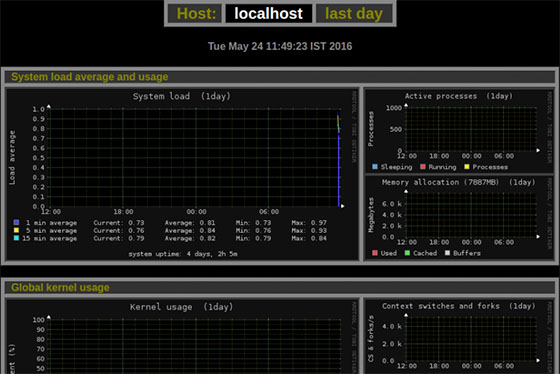
The landing page organizes all enabled monitoring modules into clickable categories. Each category opens a graph set with four time-range views:
- Daily: Last 24 hours
- Weekly: Last 7 days
- Monthly: Last 30 days
- Yearly: Last 365 days
Hover over any data point to see exact metric values. If you enabled enable_zoom = y in the config, clicking on a graph allows you to zoom into a specific time window for granular analysis.
JavaScript must be enabled in your browser for the full interface to work. Use a desktop browser for best results, since mobile browsers may truncate wide graph labels.
Step 7: Secure Your Monitorix Installation
By default, anyone who can reach port 8080 can view your Monitorix dashboard. On a production server, that is a real exposure risk. Apply authentication and optionally HTTPS.
Enable HTTP Basic Authentication
Step 1: Install httpd-tools and create an authentication file:
sudo dnf install httpd-tools
sudo mkdir -p /etc/monitorix/auth
sudo htpasswd -c /etc/monitorix/auth/.htpasswd admin
You will be prompted to set and confirm a password for the admin user. To add more users later, omit the -c flag:
sudo htpasswd /etc/monitorix/auth/.htpasswd another_userStep 2: Edit the <httpd_builtin> block in monitorix.conf:
<httpd_builtin>
    enabled  = y
    host     =
    port     = 8080
    auth     = y
    htpasswd = /etc/monitorix/auth/.htpasswd
</httpd_builtin>
Step 3: Restart Monitorix to apply authentication:
sudo systemctl restart monitorixEnable HTTPS with a Self-Signed Certificate
For internal production servers, add SSL to encrypt the monitoring traffic:
sudo mkdir -p /etc/monitorix/ssl
sudo openssl req -new -x509 -days 365 -nodes \
  -out /etc/monitorix/ssl/monitorix.crt \
  -keyout /etc/monitorix/ssl/monitorix.key
Update the <httpd_builtin> section:
<httpd_builtin>
    enabled       = y
    port          = 8443
    ssl           = y
    ssl_cert_file = /etc/monitorix/ssl/monitorix.crt
    ssl_key_file  = /etc/monitorix/ssl/monitorix.key
    auth          = y
    htpasswd      = /etc/monitorix/auth/.htpasswd
</httpd_builtin>
Open the new port in the firewall and restart:
sudo firewall-cmd --permanent --add-port=8443/tcp
sudo firewall-cmd --reload
sudo systemctl restart monitorix
Access the secured dashboard at:
https://YOUR_SERVER_IP:8443/monitorix/Restrict Access by IP Range
Block all IPs except your trusted subnet:
sudo firewall-cmd --permanent --add-rich-rule='rule family="ipv4" \
source address="192.168.1.0/24" port port="8080" protocol="tcp" accept'
sudo firewall-cmd --permanent --remove-port=8080/tcp
sudo firewall-cmd --reload
Replace 192.168.1.0/24 with your actual network range.
Troubleshooting Common Issues
Issue 1: Monitorix Service Fails to Start
Symptoms: systemctl status monitorix shows failed or inactive.
Fix:
# View detailed logs
sudo journalctl -u monitorix -n 50

# Validate the configuration file
monitorix -c /etc/monitorix/monitorix.conf -v

# Run in debug mode
sudo monitorix -c /etc/monitorix/monitorix.conf -d
The most common root cause is a missing Perl module. The debug output will name the exact module. Install it with sudo dnf install perl-<ModuleName>.
Issue 2: Graphs Are Empty or Show No Data
Symptoms: The web interface loads but graphs display no data lines.
Fix: Check and correct permissions on the RRD database directory:
sudo chown -R monitorix:monitorix /var/lib/monitorix/db/
sudo chmod -R 755 /var/lib/monitorix/db/
sudo systemctl restart monitorix
If a specific .rrd file is corrupted, delete it and Monitorix will regenerate it on the next cycle:
sudo rm /var/lib/monitorix/db/problematic_file.rrd
sudo systemctl restart monitorix
Issue 3: SELinux Blocking Monitorix
Symptoms: Service runs but graphs remain empty. The audit.log file shows AVC denials.
Fix:
# Identify AVC denials
sudo ausearch -m AVC -ts recent | grep monitorix

# Generate and apply a custom SELinux policy
sudo grep monitorix /var/log/audit/audit.log | audit2allow -M monitorix_policy
sudo semodule -i monitorix_policy.pp

# Set required boolean
sudo setsebool -P httpd_can_network_connect 1
Issue 4: Network Graphs Show Zero Traffic
Symptoms: Network monitoring is enabled but graphs show flat zero lines.
Fix: Interface names in your config do not match actual system interfaces. Run ip addr show and compare the output with the list = line in the <net> section of monitorix.conf. Update them to match exactly, then restart Monitorix.
sudo setcap cap_net_admin,cap_net_raw+ep /usr/bin/monitorixIssue 5: Web Interface Not Accessible Remotely
Symptoms: The dashboard loads on localhost but not from another machine.
Fix:
# Confirm service is running
sudo systemctl status monitorix

# Confirm the firewall rule is active
sudo firewall-cmd --list-all | grep 8080

# Add the rule if missing
sudo firewall-cmd --permanent --add-port=8080/tcp
sudo firewall-cmd --reload
If both checks pass and access still fails, confirm SELinux is not blocking network connections:
sudo setsebool -P httpd_can_network_connect 1Congratulations! You have successfully installed Monitorix. Thanks for using this tutorial for installing the Monitorix monitoring tool on your Fedora 43 Linux system. For additional or useful information, we recommend you check the official Monitorix website.
