
Monitorix stands as one of the most efficient lightweight system monitoring solutions available for Linux servers today. This open-source tool delivers comprehensive monitoring capabilities without consuming excessive system resources, making it ideal for production environments and embedded devices alike. Unlike resource-intensive alternatives, Monitorix operates with minimal overhead while providing detailed insights into system performance, network traffic, disk health, and service statistics.
The built-in HTTP server feature sets Monitorix apart from competitors, eliminating the need to install Apache or Nginx separately. System administrators can access detailed graphs and real-time metrics through a web interface immediately after installation. This guide provides step-by-step instructions for installing and configuring Monitorix on openSUSE distributions, including Tumbleweed, Leap 15.6, and Leap 15.5, ensuring a smooth deployment process from start to finish.
What is Monitorix?
Monitorix represents a powerful yet lightweight system monitoring tool specifically designed for Linux and UNIX servers. The software architecture consists of two primary components: the monitorix daemon, which collects system data continuously, and the monitorix.cgi script, which generates visual graphs for web-based viewing. This dual-component design ensures efficient data collection while maintaining minimal system resource consumption.
Originally developed for Red Hat, Fedora, and CentOS distributions, Monitorix has evolved to support various operating systems including FreeBSD, OpenBSD, NetBSD, and multiple Linux distributions. The version 3.0 release introduced a modular code structure that significantly reduced memory footprint and improved overall performance. This modular approach allows packaging flexibility, enabling installation as either a comprehensive single package or multiple smaller packages tailored for embedded systems.
RRDtool integration forms the backbone of Monitorix’s data storage and graph generation capabilities. Every monitoring module stores historical data in RRD databases, enabling long-term trend analysis and performance tracking. The tool monitors system load averages, CPU utilization across multiple cores, memory allocation patterns, disk I/O operations, network bandwidth consumption, active processes, hardware temperatures, and numerous service-specific metrics including Apache, MySQL, Nginx, NFS, Samba, and Postfix statistics.
Prerequisites
Before beginning the installation process, ensure the openSUSE system meets specific requirements. Monitorix supports openSUSE Tumbleweed, openSUSE Leap 15.6, openSUSE Leap 15.5, and specialized builds for ARM, PowerPC, and zSystems architectures. Root or sudo privileges are mandatory for repository management and package installation.
An active internet connection enables access to the server:monitoring repository hosted on the openSUSE Build Service infrastructure. The system should have at least 512MB of RAM available, though 1GB or more is recommended for optimal performance when monitoring multiple services. Port 8080 must remain available for the built-in HTTP server, or alternative web server configurations require Apache or Nginx installation.
Essential Perl dependencies include Config-General for configuration file parsing, DBI for database interactions, HTTP-Server-Simple for the built-in web server, IO-Socket-SSL for secure connections, MailTools for email notifications, MIME-Lite for message handling, libwww-perl for web requests, and XML-Simple for XML processing. RRDtool with Perl bindings provides critical graph generation functionality that Monitorix relies upon entirely.
Step 1: Update System Packages
Maintaining current system packages ensures compatibility and security before introducing new software. The zypper package manager, openSUSE’s primary software management tool, handles all repository operations and dependency resolution automatically. Begin by refreshing repository metadata to obtain the latest package information from all configured sources.
Open a terminal window and execute the following command:
sudo zypper refreshThis command updates the local cache with current package lists from all enabled repositories. The process typically completes within seconds depending on network speed and repository count. Once metadata refreshes successfully, proceed with system-wide package updates:
sudo zypper updateZypper analyzes installed packages, compares them against available updates, and presents a summary of proposed changes. Review the list carefully, noting any kernel updates or critical system packages. Accept the changes by typing ‘y‘ when prompted. The update process duration varies based on the number of packages requiring updates and their respective sizes.
If kernel updates were applied during this process, rebooting the system ensures the new kernel loads properly. While not strictly necessary for Monitorix installation, maintaining current kernel versions enhances security and stability. System administrators should schedule regular updates to maintain optimal server health.
Step 2: Add Monitorix Repository
OpenSUSE maintains Monitorix packages within the server:monitoring repository, a specialized collection focused on system monitoring and administration tools. Adding this repository grants access to the latest Monitorix releases and associated dependencies. The repository URL structure varies depending on the specific openSUSE version running on the target system.
For openSUSE Tumbleweed, execute:
sudo zypper addrepo https://download.opensuse.org/repositories/server:monitoring/openSUSE_Tumbleweed/server:monitoring.repoFor openSUSE Leap 15.6, use:
sudo zypper addrepo https://download.opensuse.org/repositories/server:monitoring/15.6/server:monitoring.repoFor openSUSE Leap 15.5, run:
sudo zypper addrepo https://download.opensuse.org/repositories/server:monitoring/15.5/server:monitoring.repoThe addrepo command registers the new repository in zypper’s configuration, automatically downloading the repository metadata file. This metadata contains information about available packages, their versions, dependencies, and checksums for verification. Alternative architectures including Factory ARM, Factory PowerPC, and Factory zSystems have corresponding repository URLs following similar patterns.
Verify successful repository addition by listing all configured repositories:
sudo zypper reposThe output displays all active repositories with their names, aliases, enabled status, and refresh settings. The newly added server:monitoring repository should appear in this list with an enabled status.
Step 3: Refresh Repository Metadata
After adding new repositories, refreshing metadata ensures zypper recognizes all available packages from the newly configured source. This step downloads package lists, dependency information, and GPG keys required for package verification. The refresh operation maintains system security by validating package signatures against trusted keys.
Execute the refresh command:
sudo zypper refreshDuring the first refresh after adding the server:monitoring repository, zypper may prompt to trust the repository’s GPG key. This security measure prevents package tampering and ensures authenticity. Review the key fingerprint displayed on screen and accept it by typing ‘a’ for always trust, which adds the key permanently to the trusted keyring.
The refresh process contacts each enabled repository, downloading updated metadata files stored locally in /var/cache/zypp/. These cached files enable offline package queries and faster subsequent operations. Network connectivity issues during refresh operations result in timeout errors; ensure stable internet access before proceeding.
Step 4: Install Required Dependencies
Monitorix relies on numerous Perl modules and system libraries for full functionality. While zypper handles most dependencies automatically during Monitorix installation, manually installing core requirements first prevents potential conflicts and ensures complete environment preparation. The dependency list includes various Perl modules for configuration management, database access, web server operation, and data processing.
Install essential Perl modules:
sudo zypper install perl perl-Config-General perl-DBI perl-HTTP-Server-Simple perl-IO-Socket-SSL perl-MailTools perl-MIME-Lite perl-libwww-perl perl-XML-SimpleZypper analyzes requested packages and automatically identifies additional dependencies. The output displays automatically selected packages including perl-Clone for object cloning, perl-MLDBM for multi-level database management, perl-Net-Daemon for network service creation, perl-PlRPC for remote procedure calls, and perl-SQL-Statement for SQL parsing. Accept these automatic selections to proceed with installation.
Install RRDtool and its Perl bindings:
sudo zypper install rrdtool perl-rrdtoolRRDtool provides the core database and graphing engine that Monitorix uses to store historical data and generate time-series graphs. The perl-rrdtool package supplies Perl language bindings enabling Monitorix to interact directly with RRDtool libraries. These packages consume approximately 50-100MB of disk space including all dependencies.
The installation process displays progress bars indicating download and installation status for each package. Completion typically takes several minutes depending on network bandwidth and system performance. Verify successful installation by checking the Perl module availability through test commands if desired.
Step 5: Install Monitorix Package
With all dependencies satisfied, proceed with the main Monitorix package installation. The server:monitoring repository provides current stable releases optimized for openSUSE distributions. The installation process creates necessary directories, sets appropriate permissions, and configures initial service files for systemd integration.
Execute the installation command:
sudo zypper install monitorixZypper downloads the Monitorix package from the configured repository, verifies its signature, and installs it to appropriate system locations. The installation places the monitorix daemon executable in /usr/bin/, configuration files in /etc/monitorix/, module libraries in /usr/lib/monitorix/, and data storage directories in /var/lib/monitorix/. Log files are written to /var/log/monitorix for troubleshooting and audit purposes.
The package installation automatically creates a systemd service unit file that enables starting, stopping, and managing Monitorix through standard systemctl commands. Default configuration files are installed but not activated until explicitly started. The installation process typically completes within 30-60 seconds.
Verify the installed version:
monitorix -vThis command displays the Monitorix version number, confirming successful binary installation and basic functionality. Current stable releases typically range from version 3.13 to 3.15, with continuous development adding new features and bug fixes regularly.
Step 6: Configure Monitorix
Monitorix configuration resides in /etc/monitorix/monitorix.conf, a comprehensive configuration file using Config::General syntax. This file controls all monitoring aspects including enabled modules, graph settings, service-specific parameters, network configuration, and authentication options. Understanding key configuration parameters ensures optimal Monitorix deployment tailored to specific monitoring requirements.
Create a backup of the original configuration:
sudo cp /etc/monitorix/monitorix.conf /etc/monitorix/monitorix.conf.backupMaintaining configuration backups prevents data loss during customization and enables quick restoration if issues arise. Open the configuration file with a text editor:
sudo nano /etc/monitorix/monitorix.confEssential configuration parameters requiring attention include:
The title parameter defines the heading displayed on the Monitorix web interface dashboard. Customize this to reflect the server name or purpose, making identification easier in multi-server environments. The hostname parameter should match the system hostname for accurate graph labeling and identification.
The theme_color setting controls interface appearance, accepting values of ‘black’ or ‘white’ for dark or light color schemes respectively. Dark themes reduce eye strain during extended monitoring sessions while light themes provide better readability in bright environments. The refresh_rate parameter specifies automatic graph refresh intervals in seconds, balancing real-time updates against browser resource consumption.
Built-in HTTP server configuration resides in the <httpd_builtin> section. Set enabled = y to activate the built-in web server, eliminating external web server requirements. The port parameter defaults to 8080 but can be changed if conflicts exist with other services. The host parameter accepts IP addresses for binding; use 0.0.0.0 to listen on all interfaces or specify particular IP addresses for security restrictions.
Access control through hosts_allow and hosts_deny parameters restricts web interface access to authorized IP addresses or ranges. Configure these settings carefully in production environments to prevent unauthorized monitoring access. The base_url parameter defines the URL path for accessing Monitorix, defaulting to /monitorix/ when using the built-in server.
Save configuration changes by pressing Ctrl+O in nano, then exit with Ctrl+X. Configuration validation occurs automatically when starting the Monitorix service, reporting any syntax errors or invalid parameters.
Step 7: Enable and Start Monitorix Service
Systemd manages Monitorix as a standard system service in openSUSE, providing consistent start, stop, restart, and status operations. Enabling the service ensures automatic startup during system boot, maintaining continuous monitoring without manual intervention after reboots or power cycles.
Enable Monitorix for automatic startup:
sudo systemctl enable monitorixThis command creates symbolic links in systemd’s configuration directories, registering Monitorix for automatic activation during multi-user target initialization. Start the Monitorix service immediately:
sudo systemctl start monitorixThe start command launches the monitorix daemon, which begins collecting system metrics according to configured monitoring intervals. Initial startup creates RRD database files in /var/lib/monitorix/ for each enabled monitoring module. Verify successful service activation:
sudo systemctl status monitorixSuccessful startup displays an active (running) status with recent log entries showing initialization messages. The status output includes the main process ID, memory usage, and the most recent systemd journal entries related to Monitorix operations. Green text indicating “active (running)” confirms proper service operation.
For detailed troubleshooting, examine service logs:
sudo journalctl -u monitorix -n 50This command displays the last 50 journal entries specific to the Monitorix service unit, revealing startup messages, configuration file parsing results, and any error or warning messages. After configuration changes, restart the service to apply new settings:
sudo systemctl restart monitorixStep 8: Configure Firewall Rules
OpenSUSE uses firewalld by default for network traffic filtering and access control. Allowing traffic through port 8080 enables remote web browser access to the Monitorix interface. Firewall configuration requires careful consideration of security implications, particularly on internet-facing servers where unrestricted access poses significant risks.
Open port 8080 permanently:
sudo firewall-cmd --permanent --add-port=8080/tcpThe –permanent flag ensures the rule persists across firewall reloads and system reboots. Without this flag, rules apply only until the next firewall restart. Reload firewall configuration to activate new rules:
sudo firewall-cmd --reloadVerify port accessibility:
sudo firewall-cmd --list-portsThe output displays all currently open ports in the active firewall zone. Port 8080/tcp should appear in this list, confirming successful rule application. For enhanced security in production environments, restrict access to specific IP addresses or ranges using rich rules:
sudo firewall-cmd --permanent --add-rich-rule='rule family="ipv4" source address="192.168.1.0/24" port port="8080" protocol="tcp" accept'This example limits access to clients within the 192.168.1.0/24 subnet, blocking all other connection attempts. Adjust the source address to match trusted network ranges. Alternative firewall management through YaST provides graphical configuration options for administrators preferring GUI tools over command-line interfaces.
Step 9: Access Monitorix Web Interface
With Monitorix running and firewall rules configured, access the web interface through any modern web browser. The default URL format combines the server’s IP address or hostname with the configured port number and base URL path. Open a web browser and navigate to:
http://server_ip:8080/monitorixReplace “server_ip” with the actual IP address or fully qualified domain name of the openSUSE server. The initial page load displays the main Monitorix dashboard with navigation options for different monitoring categories. First-time access may show empty graphs because Monitorix requires at least one complete monitoring cycle to collect sufficient data for visualization.
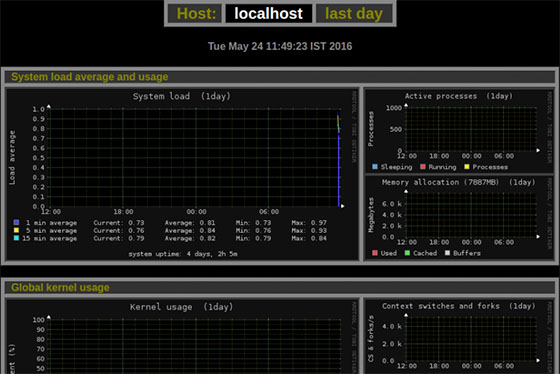
The interface presents various graph categories including System Load, Kernel Usage, Active Processes, Memory Allocation, Filesystem Usage, Network Traffic, Disk Performance, System Temperatures, and service-specific monitoring sections for enabled modules. Each category displays multiple time-range options: daily, weekly, monthly, and yearly views providing different granularity levels for trend analysis.
Click any graph to view enlarged versions with detailed metrics and value annotations. The zoom functionality enables focusing on specific time periods for detailed analysis of particular events or performance patterns. Graphs automatically refresh according to the configured refresh_rate parameter, ensuring current data visibility without manual page reloading.
Understanding graph interpretation enhances monitoring effectiveness. System load graphs display one, five, and fifteen-minute load averages, indicating overall system utilization. CPU usage graphs show per-core utilization percentages, revealing CPU-bound processes or idle capacity. Memory graphs illustrate used, cached, buffered, and free memory segments, helping identify memory pressure situations. Network traffic graphs separate inbound and outbound traffic by interface, exposing bandwidth consumption patterns and potential network issues.
Step 10: Optional – Configure External Web Server
While the built-in HTTP server provides convenient out-of-box functionality, production environments often benefit from external web server integration. Apache or Nginx offer advanced features including SSL/TLS encryption, sophisticated authentication mechanisms, reverse proxy capabilities, and integration with existing web infrastructure. Configuring external web servers requires disabling the built-in server to prevent port conflicts and CGI execution issues.
Disable the built-in HTTP server by editing /etc/monitorix/monitorix.conf:
sudo nano /etc/monitorix/monitorix.confLocate the <httpd_builtin> section and change:
enabled = yTo:
enabled = nFor Apache integration, ensure mod_cgi or mod_cgid is enabled and create a virtual host configuration or alias pointing to the Monitorix CGI directory. The CGI script location at /usr/lib/monitorix/monitorix.cgi requires execute permissions and proper ScriptAlias directives in Apache configuration.
Nginx requires FastCGI configuration with fcgiwrap or similar CGI wrapper since Nginx lacks native CGI support. Configure location blocks directing requests to the monitorix.cgi script through the FastCGI protocol. Both web servers benefit from additional security through HTTP authentication, IP-based access control, and SSL certificate implementation protecting sensitive monitoring data during transmission.
After configuring the external web server, restart both Monitorix and the web server to apply changes. Test access through the configured URL, typically http://server_ip/monitorix/ or https://server_ip/monitorix/ when using SSL.
Understanding Monitorix Configuration File
The monitorix.conf configuration file follows hierarchical structure using Config::General syntax with nested sections enclosed in angle brackets. Global options appear at the top level controlling general behavior, while module-specific settings reside in dedicated sections. Understanding configuration structure enables precise customization matching specific monitoring requirements.
The graph_enable parameter within each module section determines whether that monitoring component activates. Setting values to ‘y’ enables modules while ‘n’ disables them, conserving resources on systems where certain monitoring capabilities aren’t needed. The include_dir directive allows splitting configurations across multiple files, useful for managing complex multi-service monitoring setups.
Data retention configuration through max_historic_years controls how long historical data persists in RRD databases. Longer retention periods consume more disk space but enable extended trend analysis. The netstats_in_bps parameter switches network statistics between bits and bytes per second, matching organizational preferences. Temperature scale selection between Celsius and Fahrenheit through temperature_scale ensures appropriate unit display.
Module-specific configurations vary significantly based on monitored services. Database monitoring modules require connection credentials, Apache monitoring needs log file paths, and network monitoring demands interface specifications. Each module’s configuration section in the documentation details available parameters and their effects on monitoring behavior.
Setting Up Authentication
Securing the Monitorix web interface with authentication prevents unauthorized access to sensitive system performance data. Password protection using htpasswd files provides basic yet effective access control suitable for most deployment scenarios. Creating authentication credentials requires apache2-utils package installation providing htpasswd utility.
Install apache2-utils:
sudo zypper install apache2-utilsCreate an authentication user with encrypted password:
sudo htpasswd -d -c /var/lib/monitorix/htpasswd adminThe -d flag specifies crypt encryption required by Monitorix, while -c creates a new htpasswd file. Omit -c when adding additional users to avoid overwriting existing credentials. The command prompts for password entry twice for confirmation. Choose strong passwords combining uppercase, lowercase, numbers, and special characters.
Enable authentication in /etc/monitorix/monitorix.conf by locating the <auth> section and setting:
enabled = yRestart Monitorix to activate authentication:
sudo systemctl restart monitorixSubsequent web interface access prompts for username and password credentials before displaying monitoring graphs. Multiple users support organizational access control allowing different team members individual login credentials.
Troubleshooting Common Issues
No Graphs Visible After Installation: Monitorix requires at least one complete monitoring cycle before generating graphs. The default monitoring interval of 300 seconds means waiting 5-10 minutes after initial startup before graphs populate with data. Verify daemon operation through systemctl status and check system logs for errors indicating configuration problems or missing dependencies.
500 Internal Server Error: This error typically indicates conflicts between the built-in HTTP server and external web server attempting to execute the same CGI script. Ensure only one web server handles Monitorix requests by disabling the built-in server when using Apache or Nginx. Check web server error logs for specific CGI execution failures, permission issues, or module loading problems.
Cannot Access Web Interface: Firewall rules blocking port 8080 prevent remote browser access. Verify firewall configuration allows traffic through the configured port and that the Monitorix service is actively listening. Use ss -tlnp | grep 8080 to confirm port listening status. Incorrect base_url configuration causes 404 errors; ensure URL paths match configuration file settings.
Repository Addition Fails: Invalid repository URLs or network connectivity issues prevent repository configuration. Verify the URL matches the installed openSUSE version exactly and that internet connectivity allows reaching download.opensuse.org servers. DNS resolution problems or proxy configurations may interfere with repository access.
Permission Denied Errors: File ownership issues in /var/lib/monitorix/ or /var/log/monitorix/ prevent daemon operation. The Monitorix service runs under specific user context requiring read/write access to data directories. Correct permissions using chown commands, ensuring the Monitorix user owns relevant directories. SELinux or AppArmor policies on some systems may restrict daemon file access requiring policy adjustments.
General troubleshooting commands:
sudo journalctl -u monitorix -f
sudo tail -f /var/log/monitorix
These commands provide real-time log monitoring revealing error messages and warnings during daemon operation.
Monitoring Key System Resources
Monitorix excels at providing comprehensive visibility into critical system resources through intuitive graph presentations. System load average monitoring displays one, five, and fifteen-minute averages indicating overall system utilization trends. Values consistently exceeding CPU core count suggest resource contention requiring investigation.
CPU usage monitoring tracks utilization across all available processor cores individually and collectively. Graphs distinguish between user space, system space, I/O wait, and idle time, revealing whether workloads are CPU-bound or experiencing I/O bottlenecks. Consistently high I/O wait percentages indicate storage subsystem performance issues requiring disk optimization or hardware upgrades.
Memory allocation tracking separates used, cached, buffered, and free memory segments. Understanding cache and buffer memory usage helps distinguish between actual memory pressure and normal Linux memory management behavior. Swap usage monitoring alerts administrators to memory exhaustion situations requiring memory expansion or process optimization.
Disk I/O performance metrics measure read and write operations per second alongside throughput in bytes per second for each storage device. These metrics identify I/O-intensive processes and potential disk bottlenecks affecting application performance. Filesystem usage monitoring tracks space consumption preventing unexpected full disk situations.
Network bandwidth utilization graphs display traffic separated by interface and direction, exposing bandwidth consumption patterns and potential network congestion. Monitoring multiple interfaces simultaneously helps understand traffic distribution across network segments. Temperature sensor readings alert administrators to cooling system failures or environmental issues threatening hardware reliability.
Updating Monitorix
Maintaining current Monitorix versions ensures access to latest features, bug fixes, and security patches. The openSUSE server:monitoring repository regularly updates packages following upstream releases. Standard zypper update procedures handle Monitorix upgrades alongside other system packages.
Check for available updates:
sudo zypper refresh
sudo zypper list-updates
Update Monitorix specifically:
sudo zypper update monitorixMajor version upgrades may introduce configuration file changes or new dependencies. Review release notes before upgrading production systems and backup existing configurations. After updating, restart the Monitorix service:
sudo systemctl restart monitorixVerify functionality by accessing the web interface and confirming graph generation continues normally. Configuration file incompatibilities between versions occasionally require manual adjustments. Zypper’s rollback capabilities enable reverting problematic updates if issues emerge post-upgrade.
Best Practices and Security Considerations
Regular configuration backups protect against accidental changes and facilitate disaster recovery. Schedule automated backups of /etc/monitorix/ directory contents alongside standard system backup procedures. Store backups in secure, off-server locations ensuring availability during system failures.
Restrict web interface access using IP-based filtering through firewall rules or web server configuration. Limit access to administrative networks or specific trusted addresses preventing unauthorized monitoring data exposure. Implement strong authentication credentials using long, complex passwords meeting organizational security policies.
Enable HTTPS when using external web servers protecting monitoring data during transmission. Obtain SSL certificates through Let’s Encrypt or organizational certificate authorities. Configure web servers to redirect HTTP traffic to HTTPS ensuring encrypted connections.
Monitor log files regularly for suspicious activity including failed authentication attempts or unusual access patterns. Configure log rotation preventing disk exhaustion from excessive log accumulation. Integration with centralized logging systems enhances security monitoring and incident response capabilities.
Manage disk space consumption by configuring appropriate data retention periods balancing historical analysis needs against storage constraints. RRD database sizes grow predictably based on enabled modules and retention settings. Monitor /var/lib/monitorix/ directory usage establishing alerts before space exhaustion occurs.
Performance optimization involves disabling unnecessary monitoring modules reducing resource consumption and graph generation overhead. Tailor monitoring configurations to specific server roles; database servers benefit from database-specific monitoring while web servers prioritize HTTP statistics.
Congratulations! You have successfully installed Monitorix. Thanks for using this tutorial for installing the Monitorix monitoring tool on your openSUSE Linux system. For additional or useful information, we recommend you check the official Monitorix website.