
Document conversion shouldn’t require complex command-line operations or expensive proprietary software. Morphosis brings elegant, straightforward document conversion to Debian 13 through a modern graphical interface that handles everything from Markdown files to PDFs with just a few clicks.
This guide walks through every step of installing Morphosis on Debian 13 (Trixie), covering multiple installation methods, troubleshooting common issues, and ensuring you’re up and running quickly. Whether you’re converting academic papers, technical documentation, or everyday documents, you’ll have a powerful conversion tool at your fingertips after following these instructions.
What is Morphosis?
Morphosis stands out as a GTK4-based document conversion application that leverages the power of Pandoc behind an intuitive graphical interface. Rather than memorizing command-line syntax, users can drag files, select output formats, and convert documents through a clean, GNOME-integrated interface.
The application supports an impressive array of formats. Input options include CSV, DOCX, EPUB, JSON, LaTeX, Markdown, ODT, and RTF among more than 50 total formats. Export capabilities are equally robust, covering PDF, Markdown, reStructuredText, LaTeX, HTML, Microsoft Word, OpenOffice/LibreOffice formats, RTF, EPUB, and AsciiDoc.
Built with Python and modern Linux technologies including GTK4, Libadwaita, Pandoc, and WebKitGTK, Morphosis delivers professional-grade conversions without third-party cloud services. All processing happens locally on your machine, ensuring privacy and speed. The application’s lightweight footprint requires approximately 184 MB of disk space when fully installed.
As open-source software released under the GPL-3.0-or-later license, Morphosis represents the collaborative spirit of the Linux community. Users benefit from transparent development, community contributions, and the freedom to inspect and modify the software as needed.
Why Choose Morphosis for Document Conversion?
Command-line tools like Pandoc offer powerful conversion capabilities but demand technical knowledge and memorization of complex syntax. Morphosis eliminates this barrier. The graphical interface makes document conversion accessible to users of all skill levels while maintaining the robust conversion engine underneath.
Integration with the GNOME desktop environment ensures Morphosis feels native on Debian 13 systems. The GTK4 and Libadwaita foundations provide modern visual design, responsive performance, and adherence to current Linux desktop standards.
Privacy-conscious users appreciate that Morphosis performs all conversions locally. No documents leave your system. No internet connection is required after installation. Your sensitive files remain under your complete control.
System Requirements and Prerequisites
Debian 13 Specifications
Debian 13 (codenamed Trixie) recently released version 13.3, continuing the distribution’s reputation for stability and reliability. Morphosis runs smoothly on systems meeting basic Debian 13 requirements.
The application supports both x86_64 (amd64) and aarch64 architectures. Modern processors from the last decade handle Morphosis without performance concerns. RAM requirements remain modest—4GB of system memory provides comfortable operation for typical document conversions.
Disk space needs are straightforward. Reserve at least 200 MB for Morphosis and its dependencies. Additional space should be allocated for runtime environments if not already present on your system.
Essential Dependencies
Flatpak serves as the primary installation mechanism for Morphosis. This universal Linux package manager provides several advantages over traditional package systems. Applications run in isolated sandboxes, preventing conflicts with system libraries. Updates arrive directly from developers regardless of Debian’s release cycle. Dependencies are managed automatically within contained environments.
You’ll need an internet connection during initial setup to download packages from Flathub, the central repository for Flatpak applications. After installation, Morphosis operates entirely offline.
The GTK4 runtime environment, required for the application’s interface, installs automatically through Flatpak’s dependency resolution. Pandoc, the conversion engine powering Morphosis, is bundled within the application package, so no separate installation is necessary.
Understanding Flatpak on Debian 13
Flatpak revolutionizes application distribution on Linux systems by providing a distribution-agnostic packaging format. Unlike APT packages that integrate deeply with Debian’s system structure, Flatpak applications run in isolated containers with explicitly granted permissions.
This architecture offers security benefits. Applications cannot access arbitrary system resources or user files without permission. Each Flatpak runs in a sandbox with controlled access to hardware, network connections, and file system locations.
Morphosis is primarily distributed through Flathub, making Flatpak the recommended installation method. While some applications offer both traditional packages and Flatpak versions, Morphosis focuses on the Flatpak distribution model for consistency across Linux distributions.
The sandboxing approach also simplifies maintenance. Updates don’t risk breaking system components. Multiple versions can coexist without conflict. Dependencies remain isolated, preventing the “dependency hell” that sometimes affects traditional package management.
Preparing Your Debian 13 System
Updating System Packages
Starting with a fully updated system prevents potential conflicts and ensures you have the latest security patches. Open a terminal window using Ctrl+Alt+T or by searching for “Terminal” in your application menu.
Update the package database first:
sudo apt updateThis command refreshes the list of available packages and their versions. You’ll see lines scrolling by as APT contacts Debian’s repository servers. The process typically completes in 10-30 seconds depending on your connection speed.
Next, upgrade installed packages:
sudo apt upgrade -yThe -y flag automatically confirms installation, though you can omit it to review changes before proceeding. Debian will download and install updated packages. On a newly installed system, this might involve hundreds of packages. Expect 5-15 minutes for completion.
Installing Flatpak
Check whether Flatpak is already present on your system:
flatpak --versionIf Flatpak is installed, you’ll see version information (typically 1.16 or newer on Debian 13). A “command not found” error indicates you need to install it.
Install Flatpak through APT:
sudo apt install flatpak -yThe installation completes quickly, usually within a minute. Flatpak is a relatively small package, though it will pull in several dependencies for container management and sandboxing features.
Verify the installation succeeded:
flatpak --versionYou should see version information confirming Flatpak is ready to use.
Adding the Flathub Repository
Flatpak needs to know where to find applications. Flathub serves as the primary repository, hosting thousands of Linux applications including Morphosis.
Add the Flathub repository:
flatpak remote-add --if-not-exists flathub https://flathub.org/repo/flathub.flatpakrepoThe --if-not-exists flag prevents errors if Flathub is already configured. This command executes almost instantly, creating repository configuration files in your system.
Confirm Flathub was added successfully:
flatpak remotesYou should see “flathub” listed among available remotes. The output shows repository names, configuration URLs, and whether they’re enabled.
Method 1: Installing Morphosis via Command Line
Searching for Morphosis
Before installing, verify Morphosis is available in the Flathub repository:
flatpak search morphosisThe search returns matching applications. You’ll see an entry for Morphosis with its full application ID: garden.jamie.Morphosis. This ID follows reverse domain notation, identifying both the developer namespace (jamie.garden) and the application name.
Installation Command
Install Morphosis using the complete application identifier:
flatpak install flathub garden.jamie.MorphosisThis command has three components:
flatpak installinitiates the installation processflathubspecifies the repository sourcegarden.jamie.Morphosisidentifies the exact application
By default, this installs system-wide, making Morphosis available to all users. For single-user installations, add the --user flag:
flatpak install --user flathub garden.jamie.MorphosisUser installations place files in your home directory rather than system locations, useful when you lack administrative privileges.
Installation Process
Flatpak displays detailed information about what will be installed. You’ll see the application name, version, download size, and installed size. Runtime dependencies are listed separately—these are shared libraries that multiple Flatpak applications can use.
Press ‘y’ and Enter to confirm installation. The download begins immediately. Progress indicators show current download speed and time remaining.
Expect the process to take 2-5 minutes depending on internet speed. Morphosis itself downloads quickly, but runtime dependencies can be larger, especially on first Flatpak installation. Subsequent Flatpak applications install faster since runtimes are already present.
Installation happens automatically after downloading. No additional configuration is required.
Post-Installation Verification
Confirm Morphosis installed correctly by listing all Flatpak applications:
flatpak listScan the output for garden.jamie.Morphosis. The listing includes version numbers, installation size, and installation date.
For detailed information about Morphosis:
flatpak info garden.jamie.MorphosisThis command reveals comprehensive details: exact version, installation directory, required permissions, runtime dependencies, and more. Review this information to understand what Morphosis can access on your system.
Method 2: Installing Morphosis via GNOME Software
Installing GNOME Software Flatpak Plugin
GNOME Software provides graphical package management for Debian systems. To enable Flatpak integration, install the appropriate plugin:
sudo apt install gnome-software-plugin-flatpak -yThis lightweight package bridges GNOME Software and Flatpak repositories. Installation completes in seconds.
After installing the plugin, restart GNOME Software completely. Close any open GNOME Software windows. The easiest way to ensure a clean restart is logging out and back in, though this isn’t always necessary.
Using GNOME Software GUI
Launch GNOME Software from your application menu. It typically appears in the System Tools category or can be found by searching for “Software.”
The GNOME Software interface opens to the Explore page, showcasing featured applications and categories. Look for the search icon (usually a magnifying glass) in the top bar.
Click the search icon and type “Morphosis” in the search field. GNOME Software queries both Debian repositories and Flathub simultaneously, displaying results within seconds.
Click on the Morphosis entry from the search results. The application details page loads, showing screenshots, description, reviews, and technical information. Scroll through to familiarize yourself with the application’s features.
Installing Through GUI
The application details page displays an “Install” button prominently. Click it to begin installation.
GNOME Software shows a progress bar as Morphosis downloads. The interface indicates current activity—downloading, verifying, or installing. Unlike command-line installation, no confirmation prompts appear; clicking Install commits to the installation immediately.
When installation completes, the “Install” button changes to “Launch” or “Remove.” A notification appears confirming successful installation.
Morphosis now appears in your application menu. Access it through the Activities overview or application launcher immediately.
Method 3: Installing via KDE Plasma Discover
KDE Discover Setup
Debian users running KDE Plasma instead of GNOME use Discover for application management. Enable Flatpak support by installing the appropriate backend:
sudo apt install plasma-discover-backend-flatpak -yThis package integrates Flatpak repositories into KDE’s Discover application. After installation, restart Discover completely by closing all instances.
For full integration, log out and back in. This ensures KDE registers the new backend properly and Discover can query Flathub repositories.
Installing Through Discover
Open Discover from the application launcher. The interface resembles an app store, with featured applications, categories, and search functionality.
Use the search field at the top to find “Morphosis.” Discover searches across all configured sources including Debian repositories and Flathub.
When results appear, look for the Flathub version of Morphosis. Discover sometimes shows the same application from multiple sources—ensure you’re selecting the Flatpak/Flathub version for the most current release.
Click on Morphosis to view details. The information page shows descriptions, screenshots, version information, and user reviews.
Click the “Install” button. Discover handles authentication if required, downloading, and installation automatically. A progress indicator shows installation status.
After completion, launch Morphosis directly from Discover or find it in your application menu under the appropriate category.
Launching and Using Morphosis
First Launch
Morphosis appears in your application menu, typically categorized under Office or Utilities. The exact location depends on your desktop environment and menu configuration.
To launch from the command line:
flatpak run garden.jamie.MorphosisThis command explicitly runs the Flatpak version. It’s useful for troubleshooting since terminal output displays any error messages.
First launch may take slightly longer than subsequent starts as the application initializes its environment and loads necessary libraries. Within a few seconds, the Morphosis window appears.
Basic Usage Overview
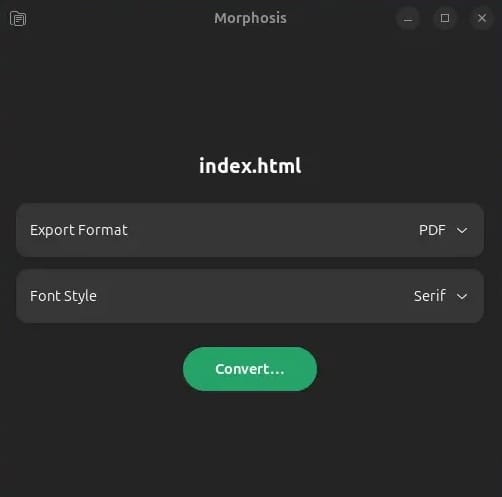
The interface follows GNOME’s Human Interface Guidelines with GTK4 and Libadwaita styling. Clean, minimal design focuses attention on the conversion workflow.
The main window divides into distinct sections. An import area accepts files through drag-and-drop or file selection dialogs. Supported input formats appear in tooltips or help documentation.
Format selection dropdowns allow choosing output types. Morphosis presents over 50 input format options and multiple export formats including PDF, DOCX, HTML, Markdown, and more.
After selecting input files and output format, click the convert or export button. Processing happens quickly for most documents. Large files or complex formats may take longer depending on content complexity.
Converted files save to a designated location, typically your Documents folder or the source file directory. Morphosis may prompt you to choose a save location depending on configuration.
Verifying Morphosis Installation
Command-Line Verification
Check detailed installation information:
flatpak info garden.jamie.MorphosisThe output provides comprehensive details: exact version number, installation date, installed size, runtime dependencies, and update availability.
Review application permissions:
flatpak info --show-permissions garden.jamie.MorphosisThis displays what system resources Morphosis can access. Understanding permissions helps assess security and troubleshoot file access issues.
Functional Testing
Verify Morphosis works correctly by performing a test conversion. Create a simple text file with a few paragraphs or use an existing document.
Open Morphosis and import the test file. Select a common output format like PDF or HTML. Execute the conversion.
Check the output file opens correctly and maintains proper formatting. Content should match the source with appropriate styling for the target format.
Test additional formats to ensure versatility. Try converting Markdown to DOCX, or HTML to PDF. Each successful conversion confirms Morphosis and its dependencies function properly.
If conversions fail, error messages provide clues about the issue. Common problems include unsupported format combinations or file permission restrictions within the Flatpak sandbox.
Updating Morphosis
Automatic Updates
Flatpak checks for updates periodically depending on system configuration. GNOME Software and KDE Discover both notify users when application updates are available.
These notifications typically appear in the notification area or within the software center application itself. Updates can be applied individually or as a batch.
Manual Update Process
To manually check for and install updates for all Flatpak applications:
flatpak updateThis command queries configured repositories for newer versions of installed applications and runtimes. If updates exist, Flatpak lists them with version information and size.
To update only Morphosis:
flatpak update garden.jamie.MorphosisThis targeted approach updates a single application, useful when you want immediate access to new features without updating everything.
View available updates without installing:
flatpak remote-ls --updatesThis command shows what updates are available across all repositories. Review this list to decide whether to proceed with updates.
Updates maintain user data and settings. Configuration files persist between versions, so preferences don’t need reconfiguration after updating.
Troubleshooting Common Issues
Installation Failures
Repository connection problems occasionally occur due to network issues or DNS problems. If installation fails with connection errors, verify internet connectivity first.
Try refreshing the Flathub repository metadata:
flatpak update --appstreamThis command updates repository indexes without downloading application updates. It often resolves “not found” errors or stale repository information.
Insufficient disk space causes installation to fail partway through. Check available space before installing:
df -hEnsure your root partition or home directory (for user installations) has at least 500 MB free to accommodate Morphosis and potential runtime downloads.
Permission denied errors typically indicate sudo is required for system-wide installations. User installations with the --user flag don’t require administrative privileges.
Launch Problems
If Morphosis doesn’t appear in application menus after installation, try logging out and back in. Desktop environments cache menu entries, and a fresh login forces regeneration.
Applications launched from terminal display error messages that graphical launchers hide. Run Morphosis through terminal to diagnose launch failures:
flatpak run garden.jamie.MorphosisError output indicates specific problems—missing dependencies, permission issues, or configuration errors.
Permission-related launch failures may require adjusting Flatpak sandbox permissions. The Flatseal application provides a graphical interface for managing Flatpak permissions.
GTK theme issues sometimes cause visual problems or crashes. These typically manifest as missing icons, broken layouts, or strange colors. Installing additional GTK themes or using system default themes usually resolves these issues.
Repair corrupted Flatpak installations:
flatpak repairThis command checks installed applications and runtimes for integrity issues, repairing or reinstalling damaged components.
Uninstalling Morphosis
Command-Line Removal
Remove Morphosis using Flatpak’s uninstall command:
flatpak uninstall garden.jamie.MorphosisFlatpak prompts for confirmation before removing the application. Press ‘y’ and Enter to proceed.
After uninstalling applications, clean up unused runtimes and dependencies:
flatpak uninstall --unusedThis command removes runtime libraries and frameworks no longer needed by any installed application. It frees disk space without affecting functionality.
Verify Morphosis was removed:
flatpak listMorphosis should no longer appear in the list of installed applications.
GUI Removal
GNOME Software and KDE Discover both support application removal through their interfaces.
Open your software center and navigate to the Installed section. Find Morphosis in the list of installed applications.
Click on Morphosis to open its detail page. The “Install” button is replaced with “Remove” or “Uninstall” for installed applications.
Click the removal button and confirm when prompted. The software center handles uninstallation automatically, displaying progress as it removes files.
Configuration files stored in your home directory persist after uninstallation. These are small text files storing preferences. Remove them manually if desired, though they don’t consume significant space.
Congratulations! You have successfully installed Morphosis. Thanks for using this tutorial for installing the Morphosis converting documents on Debian 13 “Trixie” system. For additional help or useful information, we recommend you check the official Morphosis website.
