How To Install Munin on Debian 13

Monitoring server performance and resource utilization is critical for maintaining healthy IT infrastructure. Munin stands out as a powerful, open-source monitoring solution that excels at tracking system resources, generating insightful graphs, and identifying performance trends over time. This comprehensive guide walks you through installing and configuring Munin on Debian 13 (Trixie), setting up the web interface, and establishing a robust monitoring environment for your servers. Whether you manage a single server or a complex network of systems, Munin’s master-node architecture provides the flexibility and scalability needed for effective infrastructure monitoring.
Understanding Munin Architecture
Munin operates on a master-node model that enables distributed monitoring across multiple servers. The master server collects metrics from various nodes, processes the data, generates historical graphs, and hosts the web interface where you can visualize system performance. Each monitored system runs a lightweight agent called munin-node, which gathers local metrics and responds to requests from the master server on port 4949.
This architecture offers significant advantages. The node agents consume minimal resources while providing comprehensive system insights. The centralized master server handles all the heavy lifting—data aggregation, graph generation, and web presentation—making it easy to monitor dozens or even hundreds of servers from a single dashboard. Communication between master and nodes occurs at regular intervals, typically every five minutes, ensuring you have up-to-date information without overwhelming your network or systems.
Prerequisites and Requirements
Before beginning the installation process, ensure your Debian 13 system meets the necessary requirements. You need root access or a user account with sudo privileges to execute installation commands. A basic understanding of Linux command-line operations will help you navigate configuration files and troubleshoot potential issues.
Your server should have at least 512 MB of RAM and sufficient disk space to store monitoring data. Munin stores historical information in RRD (Round Robin Database) files, which grow over time but remain relatively compact. Plan for several gigabytes of storage depending on how many metrics you intend to monitor.
Network connectivity is essential. If you plan to monitor multiple servers, ensure the master can reach node servers on port 4949. Firewall rules must permit HTTP or HTTPS traffic to access the web interface. Having these prerequisites in place streamlines the installation process and prevents common configuration problems.
Step 1: Update System Packages
Maintaining an updated system is fundamental to server security and stability. Before installing any new software, refresh your package lists and upgrade existing packages to their latest versions. Open your terminal and execute the following command:
apt update -yThis command synchronizes your local package index with Debian repositories, ensuring you have information about the newest available versions. Next, upgrade installed packages:
apt upgrade -yThe upgrade process may take several minutes depending on how many packages require updates. Your system might prompt you to confirm certain actions or review configuration file changes. Review these prompts carefully to ensure you maintain your desired system configuration.
Step 2: Install Apache Web Server
Munin requires a web server to display its monitoring interface and graphs. Apache serves as an excellent choice due to its reliability, extensive documentation, and seamless integration with Munin. Install Apache with this command:
apt install apache2 -yAfter installation completes, start the Apache service and configure it to launch automatically at system boot:
systemctl start apache2
systemctl enable apache2
Verify that Apache is running correctly by checking its status:
systemctl status apache2You should see output indicating the service is active and running. Test accessibility by navigating to your server’s IP address in a web browser. The default Apache welcome page confirms successful installation.
Step 3: Install Munin Master and Node
Now install Munin’s core components. The installation includes the master server, node agent, and additional plugins that extend monitoring capabilities:
apt install munin munin-node munin-plugins-extra -yThis single command installs three critical packages. The munin package contains the master server components responsible for data collection, graph generation, and web interface hosting. The munin-node package provides the monitoring agent that collects local system metrics. The munin-plugins-extra package adds specialized monitoring plugins for various services and applications beyond standard system metrics.
Installation creates several important directories. Configuration files reside in /etc/munin/, monitoring plugins are stored in /usr/share/munin/plugins/, and generated graphs are saved to /var/cache/munin/www/.
Step 4: Configure Munin Master Server
The master server configuration file controls how Munin collects data and generates graphs. Open the main configuration file for editing:
nano /etc/munin/munin.confThis file contains numerous settings, but you only need to modify a few key parameters initially. Locate the section that defines the localhost monitoring configuration. It should look similar to this:
[localhost]
    address 127.0.0.1
    use_node_name yes
Replace localhost with your actual server hostname. For example, if your server is named server1.example.com, your configuration becomes:
[server1.example.com]
    address 127.0.0.1
    use_node_name yes
The address directive specifies where the master should connect to gather metrics. The use_node_name yes setting tells Munin to use the hostname reported by the node itself rather than the bracketed name.
Other important settings include dbdir (database directory), htmldir (where HTML files are generated), and logdir (log file location). The default values work well for most installations, but you can adjust them if you need to store data in different locations.
Save your changes and exit the editor. These configuration changes take effect when services are restarted later in the installation process.
Step 5: Configure Munin Node
The node configuration determines which systems can query your server for metrics and establishes security parameters. Edit the node configuration file:
nano /etc/munin/munin-node.confSet the hostname to match your server identification. Locate the line beginning with host_name and update it accordingly:
host_name server1.example.comSecurity is paramount. The allow directive controls which IP addresses can connect to the node service. By default, only localhost is permitted. This configuration is appropriate for a single-server setup where the master and node run on the same system:
allow ^127\.0\.0\.1$If you plan to monitor this server from a remote master, add the master server’s IP address using regular expression syntax:
allow ^192\.168\.1\.10$You can specify multiple allow directives for different networks or individual hosts. The node listens on port 4949 by default—this setting rarely requires modification.
Munin discovers and activates plugins automatically, but you can manually enable or disable specific monitoring plugins in the /etc/munin/plugins/ directory. The plugin directory contains symbolic links to actual plugin scripts located in /usr/share/munin/plugins/.
Step 6: Set Up Apache Authentication
Protecting your monitoring interface with authentication prevents unauthorized access to sensitive system information. First, ensure Apache utilities are installed:
apt install apache2-utils -yCreate a password file for Munin authentication:
htpasswd -c /etc/munin/munin-htpasswd adminThe -c flag creates a new password file. You’ll be prompted to enter and confirm a password for the admin user. Choose a strong password combining uppercase and lowercase letters, numbers, and special characters.
To add additional users to the authentication file, omit the -c flag to avoid overwriting the existing file:
htpasswd /etc/munin/munin-htpasswd seconduserThe htpasswd file uses bcrypt encryption by default, providing robust password protection. Store this file securely and restrict access to root and the Apache process.
Step 7: Configure Apache for Munin
Munin includes a pre-configured Apache configuration file that requires minimal modification. Copy the default configuration to Apache’s sites-available directory:
cp /etc/munin/apache24.conf /etc/apache2/sites-available/munin.confOpen the configuration file for editing:
nano /etc/apache2/sites-available/munin.confThe configuration file defines how Apache serves Munin’s web interface. Key sections include directory permissions for /var/cache/munin/www/ where graphs are stored, and authentication requirements. Ensure the following directives are present:
<Directory /var/cache/munin/www>
    Require all granted
    Options FollowSymLinks SymLinksIfOwnerMatch
    AuthUserFile /etc/munin/munin-htpasswd
    AuthType Basic
    AuthName "Munin Monitoring"
    Require valid-user
</Directory>
This configuration enables authentication using the htpasswd file you created earlier. The Require valid-user directive ensures only authenticated users can access the monitoring interface.
For enhanced security in production environments, consider adding IP-based restrictions alongside password authentication. This dual-layer approach provides robust access control.
Step 8: Enable Munin Site and Required Modules
Apache requires specific modules to serve Munin’s dynamic content properly. Enable the CGI and rewrite modules:
a2enmod cgi
a2enmod rewrite
The CGI module allows Apache to execute plugin scripts and generate dynamic content. Some installations may benefit from the fcgid module for improved performance with PHP and CGI applications:
a2enmod fcgidNow enable the Munin site configuration you created:
a2ensite muninThis command creates a symbolic link from /etc/apache2/sites-available/munin.conf to /etc/apache2/sites-enabled/munin.conf, activating the configuration.
Before restarting Apache, verify your configuration syntax to catch any errors:
apache2ctl configtestThe output should display “Syntax OK” if everything is configured correctly. Address any error messages before proceeding to the next step.
Step 9: Restart Services
Apply all configuration changes by restarting both the Munin node and Apache services:
systemctl restart munin-node
systemctl restart apache2
Configure both services to start automatically when your server boots:
systemctl enable munin-node
systemctl enable apache2
Verify that services are running without errors:
systemctl status munin-node
systemctl status apache2
Both services should show “active (running)” status. If either service fails to start, review error messages in the system journal using journalctl -xe for troubleshooting guidance.
Munin’s cron job automatically begins collecting metrics after service restart. The cron process runs every five minutes, gathering data from configured nodes and updating graphs accordingly.
Step 10: Access Munin Web Interface
Navigate to your Munin installation through a web browser using the following URL format:
http://your-server-ip/muninReplace your-server-ip with your actual server’s IP address or domain name. Apache will present an authentication dialog requesting your username and password. Enter the credentials you created with htpasswd.
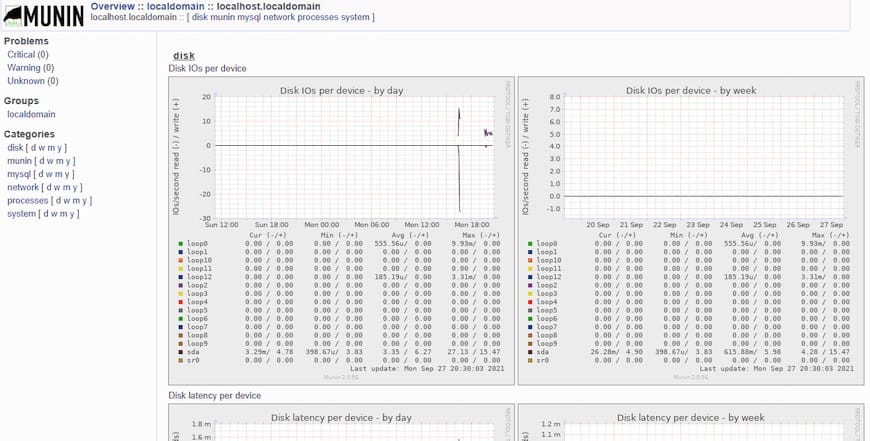
After successful authentication, the Munin dashboard displays your server’s monitoring overview. The initial visit might show minimal or incomplete data since Munin requires time to collect metrics and generate graphs. First graphs typically appear within 5 to 10 minutes after installation.
The interface organizes monitoring data hierarchically by domain, server, and service. Click through different sections to explore available metrics and graphs. Each graph displays data for multiple time ranges: daily, weekly, monthly, and yearly views provide different perspectives on system performance and trends.
Understanding Munin Graphs and Metrics
Munin automatically monitors numerous system aspects without additional configuration. Default plugins track CPU usage, load averages, memory consumption, swap utilization, disk I/O operations, disk space usage, network traffic, and running processes.
Each metric presents as a line graph with color-coded data series. The Y-axis shows the measured value (such as megabytes, percentages, or operations per second), while the X-axis represents time. Hover over graph lines to see precise values at specific timestamps.
Understanding these graphs helps identify performance issues before they become critical. Gradual increases in memory usage might indicate a memory leak. Sudden spikes in disk I/O could signal database problems or backup operations. Consistent high CPU usage suggests the need for application optimization or hardware upgrades.
Time-range views serve different purposes. Daily graphs help troubleshoot immediate issues and identify patterns within a 24-hour period. Weekly views reveal daily cycles and workday versus weekend differences. Monthly and yearly graphs expose long-term trends essential for capacity planning.
Adding Remote Nodes to Monitor
Munin’s true power emerges when monitoring multiple servers from a central dashboard. Install the munin-node package on each server you want to monitor:
apt install munin-node -yConfigure each remote node to accept connections from your master server. Edit /etc/munin/munin-node.conf on the remote system:
nano /etc/munin/munin-node.confUpdate the allow directive with your master server’s IP address:
allow ^192\.168\.1\.10$Set the hostname appropriately for each node to ensure proper identification in the web interface.
On the master server, edit /etc/munin/munin.conf to add entries for each remote node:
[node2.example.com]
    address 192.168.1.20
    use_node_name yes

[node3.example.com]
    address 192.168.1.30
    use_node_name yes
Restart services on both master and remote nodes to apply configuration changes. New nodes appear in the web interface after the next data collection cycle completes.
Configuring Firewall Rules
Network security requires properly configured firewall rules. On node servers, permit incoming connections from the master server on port 4949. If using UFW firewall:
ufw allow from 192.168.1.10 to any port 4949This command creates a rule allowing the master server (192.168.1.10) to connect to the munin-node service. For iptables-based firewalls, use:
iptables -A INPUT -p tcp -s 192.168.1.10 --dport 4949 -j ACCEPTOn the master server, ensure HTTP (port 80) or HTTPS (port 443) are accessible to users who need to view the monitoring interface:
ufw allow 'Apache'Test connectivity between master and nodes using telnet or netcat:
telnet 192.168.1.20 4949Successful connection displays the munin-node banner, confirming proper network configuration.
Plugin Management and Customization
Munin’s plugin system provides extensive monitoring capabilities. Hundreds of plugins are available for monitoring specific services, applications, and hardware components. Available plugins reside in /usr/share/munin/plugins/, while enabled plugins are symlinked from /etc/munin/plugins/.
Discover which plugins are suitable for your system:
munin-node-configure --suggestThis command analyzes your system and recommends plugins. Enable a suggested plugin by creating a symbolic link:
ln -s /usr/share/munin/plugins/mysql_queries /etc/munin/plugins/Some plugins require additional configuration. Plugin configuration files are stored in /etc/munin/plugin-conf.d/. Create a custom configuration file for specific plugins:
nano /etc/munin/plugin-conf.d/zzz-customThe filename beginning with “zzz” ensures it’s processed last, allowing your custom settings to override defaults. Plugin configurations specify environment variables, execution permissions, and user contexts.
After enabling or configuring plugins, restart the munin-node service to activate changes.
Troubleshooting Common Issues
Even with careful configuration, you might encounter issues. When graphs fail to generate, check file permissions in /var/cache/munin/www/. The munin user must have write access to this directory. Verify the Munin cron job is executing by examining /var/log/munin/munin-update.log.
Node connection failures typically stem from firewall restrictions or incorrect allow directives. Verify port 4949 is open and listening:
netstat -tlnp | grep 4949Test node connectivity from the master server:
telnet node-ip 4949If connection succeeds but data isn’t collected, review the munin-node configuration file for syntax errors.
Apache 403 Forbidden errors indicate permission problems or authentication issues. Verify Apache can read the htpasswd file and has appropriate permissions on Munin’s web directories. Check Apache error logs for detailed information:
tail -f /var/log/apache2/error.logMissing or incomplete data often results from plugin execution problems. Plugins might lack necessary permissions or depend on packages that aren’t installed. Test plugin execution manually:
munin-run plugin_nameThis command executes the plugin and displays its output, helping identify errors. RRD files containing NaN (Not a Number) values indicate data type mismatches or invalid characters in plugin output.
Performance Optimization Tips
Large-scale Munin deployments benefit from performance optimization. Adjust graph update intervals if five-minute granularity isn’t necessary. Disable plugins that monitor unused services to reduce processing overhead.
Database maintenance prevents performance degradation over time. Munin automatically manages RRD file size, but periodic cleanup of old HTML files and temporary data helps maintain optimal performance.
For high-traffic environments, consider switching from CGI to static HTML generation mode. While CGI provides dynamic content, static HTML reduces server load at the cost of less flexible interface features. Configure this in munin.conf by adjusting graph strategy settings.
Resource usage by Munin itself should be monitored. Create plugins that track Munin’s CPU and memory consumption to ensure the monitoring system doesn’t impact application performance.
Congratulations! You have successfully installed Munin. Thanks for using this tutorial for installing the Munin networked resource monitoring tool on Debian 13 “Trixie” system system. For additional help or useful information, we recommend you check the official Munin website.
