How To Install Munin on Fedora 43

Monitoring server performance and resource usage is crucial for maintaining optimal system health and preventing downtime. Munin stands out as a powerful, open-source network monitoring tool that provides comprehensive insights into your server infrastructure through intuitive graphs and real-time data collection. This network resource monitoring application uses a master-node architecture to track everything from CPU usage and memory consumption to disk I/O and network traffic across multiple servers.
Whether you’re managing a single server or an entire infrastructure, Munin simplifies the monitoring process through its plugin-based system and automatic graph generation capabilities. This comprehensive guide walks you through installing and configuring Munin on Fedora 43, covering everything from initial system preparation to advanced troubleshooting scenarios. By the end of this tutorial, you’ll have a fully functional monitoring system tracking your server’s vital statistics.
Understanding Munin and Its Components
What is Munin?
Munin operates as a networked resource monitoring tool that excels at presenting data trends over time. Unlike real-time monitoring solutions, Munin focuses on providing historical perspective through detailed graphs that help identify patterns and potential issues before they become critical problems. The system consists of two primary components working in tandem: the Munin master and Munin node.
The master server collects data from nodes, generates graphs using RRDtool, and presents everything through a clean web interface. Nodes run on the servers you want to monitor, collecting local metrics and responding to master server requests. This distributed architecture allows you to monitor dozens or even hundreds of servers from a centralized location.
Key Features
Munin’s plugin-based architecture makes it incredibly versatile. The system ships with over 500 plugins covering common monitoring scenarios, from basic system resources to specialized applications like databases, web servers, and network services. Each plugin collects specific metrics and can be enabled or disabled based on your needs.
The automated graph generation happens at regular intervals, typically every five minutes. Munin creates daily, weekly, monthly, and yearly graphs automatically, giving you both immediate visibility and long-term trend analysis. The web interface organizes everything logically, grouping related metrics and making navigation intuitive even when monitoring numerous systems.
Prerequisites and System Requirements
System Requirements
Before beginning the installation process, ensure your Fedora 43 system meets the basic requirements. You’ll need root or sudo access to install packages and modify system configurations. A minimum of 1GB RAM is recommended for the master server, though requirements increase with the number of monitored nodes and enabled plugins.
Disk space requirements vary based on retention policies and the number of metrics collected. Plan for at least 2GB of free space initially, with additional capacity for data growth. Your system needs an active internet connection for downloading packages and dependencies from Fedora repositories.
Required Software Dependencies
Munin relies on several software components to function properly. Perl 5.10 or newer serves as the foundation, as Munin is written primarily in Perl. The RRDtool (Round Robin Database tool) handles data storage and graph generation, creating the visual representations you’ll view through the web interface.
A web server is essential for serving the Munin interface. Apache (httpd) is the most common choice and integrates seamlessly with Munin’s default configuration. Essential Perl modules include Net::Server, Net::Server::Fork, and Time::HiRes, though the Fedora package handles these dependencies automatically.
Network Requirements
Munin nodes listen on port 4949 by default. Your firewall must allow connections on this port between the master and node servers. If your master and node run on the same machine (common for single-server deployments), localhost communication must be permitted.
For distributed monitoring, ensure network connectivity between the master server and all nodes. Proper DNS resolution or documented IP addresses simplify configuration and troubleshooting. Consider implementing firewall rules that restrict port 4949 access to only authorized master servers for enhanced security.
Preparing Your Fedora 43 System
System Updates
Start by ensuring your Fedora 43 system has the latest packages installed. Open a terminal and execute the following command with sudo privileges:
sudo dnf update -yThis command updates all installed packages to their newest versions. The -y flag automatically confirms the update, streamlining the process. After updates complete, reboot if kernel updates were installed to ensure you’re running the latest security patches and system components.
Installing Apache Web Server
The Apache web server serves Munin’s generated HTML pages and graphs. Install Apache using the DNF package manager:
sudo dnf install httpd -yOnce installation completes, start the Apache service and enable it to launch automatically at system boot:
sudo systemctl start httpd
sudo systemctl enable httpd
Verify Apache is running correctly by checking its status:
sudo systemctl status httpdYou should see “active (running)” in the output. Test basic functionality by accessing your server’s IP address in a web browser—you should see the default Apache test page.
Firewall Configuration
Fedora 43 uses firewalld for managing firewall rules. Open the necessary ports for HTTP, HTTPS, and Munin node communication:
sudo firewall-cmd --permanent --add-service=http
sudo firewall-cmd --permanent --add-service=https
sudo firewall-cmd --permanent --add-port=4949/tcp
sudo firewall-cmd --reload
The --permanent flag ensures rules persist across reboots. The reload command applies changes immediately without disrupting existing connections.
Installing Munin Master and Node
Installation Process
Fedora’s repositories include Munin packages, making installation straightforward. Install both the Munin master and node components:
sudo dnf install munin munin-node -yThe munin package contains the master server components that collect data and generate graphs. The munin-node package installs the agent that collects local system metrics. Even when monitoring only a single server, you need both packages installed.
Verify the installation succeeded by checking the installed version:
munin-node --versionPost-Installation Directory Structure
Understanding Munin’s directory layout helps with configuration and troubleshooting. The main configuration files reside in /etc/munin/, containing both master and node configurations. Database files storing collected metrics live in /var/lib/munin/.
Generated HTML files and graphs appear in /var/www/html/munin/, accessible through your web browser. Log files providing valuable debugging information are stored in /var/log/munin/. Runtime files, including process ID files, occupy /var/run/munin/.
Understanding Package Components
The Munin master includes the data collection engine, graph generation scripts, and HTML output generators. It operates through cron jobs rather than running as a continuous service. The munin-cron job executes every five minutes by default, polling configured nodes and updating graphs.
Munin node runs as a persistent service, listening for incoming connections from the master server. It executes enabled plugins when requested, returning collected data to the master. The plugin architecture allows nodes to monitor virtually any metric, from system resources to application-specific statistics.
Configuring Munin Master
Editing munin.conf
The master configuration file controls how Munin collects data and generates output. Open the main configuration file:
sudo nano /etc/munin/munin.confLocate and uncomment the following essential directives:
dbdir /var/lib/munin
htmldir /var/www/html/munin
logdir /var/log/munin
rundir /var/run/munin
These paths tell Munin where to store databases, generate HTML output, write logs, and create runtime files. The default values typically work well, but understanding these locations proves valuable during troubleshooting.
Adding Monitored Hosts
To monitor your local server, add a host definition to munin.conf. Scroll to the bottom of the file and add:
[localhost.localdomain]
    address 127.0.0.1
    use_node_name yes
The bracketed name identifies the monitored host in Munin’s interface. The address directive specifies how to reach the node. The use_node_name yes option tells Munin to use the hostname reported by the node rather than the name in brackets.
For monitoring remote servers, add additional host definitions:
[remoteserver.example.com]
    address 192.168.1.100
    use_node_name yes
Replace the hostname and IP address with your actual server information.
Graph and Data Collection Settings
Customize how Munin presents data by adjusting graph parameters. The default five-minute update interval balances resource usage with data granularity. For less critical systems, increase this interval to reduce overhead.
Configure data retention by modifying RRD parameters, though defaults usually suffice for most deployments. Munin automatically maintains daily, weekly, monthly, and yearly graphs, pruning old data according to RRDtool’s round-robin methodology.
Configuring Munin Node
Editing munin-node.conf
The node configuration determines which servers can connect and query metrics. Edit the node configuration file:
sudo nano /etc/munin/munin-node.confThe default configuration includes sensible values. The node listens on all interfaces (0.0.0.0) by default. For increased security, restrict listening to specific interfaces if needed.
Access Control Configuration
Security is paramount when exposing monitoring endpoints. Configure which IP addresses can query the node. Look for the access control section and add or modify allow directives:
allow ^127\.0\.0\.0\.1$
allow ^::1$
These lines permit connections from localhost using both IPv4 and IPv6. Add your Munin master server’s IP address using proper regex syntax:
allow ^192\.168\.1\.50$Replace 192.168.1.50 with your master server’s actual IP address. The caret (^) and dollar sign ($) anchor the pattern to match the complete address, preventing partial matches that could create security vulnerabilities.
Plugin Configuration
Plugins may require specific configurations stored in /etc/munin/plugin-conf.d/. This directory contains files defining environment variables, user permissions, and plugin-specific settings. Most plugins work with default configurations, but specialized monitoring sometimes requires customization.
For example, database monitoring plugins need credentials to query database servers. Network monitoring plugins may need elevated permissions to access certain statistics. Review plugin documentation when enabling specialized monitoring to ensure proper configuration.
Configuring Apache for Munin
Apache Configuration File
Munin’s installation creates an Apache configuration file defining how to serve the web interface. Examine and customize this file if needed:
sudo nano /etc/httpd/conf.d/munin.confThe configuration establishes an alias mapping /munin to the actual directory containing generated files. This allows accessing Munin at http://yourserver/munin regardless of where files physically reside.
Setting Up Authentication
Protect your monitoring data by implementing authentication. Create a password file for authorized users:
sudo htpasswd -c /etc/munin/munin-htpasswd adminEnter a strong password when prompted. The -c flag creates a new file; omit it when adding additional users to avoid overwriting existing entries.
Configure Apache to require authentication by ensuring your munin.conf contains:
<Directory /var/www/html/munin>
    AuthType Basic
    AuthName "Munin Monitoring"
    AuthUserFile /etc/munin/munin-htpasswd
    Require valid-user
</Directory>
This configuration forces visitors to provide valid credentials before viewing monitoring data.
Security Headers and Caching
Optimize performance by enabling caching for static resources. The munin.conf file typically includes mod_expires directives that set appropriate cache headers, reducing server load and improving page load times for users.
Ensure proper directory permissions allow Apache to read generated files while preventing unauthorized modifications. The default configuration balances security and functionality effectively for most deployments.
Handling SELinux Configuration
Understanding SELinux Challenges
Security-Enhanced Linux (SELinux) on Fedora 43 provides mandatory access controls that can interfere with Munin’s operation. SELinux may prevent Apache from reading Munin-generated files or block Munin from writing to necessary directories.
Check your current SELinux status:
getenforceIf it returns “Enforcing,” you’ll need to configure appropriate SELinux policies for Munin to function correctly.
SELinux Configuration Options
The recommended approach involves setting correct SELinux contexts for Munin directories. Allow Apache to access Munin’s HTML directory:
sudo semanage fcontext -a -t httpd_sys_content_t "/var/www/html/munin(/.*)?"
sudo restorecon -Rv /var/www/html/munin
Grant Munin permission to write to its directories:
sudo semanage fcontext -a -t munin_var_lib_t "/var/lib/munin(/.*)?"
sudo restorecon -Rv /var/lib/munin
SELinux Troubleshooting
If issues persist, examine SELinux audit logs for denied actions:
sudo ausearch -m avc -ts recentUse audit2allow to generate custom policy modules addressing specific denials. For development environments, temporarily set SELinux to permissive mode to isolate SELinux-related issues:
sudo setenforce 0Never leave production systems in permissive mode permanently, as this significantly reduces security.
Starting and Enabling Munin Services
Starting Services
Launch the munin-node service to begin accepting connections from the master:
sudo systemctl start munin-nodeRestart Apache to apply Munin configuration changes:
sudo systemctl restart httpdEnabling Services at Boot
Ensure services start automatically after system reboots:
sudo systemctl enable munin-node
sudo systemctl enable httpd
Verify both services are running correctly:
sudo systemctl status munin-node
sudo systemctl status httpd
Both should display “active (running)” status.
Understanding Service Behavior
The munin-node service runs continuously, listening for incoming requests on port 4949. It responds to queries from the master server by executing plugins and returning collected data.
The Munin master operates differently—it doesn’t run as a persistent service. Instead, a cron job in /etc/cron.d/munin executes the data collection and graph generation scripts every five minutes. This design reduces resource consumption on the master server while maintaining regular monitoring updates.
Testing and Verification
Testing Munin Node Connection
Verify the node responds to queries correctly using telnet:
telnet localhost 4949You should see a connection banner identifying the munin-node and its version. Type list and press Enter to see available plugins. Type fetch <pluginname> to retrieve actual data from a specific plugin. Exit telnet by pressing Ctrl+] and typing quit.
This test confirms the node is accessible and functioning properly, which is essential before the master can collect data.
Verifying Master Configuration
Check Munin master logs for errors or warnings:
sudo tail -f /var/log/munin/munin-update.logWatch for connection errors, authentication failures, or plugin execution problems. The logs provide detailed information about each collection cycle, making them invaluable for troubleshooting.
Verify HTML generation occurs correctly:
ls -la /var/www/html/munin/You should see HTML files and subdirectories for each monitored host.
Accessing Munin Web Interface
Open a web browser and navigate to:
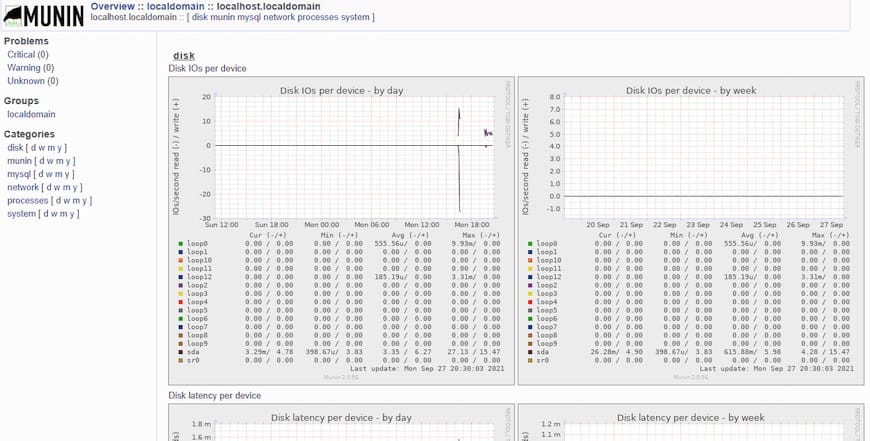
http://your-server-ip/muninEnter the username and password you created earlier. The interface displays a navigation tree showing monitored servers and available metrics. Initial graphs may appear empty or incomplete—Munin needs several collection cycles to generate meaningful historical data.
Graphs update automatically as data accumulates. Check back after 15-30 minutes to see populated graphs showing system metrics trends.
Managing Munin Plugins
Available Plugins
Munin includes hundreds of plugins covering diverse monitoring scenarios. Available plugins reside in /usr/share/munin/plugins/, while enabled plugins appear as symlinks in /etc/munin/plugins/.
List currently enabled plugins:
ls -la /etc/munin/plugins/Enabling Additional Plugins
Munin provides an automatic plugin discovery tool that suggests appropriate plugins for your system:
sudo munin-node-configure --suggestThis command analyzes your system and recommends plugins. To automatically enable suggested plugins:
sudo munin-node-configure --shell | sudo shAfter enabling new plugins, restart munin-node:
sudo systemctl restart munin-nodeCustom Plugin Development
Creating custom plugins extends Munin’s monitoring capabilities. Plugins are executable scripts that output data in a specific format. Test plugins manually by running them directly:
/usr/share/munin/plugins/pluginnamePlugins must support two modes: config mode describes the plugin, while normal execution outputs current values. Consult Munin’s plugin development documentation for detailed specifications.
Common Troubleshooting Issues
Graphs Not Generating
When graphs fail to appear, check file permissions on /var/www/html/munin/. The munin user needs write access. Verify ownership:
sudo chown -R munin:munin /var/www/html/munin
sudo chown -R munin:munin /var/lib/munin
Confirm the munin-cron job executes successfully by checking logs. RRDtool must be installed and functioning for graph generation.
Connection Refused Errors
If the master cannot connect to nodes, verify the munin-node service is running. Check firewall rules allow port 4949 traffic. Confirm the master’s IP address appears in the node’s allow directives with correct regex syntax.
Test connectivity from the master to the node:
telnet node-ip-address 4949Connection failures indicate network or firewall issues rather than Munin configuration problems.
Authentication Problems
When web interface authentication fails, verify the htpasswd file exists and contains valid entries. Check file permissions allow Apache to read it. Ensure the AuthUserFile path in Apache configuration matches the actual password file location.
Recreate the password file if corruption is suspected. Test with a simple password first to rule out special character handling issues.
Performance Issues
Excessive plugin counts can overload systems, especially during collection cycles. Disable unnecessary plugins to reduce overhead. Large databases slow graph generation—consider adjusting retention policies for less critical metrics.
Monitor munin-update execution time in logs. If collection takes longer than the update interval, graphs may not update properly or the system may experience performance degradation.
Congratulations! You have successfully installed Munin. Thanks for using this tutorial for installing the Munin networked resource monitoring tool on Fedora 43 Linux system system. For additional help or useful information, we recommend you check the official Munin website.
