
Keeping your infrastructure visible is not optional — it is essential. Whether you manage a single server or a network of dozens, knowing what is running, what is failing, and what needs attention before users notice the problem separates reactive administrators from proactive ones. Nagios Core has been the go-to open-source monitoring solution for Linux environments for over two decades, and pairing it with AlmaLinux 10 gives you a rock-solid, enterprise-grade foundation built for the long haul.
This guide walks you through the complete process of installing Nagios on AlmaLinux 10 from source — including dependency setup, plugin installation, Apache web interface configuration, firewall rules, and first login. By the end, you will have a fully functional Nagios monitoring server ready to watch over your entire infrastructure.
What Is Nagios Core?
Nagios Core is a free, open-source IT infrastructure monitoring platform designed to run on Linux. It continuously checks the health of hosts, services, network devices, and applications — then alerts your team the moment something goes wrong.
The platform works through a plugin architecture. Each plugin is a small executable that performs a specific check — ping a host, test an HTTP endpoint, verify disk usage, confirm a process is running. The core engine schedules those checks, evaluates the results, and triggers notifications accordingly.
Nagios Core 4.5.x, the latest stable series, brings meaningful improvements including enhanced worker process stability, resolved notification edge cases, and the refreshed Exfoliation UI theme for the web dashboard. It remains the most widely deployed open-source monitoring solution in the world, trusted across government, enterprise, and cloud-native environments.
Why AlmaLinux 10 Is the Right Platform
AlmaLinux 10 — codenamed “Purple Lion” — was released on May 27, 2025, as a binary-compatible alternative to Red Hat Enterprise Linux 10. It ships with kernel 6.12.0, supports x86_64, aarch64, ppc64le, and s390x architectures, and carries enterprise-grade support through 2035.
For a Nagios deployment, this matters for several reasons. AlmaLinux 10 includes improved SELinux policies, post-quantum cryptography support, and hardened OpenSSH defaults — all of which contribute to a more secure monitoring server. It uses DNF as its package manager and is fully compatible with RHEL 10 repositories, meaning long-term access to updated packages and security patches.
If you need a stable, production-ready OS that will not force a distro migration for the next decade, AlmaLinux 10 is an excellent choice for hosting critical monitoring infrastructure.
Prerequisites
Before diving in, make sure your environment meets the following requirements:
- A fresh AlmaLinux 10 server with root or sudo access
- Minimum specs: 1 CPU core, 1 GB RAM, 10 GB free disk
- Active internet connection for downloading packages
- Basic familiarity with the Linux command line
- Ports 80 and 443 reachable from your management network
Having a clean server prevents dependency conflicts and keeps troubleshooting straightforward. If your server is freshly provisioned, you are ready to proceed.
Step 1: Update Your AlmaLinux 10 System
Start by bringing all existing packages up to date. This eliminates outdated libraries that could cause conflicts during the Nagios build process.
sudo dnf update -yIf a kernel update was applied, reboot the server before continuing:
sudo rebootAfter the reboot, log back in and confirm the system is running the latest kernel:
uname -rA clean, updated system is the foundation of a stable Nagios installation. Skipping this step is one of the most common causes of mysterious build errors.
Step 2: Set SELinux to Permissive Mode
SELinux in enforcing mode blocks the CGI scripts and web interface that Nagios depends on. If you skip this step, the Nagios dashboard will either return a 403 Forbidden error or refuse to load entirely.
Set SELinux to permissive mode permanently in the config file:
sudo sed -i 's/SELINUX=.*/SELINUX=permissive/g' /etc/selinux/configApply it immediately without rebooting:
sudo setenforce 0Verify the change took effect:
getenforceThe output should read Permissive. For administrators who require SELinux to remain in enforcing mode in hardened environments, the correct approach is to write custom SELinux policy modules for Nagios CGIs after installation.
Step 3: Install Required Dependencies
Nagios is installed from source on AlmaLinux 10 because the standard DNF repositories do not include the latest Nagios Core packages. Compiling from source requires a set of build tools and supporting libraries.
Here is what each dependency group does:
- httpd (Apache): Serves the Nagios web interface
- php & php-cli: Powers the CGI scripts and web backend
- gcc & Development Tools: Compiles the Nagios source code
- gd & gd-devel: Handles graph and status map rendering
- openssl-devel: Enables encrypted communication between components
- net-snmp & net-snmp-utils: Supports monitoring of network devices via SNMP
Install them all in a single command:
sudo dnf install -y php perl httpd wget unzip glibc automake glibc-common \
gettext autoconf php php-cli gcc gd gd-devel net-snmp openssl-devel \
net-snmp postfix net-snmp-utils
Then install the full Development Tools group:
sudo dnf -y groupinstall "Development Tools"Start and enable Apache and PHP-FPM so they are active before the Nagios web config is applied:
sudo systemctl enable --now httpd php-fpmConfirm both services are running:
sudo systemctl status httpd php-fpmBoth should show active (running) before you proceed. Do not move on until they do.
Step 4: Download and Extract Nagios Core Source Code
Instead of hardcoding a version number, use the GitHub API to dynamically fetch the latest Nagios Core release. This ensures you always install the most current stable version:
cd ~
curl -s https://api.github.com/repos/NagiosEnterprises/nagioscore/releases/latest \
| grep browser_download_url | cut -d '"' -f 4 | wget -i -
Extract the downloaded archive:
tar -xvf nagios-*.tar.gzEnter the extracted directory:
cd nagios-*/Run the configure script to detect your build environment and prepare the Makefile:
./configureWhen successful, the script prints a summary of detected paths, user accounts, and feature support. Review this output before proceeding. Then compile the main program, CGIs, and HTML files:
sudo make allA successful make all outputs the list of next installation steps — a clear green light to continue.
Step 5: Create the Nagios System User and Group
Nagios requires a dedicated system user and group. Running monitoring daemons as root is a serious security risk and is never recommended in production environments.
Create the nagios user and group automatically using the Makefile target:
sudo make install-groups-usersThen add the Apache user to the nagios group. This allows the web server to interact with Nagios processes and read the required files:
sudo usermod -a -G nagios apacheVerify the group membership was applied:
id apacheThe output should include nagios in the groups list. This single step prevents a significant number of web interface permission errors.
Step 6: Install Nagios Core Components
With the source compiled and users configured, install each component of Nagios Core using the appropriate Makefile targets. Each target installs a specific piece — do not skip any of them.
Install the core binaries, CGI executables, and HTML files:
sudo make installRegister Nagios as a systemd service:
sudo make install-daemoninitConfigure the external command directory (required for web UI control actions like scheduling downtime and forcing checks):
sudo make install-commandmodeInstall sample configuration files to /usr/local/nagios/etc/:
sudo make install-configInstall the Apache virtual host configuration for the Nagios web interface:
sudo make install-webconfFinally, install the Exfoliation UI theme for a clean, modern dashboard appearance:
sudo make install-exfoliationYour key configuration files now live under /usr/local/nagios/etc/. The most important ones are nagios.cfg (global settings), cgi.cfg (web interface behavior), and the objects/ directory where host and service definitions are stored.
Step 7: Create the Nagios Web Admin Account
The Nagios web interface is protected by HTTP Basic Authentication via Apache. You need to create at least one admin user before the dashboard becomes accessible.
Create the nagiosadmin user and set a strong password:
sudo htpasswd -c /usr/local/nagios/etc/htpasswd.users nagiosadminYou will be prompted to enter and confirm a password. Choose something strong — this credential controls access to your entire monitoring dashboard. Set the correct file ownership:
sudo chown apache:apache /usr/local/nagios/etc/htpasswd.users
sudo chmod 640 /usr/local/nagios/etc/htpasswd.users
Restart Apache to pick up the new authentication configuration:
sudo systemctl restart httpdIf the htpasswd command is not found on your system, install the required package:
sudo dnf install httpd-tools -yTo use a custom admin username instead of nagiosadmin, update the authorized_for_* directives in /usr/local/nagios/etc/cgi.cfg to match your chosen username.
Step 8: Download and Install Nagios Plugins
Plugins are the engine behind every check Nagios performs. Without them, the monitoring daemon starts but cannot evaluate a single service or host.
Fetch the latest Nagios Plugins release from GitHub:
cd ~
curl -s https://api.github.com/repos/nagios-plugins/nagios-plugins/releases/latest \
| grep browser_download_url | cut -d '"' -f 4 | wget -i -
tar -xvf nagios-plugins-*.tar.gz
cd nagios-plugins-*/
Configure the plugins with the correct Nagios user and group context:
./configure --with-nagios-user=nagios --with-nagios-group=nagiosCompile and install:
make
sudo make install
Plugins install to /usr/local/nagios/libexec/. Confirm the installation:
ls /usr/local/nagios/libexec/You should see dozens of executables including check_ping, check_http, check_ssh, check_disk, check_load, check_users, and check_procs. These cover the majority of common monitoring use cases out of the box.
Step 9: Verify the Nagios Configuration
Never start Nagios with an unverified configuration. A syntax error or missing reference in any config file will prevent the service from starting — and in production, it can take down monitoring silently.
Run the built-in configuration verification tool:
sudo /usr/local/nagios/bin/nagios --verify-config /usr/local/nagios/etc/nagios.cfgA clean configuration returns:
Total Warnings: 0
Total Errors:   0
If you see errors, the output will point to the specific file and line number causing the issue. Common problems at this stage include missing plugin paths (usually caused by skipping Step 8) and typos in object definition files under objects/. Fix any issues before moving forward.
Step 10: Configure the Firewall
AlmaLinux 10 uses FirewallD as its default firewall management tool. Open ports 80 and 443 so the Nagios web dashboard is reachable from your network:
sudo firewall-cmd --permanent --add-service={http,https}
sudo firewall-cmd --reload
Verify the rules were applied:
sudo firewall-cmd --list-allConfirm that http and https appear in the services: line of the output. If you are running Nagios in a cloud environment, also check your provider’s security group or network ACL to ensure port 80 is open inbound.
Step 11: Start and Enable Nagios
With everything in place, start Nagios and set it to launch automatically at boot:
sudo systemctl enable --now nagiosCheck that the service is running without errors:
sudo systemctl status nagiosLook for Active: active (running) in the output. You should also see worker processes listed — these are the parallel check execution threads Nagios spawns to handle monitoring jobs concurrently.
If the service fails to start, the first place to look is the Nagios log:
sudo tail -f /usr/local/nagios/var/nagios.logThis file captures startup errors, configuration warnings, and runtime events in real time.
Step 12: Access the Nagios Web Dashboard
Open a browser and navigate to your server’s IP address or hostname followed by /nagios:
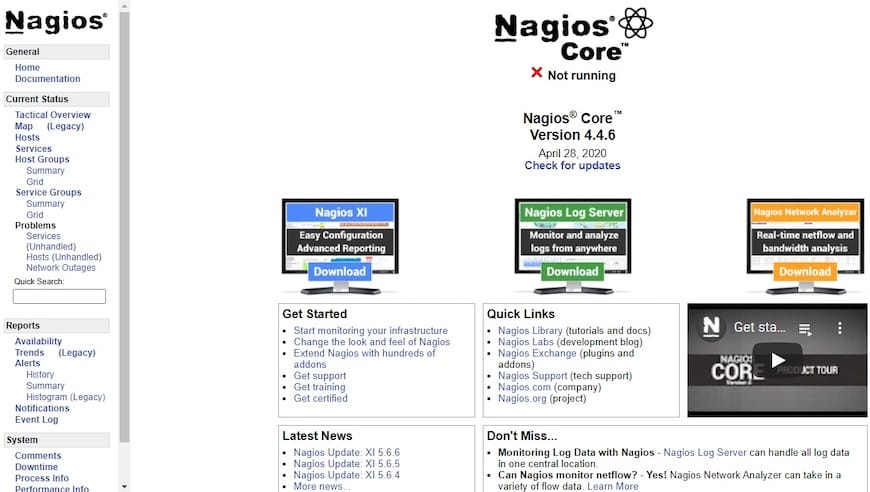
http://your-server-ip/nagiosEnter the nagiosadmin credentials you created in Step 7. The Nagios dashboard loads with the Exfoliation theme — a clean, modern layout that organizes your monitoring data into several key views:
- Tactical Overview — A real-time summary of all host and service states, including counts of problems, acknowledgements, and scheduled downtime
- Hosts / Services — Detailed per-object views showing current state, last check time, output, and duration
- Reports / Availability — Historical uptime statistics and event breakdowns over configurable time periods
- Map — A network topology view showing host relationships visually
Bookmark this URL. It becomes your central command center for all infrastructure health data.
Troubleshooting Common Installation Issues
Even with careful execution, a few common issues can surface. Here is how to address the most frequent ones:
- 403 Forbidden on the Nagios web URL
This usually means SELinux is still in enforcing mode or Apache has not reloaded the Nagios virtual host config. Rungetenforceto check SELinux status andsudo systemctl restart httpdto reload Apache. make: *** No targetserror during build
This indicates the Development Tools group was not fully installed. Re-runsudo dnf -y groupinstall "Development Tools"and retry./configure.htpasswd: command not found
Install the missing package:sudo dnf install httpd-tools -y.- Nagios service fails to start after
systemctl start
First, run the config verification command from Step 9. Then inspect/usr/local/nagios/var/nagios.logfor specifics. The most common culprit is a plugin path that does not exist because the plugins were not installed correctly. - Plugins not found at runtime
Confirm the plugins are installed in/usr/local/nagios/libexec/and that the directory is owned bynagios:nagioswith executable permissions.
Congratulations! You have successfully installed Nagios. Thanks for using this tutorial for installing the Nagios open-source monitoring on AlmaLinux OS 10 system. For additional help or useful information, we recommend you check the Nagios website.


